Is WordPress Easy to Use
A beginner-friendly guide to how WordPress really feels, what makes it simple, where it can get confusing, and how to learn it faster.

WordPress is easy to use for basic website tasks, but it can feel overwhelming when you first see the dashboard, themes, plugins, settings, and hosting options. The good news is that most beginners only need to learn a small set of tools to publish pages, write posts, upload images, and manage a simple website.
In this guide, you will learn what makes WordPress beginner-friendly, where new users usually struggle, and how to make the learning curve much easier. If you are completely new to the platform, start with this helpful overview of what WordPress is before comparing the practical learning steps below.
By the end, you will know whether WordPress is a good fit for you, what skills you should learn first, and how to avoid common beginner mistakes that make WordPress seem harder than it really is.
Step 1: Understand What Makes WordPress Easy
WordPress is easy for beginners because it gives you a visual dashboard instead of requiring you to code every page manually. You can create content, choose a design, add features, and manage your site from one central admin area.
For most users, the easiest parts of WordPress are creating posts, editing pages, uploading images, changing menus, and installing basic plugins. These tasks happen inside the WordPress dashboard, which means you can manage a website without opening a code editor.
- Log in to your WordPress admin area.
- Go to Posts or Pages from the left sidebar.
- Click Add New.
- Add your title, text, images, and formatting.
- Click Preview to check your work.
- Click Publish when the page or post is ready.
Checkpoint: If you can create a page, add text, insert an image, and publish it, you already understand one of the most important WordPress workflows.
Step 2: Know Where WordPress Feels Difficult
WordPress can feel difficult when beginners try to customize design, choose plugins, configure SEO, improve speed, or troubleshoot errors before they understand the basics. The platform is flexible, but that flexibility also creates more decisions.
The most common beginner challenge is not writing content. It is knowing which tool controls which part of the website. For example, your theme controls much of the design, plugins add features, pages hold static content, posts handle blog articles, and settings affect how the site behaves.
- Themes control your site layout, typography, colors, and templates.
- Plugins add features such as forms, SEO tools, backups, security, and performance improvements.
- Pages are used for static content such as Home, About, Services, and Contact.
- Posts are used for blog content, news, tutorials, and updates.
- Settings control important site behavior, including permalinks, reading options, comments, and media sizes.
Checkpoint: WordPress will feel easier when you can explain the difference between a theme, a plugin, a page, and a post.
Troubleshooting: If you change something and cannot see the result, clear your browser cache, check whether you edited the correct page or template, and confirm that your theme supports the option you are trying to use.
Step 3: Learn the WordPress Dashboard First
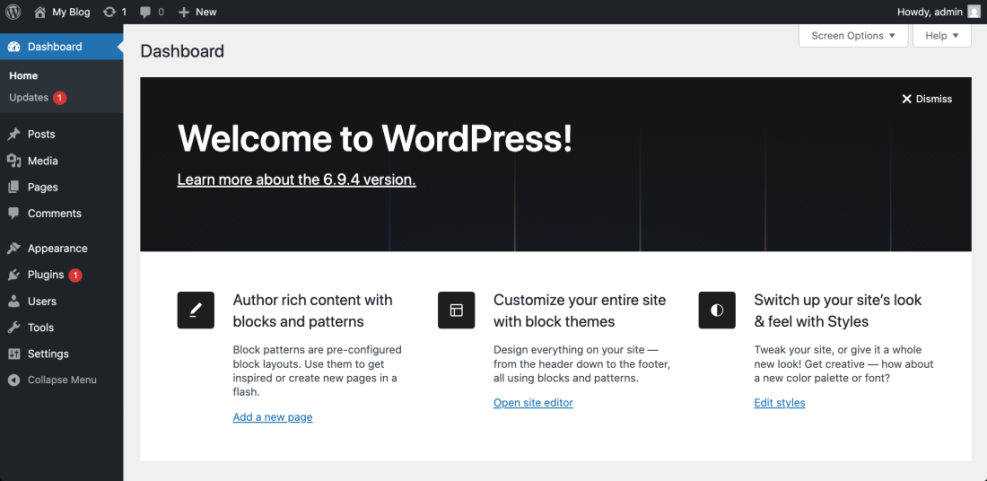
The dashboard is the control center of your WordPress site. Before you spend time on advanced design or plugins, learn the basic menu items so you know where to go when you need to create, edit, update, or troubleshoot something.
Start by practicing the most common dashboard tasks. You do not need to memorize every menu item. Focus on the areas you will use every week.
- Go to Dashboard to view site notices and updates.
- Go to Posts to create or manage blog articles.
- Go to Pages to edit permanent website pages.
- Go to Media to upload and manage images.
- Go to Appearance to manage themes, menus, and design options.
- Go to Plugins to add or manage site features.
- Go to Users to manage logins and roles.
- Go to Settings to configure core site behavior.
If you want a practical walkthrough of the admin area and editing process, read this guide on how to use WordPress after you finish this article.
Checkpoint: You should be able to find where to edit a page, upload an image, install a plugin, and change basic site settings without searching the whole dashboard.
Step 4: Practice the Block Editor
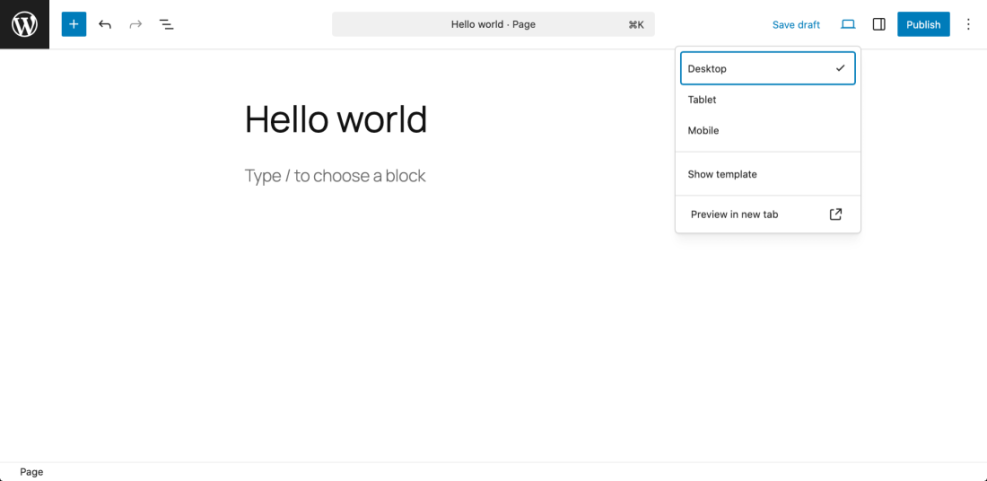
The WordPress block editor is one of the main reasons WordPress is easier for non-coders. Instead of formatting an entire page as one large text field, you build content with blocks such as paragraphs, headings, images, buttons, columns, lists, and embeds.
To practice, create a private test page and add several common blocks. This helps you learn without changing an important live page.
- Go to Pages > Add New.
- Title the page Block Editor Test.
- Add a paragraph block with sample text.
- Add a heading block.
- Add an image block from the Media Library.
- Add a button block and test the link field.
- Click Preview to see how the page looks.
- Save the page as a draft if you do not want it public.
Checkpoint: You should be comfortable adding, moving, deleting, and editing blocks. Once this feels natural, publishing content in WordPress becomes much easier.
Troubleshooting: If a block does not look right on the front end, preview the page in a new browser tab, check your theme styling, and review whether the block has extra spacing, alignment, or width settings applied.
Step 5: Use Plugins Carefully
Plugins make WordPress powerful because they let you add features without custom development. You can add contact forms, SEO settings, backups, security tools, analytics, caching, and e-commerce features with plugins.
However, plugins can also make WordPress confusing when beginners install too many at once. Each plugin adds settings, menus, and possible compatibility issues. A simpler site is usually easier to manage.
- Go to Plugins > Add New.
- Search for the feature you need, such as contact form, backup, or SEO.
- Review the plugin rating, update history, and compatibility notes.
- Click Install Now.
- Click Activate.
- Open the plugin settings and configure only the options you understand.
For a beginner-friendly walkthrough, follow this guide on how to install a plugin in WordPress.
Checkpoint: After installing a plugin, you should know what feature it adds, where its settings are, and how to deactivate it if something breaks.
Step 6: Make WordPress Easier With the Right Setup
WordPress feels easier when you begin with a clean setup. A reliable host, a beginner-friendly theme, a small number of trusted plugins, and a simple content plan can prevent many early problems.
Before customizing heavily, set up the foundation first. This gives you a stable site and reduces the chance that you will need to undo confusing changes later.
- Choose a hosting plan that supports one-click WordPress installation.
- Use a lightweight theme with clear customization options.
- Install only essential plugins at first.
- Create a simple menu with Home, About, Blog, and Contact pages.
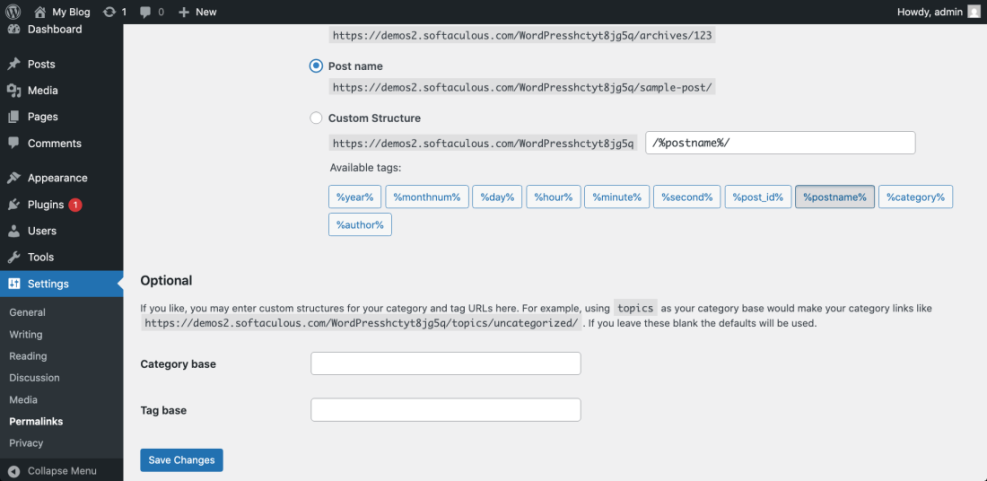
- Set your permalink structure before publishing many posts.
- Create a backup routine before making major changes.
Checkpoint: Your site should have a clean design, a working menu, basic pages, and only the plugins you actually need.
Step 7: Set a Realistic Learning Timeline
WordPress is easy to start, but it takes practice to become confident. Most beginners can publish basic pages and blog posts quickly, while deeper skills such as design customization, SEO, performance, and troubleshooting take longer.
A realistic learning path helps you avoid frustration. Focus on practical milestones instead of trying to learn everything at once.
- Day 1: Learn how to log in, create pages, write posts, and upload images.
- Week 1: Learn menus, themes, plugins, permalinks, and basic settings.
- Month 1: Learn SEO basics, backups, security, speed, and analytics.
- Ongoing: Improve design, conversion, content strategy, troubleshooting, and maintenance.
Checkpoint: WordPress is becoming easy when you can make routine edits without worrying that you will break the site.
Troubleshooting: If you feel stuck, write down the exact task you are trying to complete. Then search for that task inside your dashboard first before installing another plugin or changing theme files.
Step 8: Decide Whether WordPress Is Easy Enough for You
WordPress is easy to use if your goal is to publish content, run a blog, build a business website, or manage pages without coding. It becomes more challenging when you want advanced design control, custom functionality, complex e-commerce, or developer-level customization.
The best way to judge WordPress is by your website goals. A personal blog or small business website is beginner-friendly. A membership site, online store, multilingual site, or custom web application requires more planning and technical knowledge.
- Easy: Blog posts, pages, images, menus, simple themes, and basic plugins.
- Moderate: SEO setup, speed optimization, backups, forms, analytics, and design tweaks.
- Advanced: Custom code, complex WooCommerce stores, custom post types, staging workflows, and performance debugging.
Checkpoint: If your first goal is to publish a clean, useful website, WordPress is easy enough for most beginners. If your goal is a highly custom platform, expect a longer learning curve or professional help.
WordPress Gets Easier When You Learn It in Layers
WordPress is easy to use for everyday website management, especially once you understand the dashboard, block editor, themes, plugins, and basic settings. The platform feels hardest when you try to customize everything at once or install too many tools before learning the core workflow.
Start with simple tasks: create a page, publish a post, upload an image, adjust your menu, and install one useful plugin. Once those steps feel familiar, you can move into SEO, security, speed, backups, and deeper customization with much more confidence.
Further Reading
- Is WordPress Hard to Learn?
- How Easy Is WordPress?
- How to Start a WordPress Website
- How to Create a Website With WordPress
- How to Edit a WordPress Website
Frequently Asked Questions
Is WordPress easy for complete beginners?
Why does WordPress feel confusing at first?
What should I do if I make a mistake in WordPress?
Is WordPress safe for beginners to manage?
How long does it take to learn WordPress?