How Much Does WordPress Cost
A practical beginner-friendly pricing guide for domains, hosting, themes, plugins, maintenance, and the real monthly budget behind a WordPress site.

WordPress itself can be free, but a complete WordPress website still has real costs. The final price depends on where you host it, whether you buy premium tools, and how much help you need with design, security, SEO, and maintenance.
In this guide, you will learn how much WordPress costs for a simple blog, business website, online store, and growing content site. You will also learn how to build a realistic budget instead of being surprised by renewal fees later.
If you are still comparing platforms, start with this plain-English overview of what WordPress is so you understand the difference between the free software and the paid services around it.
Step 1: Understand What Is Free and What Is Paid
The WordPress software from WordPress.org is open-source and free to download, install, and use. However, a live website also needs a domain name, web hosting, security, backups, and sometimes premium themes or plugins.
The most common beginner mistake is assuming “free WordPress” means “free website.” A better way to think about it is this: WordPress is the engine, while hosting, domain registration, design tools, and support are the operating costs.
- Free: WordPress core software, many themes, many plugins, the block editor, user roles, posts, pages, and basic media management.
- Usually paid: Domain name, hosting, email hosting, premium themes, premium plugins, backups, malware protection, developer help, and maintenance.
- Optional: Page builders, SEO suites, analytics tools, CDN services, staging tools, and advanced performance optimization.
Checkpoint: You should now separate the free WordPress software from the paid website infrastructure around it.
Step 2: Estimate the Core WordPress Cost
The core WordPress cost usually starts with four items: a domain, hosting, a theme, and essential plugins. These are the expenses that most WordPress sites need before you even think about marketing or advanced customization.
For a small self-hosted WordPress site, a realistic beginner budget often starts around $50 to $300 for the first year if you use shared hosting, a free theme, and mostly free plugins. A more serious business site commonly lands between $300 and $1,500 per year once you include better hosting, premium tools, backups, security, and email.
| Cost Item | Typical Range | Required? | Notes |
|---|---|---|---|
| Domain name | $10–$25 per year | Yes | Your website address, such as example.com. |
| Shared hosting | $3–$15 per month | Yes for self-hosted WordPress | Good for small blogs and starter websites. |
| Managed WordPress hosting | $15–$50+ per month | Optional | Better support, speed, backups, and WordPress-specific features. |
| Premium theme | $40–$100 one time or yearly | Optional | Useful when you need polished layouts and support. |
| Premium plugins | $50–$500+ per year | Optional | Costs increase with SEO, forms, backups, security, memberships, or e-commerce. |
| Maintenance | $0–$200+ per month | Recommended | You can do it yourself or pay a professional. |
Checkpoint: You should have a rough annual number instead of only looking at a monthly hosting price.
Step 3: Choose the Right Hosting Level
Hosting is usually the biggest recurring WordPress cost for beginners. It affects site speed, uptime, security, backup options, and how much technical work you need to handle yourself.
Shared hosting is the cheapest option and can be enough for a new blog, portfolio, or small business site. Managed WordPress hosting costs more, but it often includes features like automatic backups, staging, server-level caching, malware monitoring, and WordPress-focused support.
Before choosing a plan, read this guide to WordPress hosting explained so you understand what you are paying for and which features matter most.
- Start with shared hosting if your site is new, low traffic, and mostly informational.
- Choose managed WordPress hosting if you run a business website, sell products, publish often, or want less technical responsibility.
- Upgrade to VPS or cloud hosting if your site receives heavy traffic, runs complex plugins, or needs custom server control.
Checkpoint: You should choose hosting based on traffic, support needs, and site importance rather than price alone.
Step 4: Decide Between Free Design and Paid Design
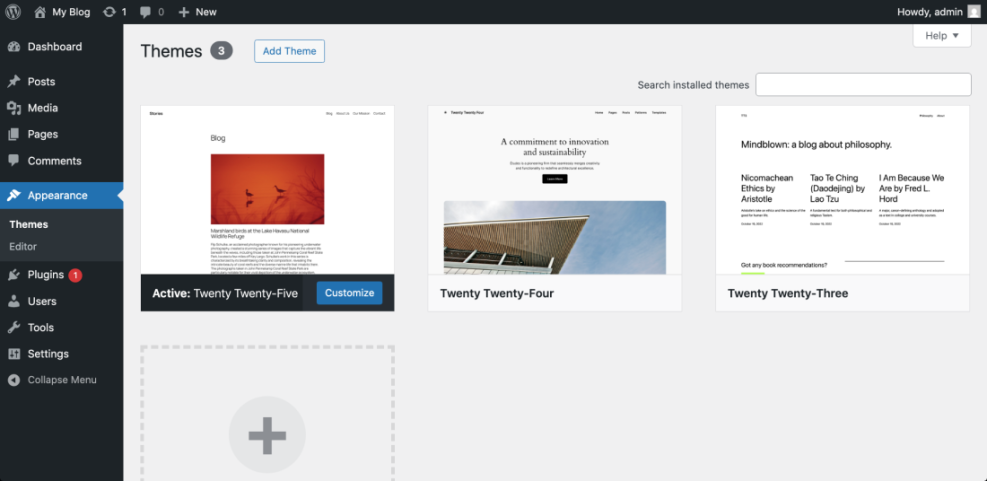
WordPress gives you thousands of free themes, and many are good enough for a beginner website. The cost increases when you need a premium design, brand-specific layouts, custom templates, or a developer-built theme.
A free theme is best when your site is simple and you can work within existing layouts. A premium theme is useful when you want more design controls, starter templates, support, and regular updates.
- Free theme: Best for personal blogs, test websites, and simple content sites.
- Premium theme: Best for small businesses, publishers, portfolios, and sites that need a polished look quickly.
- Custom design: Best for established brands, agencies, online stores, and businesses with specific conversion goals.
Checkpoint: You should know whether your site can launch with a free theme or needs a paid design investment.
Troubleshooting: If a theme looks great in the demo but poor on your site, check whether the demo used imported starter content, premium blocks, or a page builder that you have not installed.
Step 5: Plan Plugin and Feature Costs
Plugins can keep your WordPress cost low because many essential features are available for free. However, premium plugins can quickly become the biggest yearly expense if you add forms, SEO tools, backups, security, memberships, courses, analytics, popups, and e-commerce extensions.
The best approach is to start with must-have functionality only. Add premium plugins when they solve a real business problem, save time, improve conversions, or replace manual work.
- Usually essential: Backup plugin, security plugin, SEO plugin, caching plugin, contact form plugin, and analytics setup.
- Business features: Lead generation forms, CRM integrations, booking tools, email marketing, and landing page builders.
- E-commerce features: Payment gateways, subscriptions, shipping tools, checkout optimization, and product add-ons.
Security is one area where cost should be weighed against risk. Compare options in this guide to the best WordPress security plugins before deciding whether a free plugin is enough.
Checkpoint: You should list every plugin your site needs and mark each one as free, paid, or optional.
Step 6: Include Maintenance, Backups, and Security
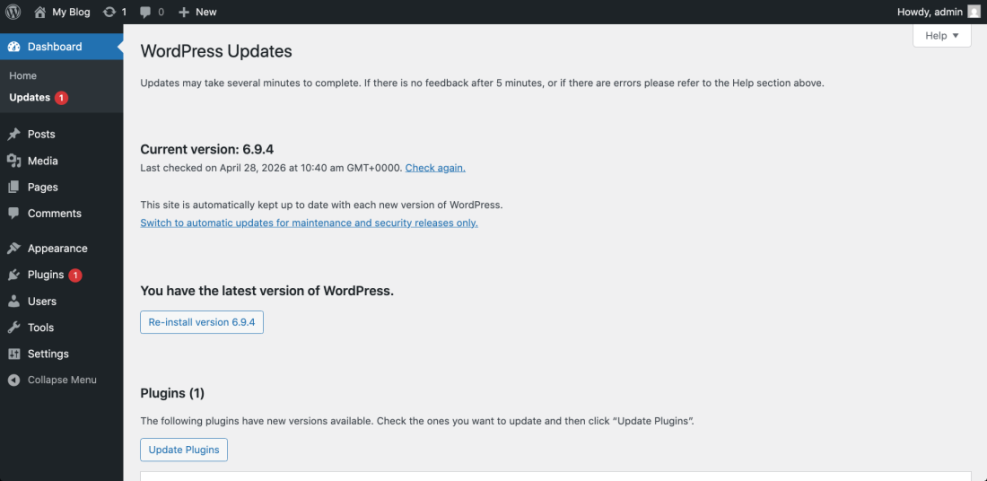
Maintenance is one of the most overlooked WordPress costs. Even if your site is small, you still need updates, backups, security checks, uptime monitoring, spam control, and occasional troubleshooting.
You can handle maintenance yourself if you are comfortable logging into WordPress regularly and testing updates. If your site supports a business, paying for maintenance may be worth it because downtime, hacked pages, and broken forms can cost more than the monthly fee.
- Update WordPress core, themes, and plugins.
- Create automatic backups and confirm that restore works.
- Monitor uptime and important contact forms.
- Scan for malware or suspicious admin accounts.
- Test key pages after major updates.
Checkpoint: You should add either your own time or a monthly maintenance fee to the total WordPress budget.
Troubleshooting: If an update breaks your site, restore the latest backup, disable the most recently updated plugin, and test updates again on a staging site before applying them live.
Step 7: Compare Realistic WordPress Budget Examples
Your WordPress cost depends heavily on the type of site you are building. A personal blog can stay very affordable, while an online store or membership site needs more reliable hosting, premium extensions, security, and ongoing support.
| Website Type | Typical First-Year Budget | Best For |
|---|---|---|
| Personal blog | $50–$250 | Writers, hobby sites, personal publishing, and learning WordPress. |
| Small business site | $300–$1,500 | Service businesses, local companies, consultants, and professional portfolios. |
| Content website | $500–$2,500 | Blogs, niche sites, publishers, and SEO-focused websites. |
| WooCommerce store | $800–$5,000+ | Online stores that need payments, shipping, security, and performance optimization. |
| Custom business website | $2,000–$15,000+ | Brands that need custom design, copywriting, SEO, integrations, and development. |
Checkpoint: You should now compare your budget with the site type that most closely matches your goal.
Step 8: Reduce WordPress Cost Without Hurting Quality
You can keep WordPress affordable by buying only what you need at launch. The goal is not to choose the cheapest setup possible, but to avoid paying for tools before your website can benefit from them.
- Start with a reputable free theme before buying a premium one.
- Use free plugin versions until you hit a real limitation.
- Choose annual costs only after testing the tool first.
- Avoid overlapping plugins that do the same job.
- Review renewals every quarter and cancel unused subscriptions.
- Upgrade hosting only when traffic, speed, or support needs justify it.
Checkpoint: You should have a lean launch budget and a separate upgrade budget for later growth.
Build a WordPress Budget That Matches Your Goal
WordPress can cost very little for a simple personal site, but a professional website usually needs paid hosting, a domain, maintenance, and carefully chosen tools. The safest budget is one that includes both first-year setup costs and renewal costs.
Start with the essentials: domain, hosting, backups, security, and a clean theme. Then add premium plugins, managed hosting, design help, or developer support only when they support a clear business goal.
Once you know what your site needs to accomplish, WordPress becomes easier to budget for. You can launch affordably, improve over time, and avoid paying for tools that do not help your visitors or your business.
Further Reading
- How Much Is a WordPress Website?
- How Much Does It Cost to Build a WordPress Website?
- How to Choose the Right WordPress.com Plan
- How to Choose WordPress Hosting
Frequently Asked Questions
How much does WordPress cost per month?
Why did my WordPress cost increase after the first year?
Can I build a WordPress website for free?
What is the best way to keep WordPress costs low?
Should I pay for WordPress security?