
WordPress Where Set Site Title Moz
Learn where to set your WordPress site title, how Moz reads it, and how to fix the title that appears in search audits.

If Moz is showing the wrong site title for your WordPress website, the issue usually comes from one of three places: your WordPress General Settings, your SEO plugin title template, or the title tag output in your theme. The confusing part is that “site title” can mean your website name inside WordPress, your homepage SEO title, or the title Moz finds when it crawls your page.
In this guide, you will learn exactly where to set the site title in WordPress, how to control the title Moz sees, and how to confirm the correct title is being output in your page source. You will also learn when to update the WordPress Site Title field versus when to edit the SEO title in a plugin.
For a broader SEO foundation before making title changes, review this WordPress SEO beginner guide so you understand how titles, descriptions, and crawl signals work together.
Prerequisites
Before you edit your WordPress site title for Moz, make sure you have the right access and a safe way to verify your changes. You do not need code for the basic method, but admin access is required.
- Administrator access to your WordPress dashboard.
- Access to your SEO plugin, such as Yoast SEO, Rank Math, or another title management plugin.
- A Moz account or Moz crawl/audit report where the title issue appears.
- A browser where you can view the page source after saving changes.
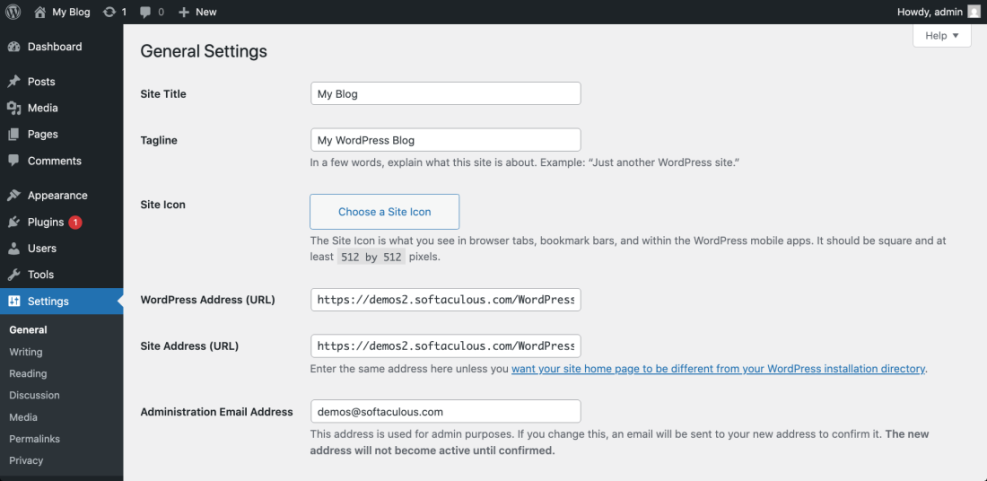
<title> tag. Step 1: Set the WordPress Site Title in General Settings
The WordPress Site Title is the main website name stored in your WordPress settings. Themes and SEO plugins often use this value in title templates, especially for the homepage and branded title endings.
To update it, follow these steps:
- Log in to your WordPress dashboard.
- Go to Settings > General.
- Find the Site Title field.
- Enter your preferred website name exactly as you want WordPress to store it.
- Review the Tagline field and update it if your theme or SEO plugin uses it.
- Scroll down and click Save Changes.
Checkpoint: After saving, the new site title should remain visible in the Site Title field when the page reloads. If your theme displays the site name in the header, you may also see the updated name on the front end.
This setting is different from editing a page’s SEO title. If your Moz issue is about a specific page title, you may also need to update the page-level SEO title using the process in this guide on how to change an SEO title in WordPress.
Step 2: Set the Homepage SEO Title Moz Will Crawl
Moz usually reports the title from the actual <title> tag in your homepage HTML. In many WordPress sites, that tag is controlled by an SEO plugin rather than only by Settings > General.
If you use Yoast SEO, the common path is:
- Go to Yoast SEO > Settings.
- Open the section for Site basics or homepage/search appearance settings, depending on your Yoast version.
- Review the site name and homepage title settings.
- Edit the homepage SEO title template if needed.
- Save your changes.
If your homepage is a static page, you may need to edit the homepage directly:
- Go to Pages > All Pages.
- Open the page assigned as your homepage.
- Scroll to your SEO plugin panel.
- Edit the SEO title field.
- Update the page.
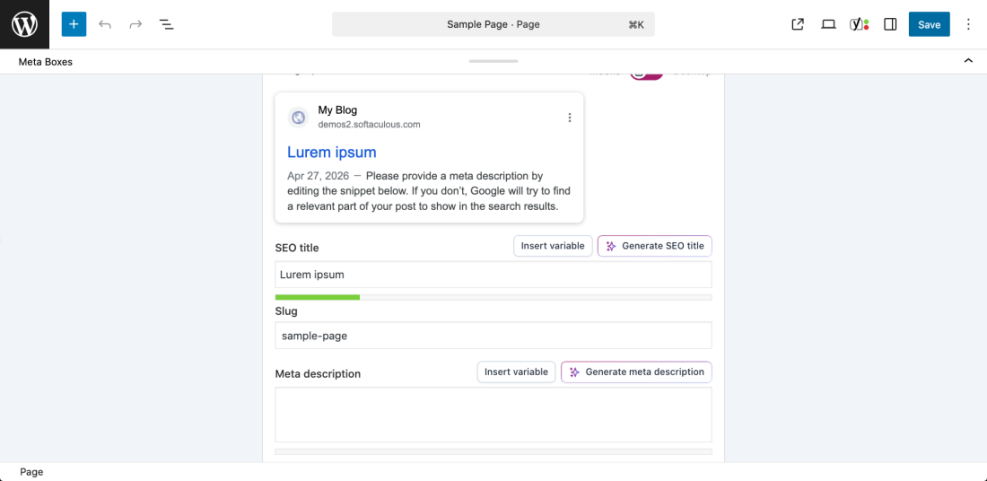
Checkpoint: Your SEO plugin preview should show the title you want Moz and search engines to find. The title should be readable, concise, and relevant to the homepage.
For more detail on how title tags work across pages and posts, use this tutorial on how to add title tags in WordPress.
Step 3: Check the Title Moz Is Actually Seeing
After updating WordPress and your SEO plugin settings, verify the front-end output. This is important because Moz does not rely on what you see in the admin screen; it relies on the HTML it can crawl.
To check the title in your browser:
- Open your homepage in a new browser tab.
- Right-click the page and choose View Page Source.
- Search for
<title>. - Confirm the text between
<title>and</title>matches your intended title.
You can also inspect the browser tab text, but the page source is more reliable because it shows the actual title tag output. If the source code is correct, Moz should reflect the updated title after it crawls the page again.
Checkpoint: The page source should show one clear <title> tag. If you see multiple title tags, your theme and SEO plugin may both be outputting title data.
Step 4: Fix Common Problems When Moz Shows the Wrong Title
If Moz still shows the wrong title after you make changes, work through the most common causes. The issue is usually caching, duplicate title output, or an old crawl result.
Clear WordPress and server cache
Caching can cause Moz to see an older version of your page. Clear your WordPress caching plugin, host-level cache, CDN cache, and browser cache before retesting.
Check your SEO plugin title template
Your plugin may be appending the site title automatically. For example, a page title may become “Homepage Title – Site Name” because the template includes both the page title and site name variables.
Check for theme conflicts
Modern WordPress themes should support WordPress title tag output properly. If an older theme hardcodes a title in header.php, it can conflict with your SEO plugin.
Wait for Moz to recrawl
Moz reports may not update instantly after you edit your website. Once the live page source is correct, run a fresh crawl or wait until the next scheduled crawl updates the report.
Checkpoint: The live page source should be correct before you worry about Moz’s report. If the source is correct but Moz is not updated yet, the issue is likely crawl timing rather than a WordPress setting.
Step 5: Use a Clean Site Title and SEO Title Strategy
A good WordPress title setup separates your brand name from page-specific SEO titles. Your Site Title should usually be your brand or website name, while each page and post should have its own descriptive SEO title.
- Use Settings > General > Site Title for your website or brand name.
- Use your SEO plugin to control homepage, post, page, archive, and taxonomy title formats.
- Keep important keywords near the beginning of page-level SEO titles.
- Avoid repeating the same title across multiple pages.
- Check your live
<title>tag after major theme or plugin changes.
If you are optimizing more than titles, follow a full on-page SEO workflow in WordPress so your headings, internal links, meta descriptions, and content structure support the title.
Your WordPress Site Title Is Now Ready for Moz
The place to set your basic WordPress site title is Settings > General, but the title Moz reports usually comes from the live <title> tag on the page. That means you should also check your SEO plugin, homepage settings, cache, and page source.
Once your page source shows the correct title, Moz should update after a fresh crawl. Keep your Site Title clean, use page-level SEO titles strategically, and avoid duplicate title output from themes or plugins.
Further Reading
- How to Add Meta Tags in WordPress
- Yoast SEO Setup Guide
- How to Remove Duplicate Title Tags in WordPress
- Is WordPress Good for SEO?
Frequently Asked Questions
Where do I set the WordPress site title for Moz?
<title> tag, so you should also check your SEO plugin and homepage SEO title settings. Why does Moz still show my old WordPress title?
<title> tag before running a new Moz crawl. Why is my site title different from my SEO title?
Should I put keywords in my WordPress Site Title?
Can changing my site title hurt SEO?




