Is WordPress Open Source
A beginner-friendly guide to what WordPress open source means, how the GPL license works, and what it lets you do with your website.

Yes, WordPress is open source. That means the WordPress software is publicly available, free to use, and built by a global community of contributors rather than controlled as a closed private product.
Understanding this matters because open source affects your ownership, flexibility, costs, security, customization options, and long-term control. In this guide, you will learn what WordPress open source really means, what you can do with it, and how to use it responsibly when building a website.
If you are still learning the basics, start with this plain-English overview of what WordPress is so the open source explanation fits into the bigger picture.
Step 1: Understand What Open Source Means
Open source software makes its source code available for people to inspect, use, modify, and distribute under specific license terms. For WordPress, this means developers, agencies, business owners, bloggers, and hobbyists can all use the same core software without paying a license fee for the WordPress core.
This does not mean every WordPress-related product is free. Themes, plugins, hosting, support, maintenance, and custom development may still cost money, but the core WordPress software itself is open source.
- You can use WordPress for personal websites.
- You can use WordPress for business websites.
- You can modify WordPress code.
- You can build themes and plugins for WordPress.
- You can move your WordPress site between many compatible hosts.
Checkpoint: You should now understand that open source describes the software license and code access, not whether every website cost is zero.
Step 2: Learn How the WordPress License Works
WordPress is released under the GNU General Public License, often shortened to GPL. In practical terms, the GPL gives users broad freedom to run, study, share, and modify the software.
This license is one reason WordPress has grown into a flexible content management system. Developers can study how WordPress works, improve it, create plugins, design themes, and build custom workflows around it.
Checkpoint: If you can explain that WordPress is free to use and modify because of its GPL license, you have the core concept right.
Step 3: Know What You Own on a WordPress Website
Open source WordPress gives you strong control over your site, but ownership depends on how your site is set up. With self-hosted WordPress, you typically control your files, database, content, design choices, plugin stack, and hosting provider relationship.
This is different from many closed website builders, where the platform may limit exports, code access, or hosting options. If ownership and portability matter to you, learning how to use WordPress is a practical investment.
- Your content: Posts, pages, images, products, and media you create.
- Your database: The stored structure behind posts, settings, users, and site data.
- Your files: Themes, plugins, uploads, and configuration files.
- Your hosting account: The server environment where your site runs.
Checkpoint: A self-hosted WordPress site should let you back up, move, customize, and manage your site with far more control than many closed platforms.
Step 4: Separate Free Software From Website Costs
One of the most common beginner mistakes is assuming “open source” means “no cost at all.” WordPress core is free, but a real website still needs infrastructure, setup, and maintenance.
At minimum, most production WordPress websites need a domain name, hosting, a theme, security practices, backups, updates, and performance optimization. Some websites also need premium plugins, paid themes, developer help, or managed hosting.
- Choose a domain name for your site.
- Select a reliable WordPress hosting provider.
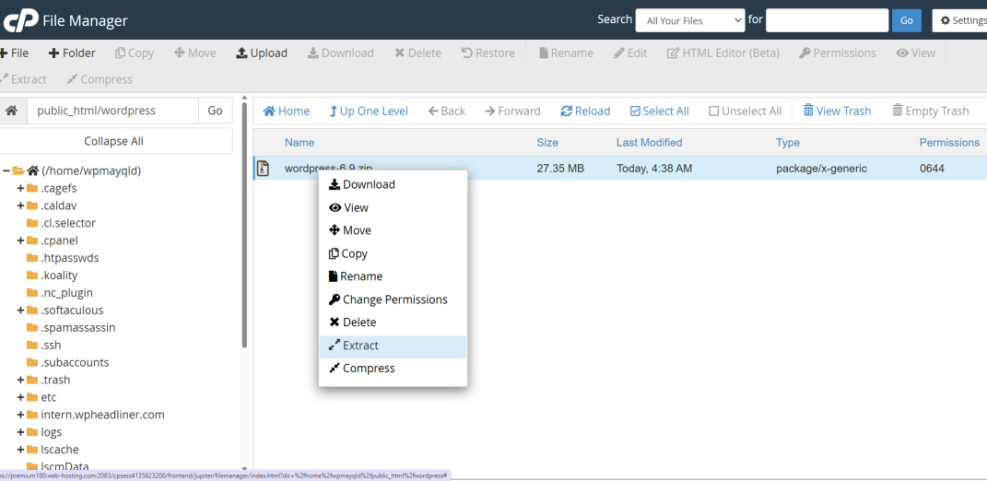
- Install WordPress on your hosting account.
- Choose a theme that fits your design goals.
- Add only the plugins you actually need.
- Set up backups, security, and updates.
For a deeper breakdown of the setup side, review this guide on how to start a WordPress website.
Checkpoint: You should expect WordPress software to be free, but your complete website may still have ongoing costs.
Step 5: Use the Main Benefits of Open Source WordPress
The biggest advantage of open source WordPress is flexibility. You are not locked into one design system, one hosting provider, one checkout tool, one SEO workflow, or one development approach.
You can start with a simple blog, then expand into a business website, online store, membership site, course platform, publication, directory, or custom application. This flexibility is one reason WordPress remains popular with beginners and professional developers.
- Customization: You can change themes, edit templates, use plugins, or write custom code.
- Portability: You can move a self-hosted WordPress site to another compatible host.
- Community support: You can learn from documentation, forums, tutorials, and developer resources.
- Extensibility: You can add features with plugins, APIs, custom post types, and integrations.
- Transparency: Developers can inspect the code and identify how WordPress works.
Checkpoint: You should be able to name at least three open source advantages: flexibility, portability, and customization.
Step 6: Manage the Responsibilities That Come With Open Source
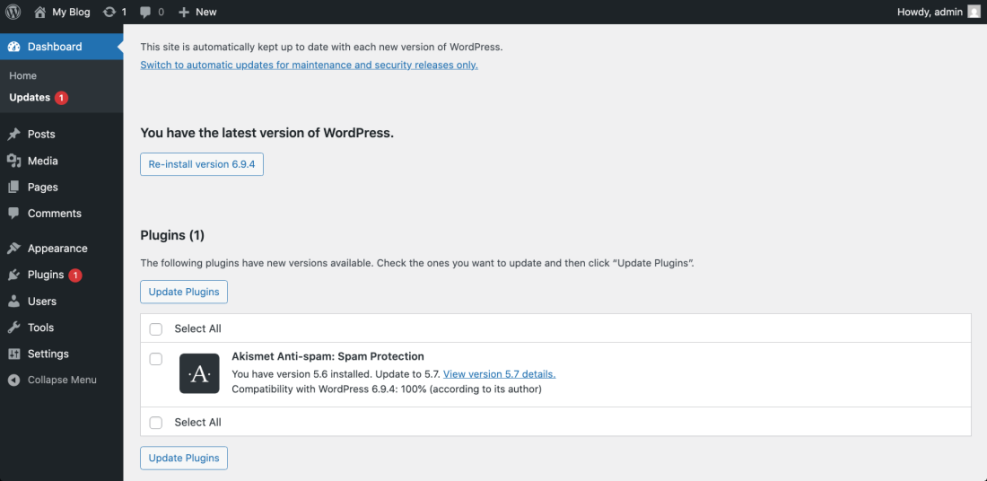
Open source gives you control, but it also gives you responsibility. You or your website team must keep WordPress core, themes, and plugins updated, monitor security, maintain backups, and avoid low-quality code.
This is especially important because WordPress sites often rely on multiple plugins from different developers. A poorly maintained plugin, outdated theme, weak password, or missing backup process can create avoidable problems.
- Update WordPress core when stable releases are available.
- Update plugins and themes from trusted sources.
- Remove inactive plugins and unused themes.
- Use strong passwords and two-factor authentication when possible.
- Back up your site before major changes.
- Test important updates on a staging site when available.
Checkpoint: Your WordPress site should have an update routine, a backup plan, and a security baseline before it becomes business-critical.
Step 7: Compare WordPress With Closed Website Builders
Closed website builders can be easier for some beginners because hosting, templates, support, and editing tools are bundled together. However, they may limit how deeply you can customize your website or move it later.
WordPress usually requires more learning, but it offers more control. You can choose your host, edit files, access your database, extend functionality, and build more advanced site structures.
- Choose WordPress if: You want ownership, flexibility, SEO control, advanced customization, and long-term portability.
- Choose a closed builder if: You want a simpler all-in-one system and do not need deep customization or hosting control.
Checkpoint: If your priority is long-term control, WordPress is usually the stronger choice. If your priority is the simplest possible setup, a closed builder may feel easier at first.
WordPress Open Source Gives You More Control
WordPress is open source, and that is one of its biggest strengths. You can use it, study it, customize it, extend it, and move it in ways that many closed platforms do not allow.
The tradeoff is responsibility. To get the best results, use trusted themes and plugins, maintain backups, keep your site updated, and learn the basics of WordPress ownership before depending on the site for business growth.
Further Reading
- Download WordPress
- WordPress Guides and Tutorials Overview
- WordPress Hosting Explained
- Beginner WordPress Security Best Practices Guide
- How to Install WordPress
Frequently Asked Questions
Is WordPress really open source?
Does open source mean WordPress is completely free?
Can I edit WordPress source code?
Is open source WordPress safe?
What should I do if a plugin breaks my WordPress site?