What WordPress Theme is That
How to Identify the WordPress Theme Behind Any Website (Step-by-Step)


You land on a beautiful WordPress site and immediately think: “What WordPress theme is that—and how can I use it too?” The good news is that most of the time you can figure it out yourself without bothering the site owner.
In this guide, you’ll learn several reliable ways to identify which WordPress theme a site is using, using only your browser, free online tools, and—when it’s your own site—the WordPress dashboard. Then you’ll see how to install and customize that theme on your own website.
If you’re still deciding on an overall look and layout for your site, you may also want to read about how to choose the right WordPress theme once you know what style you’re aiming for.
How WordPress Theme Detection Works
Every WordPress theme lives in the /wp-content/themes/ directory on the server. When a page loads, WordPress pulls templates, styles, and scripts from the active theme folder.
Most front-end files keep a clear path back to that folder. You’ll often see URLs like /wp-content/themes/twentytwentytwo/style.css in the HTML or CSS. That “twentytwentytwo” part is the theme folder name and usually matches the actual theme name.
Theme detector tools and manual checks all rely on the same idea: find references to that theme folder or to the theme’s style.css header, then map that to the actual product in the WordPress.org repository or a premium marketplace.
Prerequisites
You don’t need to be a developer to follow this tutorial, but a few basics will help.
- A modern browser such as Chrome, Firefox, Edge, or Safari.
- Ability to right-click and open “View Page Source” or “Inspect”.
- Optional: access to the WordPress admin area if you are checking your own site.
- Optional: a free online “WordPress theme detector” tool.
Step 1: Check the Page Source for Theme Clues
The fastest manual method is to scan the raw HTML for the theme folder name.
- Open the site you’re interested in.
- Right-click anywhere on the page and choose View Page Source (or View Source / Source, depending on your browser).
- Press Ctrl + F (Windows) or Cmd + F (Mac) to search within the source.
- Type
wp-content/themes/into the search box.
You should see one or more URLs that look like this:
https://example.com/wp-content/themes/jannah/style.css?ver=6.4.1In this example, jannah is the name of the theme folder and strongly suggests the site is using the “Jannah” theme.
-child (for example, jannah-child), that means the site is using a child theme on top of a parent theme. Look for the parent theme name as well. Step 2: Use Browser Developer Tools to Inspect Theme Files
Sometimes the page source is cluttered or minified, making it harder to read. Browser Developer Tools give you a cleaner way to trace CSS files back to the theme.
- Right-click an element on the page whose styling you like (for example, the header or menu) and choose Inspect.
- In the Elements or Inspector panel, look at the CSS rules applied in the sidebar.
- Hover over the file names next to those CSS rules; they often show full paths such as
/wp-content/themes/themename/style.cssor/wp-content/themes/themename/assets/css/. - Click the file name to open it and confirm that the path includes
/themes/<themename>/.
This method is useful when page source is compressed, but individual CSS files still reveal readable paths.
Step 3: Detect the Theme Using Online Tools
If you prefer an easier approach, you can use a WordPress theme detector website. These services scan the HTML source for you and display the theme name and common plugins they recognize.
- Search Google for “WordPress theme detector”.
- Open one of the reputable tools in your browser.
- Paste the site URL you want to analyze into the tool’s input field.
- Click the button to scan or detect the theme.
If the site is running a publicly available theme, the tool will usually show the theme name, version, author, and a link to the download or sales page.
Step 4: Confirm the Theme from the WordPress Admin (Your Own Site)
If you’re checking your own website, the most accurate answer is inside the WordPress dashboard.
- Log in to your WordPress admin area (usually at
/wp-admin). - Go to Appearance > Themes.
- Look for the theme marked as Active. This is the theme currently controlling your site’s design.
- Click on the active theme to see its details, including the theme author, version, and possibly a link to documentation.
If you see a child theme marked as active, WordPress will also display the name of its parent theme under the description.
Step 5: Install the Theme You Discovered on Your Own Site
Once you know the theme name, you can install it on your own WordPress site. The exact steps depend on whether it is a free theme from WordPress.org or a premium theme from a marketplace or developer.
Install a free theme from WordPress.org
- In your WordPress admin, go to Appearance > Themes and click Add New.
- Use the search box to enter the theme name you discovered.
- Hover over the correct theme in the results and click Install, then Activate.
For a deeper walkthrough of this process, you can follow this guide on how to install a WordPress theme safely and correctly.
Install a premium or custom theme
- Purchase or download the theme from its official source and save the
.zipfile to your computer. - In WordPress admin, go to Appearance > Themes and click Add New, then Upload Theme.
- Click Choose File, select the theme
.zip, then click Install Now. - After it uploads, click Activate to switch your site to the new theme.
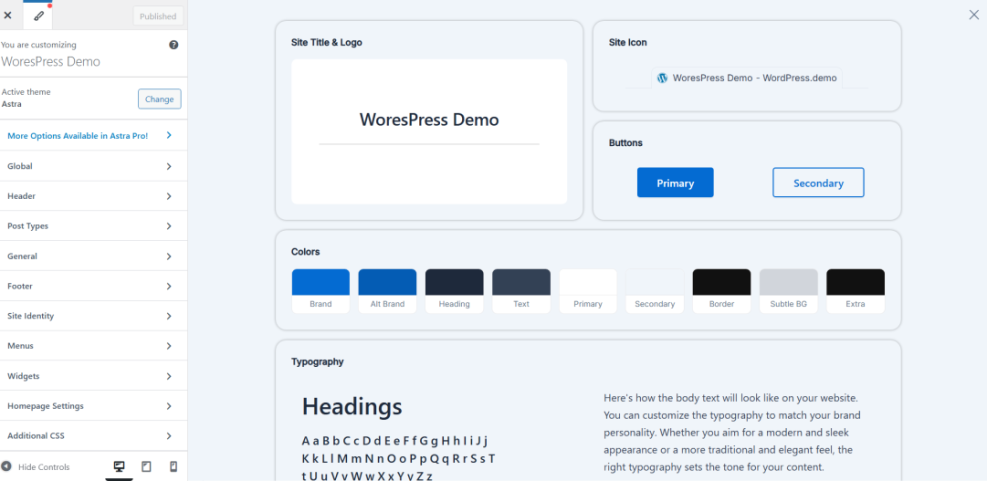
Step 6: Customize Your New Theme to Match the Example Site
Installing the same theme is only the first step. To really match the look and feel of the inspiration site, you’ll need to customize your settings, colors, fonts, and layouts.
- In WordPress admin, go to Appearance > Customize (or Appearance > Editor for some block themes).
- Update the site identity (logo, site title, and tagline) to match your branding.
- Configure menus, header layout, and homepage settings to mirror the structure you liked on the example site.
- Adjust colors and typography to achieve a similar visual style while staying consistent with your own brand.
- Use widgets, block patterns, or theme-specific options to add sidebars, featured posts, or other elements you noticed.
If you want more guidance on this, check out detailed tutorials on customizing WordPress themes for design and layout control.
Troubleshooting: When You Can’t Identify the Theme
Sometimes, no matter how hard you look, you still can’t get a straight answer about which theme a site is using. Here are common reasons and what you can do.
The site is not using WordPress
- Many theme detectors can only analyze WordPress sites. If the site is built with another CMS or a custom framework, you won’t find a WordPress theme.
- You can use browser extensions that detect technologies (such as CMS, frameworks, and libraries) to confirm whether WordPress is present.
The theme is custom-built or heavily renamed
- Agencies sometimes build custom themes and give them a unique folder name that doesn’t match any public product.
- Developers can also rename a premium theme folder, making it look custom even though it started from a commercial base.
A child theme hides the original theme name
- If the active theme is a child theme with a generic name, it may be hard to link it back to the parent theme.
- Look for parent theme references in CSS comments or theme detector tool details, if any are exposed.
Security plugins hide information
- Some security or optimization plugins rewrite or hide file paths such as
wp-content. - In those cases, online tools and manual searches may not find standard theme URLs.
Start Spotting WordPress Themes Like a Pro
By now, you know several ways to answer the question “What WordPress theme is that?” for almost any site you visit. You can read page source, inspect CSS files, run URLs through theme detector tools, and double-check your own active theme in the WordPress dashboard.
Once you discover a theme you like, you can install it on your own site, customize it to fit your brand, and use it as inspiration rather than a carbon copy. Over time, you’ll get faster at recognizing theme patterns and making smarter decisions about which themes are worth using for your own projects.
Further Reading
- What WordPress Theme?
- Best Free WordPress Blog Themes
- How to Create a Child Theme in WordPress
- How to Change Your WordPress Theme Safely
Frequently Asked Questions
Can I always find out what WordPress theme a site is using?
Why do theme detector tools sometimes say 'No theme found'?
wp-content/themes/ and specific metadata in the HTML. If those paths are rewritten, the theme is custom, or the site uses aggressive caching and optimization, the tool may fail to identify anything even when WordPress is present. Is it legal to copy someone else’s WordPress theme design?
How long does it take to match another site’s design after installing the same theme?
What if the site I’m analyzing doesn’t use WordPress at all?