How to Choose a WordPress Backup Plugin
A practical decision framework for comparing backup plugins by restore reliability, storage, scheduling, security, and site type.

Choosing a WordPress backup plugin is not just about finding the most popular tool. The real goal is to make sure you can restore your site quickly when an update fails, a plugin conflict breaks the layout, malware damages files, or a host-level problem takes your site offline.
In this guide, you will learn how to compare backup plugins by the criteria that matter most: restore reliability, backup frequency, storage location, database handling, security, performance, and support. You will also build a simple decision checklist you can use before installing anything on a live site.
If you are still learning the basics of backups and restores, start with this beginner guide to WordPress backup and restore strategies so the plugin features below make more sense in context.
Step 1: Define What Your Backup Plugin Must Protect
Before comparing plugin names, define what needs protection. A simple brochure site, a blog, a membership site, and a WooCommerce store all have different backup needs.
A complete WordPress backup usually includes the database, media uploads, themes, plugins, and important configuration files. The database stores posts, pages, users, comments, orders, settings, and plugin data, while the file system stores uploaded images, themes, plugin files, and custom code.
- Small blog: Daily database backups and weekly full-site backups may be enough.
- Business website: Daily full-site backups are safer, especially before updates.
- WooCommerce store: Real-time or very frequent database backups help protect orders and customer activity.
- Membership or LMS site: Frequent database backups matter because user progress, subscriptions, and account changes happen often.
- Developer-managed site: You may need staging support, migration tools, and WP-CLI compatibility.
Checkpoint: You should be able to describe your site type, update frequency, and acceptable data loss window before choosing a plugin.
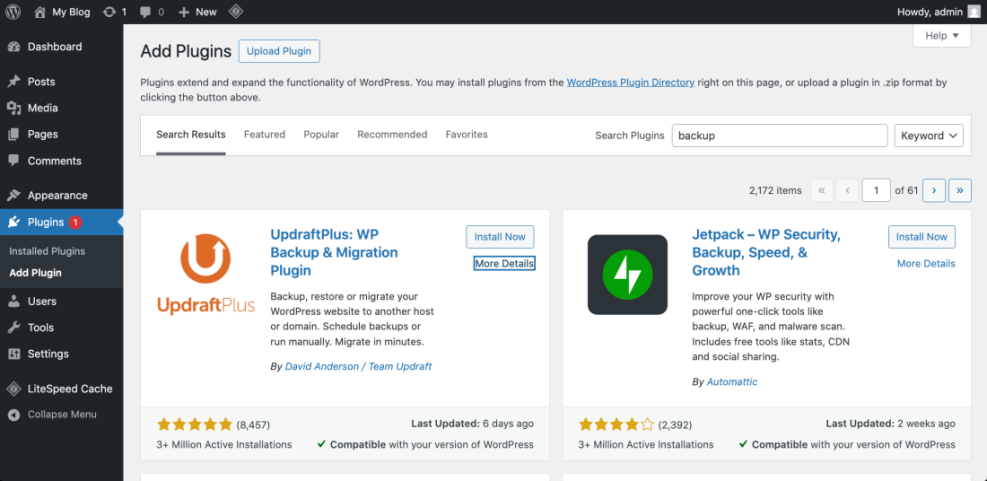
Step 2: Evaluate Restore Reliability Before Backup Features
The most important feature of any backup plugin is not backup creation. It is restore reliability. A backup that cannot be restored under pressure is only a false sense of safety.
Look for a plugin that offers a clear restore process from inside WordPress admin and, ideally, an external restore method for situations where the dashboard is inaccessible. This matters because serious failures can prevent you from logging into WordPress at all.
- Check whether the plugin supports one-click restore for full-site backups.
- Confirm whether it can restore only the database, only files, or the entire site.
- Look for a way to download backup files manually.
- Check whether the plugin documents emergency restore steps.
- Test a restore on a staging site before trusting it on production.
Checkpoint: A good backup plugin should make the restore path obvious before you ever need it.
Troubleshooting: If a plugin creates backups but restore attempts fail or time out, your hosting limits may be too low, the backup archive may be too large, or the plugin may not handle your server configuration well. In that case, test smaller backup sets or use a plugin with chunked restore support.
Step 3: Choose Safe Off-Site Storage Options
A backup stored only on the same server as your website is risky. If the server fails, the account is suspended, malware spreads through files, or a hosting control panel is inaccessible, your backup may disappear with the site.
Choose a plugin that supports off-site storage such as cloud storage, secure remote servers, or the plugin vendor’s managed storage. For a deeper planning approach, use a dedicated WordPress backup strategy that separates backup creation, storage, retention, and restore testing.
- Cloud storage: Good for most site owners who want redundancy outside the hosting account.
- Managed plugin storage: Convenient when you want fewer technical decisions.
- SFTP or remote server storage: Useful for agencies and developers with controlled infrastructure.
- Local downloads: Helpful as an extra copy, but not ideal as the only storage method.
Checkpoint: At least one recent backup should live outside your WordPress hosting account.
Step 4: Match Backup Frequency to Site Activity
Backup frequency should match how often your site changes. A site that receives one blog post per week does not need the same schedule as an online store receiving orders every hour.
Most WordPress backup plugins let you schedule backups hourly, daily, weekly, or monthly. The right schedule depends on how much content, revenue, or user activity you can afford to lose if you must restore an older version.
- Static business site: Weekly full-site backups and backups before updates.
- Active blog: Daily database backups and weekly full-site backups.
- Lead generation site: Daily backups, especially if form entries are stored in WordPress.
- WooCommerce store: Real-time, hourly, or very frequent database backups.
- Membership site: Frequent database backups to protect user activity and account changes.
Checkpoint: Your backup schedule should match the amount of data you are willing to recreate manually.
Troubleshooting: If scheduled backups do not run, check whether WordPress cron is working, whether your site has enough traffic to trigger scheduled tasks, and whether your host blocks long-running PHP processes.
Step 5: Check Performance Impact and Server Limits
Backups can be resource-intensive because they scan files, compress archives, export database tables, and send files to remote storage. On shared hosting, a heavy backup process can slow the site or fail before completion.
Choose a plugin that supports incremental backups, archive splitting, throttling, background processing, or separate database and file backup schedules. These features help reduce the load on your server.
- Run the first full backup during a low-traffic period.
- Check whether the plugin completes without timeout errors.
- Review backup logs for skipped files, failed uploads, or memory errors.
- Confirm that remote storage receives the completed backup.
- Visit the front end of your site to make sure performance remains stable.
Checkpoint: A backup plugin should complete reliably without repeatedly crashing, timing out, or making the site unusable.
Step 6: Review Security, Encryption, and Access Controls
Backups contain sensitive information. Depending on your site, they may include customer details, administrator accounts, order records, form submissions, private pages, API keys, and plugin settings.
A strong backup plugin should protect backup files during storage and transfer. It should also limit who can create, download, delete, or restore backups from the WordPress dashboard.
- Role-based access: Only trusted administrators should manage backups.
- Secure transfer: Remote uploads should use secure connections.
- Encryption: Sensitive backups should be encrypted when supported.
- Protected storage paths: Backup files should not be publicly accessible.
- Activity logs: The plugin should make it clear when backups were created, deleted, or restored.
Backup security is part of broader site protection. Pair your backup workflow with a practical WordPress security overview so you reduce both the chance of an incident and the damage if one happens.
Checkpoint: You should know who can access your backups and where those backups are stored.
Step 7: Confirm Compatibility With Your Hosting and Site Setup
Not every backup plugin works equally well on every host. Some managed WordPress hosts restrict certain backup plugins because they duplicate host-level backups, consume too many resources, or conflict with server tools.
Before installing a backup plugin, check your host’s documentation and your site’s technical setup. This is especially important for large media libraries, multisite networks, WooCommerce stores, staging workflows, and sites with custom database tables.
- Hosting restrictions: Confirm whether your host blocks or discourages specific backup plugins.
- WordPress Multisite: Check whether the plugin supports network-wide backup and restore.
- WooCommerce: Look for reliable database handling and frequent backup options.
- Large media library: Confirm support for splitting archives or excluding folders.
- Custom tables: Make sure the plugin includes plugin-created database tables.
Checkpoint: Your chosen plugin should support your actual site structure, not just a basic WordPress installation.
Step 8: Test the Plugin Before Trusting It
The safest way to choose a WordPress backup plugin is to test the full workflow. A plugin that looks good in a feature table may still be confusing, slow, or unreliable on your specific hosting environment.
Use a staging site or test installation to confirm that the plugin can create a backup, send it to remote storage, and restore the site successfully. Do not wait for an emergency to learn how the restore process works.
- Install the backup plugin on a staging copy or low-risk test site.
- Create a full-site backup that includes files and the database.
- Send the backup to your preferred remote storage destination.
- Download a copy of the backup archive if the plugin supports it.
- Restore the backup on the test site.
- Check posts, pages, images, menus, forms, user accounts, and plugin settings.
Checkpoint: After testing, the restored site should look and function like the original.
Step 9: Use a Final Decision Checklist
Once you have narrowed your choices, compare plugins against a practical checklist. This keeps you from being distracted by features you will never use while missing the features that protect your site during a real failure.
- The plugin can back up both files and the database.
- The plugin supports one-click or clearly documented restores.
- The plugin supports off-site storage.
- The plugin lets you schedule backups automatically.
- The plugin can handle your site size without timeouts.
- The plugin supports your hosting environment.
- The plugin gives clear backup logs and failure notices.
- The plugin has recent updates and active support.
- The plugin offers restore testing or works well with staging.
- The plugin fits your budget without locking critical restore features behind unclear pricing.
Checkpoint: Choose the plugin that gives you the most reliable restore workflow for your site type, not the plugin with the longest marketing feature list.
Build a Backup System You Can Actually Restore
The best WordPress backup plugin is the one that protects your specific site and gives you a restore process you have already tested. Focus on restore reliability, off-site storage, scheduling, compatibility, security, and performance before comparing extra features.
After choosing a plugin, create your first full backup, store it off-site, and test a restore on staging. That single test will reveal more about the quality of your backup setup than any plugin comparison chart.
Further Reading
- How to Backup a WordPress Site
- WordPress Backup Errors Fix
- WordPress Maintenance Backup Plan
- WordPress Hosting Backups
Frequently Asked Questions
What is the most important feature in a WordPress backup plugin?
Why does my backup plugin fail or time out?
Should I store backups on the same hosting account?
How often should I back up my WordPress site?
Do I still need a plugin if my host provides backups?