When you search for “what WordPress theme”, you are usually trying to answer one of two questions: what theme is this site using, or what WordPress theme should I pick for my own site. Both questions are important because your theme controls design, layout, and often part of your site speed.
In this guide you will learn what a WordPress theme is, simple ways to check what theme a site uses, how to view the active theme inside your own dashboard, and how to choose a safe, lightweight theme that fits your project.
Step 1: Understand What a WordPress Theme Actually Does
Before you ask which theme to use, it helps to understand what a WordPress theme controls and what it does not. The theme is responsible for how your content looks, not the content itself.
- Design & layout: page templates, header, footer, sidebar, blog layout.
- Typography & colors: fonts, color palette, button styles, backgrounds.
- Theme specific features: custom widgets, templates, and blocks.
- Performance impact: how many scripts and styles are loaded on each page.
Your posts, pages, and media library live in the database. Switching themes changes how they appear, but does not automatically delete your content.
Theme vs Plugin vs Page Builder
Many beginners mix these terms, so here is a quick comparison.
| Part | Main Role | Can You Have More Than One? | Examples |
|---|---|---|---|
| Theme | Controls overall design and layout. | Only one active theme at a time. | Block themes, classic themes, niche magazine or shop themes. |
| Plugin | Adds features or integrations. | Yes, many plugins at once. | SEO, backups, contact forms, caching. |
| Page Builder | Visual layout tool for complex pages. | Usually one main builder per site. | Block editor, Elementor style builders, theme built builders. |
Step 2: See What WordPress Theme Your Own Site Uses
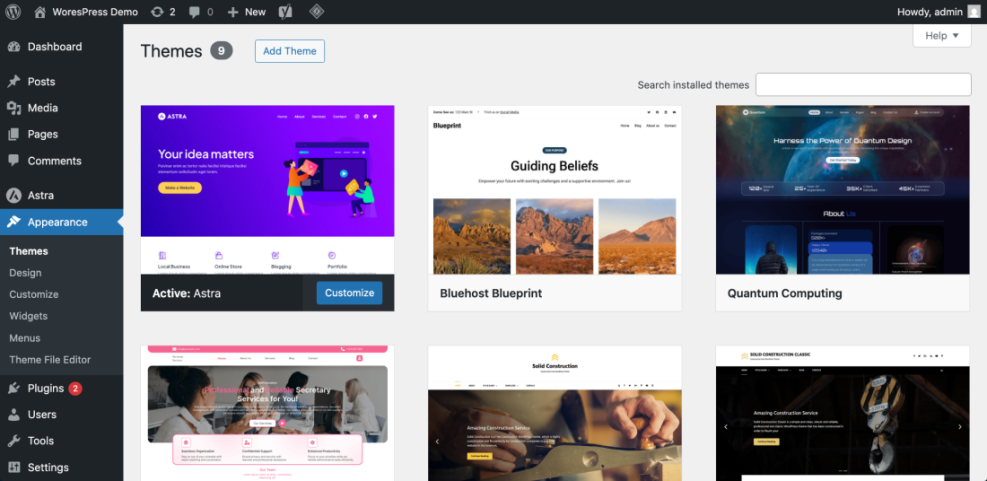
If you already have a site and want to know what WordPress theme is currently active, you can find it from inside the dashboard in a few clicks.
- Log in to your WordPress dashboard by visiting /wp-admin on your domain.
- In the left menu, hover over Appearance and click Themes.
- Look for the theme labeled Active.
- Click the theme thumbnail to see its full name, version, and description.
The Themes screen also shows other installed themes that are currently inactive.
Step 3: Find What WordPress Theme Another Site Uses
Sometimes you visit a site and think, “I love this design—what WordPress theme is that?” While there is no 100% perfect detector, you can often identify the theme with a few quick checks.
- Open the site you like in your browser.
- Right click on the page and choose View Page Source or Inspect.
- Use the Find feature (Ctrl+F or Cmd+F) and search for
wp-content/themes/. - Look at the folder name that appears after
/themes/; this often matches the theme name.
For example, you might see /wp-content/themes/astra or /wp-content/themes/generatepress, which strongly suggests the theme being used.
Limitations of Theme Detection
- Many sites use child themes or custom theme names that do not match the original theme exactly.
- Some sites hide theme details or heavily customize layouts via page builders.
- Even if you find the theme, plugins and custom CSS may be responsible for much of what you see.
Treat theme detection as a clue, not a guarantee. Use it to start your search, then look up that theme’s demo to confirm it matches what you liked.
Step 4: Understand the Main Types of WordPress Themes
When you know what WordPress theme types exist, it becomes easier to choose one that matches your skill level and site style.
| Theme Type | Best For | Customization Style | Notes |
|---|---|---|---|
| Block Theme (FSE) | Modern sites built with the block editor. | Edited through the Site Editor (Appearance » Editor). | Future proof and flexible, but can feel new if you are used to classic themes. |
| Classic Theme | Traditional blogs and business sites. | Customized via the Theme Customizer and theme options. | Stable and familiar, great if you prefer older workflows. |
| Multipurpose Theme | Agencies, freelancers, many site types. | Often a mix of theme options and custom panels. | Very flexible but can be heavy if you enable too many features. |
| Niche Theme | Magazine, portfolio, real estate, etc. | Preset layouts for a specific industry. | Fast to start, less flexible if you change direction later. |
| Builder Integrated Theme | Sites built with a specific page builder. | Layout handled mostly by the builder itself. | Tight integration but can cause lock in to that builder. |
Step 5: Choose What WordPress Theme Fits Your Project
Now that you know what a theme does and what types exist, you can choose what WordPress theme works best for your own site by matching it to your goals and experience.
- Define your site type: blog, portfolio, local business, shop, or publication.
- Decide how you like to work: simple settings, full visual control, or minimal design.
- Set a priority: speed first, design first, or a balance of both.
- Shortlist three themes that match your niche and check their demos and documentation.
Always test candidate themes on a staging site or a fresh test install if possible, especially if you already have live content.
Checklist for a Safe WordPress Theme
- Regularly updated and compatible with the latest WordPress version.
- Good reviews and active support, not abandoned.
- Clear documentation and setup instructions.
- Responsive design that looks good on mobile and tablet.
- Lightweight, with no obvious performance issues on the demo.
Step 6: Install or Switch to the Theme You Choose
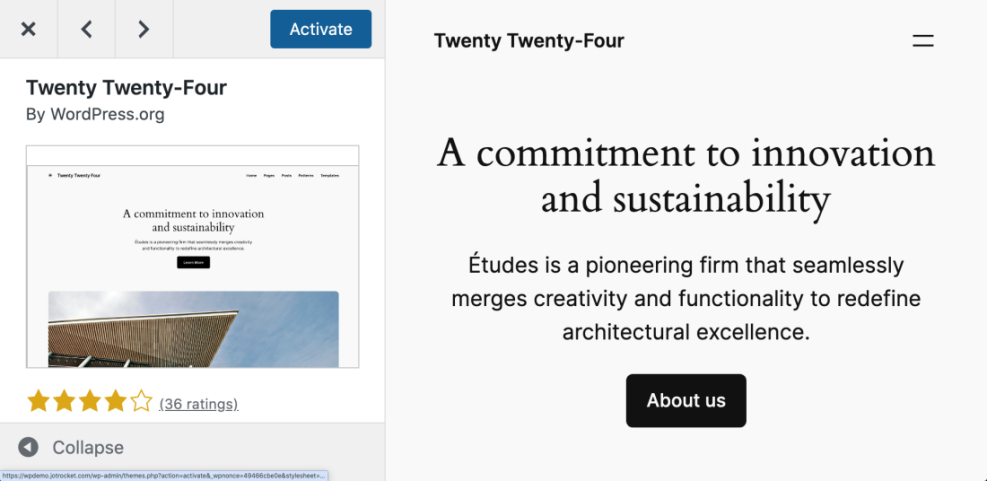
Once you have decided what WordPress theme you want, you can install or switch to it through the dashboard.
- From the WordPress dashboard, go to Appearance » Themes.
- Click Add New.
- Use the search box to find the theme by name, or click Upload Theme if you bought a premium zip file.
- Click Install, then Activate.
Your site will start using the new theme, but you may need to adjust menus, widgets, and homepage settings.
Step 7: Customize Your Theme Without Breaking It
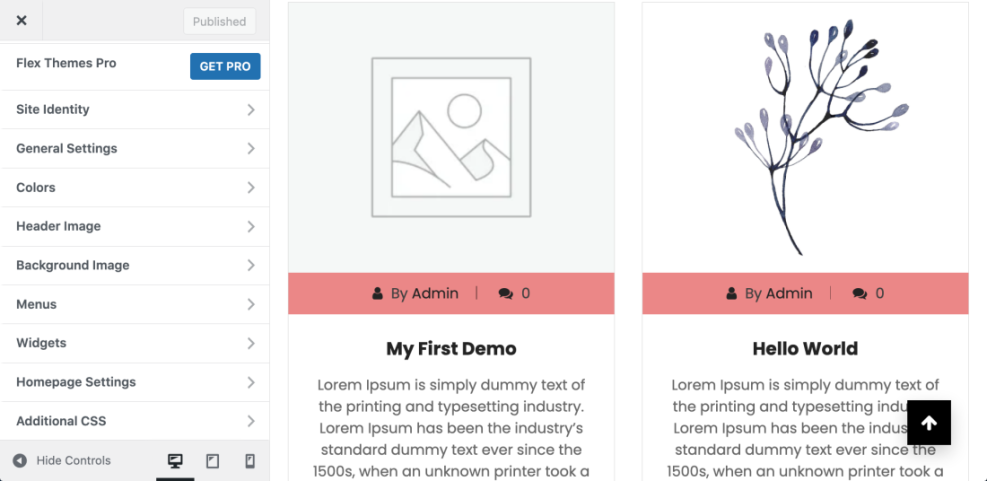
After activation, you will customize your theme to match your brand while keeping it maintainable.
- If it is a block theme, go to Appearance » Editor and open Styles to tweak fonts and colors.
- If it is a classic theme, go to Appearance » Customize and look for Typography, Colors, and Layout panels.
- Adjust only the basics first: logo, colors, fonts, and header layout.
- Set your homepage and blog page under Settings » Reading if the theme requires it.
Keep notes of any custom CSS or minor changes you make so you can recreate them later if needed.
Step 8: Check How the Theme Affects Speed and SEO
Not all themes are equal when it comes to performance. Once you decide what WordPress theme you want to keep, test how it behaves under real conditions.
- Open a speed testing tool and test your homepage and a long article.
- Note the Largest Contentful Paint (LCP) and overall page size.
- Check that the theme loads only a reasonable number of CSS and JS files.
- Confirm that headings (H1, H2, etc.) and HTML structure are SEO friendly.
If a theme demo already feels slow, it will probably feel even slower once you add plugins and real content.
Step 9: Review What WordPress Theme You Are Using Regularly
The theme you pick today might not be the best choice forever. Reviewing your theme every year or during big redesigns helps keep your site fast and easy to manage.
- Once or twice a year, visit Appearance » Themes and confirm your active theme is still maintained.
- Read recent reviews or changelogs from the theme developer.
- Evaluate whether the theme still fits your content strategy and branding.
- Plan theme changes carefully, especially for large sites or online stores.
With a bit of planning, theme changes become a strategic decision instead of a rushed reaction to new trends.
Conclusion You Know What WordPress Theme to Use Next
By now you understand what a WordPress theme does, how to see what WordPress theme your own site or another site is using, the main theme types, and how to choose and install a theme that matches your goals.
Take your time testing on a staging site, focus on themes that are lightweight and well supported, and document any custom changes you make. When you treat your theme choice as a long term decision, you spend less time fixing design problems and more time publishing great content.
Further Reading
- WordPress Themes Screen Overview
- Browse Free Themes in the WordPress.org Directory
- Beginner guide to WordPress speed optimization
- How to Change Font on WordPress
- How to make an ecommerce website with WordPress
Frequently Asked Questions About WordPress Themes
Can I change my WordPress theme without losing content
How do I know what WordPress theme a site is using
wp-content/themes/. The folder name you see usually matches the theme. You can then search that name online to find the theme’s homepage and documentation.What is the safest kind of theme for beginners
Does my theme affect site speed
Can I use multiple themes at the same time
What happens if I delete an inactive theme