Is WordPress Easy to Learn
A beginner-friendly roadmap to understanding WordPress, learning the dashboard, building confidence, and avoiding common mistakes.

Yes, WordPress is easy to learn for most beginners, especially if your goal is to create pages, publish blog posts, change basic design settings, and manage a simple website. The harder parts usually appear when you move into custom design, advanced SEO, performance optimization, security, or code-level changes.
This guide gives you a practical learning roadmap so you can understand what WordPress does, what to learn first, and how to build confidence without getting overwhelmed. If you are brand new, start by understanding what WordPress is before you begin changing settings or installing plugins.
By the end, you will know which WordPress skills are beginner-friendly, which skills take more time, and what order to learn them in so your website stays organized, secure, and easier to manage.
Step 1: Understand What Makes WordPress Easy or Difficult
WordPress is beginner-friendly because you can manage most day-to-day website tasks from a visual dashboard. You do not need to write code to publish content, upload images, change menus, install themes, or add common features such as contact forms.
The learning curve depends on what you want to build. A simple blog or business website is much easier than a membership site, online store, learning platform, or custom-coded theme.
- Easy tasks: Writing posts, creating pages, uploading images, updating menus, and changing basic theme settings.
- Moderate tasks: Choosing plugins, improving SEO, setting up analytics, creating forms, and customizing layouts.
- Advanced tasks: Editing theme files, troubleshooting PHP errors, optimizing performance, and building custom functionality.
Checkpoint: You should understand that WordPress is not one single skill. It is a group of skills, and you can learn the basics first before moving into advanced tasks.
Step 2: Learn the WordPress Dashboard First
The WordPress dashboard is your control center. It is where you create content, install themes, manage plugins, adjust settings, moderate comments, and control user accounts.
To begin, log in to your site and spend time reviewing the left-side admin menu. If you are unsure how to access it, use this guide on how to log in to WordPress before continuing.
- Go to your WordPress login page.
- Enter your username or email address and password.
- Open the left admin menu and review Dashboard, Posts, Pages, Appearance, Plugins, Users, Tools, and Settings.
- Click each menu item without changing anything yet so you can learn where important tools are located.
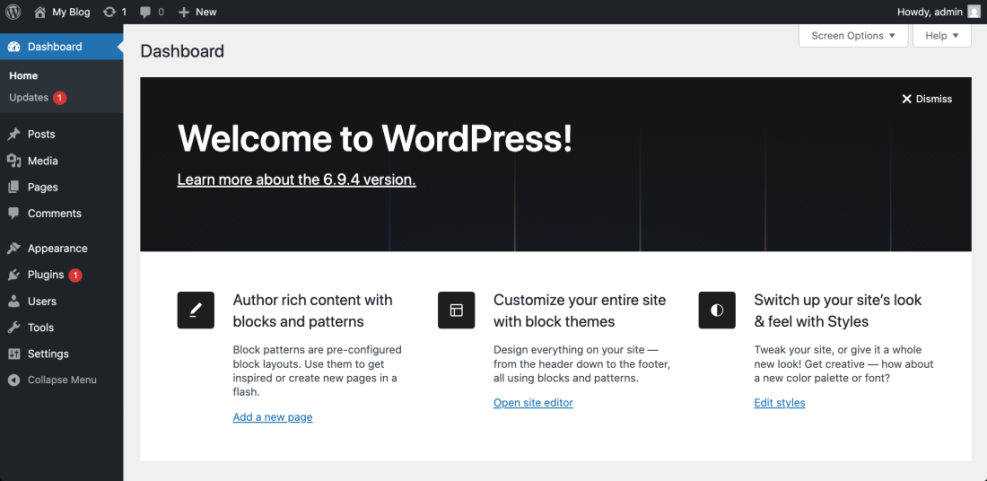
Checkpoint: You should be able to find where to create a post, create a page, change your theme, install a plugin, and open general settings.
Troubleshooting: If your dashboard does not look like tutorials online, your theme, hosting provider, plugins, or user role may change what you can see. Make sure you are logged in as an administrator when learning site management tasks.
Step 3: Practice with Pages, Posts, and the Block Editor
Content editing is usually the easiest part of WordPress to learn. Pages are best for static content such as Home, About, Services, and Contact. Posts are best for blog articles, news updates, tutorials, and time-based content.
Start by creating one draft page and one draft post. This gives you a safe place to practice headings, paragraphs, images, buttons, lists, links, and categories without affecting your live website.
- In the dashboard, go to Pages > Add New.
- Add a title such as Practice Page.
- Use the editor to add a paragraph, heading, image, and button block.
- Click Save draft instead of publishing.
- Go to Posts > Add New and repeat the process with a practice blog post.
Checkpoint: You should be able to create and save draft content, add basic blocks, and understand the difference between a page and a post.
Step 4: Learn Themes Before Advanced Customization
Themes control the look and layout of your WordPress website. A good beginner theme lets you change colors, fonts, logos, headers, footers, and layout options without editing code.
Do not install many themes while learning. Choose one reliable theme, learn its settings, and avoid switching designs every few days. Constant theme changes can make your site harder to manage and may affect menus, widgets, templates, and page layouts.
- Appearance > Themes: Install, activate, and preview themes.
- Appearance > Customize: Adjust common design settings if your theme supports the Customizer.
- Appearance > Editor: Manage block theme templates if you are using a block theme.
- Appearance > Menus: Manage navigation menus on classic themes.
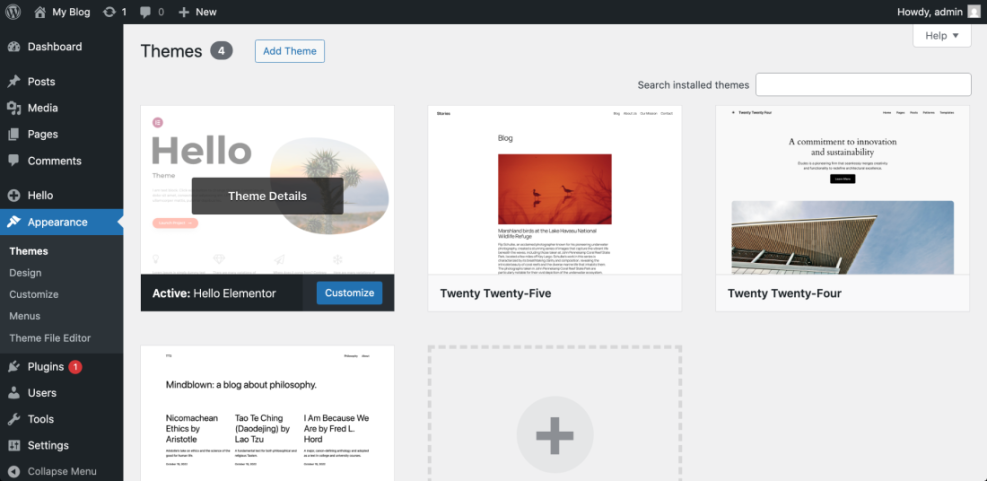
Checkpoint: You should understand that WordPress design starts with the active theme. Before adding plugins or custom code, learn what your theme can already do.
Troubleshooting: If a tutorial mentions a setting you cannot find, you may be using a different theme type. Classic themes, block themes, and page-builder-based themes often place design controls in different areas.
Step 5: Add Plugins Carefully
Plugins make WordPress powerful because they add features such as SEO tools, forms, backups, security, caching, analytics, and e-commerce. They also create one of the biggest beginner mistakes: installing too many plugins too quickly.
Before installing a plugin, ask whether you truly need the feature, whether your theme already includes it, and whether the plugin is actively maintained. You can learn the basic plugin workflow in this guide on how to install a plugin in WordPress.
- Go to Plugins > Add New.
- Search for the plugin by name or feature.
- Review the rating, update history, active installations, and compatibility details.
- Click Install Now.
- Click Activate.
- Open the plugin settings and configure only what you understand.
Checkpoint: You should know how to install a plugin, activate it, and find its settings without adding unnecessary tools.
Step 6: Follow a Beginner WordPress Learning Roadmap
The easiest way to learn WordPress is to follow a sequence. Beginners often get overwhelmed because they jump between design, SEO, plugins, hosting, security, and code without building a foundation first.
Use this roadmap to learn in a practical order:
- Week 1: Learn the dashboard, pages, posts, media library, menus, and settings.
- Week 2: Learn your theme, homepage layout, header, footer, typography, and colors.
- Week 3: Learn essential plugins for SEO, backups, security, forms, and performance.
- Week 4: Learn publishing workflows, categories, tags, internal links, and basic image optimization.
- Month 2 and beyond: Learn analytics, speed optimization, troubleshooting, staging sites, and basic HTML/CSS if needed.
Checkpoint: You should have a learning path that starts with daily website management before moving into technical optimization.
Troubleshooting: If WordPress still feels confusing, reduce your focus to one task at a time. For example, spend one session only learning pages, then another only learning menus, instead of trying to build the entire site in one sitting.
Step 7: Know Which Skills Take More Time
WordPress basics are easy to learn, but mastery takes time. This is normal because WordPress can support blogs, business websites, portfolios, directories, communities, online stores, and custom web applications.
The skills below usually require more practice:
- SEO: Learning keywords, title tags, meta descriptions, internal links, schema, and content structure.
- Security: Managing updates, strong passwords, backups, user roles, firewalls, and login protection.
- Performance: Understanding caching, image optimization, hosting, Core Web Vitals, and plugin impact.
- Troubleshooting: Identifying plugin conflicts, theme issues, PHP errors, and broken layouts.
- Development: Working with child themes, hooks, templates, custom fields, and code snippets.
Checkpoint: You should be able to separate beginner skills from advanced skills. You do not need to learn everything at once to use WordPress successfully.
Step 8: Avoid Common Beginner Mistakes
WordPress becomes harder when beginners skip planning or change too many things at once. A simple, organized setup is easier to learn, easier to troubleshoot, and easier to improve later.
- Installing too many plugins before understanding what they do.
- Changing themes repeatedly while building the site.
- Publishing pages before checking mobile layout and links.
- Ignoring updates, backups, and security settings.
- Using weak passwords or sharing administrator accounts.
- Editing theme files directly without a backup or child theme.
- Trying to learn advanced SEO before understanding basic content structure.
Checkpoint: You should have a cleaner learning process: build slowly, test changes, keep backups, and document important settings as you go.
WordPress Is Easy When You Learn It in the Right Order
WordPress is easy to learn for basic website management, blogging, and simple business websites. The platform becomes more advanced only when you move into custom design, complex plugins, performance tuning, security hardening, or development work.
Start with the dashboard, then learn pages and posts, then themes, then plugins, and finally SEO, security, backups, and performance. This order helps you build real confidence instead of memorizing random settings.
Once you understand the basics, WordPress gives you enough flexibility to grow from a simple site into a professional website without starting over on a different platform.
Further Reading
- How to Use WordPress
- How to Create a Website with WordPress
- How to Install WordPress
- How to Choose a WordPress Theme
- Beginner WordPress Security Best Practices Guide
Frequently Asked Questions
Is WordPress easy for complete beginners?
How long does it take to learn WordPress?
What should I do if the WordPress dashboard feels confusing?
Can I learn WordPress without coding?
Is WordPress safe for beginners to use?