WordPress is not headless by default, but it can absolutely be used as a headless CMS. In its standard form, WordPress manages both the content backend and the frontend theme that visitors see.
In a headless setup, WordPress stores and manages your content while a separate frontend application displays it. This guide explains what that means, how it works, when it makes sense, and what you should check before choosing headless WordPress.
If you are comparing this with a fully traditional setup, start with this deeper overview of what a headless WordPress site is so you understand the core concept before making architecture decisions.
Step 1: Understand What “Headless CMS” Means
A headless CMS separates content management from content presentation. The “body” is the CMS where editors create content, while the “head” is the frontend layer that visitors interact with.
In normal WordPress, your theme controls the frontend. In headless WordPress, the frontend is usually built with a framework such as Next.js, Nuxt, Gatsby, React, Vue, or another application layer.
- Traditional WordPress: WordPress admin, database, PHP theme, templates, plugins, and frontend are connected.
- Headless WordPress: WordPress admin and database manage content, while a separate frontend consumes content through an API.
- Decoupled WordPress: A broader term that describes separating parts of the WordPress backend and frontend experience.
Checkpoint: You should now understand that WordPress becomes headless only when the frontend theme layer is replaced or bypassed by another presentation layer.
Step 2: Learn How WordPress Works as a Headless CMS
WordPress can serve content to external applications through the WordPress REST API or GraphQL when WPGraphQL is installed. These APIs let your frontend request posts, pages, media, categories, users, and custom content from WordPress.
For example, your editorial team can still log in at /wp-admin, write posts in the block editor, upload images, assign categories, and schedule content. Your frontend application then fetches that content and renders it outside the active WordPress theme.
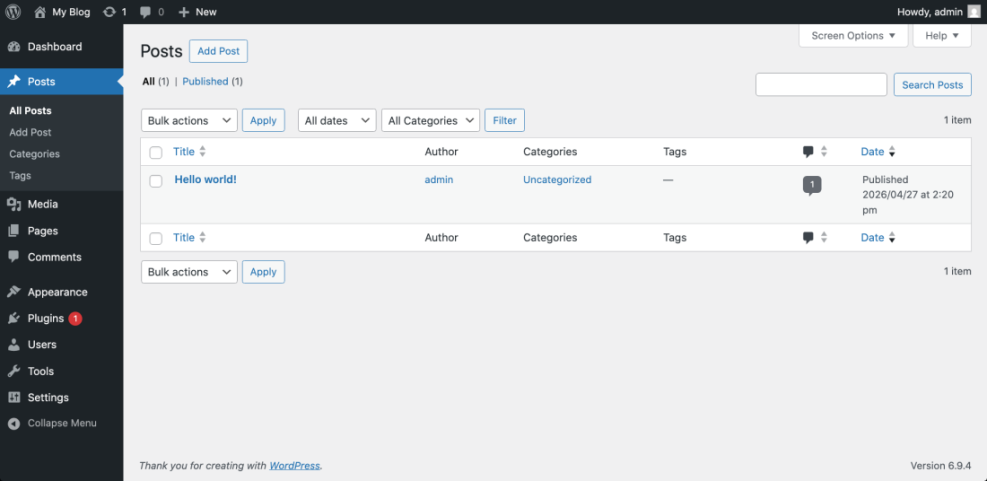
- Editors create or update content in WordPress.
- WordPress stores the content in its database.
- The REST API or WPGraphQL exposes the content as structured data.
- The frontend application requests the content.
- The frontend renders the final website or app experience.
Checkpoint: If you can retrieve WordPress content from an API endpoint and render it in a separate frontend, WordPress is functioning as a headless CMS.
Step 3: Choose the Right API Approach
The two most common API options are the built-in WordPress REST API and WPGraphQL. The REST API is available in WordPress core, while WPGraphQL adds a GraphQL layer that many JavaScript developers prefer for flexible data queries.
Use the REST API when you want a native WordPress option with fewer moving parts. Use WPGraphQL when your frontend team needs more precise queries, fewer over-fetching problems, or a GraphQL-first development workflow.
https://example.com/wp-json/wp/v2/postsRun or open this URL in your browser after replacing example.com with your domain. It should return structured post data if the REST API is accessible.
Checkpoint: You should be able to identify whether your project will use the REST API, WPGraphQL, or both.
Step 4: Decide Whether Headless WordPress Fits Your Project
Headless WordPress is powerful, but it is not the best choice for every website. It is most useful when you need custom frontend performance, multi-channel publishing, app-like experiences, or a frontend stack that WordPress themes cannot easily support.
It can also make sense when your team wants WordPress for editorial workflows but prefers a modern JavaScript frontend. Before deciding, review your hosting environment, deployment workflow, and maintenance capacity. A strong foundation matters, so this guide to WordPress hosting explained can help you evaluate the infrastructure side.
- Good fit: SaaS marketing sites, documentation portals, media brands, enterprise content hubs, mobile apps, and custom web apps.
- Weak fit: Simple blogs, small business brochure sites, low-budget projects, and websites that rely heavily on theme-based visual editing.
- Risk area: Plugins that depend on frontend PHP templates may not work the same way in a headless architecture.
Checkpoint: If your project needs a custom frontend and your team can maintain two systems, headless WordPress may be a smart fit.
Step 5: Plan SEO, Metadata, and Structured Data
SEO works in headless WordPress, but it requires more deliberate planning. Traditional WordPress themes often output title tags, meta descriptions, canonical tags, schema, breadcrumbs, and Open Graph data automatically through themes or SEO plugins.
In a headless build, your frontend must render those elements correctly. Your developers may need to pull SEO fields from WordPress and output them in the frontend application’s document head.
- Confirm that every page has a unique title tag and meta description.
- Generate clean canonical URLs on the frontend.
- Render schema markup server-side when possible.
- Make sure your sitemap reflects the public frontend URLs, not only WordPress admin URLs.
- Test pages with Google Search Console URL Inspection after launch.
If structured data is part of your SEO plan, review how to add schema markup in WordPress and adapt the same principles to your headless frontend.
Checkpoint: Your frontend should produce crawlable HTML with complete SEO metadata before launch.
Step 6: Map a Basic Headless WordPress Setup
A typical headless WordPress setup has two main parts: the WordPress backend and the frontend application. WordPress may live on one server or managed host, while the frontend may be deployed on a platform designed for static or server-rendered applications.
You do not need to build the full system immediately. Start by mapping the architecture so you know where content, media, authentication, forms, redirects, caching, and analytics will live.
- Install and secure WordPress as the content backend.
- Create the content types, taxonomies, menus, and custom fields your frontend needs.
- Choose REST API or WPGraphQL for data access.
- Build the frontend templates in your chosen framework.
- Connect frontend routes to WordPress content.
- Configure previews, redirects, caching, and deployment triggers.
- Test SEO output, forms, analytics, and performance before launch.
Checkpoint: You should have a clear separation between where content is managed and where content is displayed.
Step 7: Secure the WordPress Backend and API
Headless WordPress can reduce some theme-layer exposure, but it does not remove the need for WordPress security. Your backend still needs updates, strong passwords, secure hosting, backups, and protection against brute force attacks.
You should also think carefully about API exposure. Public content endpoints are normal, but private content, user data, preview links, and authenticated requests need stronger controls.
- Keep WordPress core, plugins, and themes updated.
- Use strong administrator passwords and two-factor authentication.
- Limit unused plugins and remove inactive themes.
- Restrict sensitive API routes where needed.
- Use HTTPS on both the WordPress backend and the frontend.
- Set up automated backups before major changes.
Checkpoint: Your WordPress backend should be protected even if visitors never see a traditional WordPress theme.
Step 8: Test the Headless Experience Before Launch
Testing is where many headless WordPress projects succeed or fail. You are no longer testing only a WordPress theme; you are testing the connection between WordPress, the API, the frontend, the hosting stack, and search engines.
- Create a test post in WordPress with headings, images, links, categories, and excerpts.
- Confirm the content appears correctly on the frontend.
- Check whether previews work for unpublished drafts.
- Inspect the page source for title tags, meta descriptions, canonical tags, and schema.
- Run a mobile performance test.
- Submit a test URL in Google Search Console.
- Verify redirects from old WordPress URLs to new frontend URLs.
Checkpoint: Your editors should be able to publish content confidently, and visitors should see fast, complete, crawlable pages.
WordPress Can Be Headless, But It Should Be a Deliberate Choice
WordPress CMS is a traditional by default, but it can become a headless CMS when you use it mainly for content management and connect it to a separate frontend through an API.
This setup can give you more frontend flexibility, stronger custom performance options, and better multi-channel publishing workflows. It also adds complexity, especially around SEO, previews, plugin compatibility, hosting, and maintenance.
For simple websites, classic WordPress is often faster and easier to manage. For custom applications, enterprise content platforms, and advanced frontend experiences, headless WordPress can be an excellent architecture when planned carefully.
Further Reading
- How to Integrate WordPress Into a Website
- Best CMS Platforms Compared
- What Is a WordPress
- How to Use WordPress
Frequently Asked Questions
Is WordPress a headless CMS by default?
Can I use plugins with headless WordPress?
Why is my headless WordPress content not showing on the frontend?
Is headless WordPress better for SEO?
Does headless WordPress cost more to build and maintain?