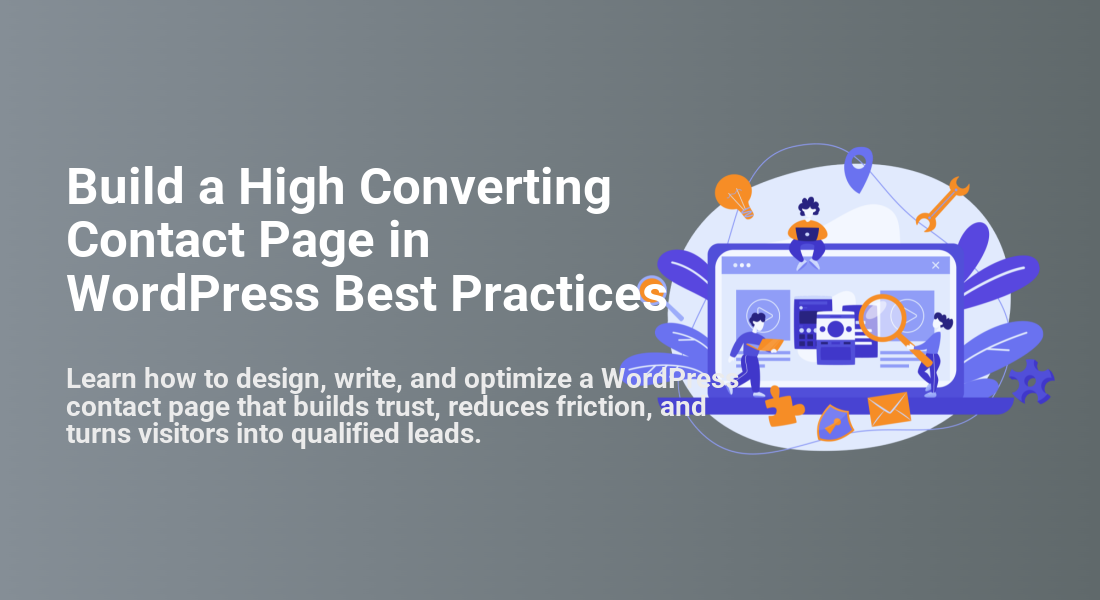
Build a High Converting Contact Page in WordPress Best Practices
Learn how to design, write, and optimize a WordPress contact page that builds trust, reduces friction, and turns visitors into qualified leads.

Your contact page is often the final step before a visitor becomes a lead, client, booking, subscriber, or customer. If the page feels vague, cluttered, slow, or untrustworthy, people may leave even when they were ready to reach out.
In this guide, you will build a high converting contact page in WordPress using clear copy, smart layout choices, friction-free forms, trust signals, mobile-friendly design, and proper follow-up paths. You will also learn how to avoid common mistakes that reduce submissions and lead quality.
If you are still shaping your overall site structure, review this guide on how to design a WordPress website so your contact page fits naturally into the rest of your user journey.
Prerequisites
Before you start, make sure you have the basic pieces needed to create, edit, and test a contact page in WordPress. You do not need advanced development skills, but you should be comfortable working inside the WordPress dashboard.
- Administrator access to your WordPress site.
- A published or draft Contact page.
- A contact form plugin such as WPForms, Contact Form 7, Gravity Forms, Fluent Forms, or another trusted option.
- A working business email address that can receive form notifications.
- A clear goal for the page, such as quote requests, discovery calls, support requests, bookings, or general inquiries.
If you have not chosen a form tool yet, compare options in this guide to the best contact form plugins for WordPress.
Step 1: Define the Primary Conversion Goal
A high converting contact page starts with one clear goal. When visitors see too many competing actions, they hesitate, skim, or choose the wrong path.
Open your WordPress dashboard and go to Pages > All Pages. Find your Contact page, click Edit, and write down the main action you want visitors to take before you change the design.
- Choose one primary action, such as “Request a quote,” “Book a consultation,” “Ask a support question,” or “Send a project inquiry.”
- Choose one secondary action, such as calling your office, checking your FAQ, or visiting your support portal.
- Remove any content that does not support those actions.
Checkpoint: Your page should have one obvious reason to exist and one main action that is repeated in the headline, form heading, and call to action button.
Troubleshooting: If your page serves multiple audiences, divide the experience with simple options such as “Sales,” “Support,” and “Partnerships” instead of forcing every visitor into the same form.
Step 2: Write Contact Page Copy That Reduces Hesitation
Your contact page copy should answer the visitor’s quiet questions: “Am I in the right place?”, “What happens after I submit?”, and “Can I trust this business?” Strong copy can increase submissions without changing a single plugin setting.
In the WordPress editor, place a short headline at the top of the page. Then add one or two supporting sentences that explain who should contact you and what kind of response they can expect.
Use this simple structure:
- Headline: Tell visitors exactly what action to take.
- Support text: Explain what you help with and who the page is for.
- Expectation setting: Mention typical response time, next steps, or required details.
- CTA button text: Use specific language, such as “Send My Project Details” instead of “Submit.”
Checkpoint: A first-time visitor should understand what to do within five seconds of landing on the page.
Troubleshooting: If your copy sounds generic, replace broad phrases like “Get in touch” with more specific language such as “Tell us about your WordPress project” or “Request help with your website issue.”
Step 3: Design a Clear Above-the-Fold Layout
The top section of your contact page should confirm the page purpose and make the form easy to find. On desktop, a two-column layout often works well: persuasive copy on the left and the form on the right.
In the block editor, click the + icon and add a Columns block. Choose a two-column layout, then place your copy, trust details, and contact options in one column and your form block or shortcode in the other.
- Go to Pages > All Pages.
- Open your Contact page.
- Add a Columns block near the top.
- Place your headline, short paragraph, and trust points in the first column.
- Place your contact form in the second column.
- Preview the page on desktop, tablet, and mobile.
Checkpoint: Visitors should see your headline, main message, and contact form without excessive scrolling on common desktop screens.
Troubleshooting: If the page looks cramped on mobile, switch to a single-column layout for smaller screens and place the form immediately after the intro copy.
Step 4: Build a Short, Qualified Contact Form
The best contact forms collect enough information to qualify the lead without asking for unnecessary details. Every extra field adds effort, so each field should earn its place.
Open your form plugin settings and create a form with only the fields needed for your goal. A strong general inquiry form usually includes name, email, reason for contacting, message, and one optional qualifying field.
- Name: Helps personalize the response.
- Email: Required for follow-up.
- Reason for contact: Helps route the lead correctly.
- Message: Gives the visitor space to explain the request.
- Budget, timeline, or website URL: Use only when it helps qualify the inquiry.
Checkpoint: Your form should feel easy to complete in under two minutes.
Troubleshooting: If submissions are low, remove nonessential fields first. If submissions are high but low quality, add one qualifying field such as “What do you need help with?” or “What is your project timeline?”
Step 5: Add Trust Signals Near the Form
Visitors are more likely to submit a form when they know who is receiving the message and what happens next. Trust signals reduce uncertainty at the exact moment someone is deciding whether to contact you.
Add trust elements near the form rather than hiding them at the bottom of the page. Keep them short, relevant, and easy to scan.
- Business address or service area.
- Phone number or business email, when appropriate.
- Expected response time.
- Client logos, testimonials, or review snippets.
- Privacy reassurance explaining that you do not sell personal information.
- Links to helpful next steps such as pricing, services, booking, or FAQs.
Checkpoint: A cautious visitor should feel comfortable submitting the form without needing to hunt for credibility details.
Troubleshooting: If the page feels overloaded, use three compact trust points instead of a long testimonial section. Place deeper proof on a dedicated services, case study, or testimonials page.
Step 6: Optimize the Page for Mobile Visitors
Many contact page visitors arrive from mobile search, email links, social profiles, or map listings. If your form is difficult to tap, read, or submit on a phone, conversions will drop.
Click Preview in the WordPress editor, then test the page in tablet and mobile views. Focus on spacing, field size, CTA visibility, and whether the form loads quickly.
- Make form fields full width on mobile.
- Use large, readable labels above each field.
- Keep the submit button visible and easy to tap.
- Avoid tiny checkboxes or hard-to-read placeholder-only labels.
- Make phone numbers clickable with a
tel:link when phone calls are important.
Example phone link you can add in the WordPress editor using a Custom HTML block:
<a href="tel:+15551234567">Call us at (555) 123-4567</a>Checkpoint: You should be able to complete and submit the form comfortably from a mobile device without zooming.
Troubleshooting: If fields appear too narrow, review your theme or page builder column settings. Stacked mobile columns usually convert better than squeezed side-by-side columns.
Step 7: Protect the Form Without Hurting Conversions
Spam protection is essential, but aggressive anti-spam settings can block real visitors or make the form annoying to complete. The goal is to stop bots while keeping the experience smooth for humans.
Inside your form plugin settings, enable built-in spam protection first. Then add a privacy-friendly CAPTCHA, honeypot field, or email verification feature if spam continues.
- Use honeypot protection when your plugin supports it.
- Use CAPTCHA only when spam volume justifies the added friction.
- Block obvious spam keywords if your plugin supports keyword filtering.
- Require consent checkboxes only when legally or operationally necessary.
- Test the form after changing security settings.
Checkpoint: Your form should block obvious spam while still allowing a normal visitor to submit without confusion.
Troubleshooting: If real messages are not arriving, check spam folders, form notification settings, SMTP configuration, and plugin logs before assuming the form is broken.
Step 8: Track Form Submissions and Improve Over Time
A contact page is not finished after launch. You need to know whether visitors are viewing the page, starting the form, submitting it, or abandoning it.
Set up analytics and conversion tracking so you can measure performance. If you use Google Analytics, follow this guide to set up Google Analytics in WordPress and then configure your form submission event or thank-you page as a conversion.
- Create a dedicated thank-you page or enable form submission tracking in your form plugin.
- Confirm the form redirects or displays a clear success message.
- Track contact page visits and completed submissions.
- Review traffic sources to see which channels produce the best leads.
- Test one change at a time, such as headline, CTA text, field count, or trust signal placement.
Checkpoint: You should be able to answer how many people visited the contact page and how many submitted the form.
Troubleshooting: If analytics shows visits but no conversions, test the form manually, check confirmation behavior, review required fields, and make sure the submit button is visible on mobile.
Step 9: Review Your Contact Page Before Publishing
Before you send traffic to your contact page, perform a complete quality check. Small errors such as broken notifications, confusing labels, or missing confirmation messages can silently cost leads.
- Submit a test message using a real email address.
- Confirm the notification reaches the correct inbox.
- Confirm the visitor sees a thank-you message or thank-you page.
- Check the page on desktop, tablet, and mobile.
- Click every phone, email, map, social, and internal link.
- Review spelling, grammar, and CTA clarity.
- Confirm spam protection works without blocking normal submissions.
- Check that the page loads quickly and does not shift heavily while loading.
Checkpoint: Your test submission should arrive in the right inbox, display the correct confirmation, and be tracked in your analytics or form entries.
Troubleshooting: If the form submits but no email arrives, install or configure an SMTP plugin, verify the recipient address, and check whether your hosting provider blocks default PHP mail delivery.
Turn Your Contact Page Into a Reliable Lead Path
A high converting WordPress contact page is clear, focused, trustworthy, mobile-friendly, and easy to complete. It tells visitors why they should reach out, what information to provide, and what will happen after they submit the form.
Start with the primary goal, simplify your form, place trust signals near the decision point, protect against spam, and track every submission. Once the basics work, improve the page over time using real conversion data instead of guesswork.
Further Reading
- How to Add a Contact Form to WordPress
- Best Business Phone Services
- Best Virtual Business Phone Number Apps
- How to Add a Popup on WordPress
Frequently Asked Questions
What should a high converting WordPress contact page include?
Why is my WordPress contact form not sending emails?
How many fields should a contact form have?
Is CAPTCHA necessary on a contact page?
How long does it take to improve contact page conversions?