Beginner Guide to Internal Linking in WordPress
Step by step SEO basics for your first WordPress site

Internal linking is one of the fastest ways to make your WordPress site easier to use and easier to rank. When you connect your posts and pages with smart links, you guide visitors to related content and help search engines understand which pages matter most.
This beginner guide walks you through what internal links are, why they matter in WordPress, and how to add them step by step. You will also see simple strategies, tools, and a basic audit routine so you can keep your internal links healthy as your site grows.
Internal Linking Quick Answer
Means adding links from one page or post on your WordPress site to another page or post on the same site. These links help visitors discover more content, and they help search engines crawl your site, understand your topics, and pass SEO value to important pages.
What Is an Internal Link in WordPress?
An internal link in WordPress is any hyperlink that keeps users on your domain, such as a link from a blog post to your Contact page or to another tutorial. You usually add it in the editor by selecting anchor text and inserting a link to an existing page or post on your site.
Why Start Internal Links as a Beginner?
When you add internal links from the start, you avoid orphan pages that get little traffic and almost no rankings. You also build a clear path for readers, so they can move from basic posts to deeper content and finally to your key offers, without getting stuck or lost.
How Internal Links Help SEO
Helping Search Engines Crawl Your Site
Search engines discover most pages by following links. When your posts link to each other in a logical way, crawlers can move through your site and find new or updated pages more often. As a result, fresh content gets indexed faster and is more likely to appear in search results.
Spreading Link Equity to Key Pages
Some pages naturally attract more backlinks or traffic, such as your homepage or a popular blog post. When you link from those strong pages to core content, you pass part of their authority and make those linked pages more competitive in search. This simple step often beats chasing new backlinks.
Do Internal Links Improve User Engagement?
Yes, internal links can keep visitors on your site longer when they lead to content that truly matches their next question. For example, a post about basic WordPress SEO can link to a detailed article on keyword placement, which encourages users to read more instead of bouncing back to the search results.
Types of Links on Your Site
Before you build a strategy, it helps to see how different link types work together. The table below compares the main kinds of links you will use on a typical WordPress site.
| Link Type | Where It Appears | Main Purpose |
|---|---|---|
| Internal Link | Body text, menus, sidebars | Connects pages on your own site and supports SEO |
| External Link | Body text, references | Points to other sites and cites sources or tools |
| Navigational Link | Header, footer, main menu | Helps users move between main sections and pages |
| Contextual Link | Inside paragraphs or lists | Guides users to deeper, closely related content |
Most of your SEO gains will come from contextual internal links inside your content, because they carry clear topic signals and fit naturally into what the visitor is already reading.
What Is the Difference Between Navigational and Contextual Links?
Navigational links stay the same on every page and help people jump to major sections, such as your Blog or Shop. Contextual links live inside your paragraphs and point to highly relevant posts. Because they are tied to specific topics, contextual links send a much stronger signal about what the target page covers.
Which Internal Links Should You Prioritize?
First, make sure every important page has at least a few links pointing to it from other content. Next, give extra attention to pages that bring leads or revenue, like product pages, landing pages, and your main service descriptions. Finally, support in-depth guides that position you as an expert.
How To Add Links in WordPress
Adding Internal Links in the Block Editor
In the WordPress Dashboard, go to Posts » All Posts and click any post title to edit it.
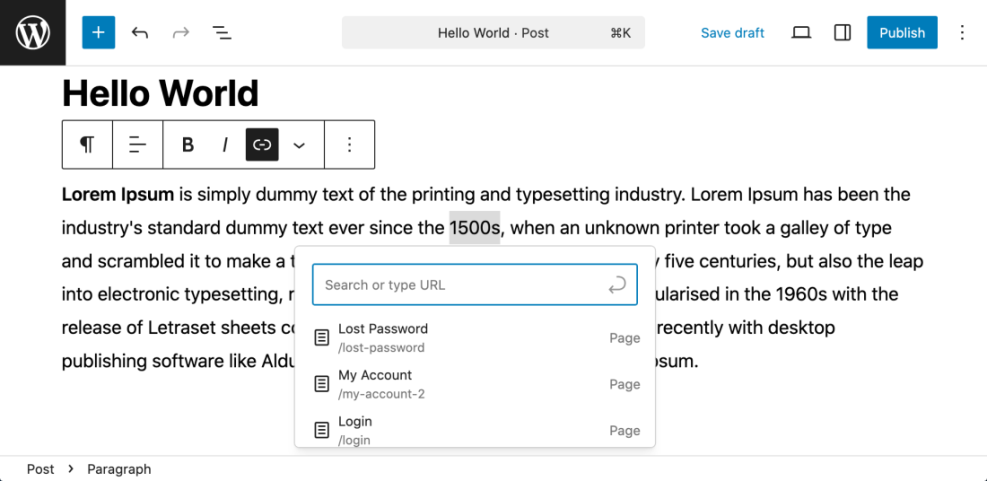
To add a link in the block editor, follow these steps.
- Select the text you want to use as the anchor.
- Click the link icon in the floating toolbar above the block.
- Start typing the title of the target post or paste its URL.
- Choose the correct page from the suggestions.
- Press Enter to apply the link and update your post.
When you use the built-in suggestions, you avoid typos in URLs and keep your internal links pointing to the latest version of each page.
Adding Internal Links in the Classic Editor
In the WordPress Dashboard, go to Posts » All Posts, then click Edit under the post you want to change.
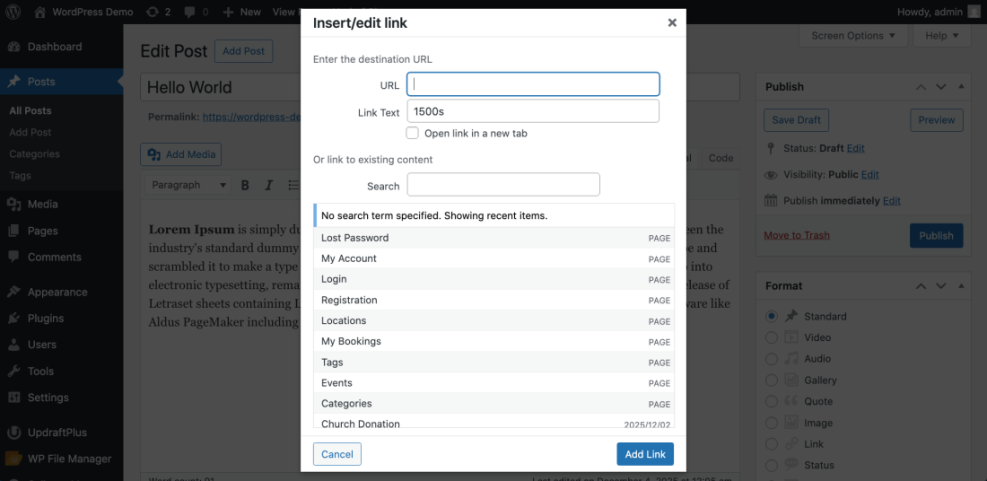
In the Classic Editor, the steps are similar. You highlight the anchor text, click the chain icon, and either paste a URL or pick one of the existing posts from the internal list. After you confirm, always test the link in Preview to make sure it goes to the correct page.
Should Internal Links Open in a New Tab?
For internal links, you usually keep them in the same tab. This choice keeps the browsing experience simple and avoids a stack of open tabs. However, if you link to a long reference page that users may want to read later, you can choose the new tab option as a convenience.
Smart Anchor Text and Link Placement
Writing Descriptive Anchor Text
Good anchor text briefly describes what the visitor will see after clicking. For example, “WordPress SEO guide” is much clearer than “click here.” Search engines like Google also use anchor text as a strong hint about the topic of the target page, so descriptive phrases work better than generic labels.
For more guidance on anchor text, you can review Google’s own link best practices in their Search Central documentation at this official guide.
Where Should You Place Internal Links?
Place most internal links in the main content area, not only in sidebars or footers. Early links in a post help readers decide what to explore next, while links near the end work well as “next steps” when someone finishes an article. In addition, group related links instead of dropping random links throughout the text.
How Many Internal Links per Page Is Best?
There is no fixed number that fits every page. Instead, focus on adding links where they help the reader find the next logical piece of content. As a simple rule, a typical blog post of 1,000 to 1,500 words might include three to ten well-placed internal links without feeling cluttered.
Building a Simple Linking Strategy
Choosing Your Priority Pages
First, make a short list of your priority pages. These often include your main service pages, your core product pages, and one or two cornerstone articles. Then, each time you publish a new post, look for natural spots to link back to those priority pages using clear, descriptive anchors.
For a broader overview of basic SEO, you can also study the WordPress SEO guide and use it as your reference when planning which pages deserve the most internal links.
Turn Internal Linking into a Habit
To keep things simple, attach internal linking to tasks you already do, such as writing or updating posts. Every time you finish a draft, pause and add a few links to older content. Then, when a new post goes live, add links from existing posts that mention the same topic.
- Keep a list of 5 to 10 priority pages.
- Link to at least one priority page in every new post.
- Add links from at least two older posts to every new article.
- Review anchor text so it stays clear and natural.
This tiny routine only adds a few minutes to each publishing session, yet it slowly builds a very strong internal linking structure over time.
Using Plugins for Link Suggestions
Several SEO plugins can suggest internal links based on the text you write. For example, tools like Yoast SEO, Rank Math, or Link Whisper scan your content and show related posts in a sidebar. These suggestions can save time, but you still need to choose anchors and placements that make sense for readers.
To explore suitable tools, see a comparison of popular SEO helpers in Best WordPress SEO Plugins and Tools and select one that fits your workflow and budget.
If you want a more advanced workflow later, you might create a dedicated Internal linking WordPress beginners checklist page and use it to guide quarterly reviews.
Auditing and Fixing Link Problems
Finding Orphan and Weak Pages
Over time, some posts may receive few or no internal links. These “orphan” pages rarely rank well because search engines and visitors struggle to find them. You can spot them with SEO plugins that list posts with zero inbound internal links, or by exporting page data and checking which URLs receive little internal traffic.
Google Search Console also provides a Links report that shows how often pages link to each other inside your site, which helps you find content that needs more connections.
Fixing Broken and Redirected Links
Broken internal links frustrate users and waste crawl budget. Therefore, you should update or remove them whenever you find them. You can run a crawler tool on your domain to detect 404 or redirect chains, then adjust anchor links in WordPress so they point directly to the final, correct URL without unnecessary hops.
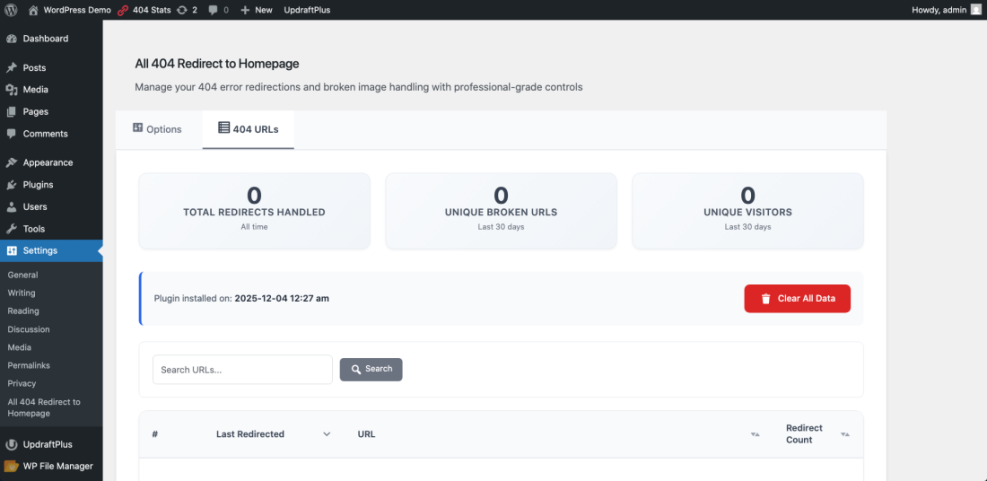
In the WordPress Dashboard, go to Plugins » Installed Plugins if you use a redirect or link-checking plugin, and open its settings page to review problem URLs.
How Often Should You Audit Internal Links?
For most small sites, a full internal link check every three to six months is enough. However, if you publish new content every week, you can speed this up and run a lighter review each month. Regular audits catch broken links early and keep your most important pages well supported.
Internal Linking Conclusion
Internal links are under your direct control, so they are one of the easiest SEO levers you can pull today. As a next step, pick five key pages that you want to rank better. Then open your last ten posts and add at least two relevant internal links from each post to one of those key pages.
In addition, add internal linking to your publishing checklist so every new article links out and receives links in return. When you keep this habit going, your WordPress site becomes easier to navigate, easier to crawl, and better positioned to grow steady search traffic over time.
More WordPress Guides You Might Like
These resources will help you go deeper into SEO and performance once your internal linking basics are in place.
- WordPress SEO – Complete Beginner’s Guide
- Best WordPress SEO Plugins and Tools
- WordPress Performance Speed Optimization
- WordPress migration checklist for blogs
- How to do seo for WordPress blog
You do not need to read all of them at once. Instead, bookmark the list and come back whenever you want to tune a specific part of your WordPress SEO setup.
Frequently Asked Questions About internal linking
What is internal linking in WordPress?
How many internal links should I use per page?
Should I use nofollow on internal links?
Do internal links help new posts rank faster?
What is an orphan page in WordPress?