
Knowing how to access WordPress database safely gives you more control over your site. You can fix broken settings, reset user passwords, inspect plugin data, or export content directly from the database.
In this step by step guide, you will learn how to access WordPress database using phpMyAdmin, your hosting panel, and SSH. You will see where to find the database name and login details, how to open the tables, and what safety rules to follow so you do not break your site.
What You Need Before Accessing the Database
- Access to your website’s hosting control panel (such as cPanel, Plesk, or a custom dashboard), or SSH access.
- WordPress admin access so you can confirm site paths and plugins if needed.
- A basic understanding of what a database is and the difference between files and data.
- A recent full backup of your site (files + database) from your host or a backup plugin.
- Optional but recommended: a staging site where you can practice before touching the live database.
Step 1: Quick Overview of Ways to Access the WordPress Database
Before you dive into details, it helps to understand the main methods you can use when learning how to access WordPress database. Choose the option that matches your hosting setup and skill level.
| Method | Where You Use It | Main Purpose |
|---|---|---|
| phpMyAdmin in Hosting Panel | cPanel / Plesk / Hosting dashboard » Databases » phpMyAdmin | Most common way to view, search, export, and edit WordPress tables via a web interface. |
| Database Details from wp-config.php | File Manager or FTP » /wp-config.php | Find the database name, username, and host so you can connect with any tool. |
| Adminer or Database Plugin | WordPress dashboard » Plugins or Tools | Access the database from inside WordPress when your host does not expose phpMyAdmin. |
| MySQL Command Line via SSH | SSH terminal » mysql commands | Advanced users who want direct control with SQL queries on VPS or dedicated servers. |
| Local Database (Local/MAMP/XAMPP) | Local server tools » phpMyAdmin | Work with a copy of your site on your own computer for safe testing and development. |
Step 2: Find Your WordPress Database Name in wp-config.php
Every WordPress site stores its database connection details in the wp-config.php file. Before you actually open the database, you need to know which database belongs to your site.
- Log in to your hosting control panel and open File Manager, or connect via FTP/SFTP with a tool like FileZilla.
- Navigate to the folder where WordPress is installed, usually
public_htmlor a subfolder. - Locate the file named wp-config.php in the root of your WordPress installation.
- Right click and choose View or Edit (or download and open it in a text editor).
- Look for the section with database settings, which will look similar to this:
define( 'DB_NAME', 'your_database_name' );
define( 'DB_USER', 'your_database_user' );
define( 'DB_PASSWORD', 'your_database_password' );
define( 'DB_HOST', 'localhost' );
- Write down the values for DB_NAME, DB_USER, and DB_HOST. You will use these to identify and access the correct database.
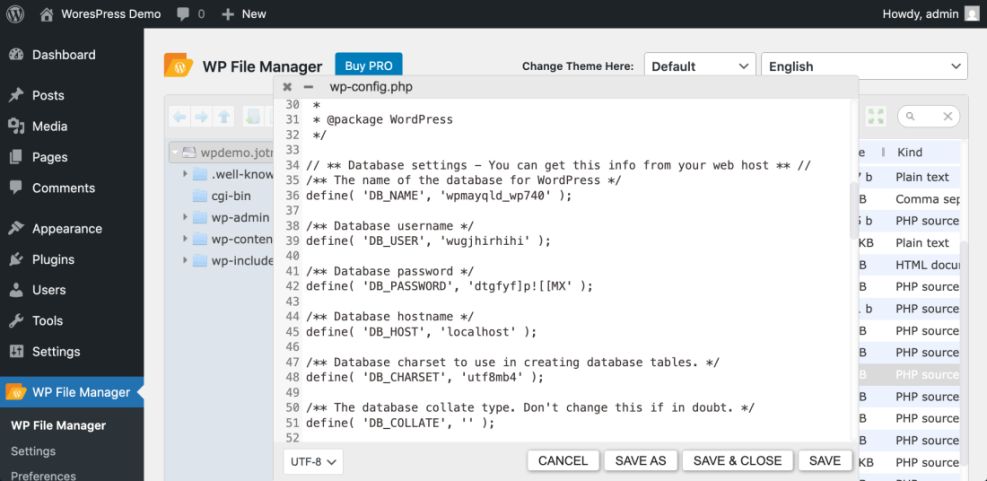
Verify success when you clearly know which database name belongs to this WordPress site. This prevents you from opening and editing the wrong database when you move on to the next steps.
Step 3: How to Access WordPress Database with phpMyAdmin
phpMyAdmin is the most common tool used to access WordPress databases. It runs in your browser and lets you browse tables, run queries, and export backups.
- Log in to your hosting control panel (such as cPanel, Plesk, or your host’s custom dashboard).
- Look for a section called Databases or similar.
- Click on phpMyAdmin. This will open a new window or tab with the phpMyAdmin interface.
- On the left sidebar, find and click the database name you saw in
wp-config.php(the DB_NAME value). - After selecting the database, you will see a list of tables such as
wp_posts,wp_users,wp_options, and others.
Common WordPress Tables You Will See
wp_posts– Stores posts, pages, and custom post types.wp_users– Stores WordPress user accounts.wp_usermeta– Stores extra data about users.wp_options– Stores site wide settings, including URLs and plugin options.wp_postmeta– Stores additional data about posts (custom fields, builder layouts).
Export a Quick Backup Before Editing
- In phpMyAdmin, click the Export tab at the top.
- Choose Quick export method and SQL format.
- Click Go to download a backup of your database.
Verify success when you can see your WordPress tables and have saved a quick export file before making any changes. This is the safest way to start when learning how to access WordPress database and adjust data.
Step 4: Safely View and Search Data in the WordPress Database
Once you know how to access WordPress database via phpMyAdmin, you can view and search data without immediately editing or deleting anything.
- Click on the wp_posts table to see your posts and pages.
- Use the Browse tab to view rows and move between pages of results.
- Click the Search tab to look for a specific title, slug, or ID.
- To see site settings, open the wp_options table and browse entries like
siteurlandhome. - To check a user, open the wp_users table and search by username or email.
Example of a Safe Read Only Query
You can use the SQL tab to run read only queries. For example, to list the 10 most recent published posts:
SELECT ID, post_title, post_date
FROM wp_posts
WHERE post_status = 'publish'
  AND post_type = 'post'
ORDER BY post_date DESC
LIMIT 10;
DELETE, DROP, or bulk UPDATE queries until you are comfortable and always have a backup. Simple mistakes can remove critical data instantly. Step 5: Use a Database Plugin or Adminer When phpMyAdmin Is Not Available
Some managed hosts hide phpMyAdmin or limit direct database access. In those cases, you can use a lightweight database tool like Adminer or a database management plugin from inside WordPress.
- From your WordPress dashboard, go to Plugins » Add New.
- Search for a trusted database tool such as Adminer or a well reviewed database manager plugin.
- Click Install Now and then Activate.
- Open the new menu item created by the plugin, usually under Tools or a similar section.
- Use your database credentials (from
wp-config.php) if the plugin asks for them, then connect.
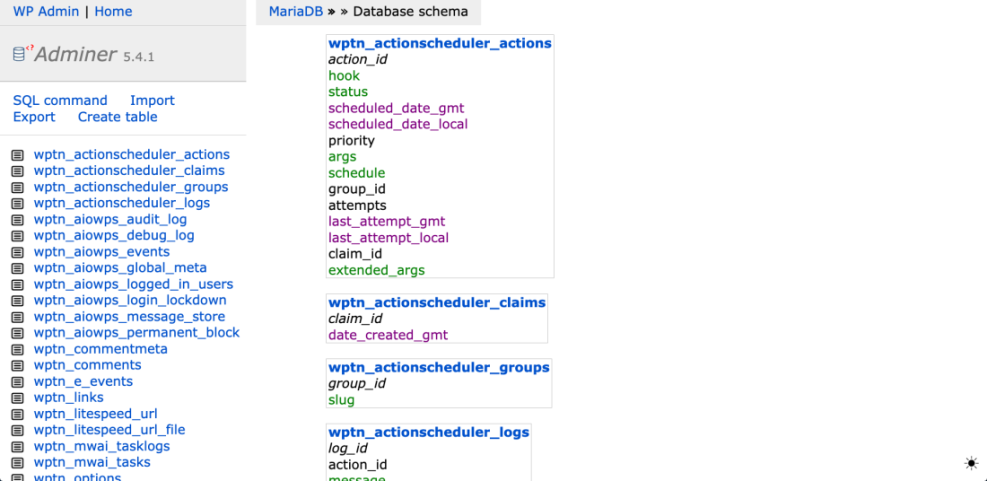
Verify success when you can browse tables and run simple queries from inside WordPress. For security, deactivate and remove any database plugin when you no longer need it.
Step 6: Access the WordPress Database via MySQL Command Line (Advanced)
Advanced users who manage VPS or dedicated servers might prefer to access the database via the command line. This method is powerful but should only be used if you are comfortable with SSH and SQL.
- Use an SSH client (such as Terminal, PuTTY, or similar) to connect to your server with your SSH username and password or key.
- Once logged in, run a command in this format, replacing the placeholders with your own details:
mysql -u your_database_user -p -h your_database_host your_database_name- Press Enter, then type your database password when prompted (password will not show as you type).
- If the login succeeds, you will see a
mysql>prompt. - Use simple read only commands such as:
SHOW TABLES;
SELECT COUNT(*) FROM wp_users;
Type EXIT; and press Enter when you are done.
Step 7: Best Practices for Editing the WordPress Database
Accessing the database is powerful, but it also carries risk. Follow these safety rules every time you use what you have learned about how to access WordPress database.
- Always back up first – Export the database from phpMyAdmin or use a backup plugin before making changes.
- Work on staging when possible – Test queries and edits on a copy of your site first.
- Use read only queries until confident – Start with
SELECTstatements to understand the data before usingUPDATEorDELETE. - Document changes – Keep notes of the queries you run so you can undo or review them later.
- Limit database access – Only give database credentials to trusted people and remove tools you no longer need.
Step 8: Troubleshoot Common Database Access Issues
Sometimes, when you try to use what you learned about how to access WordPress database, you may hit errors. Here are common problems and how to fix them.
- Error establishing a database connection
Check thatDB_NAME,DB_USER,DB_PASSWORD, andDB_HOSTinwp-config.phpare correct. If you changed your database password in hosting, update it inwp-config.phptoo. - Cannot log in to phpMyAdmin
Make sure you are using the correct database username and password, not your WordPress admin login. Reset database user credentials in your hosting panel if needed. - Tables have a different prefix (not wp_)
Some sites change the table prefix for security, such aswp123_. Match the prefix you see in$table_prefixinsidewp-config.phpwith the tables in phpMyAdmin. - Database changes did not show on the site
Clear your caching plugin, any server side cache, and your browser cache. Some changes may not appear until caches are cleared. - You edited the wrong row or broke something
Restore your most recent database backup from your host or from the SQL export you took before editing. This is why backups are essential.
Further Reading on WordPress Databases
- Beginner guide to how WordPress uses MySQL databases.
- Step by step guide to backing up and restoring a WordPress database.
- Checklist for moving WordPress to a new host or domain (including database changes).
- Beginner guide to common WordPress database errors and how to fix them.
Frequently Asked Questions About Accessing the WordPress Database
Do I need to access the WordPress database for everyday tasks
Is it safe to edit the WordPress database directly
Can I reset a WordPress password from the database
wp_users table and change the user_pass field using an MD5 hash. However, it is usually easier and safer to use the “Lost your password?” link on the login screen. What if my host does not offer phpMyAdmin
Can I access the WordPress database from my own computer





