How to Fix Common WordPress Backup Errors Fast
Practical troubleshooting for safer restores and fewer surprises

WordPress backup errors can turn a routine update into a serious problem. One broken backup job can leave you without a clean restore point when something goes wrong, and that risk grows as your site and traffic increase.
You will learn how to recognize the most common backup problems, understand why they happen, and follow clear steps to fix them. The guide walks through quick checks, plugin settings, server limits, restore issues, and long-term best practices so your backups stay reliable.
Quick Fixes for WordPress Backup Errors
When a backup fails, you need a fast, safe routine to follow. Instead of guessing, run the same simple checks each time so you can decide whether you are dealing with a small glitch or a real data protection problem.
What Should You Check Right Away?
First, confirm whether the last backup is recent enough to restore if needed. Then, read the plugin’s log for clear error messages, verify that your hosting storage and remote storage have free space, and try a manual backup while you watch the progress for warnings.
- Confirm the date and time of your last successful backup.
- Open your backup plugin and review the latest log entry.
- Check disk usage in your hosting control panel for free space.
- Start a manual backup and note any error message or step where it stops.
These quick steps give you enough information to decide whether the problem lives in the plugin, the server, or the remote storage connection.
- Keep at least one recent full backup stored off the server.
- Know which plugin or service actually creates your backups.
- Document where your backups are stored and how to restore them.
When you treat backups like any other core system, you reduce the panic when something fails because you already know the path to fix it.
How WordPress Backup Systems Work
To fix backup failures, you need a basic picture of what happens in the background. Most WordPress backup plugins work in small steps so they do not overload your server.
Database and File Backups Explained
A complete backup has two parts: the database and the files. The database stores posts, pages, settings, and users, while files hold themes, plugins, uploads, and core code. Reliable plugins back up both parts so you can fully rebuild the site if needed.
Some hosts or plugins let you back up database only. That is faster, yet it does not protect uploads, custom themes, or plugin changes, so you should keep regular full backups for real disaster recovery.
How WordPress Cron Triggers Backups
Most backup schedules depend on WordPress cron, which runs when visitors load the site. If traffic is low or another plugin blocks cron, scheduled backups may never start. In that case, manual backups work while schedules quietly fail in the background.
Hosts sometimes disable wp-cron.php and replace it with a real server cron. When that is misconfigured, every scheduled backup can miss its start time even though your settings look correct inside WordPress.
Why Plugin and Host Limits Matter
Hosts often set limits on memory, CPU time, and how long a PHP process can run. Large sites with many images or heavy plugins can hit those limits during backup. The job then stops halfway, which leads to incomplete archives or timeout errors in the log.
Fix Failed or Stuck Backup Jobs
Once you know how backups run, you can focus on the errors that stop them. Most failed jobs come down to three causes: running out of resources, hitting a bad file or database table, or a schedule that never starts.
How Do You Know a Backup Failed?
You usually see a red error notice in the plugin, a warning email, or a job that sits at the same percentage for a long time. When you open the log, you might see “timeout,” “memory exhausted,” or messages about specific files, database tables, or remote storage.
Read the Backup Log and Error Codes
The log file is your best friend when backups fail. It shows which step ran last, how long it took, and which part caused trouble. Look for repeating messages, such as the same file path or table name, because these often point to the exact point where the job stops.
If you see only a timeout with no other detail, try running a new backup after excluding obvious heavy folders like old backup archives or large video directories. When the log then completes, you know the earlier backup failed because it was too big for your server limits.
Increase PHP Limits for WordPress Backup Errors Plugins
Many backup errors clear up when you increase memory and execution time. You should always work within your host’s rules, yet you can often raise limits a bit in your configuration so the backup has room to finish.
One common tweak is to raise the WordPress memory limit in your wp-config.php file. Add this line above the comment that says “That’s all, stop editing” if your host allows it:
define( 'WP_MEMORY_LIMIT', '256M' );After that change, run a new manual backup and watch the job. If it still times out, ask your host whether they can raise the max execution time or process timeout for PHP.
Troubleshoot Remote Storage Problems
Many site owners only notice remote storage problems after a crash, when they learn that nothing reached Google Drive, Dropbox, or S3. To avoid that surprise, treat remote uploads as a separate step you need to verify.
Why Cloud Backup Uploads Often Break
Remote backups fail for simple reasons: tokens expire, permissions change, or cloud storage reaches its quota. Sometimes the backup plugin finishes on the server, but the upload times out because the archive is huge or the connection is slow.
When that happens, you might see backups stored locally while the remote folder remains empty. That is still useful in the short term, but it defeats the main point of having off-site protection.
How Do You Fix Cloud Connection Errors?
Start by reconnecting the cloud account inside your backup plugin to refresh permissions. Then, confirm that the remote folder exists, check free space in your cloud dashboard, and reduce archive size by excluding cache folders or splitting large backups into smaller parts if the plugin supports that option.
From the WordPress Dashboard, go to Settings » Your Backup Plugin and open the remote storage section to verify your account connection.
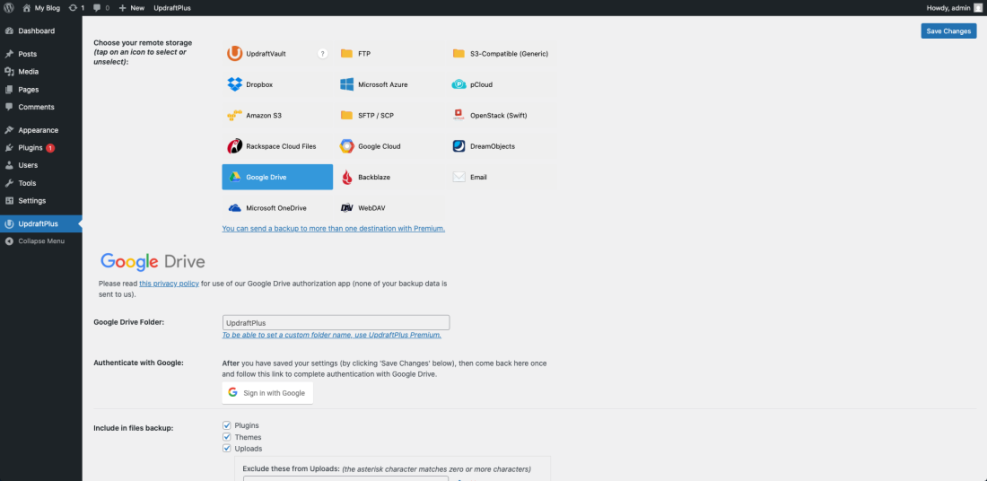
While you are there, adjust how many backups the plugin keeps remotely so old archives do not fill the account and cause silent upload failures.
Compare Local and Remote Backup Locations
Local backups are fast, but they do not protect you from server failures. Remote backups are safer but depend on cloud limits and network stability. The simple comparison below helps you decide how to mix both.
| Aspect | Local Server Only | Remote or Cloud Storage |
|---|---|---|
| Protection From Server Crash | Low | High |
| Backup Speed | Fast | Moderate |
| Storage Limits | Host disk quota | Cloud account quota |
| Restore Complexity | Simpler | Requires download or direct integration |
| Cost Over Time | Included in hosting | May add monthly fees |
Many site owners keep one or two backups on the server for quick restores and several more copies in remote storage in case the host has a serious outage.
Prevent Corrupt or Incomplete Backup Files
Sometimes a backup finishes without errors, yet you cannot open the archive or restore from it. That usually points to corruption during compression or transfer, especially on large or busy sites.
Check Archives Before You Trust Them
After big changes, download the latest backup archive and try opening it on your computer. You should see your wp-content folder and a database file inside. If your archive tool reports errors or cannot open the file, treat that backup as unsafe and fix the root cause before you need it.
In addition, you can create a small test restore on a staging site so you know the backup actually works under real conditions.
Exclude Huge or Temporary Folders Safely
Large folders make archives heavy and more likely to break on limited hosting. Common examples include caching folders, old backup folders, and large media archives that rarely change. You can often exclude these safely because you can recreate cache files and already have separate copies of old backups.
From the WordPress Dashboard, open Settings » Your Backup Plugin and look for an Exclude or Advanced tab where you can skip cache and backup directories.
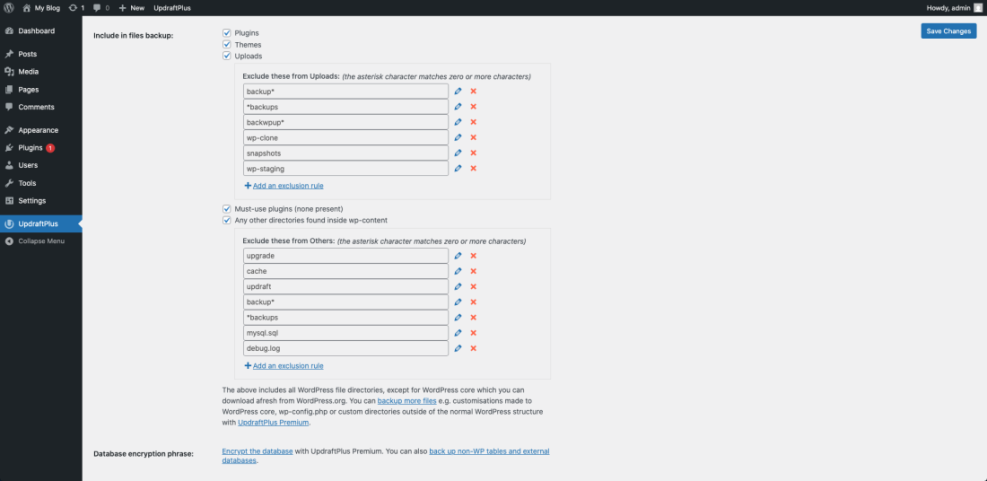
Always document which folders you exclude so you remember what a “full” backup really contains when you restore later.
Should You Split Large Backup Archives?
Many plugins let you split backups into multiple smaller archives. This helps when your host limits file size or script runtime. If your logs show timeouts while creating one huge zip file, try enabling archive splitting, lower the size per part, and test whether the backup finishes more reliably.
Avoid Restore Problems After WordPress Backup Errors
WordPress Backup errors often show up only when you try to restore. When that moment arrives, you want a calm, repeatable process so you do not make the problem worse.
Test Restores on a Staging Site
Restoring directly on a live site is risky. Instead, ask your host for a staging site or create one with a staging plugin. Restore the backup there first so you can confirm that logins, pages, and key features still work before you touch production.
If you do not yet have a clear process, plan a future deep dive with a guide like WordPress Staging Workflow so test restores become routine.
Why Restores Fail on New Hosting
Moves to new hosting often expose backup problems. Different PHP versions, database engines, or folder permissions can break a restore that worked fine on the old server. You may also run into file ownership issues if your new host uses a different user for PHP processes.
When this happens, restore a small test backup first. Then, if a full restore fails, share the exact log and any permission errors with your host so they can adjust settings rather than guessing.
How Can You Roll Back Safely?
When an update breaks the site, your goal is to get online quickly without losing important new orders or content. If your backup is recent, you can restore it and then redo a small amount of work manually. For stores or busy blogs, consider hourly database backups or transaction-specific export tools to reduce data loss.
Best Practices for Reliable Backups
Once you fix immediate errors, you should strengthen your overall backup strategy. A predictable routine prevents many failures and reduces stress when problems return.
Choose a Sensible Backup Schedule
Match your backup schedule to how often your content or orders change. Blogs that publish daily often use daily file backups and extra database backups. Smaller sites might use weekly full backups. The key is to choose a pattern you can maintain and monitor over time.
If you are unsure where to start, plan a future strategy review with WordPress Backup so you can adjust as your site grows.
Store Backups in Multiple Locations
Relying only on host backups or only on a plugin leaves a gap. A strong setup includes at least one plugin-based off-site backup plus any host-provided snapshots. That way, a single point of failure, such as host hardware or one plugin bug, cannot remove every restore option.
From the WordPress Dashboard, go to Tools » Site Health and review any backup-related recommendations as part of your routine checks.
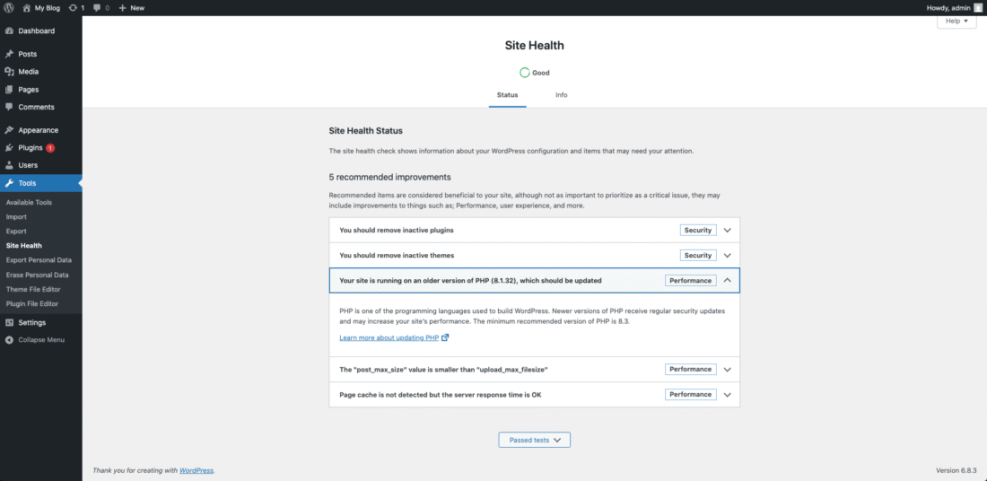
Document Your Recovery Procedure
A backup is only as good as your ability to use it under pressure. Write a short recovery checklist that explains where backups live, who has access, which plugin you use, and the exact steps to restore. Store it somewhere outside WordPress so you can reach it even if the site is down.
WordPress Backup Errors Conclusion
Turn Backup Problems Into Routine Checks
Backup failures feel scary, yet they usually follow patterns you can control. When you learn to read logs, adjust limits, verify remote storage, and test restores on staging, errors stop being emergencies and become routine maintenance tasks.
Your next step is to pick one backup plugin, confirm a mix of local and remote copies, and schedule a test restore on a nonproduction site. Over time, this habit builds real resilience so WordPress backup errors rarely threaten your business.
More WordPress Backup Error Guides You Might Like
Suggested Reading List
You can deepen your backup and maintenance skills by exploring related topics, from plugin selection to full-site performance and security planning.
- How to Choose a WordPress Backup Plugin
- Step by Step WordPress Maintenance Process
- Creating a WordPress Disaster Recovery Plan
These future guides, together with this article, form a practical toolkit you can rely on when you manage or recover WordPress sites.
Frequently Asked Questions About WordPress Backup Errors
How This FAQ Supports You
This FAQ answers the questions that usually surface when backups fail at the worst time. You can scan the questions now and return later when an error message appears, because the answers focus on practical, repeatable actions instead of theory.
What is the safest way to test a WordPress backup?
How often should I back up a small business WordPress site?
Can I rely only on my hosting provideru2019s backups?
Which parts of WordPress are most critical to back up?
What should I do if every backup attempt fails?