Where Is the SEO Title in WordPress
A practical guide to finding and editing your SEO titles in WordPress.


When you edit a post or page in WordPress, you see a big title field at the top—but that’s not always the same thing Google shows in search results. The text that appears as the blue, clickable headline in Google is usually called the SEO title or title tag, and it often comes from your SEO plugin, not just your post title.
If you’re wondering, “Where is the SEO Title in WordPress, and how do I edit it?” this guide will walk you through exactly where to find it in the editor, how different SEO plugins handle it, and where to control SEO titles for your homepage, blog page, and archives.
If you’re completely new to search optimization, you may also want to read our WordPress SEO complete beginners guide before you dive deep into titles, then come back here to tweak the details.
Step 1: Understand What the SEO Title Really Is
Before you start hunting around the WordPress dashboard, it helps to know what you’re actually looking for. The SEO title is the text placed inside the HTML <title> tag of a page. Browsers use it for the tab label, and search engines use it as the main headline in search results (unless they rewrite it).
- Post/Page Title (H1): The big title you see at the top of the editor and on the page itself.
- SEO Title (Title Tag): A separate field (usually added by an SEO plugin) that controls what appears in the browser tab and in search results.
- Fallback behavior: If no SEO title is set, WordPress or your theme usually uses the post title as the title tag.
Step 2: Find the SEO Title on a Single Post or Page
In almost all setups, you’ll find the SEO title for a single post or page inside the edit screen. The exact location depends on whether you’re using the Classic Editor or Block Editor (Gutenberg), and which SEO plugin you installed.
2.1. In the Classic Editor (common with the Jannah theme)
- Log in to your WordPress admin dashboard.
- Go to Posts > All Posts or Pages > All Pages.
- Click the title of the post or page you want to edit.
- Scroll below the main content area until you see your SEO plugin’s meta box (Yoast, Rank Math, All in One SEO, etc.).
- Look for a field labeled SEO title, Title, or Meta title.
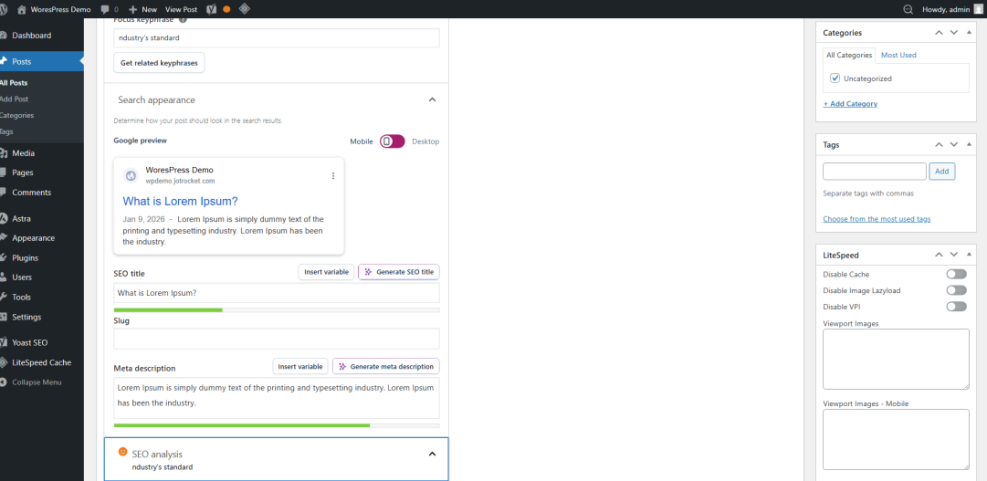
Whatever you type in that SEO title field will usually become the title tag for that specific post or page (unless you leave it blank, in which case the plugin uses a default format).
2.2. In the Block Editor (Gutenberg)
- In your dashboard, go to Posts or Pages and click on the one you want to edit.
- Inside the editor, open the right-hand sidebar if it’s hidden (click the cogwheel icon).
- Scroll down the sidebar or click the SEO plugin’s icon (often appears as a panel or tab).
- Locate the SEO Title field in that sidebar panel, usually alongside the meta description.
If you want a deeper, more advanced walkthrough on actually editing and optimizing those titles, follow this dedicated guide on how to change the SEO title in WordPress after you locate the field.
Step 3: Locate SEO Title Fields in Popular SEO Plugins
Most WordPress sites rely on an SEO plugin to manage SEO titles. Here’s where to find the SEO title setting for posts, pages, and templates in the most commonly used plugins.
3.1. Where is the SEO Title in Yoast SEO?
- Open any post or page in the editor.
- Scroll down to the Yoast SEO meta box (Classic Editor) or open the Yoast plugin panel in the sidebar (Block Editor).
- Under SEO, look for the SEO title input above the snippet preview.
By default, Yoast fills this with a template like Title – Site Name. You can type a custom SEO title here to override the template for that post or page only.
3.2. Where is the SEO Title in Rank Math?
- Open your post or page in the editor.
- Click the Rank Math SEO icon in the top-right toolbar or open the Rank Math panel in the sidebar.
- On the General tab, you’ll see a Snippet Preview with a field labeled SEO Title.
You can insert variables (like post title, separator, site name) or type a fully custom title for that specific URL.
3.3. Where is the SEO Title in All in One SEO (AIOSEO)?
- Edit a post or page in WordPress.
- Scroll down to the All in One SEO Settings box.
- In the Title & Description section, find the Page Title or SEO Title field.
AIOSEO also uses smart tags (like {post_title}) to build SEO titles dynamically. You can override the default on a per-page basis here.
If you need help understanding how title tags fit into on-page optimization as a whole, you can also check our guide on how to add title tags in WordPress once you’re comfortable finding the SEO title field.
Step 4: Find SEO Titles for Home, Blog, and Archive Pages
Some pages don’t have a normal WordPress “edit” screen—like your blog index, category archives, or tag archives. Their SEO titles are normally controlled in your SEO plugin’s global settings rather than a single page editor.
4.1. SEO Titles for the Homepage and Blog Page
In Yoast and many similar plugins, you can set a specific SEO title for your homepage and the page that lists your latest posts.
- In your dashboard, go to SEO > Search Appearance (Yoast) or the equivalent “Titles & Metas” section in your plugin.
- Open the General or Homepage tab.
- Look for a field labeled Homepage SEO Title or similar.
- Enter your desired SEO title, using variables if needed (e.g.
%%sitename%% | %%sitedesc%%in Yoast).
4.2. SEO Titles for Category and Tag Archives
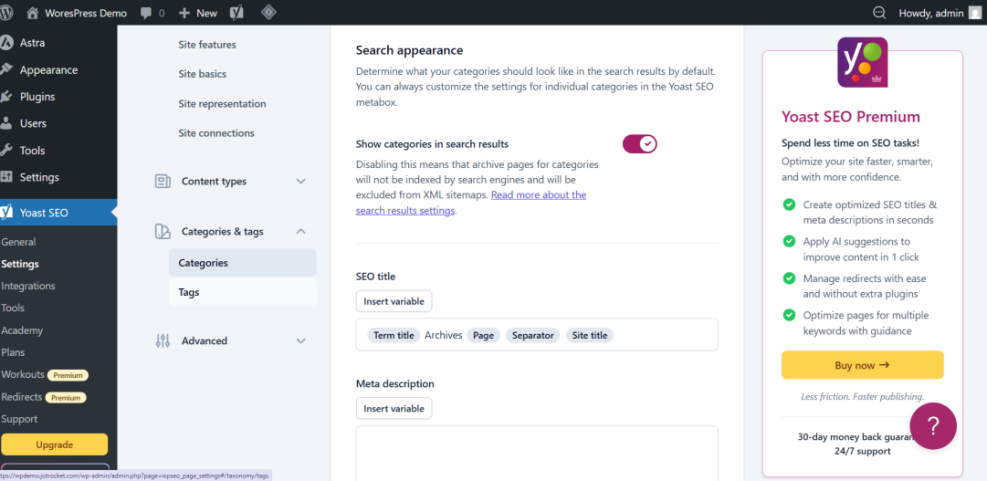
- Go to SEO > Search Appearance > Taxonomies (Yoast) or the matching “Taxonomies” section in your plugin.
- Select Categories and Tags.
- Locate the SEO title or Archive Title template fields.
- Adjust these templates to define how archive SEO titles are generated (e.g.
%%term_title%% Archives | %%sitename%%).
Step 5: Test and Verify Your SEO Titles
Once you’ve found and edited your SEO titles, you should confirm they’re working as expected.
5.1. Preview titles in your SEO plugin
- Use the snippet preview inside Yoast, Rank Math, or AIOSEO to see how your SEO title will probably look on Google.
- Check that important keywords appear early, branding is consistent, and nothing is cut off.
5.2. Check live titles in your browser
- Visit the page on the front end.
- Look at the browser tab—does it show the updated SEO title?
- Right-click the page and choose View Source or Inspect, then find the
<title>tag to confirm the final text.
5.3. Confirm titles in Google (with a delay)
- Search for your page in Google using a query like
site:yourdomain.com "part of your title". - Understand that Google may take days or weeks to recrawl and update the displayed title.
- In some cases, Google will rewrite your title if it thinks another version is clearer—this doesn’t mean your SEO title is “wrong”, just that Google made a choice.
Take Control of How Your Site Appears in Search
Finding the SEO title in WordPress is mostly about knowing where your SEO plugin hides it: on each post and page edit screen for individual URLs, and in global “Search Appearance” or “Titles & Metas” settings for your homepage and archives. Once you understand that structure, the mystery of “where is the SEO title?” disappears.
Now that you can locate and verify your SEO titles, you’re ready to refine them for higher click-through rates, clearer messaging, and better alignment with your content. Treat each SEO title as a mini ad for your page, and you’ll get far more value from the traffic you’re already earning as part of your broader WordPress SEO strategy.
Further Reading
- What Is WordPress SEO?
- Step-by-Step Guide to On-Page SEO in WordPress
- Where to Add Keywords in WordPress
- How to Add SEO Keywords to Your WordPress Website
Frequently Asked Questions
Is the SEO title the same as my WordPress post title?
Why can’t I see any SEO title field when I edit a post?
My SEO title looks correct in the plugin, but Google shows something different. What’s wrong?
Who should be allowed to change SEO titles in WordPress for security and consistency?
How long does it take for a new SEO title to show up in Google search results?