If you are new to WordPress, you may be asking what does WordPress do and why so many websites rely on it. The platform is a flexible content management system that lets you create, publish and manage your entire site from one dashboard, even if you never write a line of code.
By the end of this guide you will understand the main jobs this CMS handles for you, from content and design to plugins and business features. If you want a deeper background, you can also read a beginner overview of this CMS and a deeper look at how the platform works for more context.
What You Need to Start with WordPress
- A laptop, desktop or tablet with a modern web browser such as Chrome, Firefox or Safari.
- Access to a WordPress site, either on web hosting or installed locally, with an account that can log in to the admin dashboard.
- Fundamental concepts from a starter guide, including installation
- A few minutes to click through the dashboard and explore what the system controls for you.
What WordPress Does for Your Website
At a high level, WordPress acts as the control center for your website. It stores your content in a database, applies a theme for design, uses plugins to add special features, and then serves complete pages to visitors when they open your URLs.
- Open your browser and go to your site URL followed by /wp-admin (for example, https://example.com/wp-admin).
- Enter your Username and Password, then click the Log In button.
- After login, look at the left-hand menu where you will see Dashboard, Posts, Media, Pages, Comments and more.
Navigate to Dashboard to see the overview widgets for your site content, updates and recent activity all in one place.
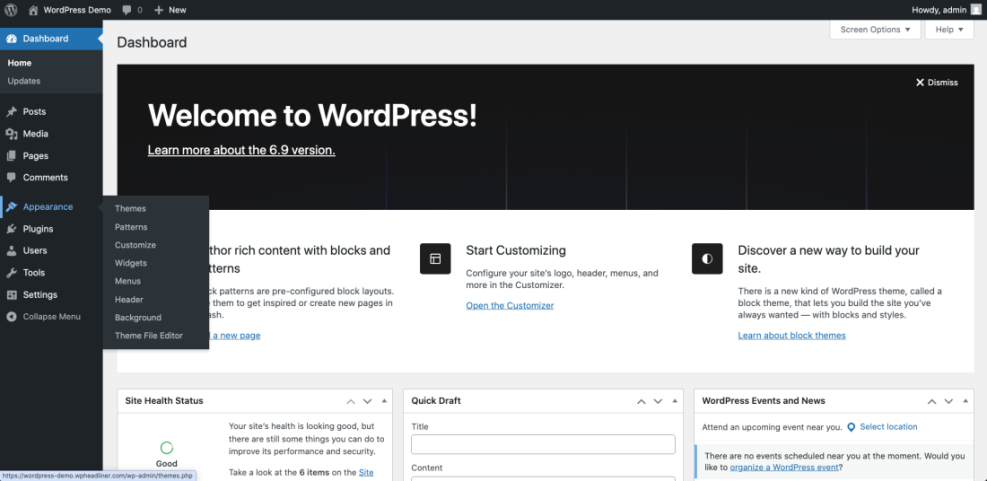
If you can see this dashboard and the dark admin bar at the top of your screen, the software is already handling user logins, routing and basic site management behind the scenes.
How WordPress Manages Your Content
One of the main things WordPress does is manage content such as blog posts, pages, images and categories. It gives you an editor to write, organize and schedule content without touching HTML.
- In the left-hand menu, hover over Posts and click Add New.
- Type a Title such as “My First Blog Post” into the title field at the top.
- Use the block editor area to add Paragraph, Image or List blocks by clicking the + icon.
- On the right sidebar, open the Categories and Tags panels to organize your post.
- Click Publish, then confirm by clicking Publish again in the confirmation panel.
Click View Post in the top admin bar to see how the system has turned your editor content into a live article on your site.
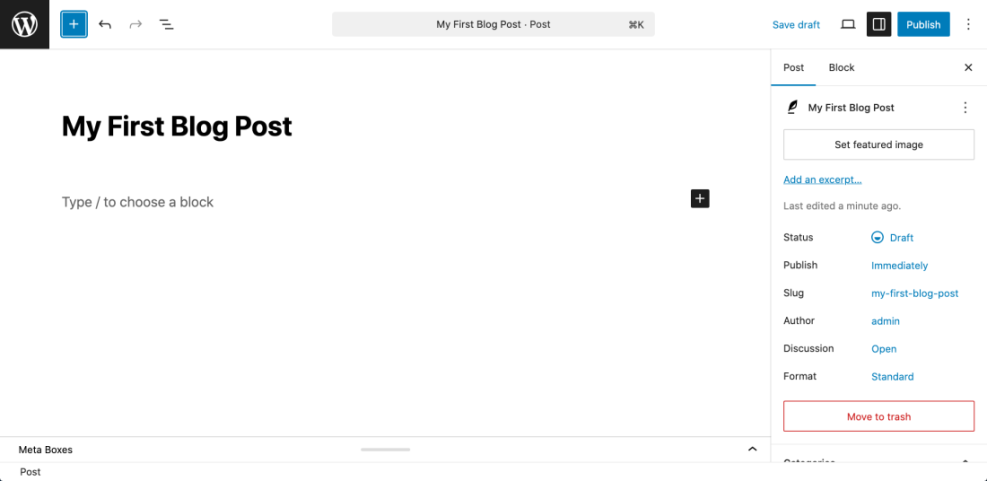
The same editor is used for Pages, so you can create static content like Home, About and Contact pages with the same tools.
How This CMS Controls Your Site Design
WordPress themes control the overall look of your site, including fonts, colors, layouts and some functionality. The software lets you change themes and customize them without rebuilding your content.
- In the left-hand menu, go to Appearance » Themes.
- Review the list of Installed Themes and note which one is marked as Active.
- Click Customize under your active theme to open the theme customizer or site editor.
Navigate to Appearance » Customize (or Editor for block themes) to adjust your logo, colors and layout in a live preview.
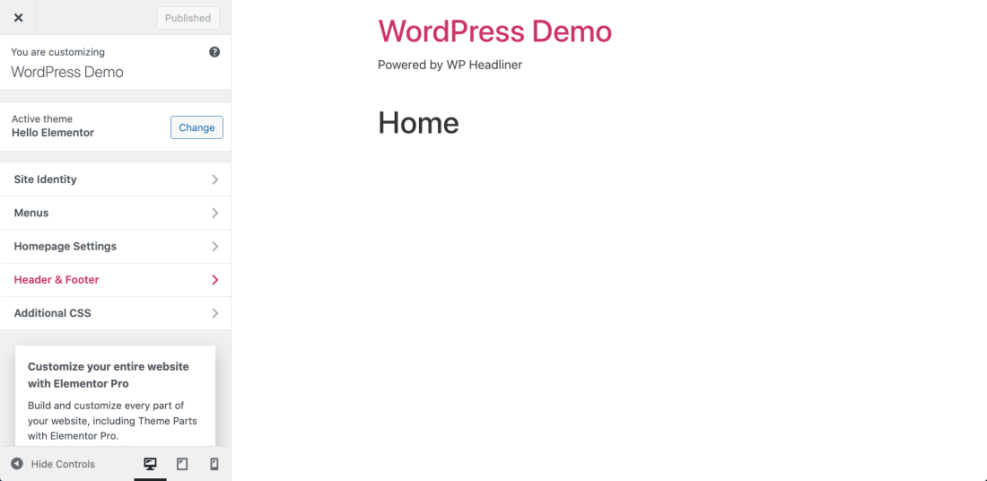
The CMS also gives you control over navigation and layout. For example, you can build custom menus under Appearance » Menus or design a blog layout using the ideas in this blog layout guide.
How Plugins Extend Your Site’s Features
Another big job this software handles is loading plugins, which are small software packages that add features such as contact forms, SEO tools, caching, security or analytics. This is how it adapts to many kinds of sites.
- Go to Plugins » Add New in the left-hand menu.
- Use the Search plugins box in the top right to search for a feature like “contact form”.
- When you find a plugin you like, click Install Now, then click Activate when the button changes.
- Look for a new menu entry under Settings or in the main menu to configure your plugin.
Open the new plugin’s settings page to confirm that it has been installed and that your site now has any new shortcodes or blocks you can use inside posts and pages.
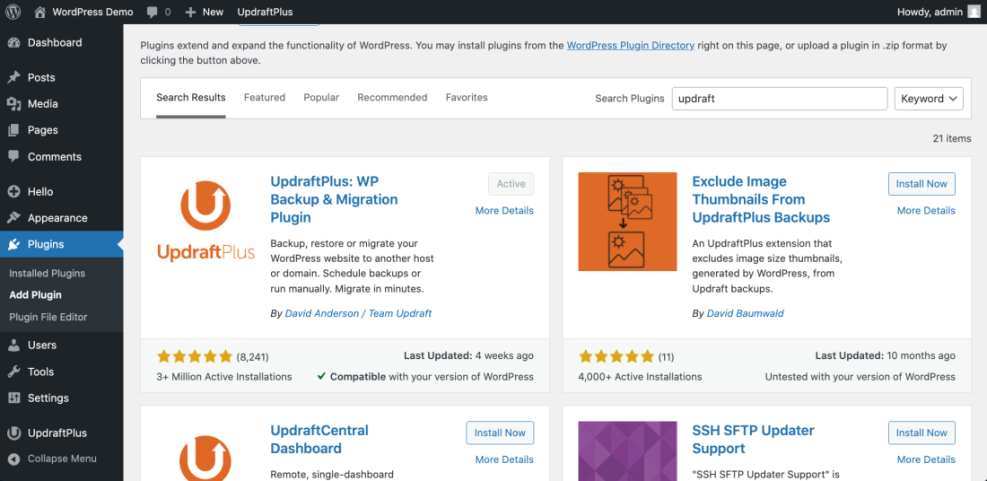
If you are comfortable with code, this CMS also lets developers extend functionality using hooks and custom plugins. For example, this basic snippet adds a small message to your site footer:
function wpheadliner_custom_footer_text() {
 echo 'Powered by WordPress on your own domain.';
}
add_action( 'wp_footer', 'wpheadliner_custom_footer_text' );To discover useful plugins for a new site, check this list of essential plugins for new sites for beginner-friendly recommendations.
How WordPress Supports Business Features
Beyond simple blogs, WordPress powers business websites, online stores, membership communities, learning platforms and booking sites. It does this mainly through specialized plugins and themes built for those purposes.
- From the dashboard, go to Plugins » Add New.
- Search for WooCommerce, the most popular ecommerce plugin.
- Click Install Now, then click Activate when the installation finishes.
- Follow the Setup Wizard to choose your store currency, payment gateways and basic shipping options.
Visit your site front end and look for the new Shop, Cart and Checkout pages that WooCommerce adds automatically.
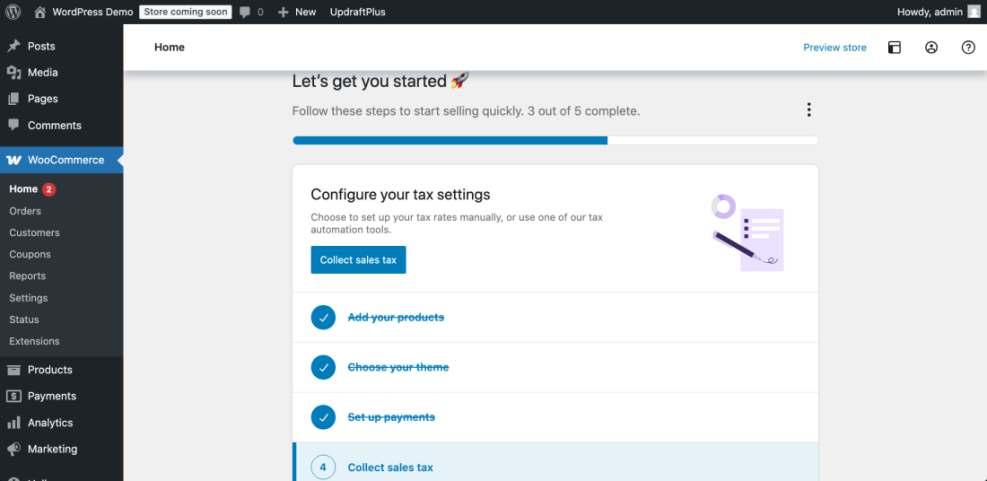
You can learn more about building an online store in this WooCommerce beginner’s guide or explore whether this is right for you in a pros and cons overview of using this platform for ecommerce.
Similarly, the software supports membership and course sites through plugins such as MemberPress and LMS tools. These plugins hook into user accounts so you can protect content, accept recurring payments and track member activity from the same dashboard.
Maintenance Methods for Managing a WordPress Site
There is more than one way to handle ongoing WordPress maintenance tasks, and each method fits slightly different skills, budgets, and site types. The table below compares the main methods so you can quickly choose the one that feels easiest and safest for your site.
| Method | Where You Use It | Main Purpose |
|---|---|---|
| DIY Manual Maintenance | Admin dashboard and hosting control panel | Maximum control over updates, backups, and checks for small or low-risk sites. |
| Managed Hosting Tools | Your host’s control panel or custom dashboard | Simplify routine maintenance with one-click updates, built-in backups, and basic security. |
| Maintenance & Security Plugins | Plugins section inside the admin dashboard | Automate repetitive work like backups, database cleanup, image optimization, and security scans. |
| WP-CLI and Developer Tools | SSH terminal with WP-CLI and deployment tools | Scriptable, fast maintenance for developers managing multiple or complex sites. |
| Professional WordPress Care Plan | External provider, freelancer, or agency | Hands-off maintenance with proactive monitoring, fixes, and expert support. |
What the System Handles Behind the Scenes
Day to day, the core software quietly handles many technical tasks such as routing URLs, managing user roles, scheduling posts and loading the right theme template for each page. It also gives you screens to keep your site updated and secure.
- Go to Dashboard » Updates to see available updates for WordPress core, Plugins and Themes.
- Review the list and, after making a backup, click Update Now where needed.
- Next, go to Users » All Users to see how the system assigns roles such as Administrator, Editor and Author.
Check that your site still loads correctly in a new tab and that the admin bar shows no update notifications once everything is current.
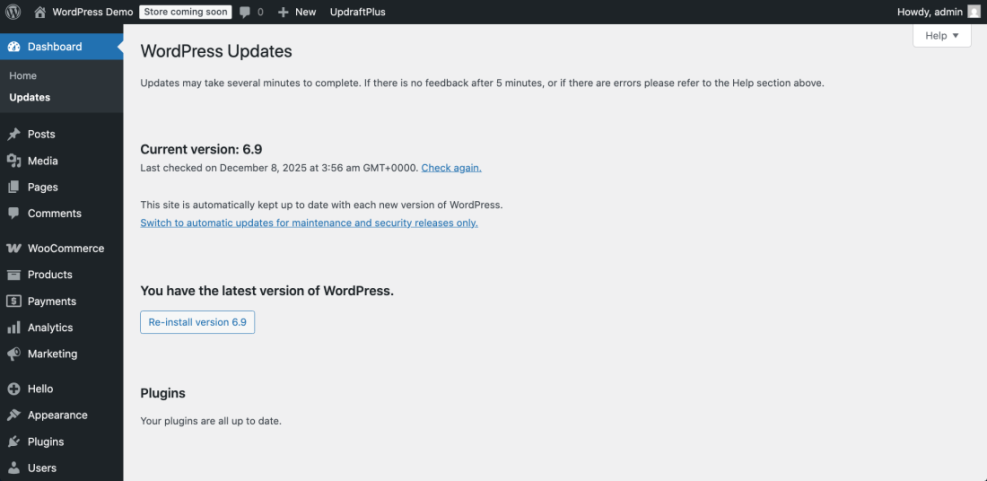
The platform also provides built-in tools for comment moderation, media management and basic privacy pages, so you do not have to build those features from scratch.
Conclusion: You Are Ready to Go
When you ask what does WordPress do, the short answer is that it takes care of your site’s content, design, features and day-to-day management from one central dashboard. You log in, add posts or pages, choose a theme, install plugins and the software handles the rest.
Whether you need a simple blog, a brochure site, an online store or a full membership platform, WordPress gives you the foundation and tools to build it. When you are ready to move from learning to doing, guides such as a step-by-step guide to building your own site will walk you through launching your own site.
Further Reading and Next Steps
- Starting a blog on this platform
- Securing your site
- Optimizing website performance
- Essential plugins for new sites
- A guide to web hosting for beginners
Frequently Asked Questions About WordPress
Is WordPress only for blogs
Do I need to know code to use WordPress
Can WordPress handle large websites
Is WordPress good for ecommerce
What is the difference between WordPress org and WordPress com
How secure is WordPress