WordPress plugins are small software packages that you install to add new features or change how your WordPress site behaves, without touching core WordPress files or writing custom code from scratch. If you are new to WordPress, it is easy to feel overwhelmed by thousands of available plugins and not know which ones you actually need.
In this guide, you will learn what WordPress plugins are, how they work behind the scenes, the most common plugin types, and how to choose, install, update, and remove plugins safely so you can extend your site without breaking it.
What You Need to Start
- An existing WordPress site (self hosted or a WordPress.com plan that supports plugins).
- Administrator access to your WordPress dashboard (your username and password).
- Basic comfort navigating the WordPress admin sidebar and settings screens.
- A recent backup of your site or access to a staging environment before installing many new plugins.
How WordPress Plugins Work
At a technical level, a WordPress plugin is a folder of PHP, CSS, JavaScript, and asset files stored under wp-content » plugins. WordPress loads active plugins on every request and lets them “hook” into core events to change or add functionality.
- A visitor opens a page on your site and WordPress core loads first.
- WordPress then loads all active plugins from the plugins directory.
- Each plugin uses WordPress hooks and filters to add features such as contact forms, SEO settings, or security rules.
- The final HTML page is generated and sent back to the visitor’s browser.
This means you can add advanced functionality without editing wp-config.php or core files. For complex custom behavior, developers build plugins instead of dropping random code into a theme.
Here is a simplified example of a WordPress plugin file so you can see what it looks like:
* Plugin Name: Sample Site Helper
 * Description: Example plugin that tweaks the login logo.
 */

add_action( 'login_enqueue_scripts', 'wph_change_login_logo' );

function wph_change_login_logo() {
    echo '<style>#login h1 a{background-image:url(https://example.com/logo.png);}</style>';
}
Developers can learn more in the official WordPress Plugin Developer Handbook.
Common Types of WordPress Plugins
Most sites rely on a small set of plugin types that solve common problems for performance, security, SEO, and backups. Understanding these categories helps you pick the right tools and avoid installing five plugins that all try to do the same job.
- SEO plugins add titles, meta descriptions, sitemaps, and content analysis to improve search visibility.
- Caching plugins speed up page loads by storing static copies of pages and optimizing assets.
- Security plugins add firewalls, login protection, and malware scanning to keep attackers out.
- Backup plugins create restorable copies of your files and database on a schedule.
- Form plugins handle contact forms, surveys, and lead capture.
- eCommerce plugins such as WooCommerce turn your site into a store.
You can browse thousands of free options in the official WordPress.org plugin directory. For more context on securing your site, review Beginner WordPress security best practices guide.
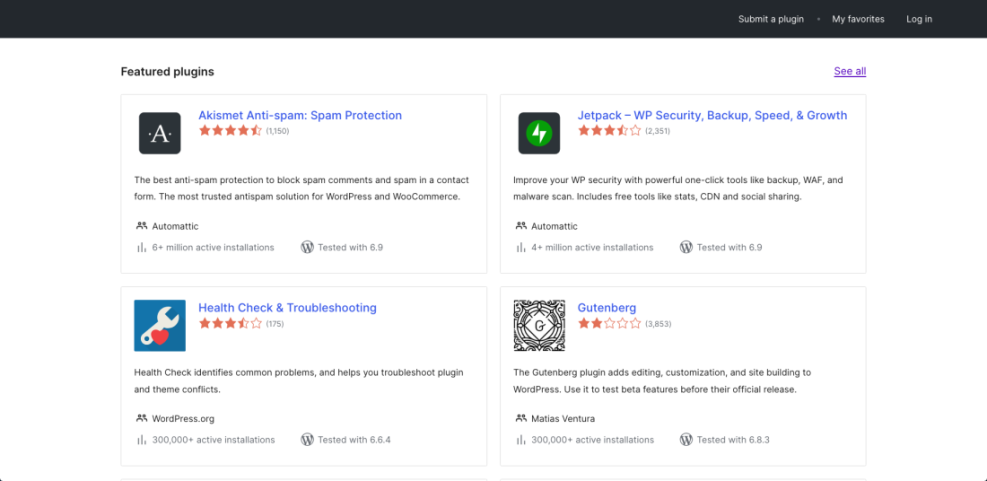
The screenshot below shows how common plugin types appear inside the directory with ratings and active installs.
How to Install WordPress Plugins Safely
Installing a plugin is usually a one minute task, but doing it carelessly can introduce security risks or break your layout. Follow these steps to install plugins in a controlled way.
- Log in to your WordPress admin dashboard at /wp-admin with an administrator account.
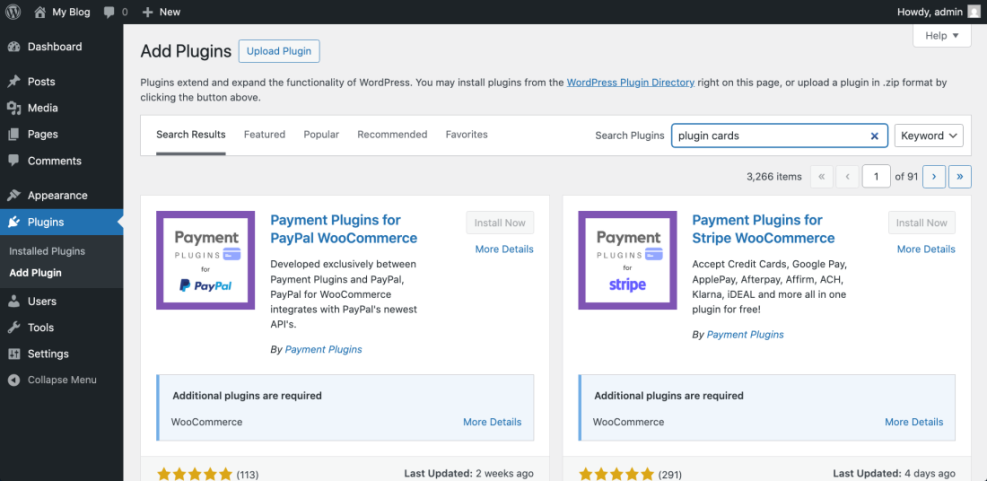
- In the left menu, click Plugins » Add New Plugin.
- Use the Search plugins field to type the exact plugin name you want.
- Review the plugin card for Active installations, Ratings, and Last updated.
- Click Install Now on the plugin you trust.
- After installation finishes, click Activate to enable the plugin on your site.
The screen below shows the Add Plugins page and a plugin card before you click Install Now.
To verify the plugin works, open a public page in a new private browser tab and confirm your site loads correctly. If the plugin adds a visible feature such as a form or new menu item, test that as well.
If the plugin provides settings, you usually find them under Settings, under a new top level menu, or on the Plugins page via a Settings link next to the plugin name.
How to Manage and Update Plugins
Once plugins are installed, you need to keep them updated and remove those you no longer use. Outdated or abandoned plugins are a common cause of hacked and broken sites.
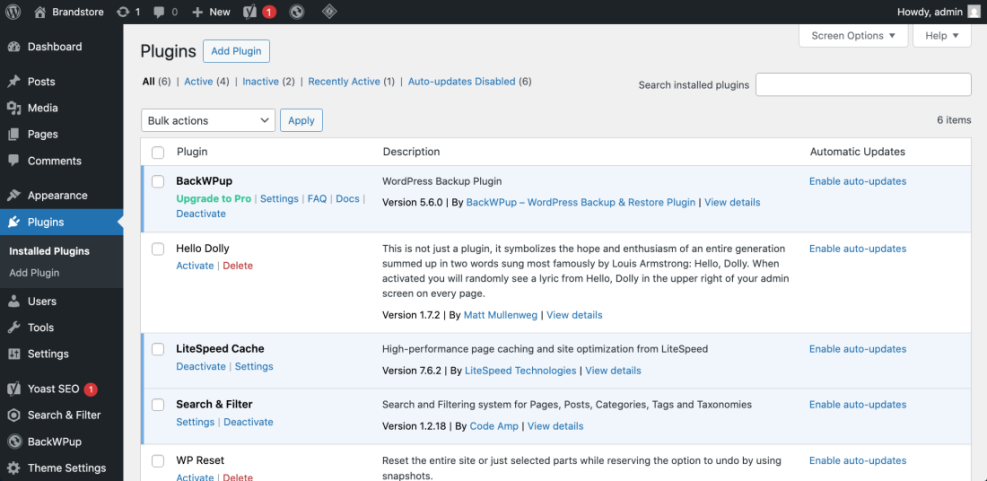
- Go to Plugins » Installed Plugins in your WordPress dashboard.
- Look for plugins with an Update now link or an update available notice.
- Click View details to read what changed in the new version.
- Ensure you have a recent backup, then click Update now for one plugin at a time.
- Reload a few front end pages to confirm everything still works.
- To remove a plugin you no longer need, click Deactivate, then click Delete.
The screenshot below shows updates available on the Installed Plugins screen and the Update now link location.
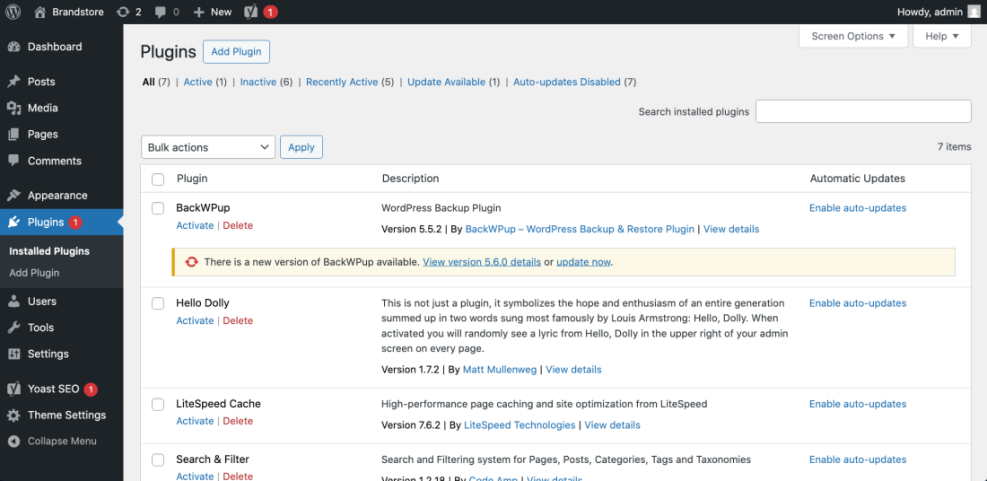
If updating a specific plugin breaks your site, immediately deactivate it via the dashboard. If you cannot access the dashboard, you can disable the plugin by renaming its folder under wp-content/plugins using FTP or your hosting file manager.
Maintenance Methods for Managing a WordPress Site
There is more than one way to handle ongoing WordPress maintenance tasks, and each method fits slightly different skills, budgets, and site types. The table below compares the main methods so you can quickly choose the one that feels easiest and safest for your site.
| Method | Where You Use It | Main Purpose |
|---|---|---|
| DIY Manual Maintenance | WordPress dashboard and hosting control panel | Maximum control over updates, backups, and checks for small or low-risk sites. |
| Managed Hosting Tools | Your host’s control panel or custom dashboard | Simplify routine maintenance with one-click updates, built-in backups, and basic security. |
| Maintenance & Security Plugins | Plugins section inside the WordPress dashboard | Automate repetitive work like backups, database cleanup, image optimization, and security scans. |
| WP-CLI and Developer Tools | SSH terminal with WP-CLI and deployment tools | Scriptable, fast maintenance for developers managing multiple or complex sites. |
| Professional WordPress Care Plan | External provider, freelancer, or agency | Hands-off maintenance with proactive monitoring, fixes, and expert support. |
Best Practices for Choosing WordPress Plugins
Choosing the right plugins is just as important as installing them correctly. Too many or poorly maintained plugins can slow your site down or open security holes.
- Write down the specific problem you are trying to solve before searching for a plugin.
- Search the official directory and shortlist two or three plugins with high ratings and many active installs.
- Check that the plugin has been updated within the last six months and tested with your version of WordPress.
- Read several recent reviews to see how the developer responds to support issues.
- Check the plugin’s documentation for clear installation and configuration steps.
- Install one plugin at a time and test site speed and functionality after activation.
The plugin card in your dashboard shows important decision details such as star rating, number of active installations, and last updated date.
Conclusion You Are Ready to Go
You now understand what WordPress plugins are, how they extend core WordPress, the most important plugin types for real world sites, and how to install, update, and remove them safely. With a small, carefully chosen set of plugins, you can add SEO controls, security layers, backups, and lead generation features without touching a line of code.
As your site grows, review your plugins regularly, keep them updated, and retire the ones you are not using. When in doubt, test on a staging site first and follow a maintenance plan so your plugins remain an asset instead of a risk.
Further Reading
- What is managed WordPress
- Developer hooks for optimizing WordPress plugins with code
- Developer hooks for optimizing WordPress plugins with code
- Best contact form plugins for WordPress
- How to install a plugin in WordPress
- Caching plugin comparisons WordPress performance
Frequently Asked Questions
How many WordPress plugins are too many
Are WordPress plugins free or paid
Can plugins slow down my WordPress site
How do I safely remove a WordPress plugin
Should I update plugins as soon as updates appear
What is the difference between a plugin and a theme