Monthly Speed Audit Checklist for WordPress Sites
A practical routine to keep your WordPress site fast

A monthly speed audit keeps your WordPress site fast, stable, and pleasant to use before visitors notice problems. Instead of reacting when pages crawl or rankings fall, you build a simple monthly habit that catches slowdowns early while fixes are still small and cheap.
With a clear routine, you can run quick tests, read the results with confidence, and decide what to fix this month versus later. You will walk away with a repeatable checklist, a simple way to log your results, and practical ideas to improve performance step by step.
Monthly Speed Audit at a Glance
A monthly speed audit is a short, repeatable process where you test a few key pages, compare the results with last month, and fix the biggest slowdowns first. You focus on page load time, Core Web Vitals, and heavy assets so your site stays consistently fast as content and plugins change.
What Is a Monthly Speed Audit?
A monthly speed audit is a quick health check for your website. You run one or two trusted testing tools, check Core Web Vitals, and confirm that new content, plugins, or theme changes have not slowed down key pages. You then record the numbers and plan one or two focused fixes.
How Long Does a Speed Check Take?
For most small WordPress sites, a monthly speed check takes around half an hour. You spend a few minutes choosing the pages, then run tests on desktop and mobile. After that, you compare the results with last month, make notes, and decide which issues to tackle before the next audit.
Which Pages Should You Test First?
You usually test your homepage, one or two top landing pages, and any revenue pages such as product or checkout screens. These pages get the most traffic and drive leads or sales. When these are fast, visitors feel the site is fast overall, even if less important pages load slightly slower.
Why Regular Speed Checks Matter
Fast pages help visitors stay longer, read more, and trust your brand. When pages lag, people hit the back button, which hurts conversions and signals poor quality to search engines. Monthly checks let you catch slowdowns early, before they turn into lost revenue and ranking drops.
Speed, Conversions, and SEO
Speed affects how many users complete forms, add items to carts, and read additional posts. A slow page frustrates people and makes your content feel outdated. In addition, search engines use performance signals, so consistent speed work supports your broader SEO strategy over the long term.
Core Web Vitals in Plain Language
Core Web Vitals focus on how quickly content appears, how stable the layout feels, and how fast the page reacts to taps or clicks. You do not need to memorize every metric name. Instead, you track the traffic-light colors and aim to keep your key pages in the “good” range each month.
When Slow Hosting Is the Culprit
Sometimes you can tune caching, images, and plugins and still feel stuck. In those cases, slow hosting, old PHP versions, or limited resources often hold your site back. When tests show strong frontend scores but poor server response time, it may be time to review your hosting plan.
Tools and Metrics for Testing
You get better results when you use a small set of trusted tools every month. Consistent tools and settings make your reports easy to compare. You also focus on a short list of metrics, such as load time, Core Web Vitals, total page size, and number of requests.
Recommended Free Testing Tools
You can start with one or two online tools such as PageSpeed tests, waterfall reports, and synthetic speed checks. Use the same location, device type, and connection speed each month so the numbers stay comparable. Then you can clearly see whether your changes helped or hurt performance.
Using WordPress Site Health
The WordPress Site Health screen gives another view of performance. It highlights missing modules, outdated PHP versions, and caching issues. When you combine Site Health with external tests, you see both how the site behaves for visitors and how the underlying setup supports long-term speed.
From your WordPress dashboard, navigate to Tools » Site Health and open the Status tab.

How Often Should You Run Tests?
A monthly routine works well for most small to medium sites. However, if you run heavy campaigns, launch new designs, or push big plugin updates, you should test again right after those changes. That way, you can catch regressions quickly and roll back or fix settings while details are fresh.
- Use the same test tools and settings each month.
- Test both mobile and desktop where possible.
- Log each test with date, page, and key metrics.
This simple checklist keeps your data clean so you can spot trends instead of chasing random swings or one-off spikes in load time.
Monthly Speed Checklist for WordPress
A good monthly speed audit follows the same steps every time. You do not need complex automation. Instead, you can use a basic spreadsheet or document and work through a fixed checklist that covers testing, analysis, cleanup, and follow-up actions.
Prepare Your Site for Testing
Before you test, log any major changes since last month, such as new plugins, design tweaks, or marketing scripts. Then clear your page cache so tests reflect current assets. It also helps to log in with a clean browser profile or incognito window so extensions do not skew results.
Run and Record Your Speed Tests
Next, choose your key pages and run at least two tests per page on each tool. Ignore outliers and focus on the average results. Record load time, Core Web Vitals status, and total page size in your log. When you repeat this each month, you quickly see patterns across your most important pages.
Clean Up Images and Media
Each month, review the newest images and media files. Large, uncompressed uploads are a common cause of gradual slowdowns. You can compress images, convert them to modern formats, and remove unused media. Over time, this regular cleanup keeps your pages lean without huge one-time projects.
- List your key pages and note any major changes this month.
- Run speed tests for each page on desktop and mobile and log the results.
- Compare numbers with last month and highlight any regressions or big wins.
- Review new plugins, scripts, or embeds and remove anything you no longer need.
- Optimize or replace large images, videos, and background media used on key pages.
- Run a database cleanup with a trusted plugin after making a fresh backup.
- Note one to three specific fixes to complete before your next monthly audit.
This ordered list keeps the audit focused on actions you can complete quickly instead of trying to fix every possible issue in one sitting.
- Did you log every test you ran?
- Did you pick one or two fixes for this month?
- Did you set a reminder for next month’s audit?
When you answer “yes” to these questions, you know your monthly speed audit is complete and ready to repeat.
Fixing Common Performance Problems
Your tests will point to a few recurring issues: heavy plugins, slow images, missing caching, or weak hosting. You rarely fix everything at once. Instead, you choose the biggest win for this month, ship it, and watch how the change affects your next round of tests.
Reduce Heavy Plugins and Scripts
Start by reviewing plugins that load on every page, such as page builders, sliders, or analytics. Disable any you do not need, replace bloated plugins with lighter options, and limit third-party scripts where possible. Each removed plugin or script means fewer files to load and faster pages.
Improve Caching and CDN Setup
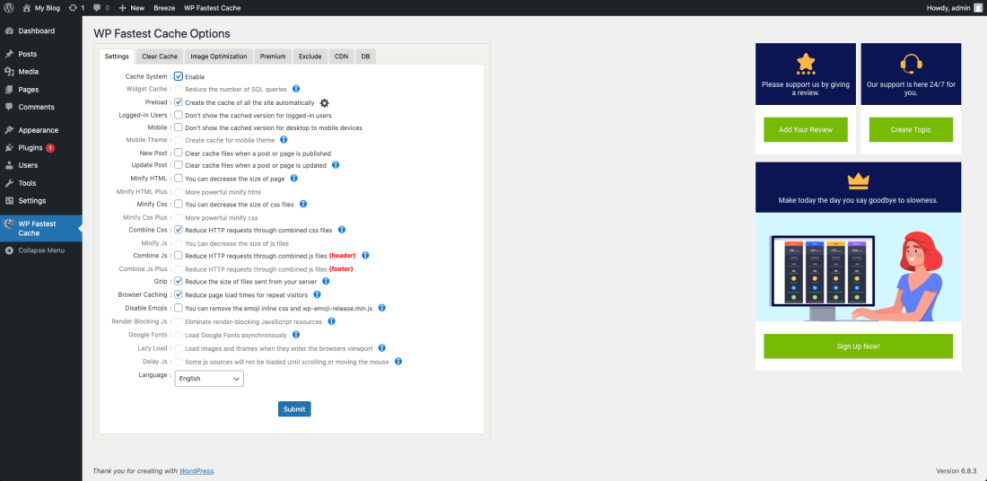
Caching stores ready-to-serve copies of your pages so the server does less work. A solid caching plugin plus a basic content delivery network often gives big gains for little effort. In addition, you can enable browser caching, compression, and simple minification to reduce file size and network roundtrips.
In your dashboard, navigate to Settings » Cache (or your caching plugin’s menu) to review the main configuration panel.
Simple Code Tweaks for Extra Speed
After you apply basic fixes, you can consider a few safe code tweaks, such as removing emojis or unnecessary embeds. These changes slightly reduce the number of scripts and styles your pages load. Always back up your site and use a child theme or custom plugin before adding snippets.
add_action('init', function () {
    remove_action('wp_head', 'print_emoji_detection_script', 7);
    remove_action('wp_print_styles', 'print_emoji_styles');
});
This snippet removes the default emoji scripts and styles that many sites no longer need, which trims a few requests from every page load.
Tracking Results and Next Steps
A monthly speed audit is most useful when you can see progress over time. Instead of hunting through old test reports, you maintain a simple log that summarizes each month’s numbers. That way, you can clearly show improvements to clients, managers, or future you.
Create a Simple Speed Report
You do not need fancy dashboards. A spreadsheet with columns for date, page, tool, scores, and notes works well. Each month, you add a new row for every tested page. Over a few months, you can see whether your changes are pushing scores toward your target ranges or slipping backward.
Decide What to Fix This Month
Based on your report, choose one or two focus areas for the next weeks. Maybe you replace a heavy slider, compress older hero images, or move a script to load later. Because you limit your priorities, you avoid burnout and keep your optimization work from stalling larger content projects.
When to Call in a Specialist
Sometimes you reach a point where basic tweaks no longer move the needle. If your business depends on organic traffic or paid campaigns, you may bring in a performance specialist. They can profile the site, review hosting architecture, and suggest deeper fixes that go beyond simple plugin settings.
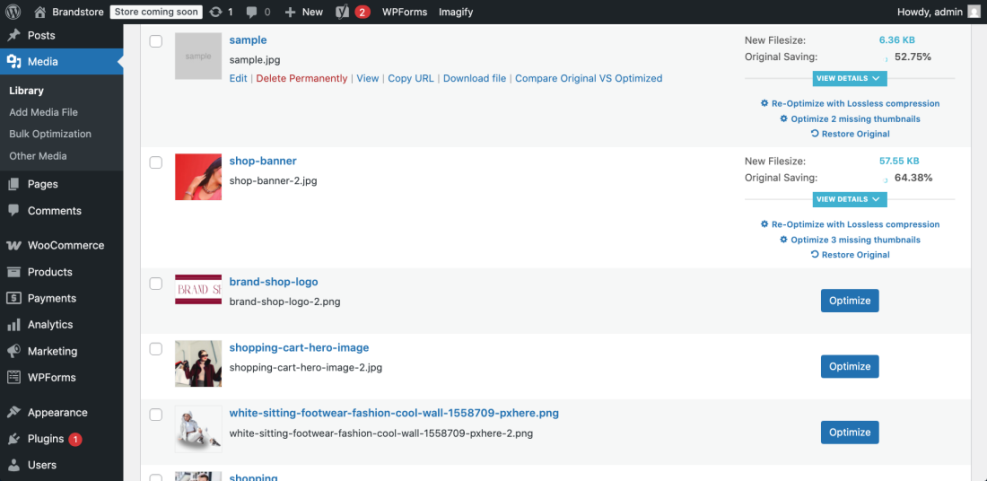
From your WordPress dashboard, navigate to Media » Library and switch to the List View to review file sizes.
Monthly Speed Audit Conclusion
A monthly speed audit turns performance into a steady habit instead of an emergency project. When you set aside a small, recurring block of time, you gain clear insight into how your site behaves, what changed, and which improvements matter most for visitors and search engines.
Your next step is simple: create a basic speed log, schedule your first audit, and pick one improvement you can ship this week. Over the coming months, this calm, consistent approach will keep your WordPress site fast, reliable, and ready for whatever traffic you send its way.
More WordPress Guides You Might Like
To deepen your performance workflow, you can plan additional content that covers related topics and supports your monthly speed routine.
- Beginner guide to WordPress speed optimization
- Beginner guide WordPress speed core web vitals
- How to choose the best WordPress hosting
- Caching Plugin Comparisons for WordPress Performance
These resources extend your toolkit so you can pair a strong monthly speed audit with smart hosting choices, better caching, and leaner images across your entire site.
Frequently Asked Questions About Monthly Speed Audit
What tools should I use for a monthly speed audit?
How long does a monthly speed audit usually take?
Do I need to test every page on my site?
Is a caching plugin enough to keep my site fast?
How can I track speed changes over several months?