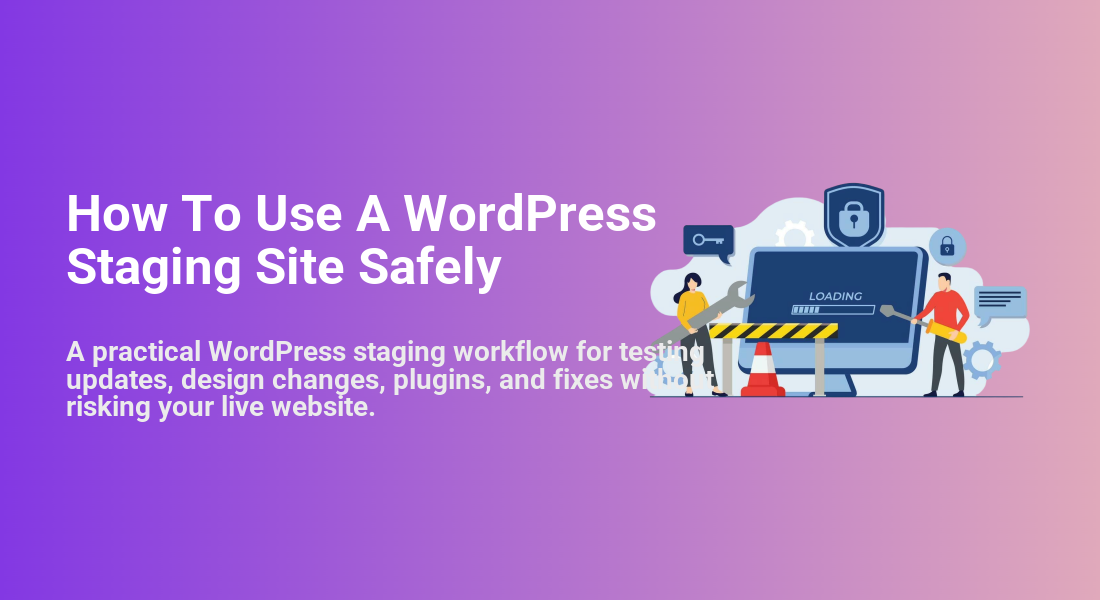
How To Use A WordPress Staging Site Safely
A practical WordPress staging workflow for testing updates, design changes, plugins, and fixes without risking your live website.

A WordPress staging site gives you a safe copy of your website where you can test updates, plugins, theme changes, code edits, and content workflows before touching the live version. Used correctly, it reduces downtime, prevents broken layouts, and gives you time to catch mistakes before visitors see them.
In this guide, you will learn how to use a WordPress staging site safely from start to finish: preparing backups, creating a staging copy, testing changes, blocking public access, and pushing only approved updates live. If you are still setting up your test environment, start with this guide on how to create a WordPress staging site first.
The goal is not just to “have staging.” The goal is to build a repeatable staging workflow that protects your content, database, SEO settings, customers, and live user experience.
Prerequisites
Before you make changes on staging, make sure you have the right access and safety controls in place. A staging site is only useful when you can restore, compare, test, and control what moves back to production.
- Administrator access to your WordPress dashboard.
- Hosting control panel access, such as cPanel, managed WordPress hosting, or a staging tool from your host.
- A recent full backup of your WordPress files and database.
- Access to your caching, CDN, security, and SEO plugin settings.
- A checklist of the changes you plan to test.
If your backup process is not reliable yet, review this WordPress backup strategy before you begin.
Step 1: Back Up Your Live Site Before Creating or Updating Staging
A staging workflow should always begin with a backup of the live site. Even if your host offers one-click staging, a separate backup gives you a recovery point if a sync fails, a database table is overwritten, or a plugin update creates unexpected issues.
- Go to your hosting dashboard or backup plugin.
- Create a full backup that includes both site files and the database.
- Confirm that the backup completed successfully.
- Download a copy or confirm that your host stores it off-server.
- Label the backup with the date and reason, such as “Before staging plugin updates.”
Checkpoint: You should see a completed backup entry with a timestamp, file backup, and database backup. Do not continue if the backup is still pending or failed.
Step 2: Restrict Access to the Staging Site
Your staging site should not be open to visitors or search engines. It may contain unfinished layouts, duplicate content, test forms, development plugins, private pages, or outdated data copied from your live website.
- Open your staging WordPress dashboard.
- Go to Settings > Reading.
- Enable Discourage search engines from indexing this site.
- Save your changes.
- Add password protection from your host, staging plugin, or server control panel when available.
Checkpoint: When you visit the staging URL in a private browser window, it should either show a password prompt or clearly remain separate from the public live site.
Troubleshooting: If the staging site appears in Google Search Console or search results, check whether it was publicly accessible before you blocked indexing. Add a noindex rule, password-protect the staging URL, and avoid linking to staging pages from public content.
Step 3: Confirm You Are Editing Staging, Not Production
One of the most common staging mistakes is editing the wrong environment. Before changing plugins, themes, settings, templates, or custom code, verify that you are logged into the staging dashboard and not the live WordPress admin area.
- Check the browser address bar and confirm the staging URL.
- Add a clear staging label using your host tool or admin notice plugin.
- Change the staging admin color scheme under Users > Profile.
- Open the live site in a separate browser window only when you need to compare results.
Checkpoint: Your staging dashboard should be visually different from production, and the URL should clearly show a staging subdomain, temporary domain, or host-generated staging path.
Step 4: Test One Change Group at a Time
Staging is safest when you test related changes in small groups. Updating twenty plugins, changing your theme, editing CSS, and replacing checkout settings all at once makes troubleshooting much harder.
- Write down the exact change you plan to test.
- Apply one change group, such as plugin updates, theme edits, PHP version testing, or layout changes.
- Clear staging cache if your site uses a caching plugin.
- Test the affected pages, forms, menus, search, login, and checkout paths.
- Record the result before moving to the next change group.
Checkpoint: You should be able to explain exactly what changed, what was tested, and whether the result passed or failed.
For plugin-heavy websites, it also helps to review your update process with this guide on how to update WordPress plugins safely.
Troubleshooting: If the staging site breaks after an update, deactivate the most recent plugin or theme change first. If the issue disappears, check the plugin changelog, PHP compatibility, and conflicts with caching or optimization tools.
Step 5: Protect Live Data Before Pushing Changes
The biggest risk with staging is overwriting fresh live data. This matters most for WooCommerce stores, membership sites, LMS websites, booking platforms, directories, and any site that receives comments, orders, registrations, or form entries.
Before pushing staging to production, identify whether the change is file-based, database-based, or both. Theme file edits, CSS changes, plugin files, and template updates are usually easier to push safely. Content edits, settings changes, orders, users, and form entries often live in the database and require more caution.
- Low-risk push: Theme file changes, CSS edits, plugin updates, image optimization settings, and template fixes.
- Higher-risk push: New posts, page builder layouts, WooCommerce settings, checkout changes, menus, widgets, users, orders, and form submissions.
- Very high-risk push: Full database replacement on an active store, membership site, or website with frequent user activity.
Checkpoint: You should know whether your deployment will copy files only, database tables only, selected changes, or the entire staging site.
Step 6: Run a Pre-Launch Review on Staging
Before pushing changes live, test staging as if you were a visitor, editor, customer, and administrator. This final review helps catch visible design issues and hidden technical problems before production is affected.
- Open the homepage, main landing pages, blog posts, and important service or product pages.
- Test navigation menus, footer links, search, forms, login pages, and account pages.
- Check mobile layouts using your browser’s responsive preview or a real phone.
- Confirm SEO titles, meta descriptions, canonical tags, and noindex settings are correct for production after launch.
- Temporarily disable debugging display if it shows warnings to visitors.
- Run a speed check on important pages after clearing staging cache.
Checkpoint: Your staging site should look and behave like the intended live version, with no visible PHP warnings, broken layouts, missing images, failed forms, or incorrect redirects.
Step 7: Push Approved Changes to the Live Site Carefully
Once staging passes review, push the changes during a low-traffic window when possible. Use your host’s selective deployment feature if it is available, especially when you only need to push files or specific database tables.
- Create a fresh live-site backup immediately before deployment.
- Put the site in maintenance mode only if the deployment may interrupt visitors.
- Choose the safest push option available: files only, selected database tables, or full site push.
- Deploy the changes.
- Clear server cache, WordPress cache, browser cache, and CDN cache if used.
- Test the live site immediately after deployment.
Checkpoint: The live site should show the approved changes from staging without losing new content, orders, users, form entries, or plugin settings.
Troubleshooting: If the live site shows old content after deployment, clear all caching layers first. If the layout breaks, compare the live theme, plugin versions, PHP version, and active cache settings against staging.
Step 8: Keep a Rollback Plan Ready
Even careful staging workflows can run into unexpected issues after deployment. A rollback plan helps you recover quickly if visitors report problems, checkout fails, forms stop sending, or pages display errors.
- Keep the pre-deployment backup available until you confirm the live site is stable.
- Document what was deployed and when.
- Monitor error logs, analytics, form submissions, checkout activity, and uptime.
- Restore the backup if the issue affects revenue, security, login access, or key site functionality.
To run a direct database check with WP-CLI, use an SSH terminal connected to your WordPress server:
wp db checkCheckpoint: You should know exactly how to restore the live site and who has permission to approve a rollback.
Build a Safer WordPress Testing Routine
A WordPress staging site is one of the best safeguards you can add to your maintenance process, but it must be used with discipline. Always back up first, restrict staging access, verify the environment, test changes in small groups, and understand what data will be overwritten before you deploy.
When you treat staging as a structured workflow instead of a casual copy of your website, you can update plugins, improve designs, test code, and fix bugs with far less risk. The safest habit is simple: test on staging, document what passed, back up production, then push only the changes you truly need.
Further Reading
- WordPress Maintenance Plan Monthly
- WordPress Maintenance Backup Plan
- WordPress Disaster Recovery Walkthrough
- Beginner WordPress Security Best Practices Guide
Frequently Asked Questions
What is the safest way to use a WordPress staging site?
Why does my staging site look different from my live site?
Can a staging site hurt my SEO?
Should I update plugins on staging before updating live?
How long should I keep a staging site?