How to Secure WordPress Logins with Two Factor Auth
A step-by-step guide to protecting your WordPress admin login with two factor authentication, backup codes, user roles, and safe recovery planning.

Your WordPress login page is one of the most common targets for automated attacks, password stuffing, and unauthorized access attempts. A strong password helps, but it is not enough if that password is reused, leaked, guessed, or captured through phishing.
Two factor authentication adds a second verification step after the username and password. In this tutorial, you will learn how to secure WordPress logins with Two Factor Auth, choose the right method, configure it for administrators, test access safely, and prepare recovery options before you enforce it sitewide.
If you are still confirming your admin access path, review this guide on finding your WordPress login URL before changing security settings.
Prerequisites
Before you enable two factor authentication, make sure you can access the WordPress dashboard, install plugins, and recover your site if a login rule causes a lockout. This preparation prevents a security improvement from becoming an access problem.
- An administrator account for your WordPress site.
- A smartphone with an authenticator app such as Google Authenticator, Microsoft Authenticator, Authy, or 1Password.
- Access to your hosting control panel, cPanel, SFTP, or File Manager.
- A recent backup of your website files and database.
- A list of administrator, editor, shop manager, or client accounts that should be required to use 2FA.
Step 1: Choose a Two Factor Authentication Plugin
The safest way to add Two Factor Auth in WordPress is to use a reputable security plugin or a dedicated 2FA plugin. This gives you a dashboard interface, QR code setup, backup codes, role-based enforcement, and recovery settings without editing login code manually.
Look for a plugin that supports time-based one-time passwords, backup codes, role rules, user enrollment status, and recent compatibility with your WordPress version. If you need help with the installation process, follow this tutorial on installing a WordPress plugin.
- TOTP app support: Works with authenticator apps that generate rotating six-digit codes.
- Backup codes: Lets users recover access if they lose a phone.
- Role enforcement: Requires 2FA for administrators first, then other sensitive roles.
- Grace period: Gives users time to set up 2FA before enforcement begins.
- Recovery controls: Allows a site owner or host to disable the plugin if access breaks.
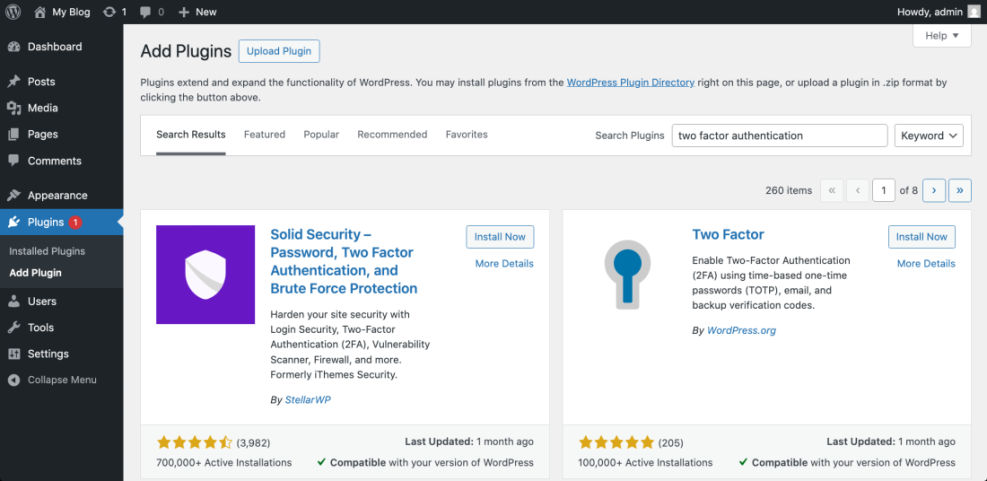
Checkpoint: The plugin appears under your WordPress Plugins screen as installed and activated, and a new security or two-factor settings page is available in the dashboard.
Step 2: Back Up the Site Before Changing Login Security
Two factor authentication changes the way users access the dashboard, so you should create a restore point before enforcing it. A backup gives you a safe rollback option if a plugin conflict, email issue, or misconfigured role rule blocks access.
- Go to your backup plugin, hosting backup tool, or control panel backup area.
- Create a full backup that includes both website files and the database.
- Download a copy or confirm that the backup is stored outside the live WordPress installation.
- Record how to restore the backup or contact your host for restoration support.
For a broader protection plan, use this guide on how to secure a WordPress website alongside your login hardening workflow.
Checkpoint: You have a recent backup timestamp and know where to restore it from if the login page becomes inaccessible.
Step 3: Configure Two Factor Auth for Your Admin Account
Start with one administrator account before requiring 2FA for everyone. This lets you confirm the plugin works with your login page, user profile screen, theme, security plugin stack, and caching setup.
- In the WordPress dashboard, open the new two factor or security plugin settings page.
- Choose an authenticator app or TOTP method as the primary 2FA option.
- Open your user profile or the plugin’s user enrollment screen.
- Scan the QR code with your authenticator app.
- Enter the six-digit code from the app to confirm enrollment.
- Save or download backup codes immediately.
Checkpoint: Your administrator profile shows two factor authentication as enabled, verified, or active.
Step 4: Test Login Before Enforcing 2FA for Other Users
Testing is the step many site owners skip, but it is where you catch conflicts before they affect clients, writers, editors, or store managers. You need to test the full login cycle, not just the setup screen.
- Open a private or incognito browser window.
- Go to your WordPress login page.
- Enter your username and password.
- Enter the code from your authenticator app when prompted.
- Confirm you reach the WordPress dashboard.
- Log out and repeat the process using one backup code if your plugin allows test recovery codes.
Checkpoint: You can log in with your password plus a 2FA code, and you know where the backup codes are stored.
If the code fails, check your phone’s time settings first. TOTP codes depend on accurate time synchronization, so an incorrect device clock can cause valid-looking codes to be rejected.
Step 5: Require 2FA for High-Risk User Roles
Once your administrator login works, expand 2FA to other privileged accounts. Start with users who can change site settings, publish content, manage orders, edit plugins, or access customer data.
- Administrators: Always require 2FA because they control the entire site.
- Editors: Require 2FA if they can publish or modify important content.
- Shop managers: Require 2FA because they may access order and customer information.
- Authors: Consider 2FA for multi-author sites, especially when accounts are inactive or remote.
- Subscribers: Usually optional unless your site stores sensitive membership data.
Use a grace period when available. For example, allow users several days to enroll before the plugin blocks dashboard access without 2FA.
Checkpoint: The plugin settings show 2FA as required for administrator accounts and any other selected high-risk roles.
Step 6: Create a Recovery Plan for Lost Devices
A good 2FA setup includes a safe recovery process. Without one, a lost phone, deleted authenticator app, or staff turnover can lock legitimate users out of the dashboard.
- Make sure every administrator has backup codes stored in a password manager.
- Document who can reset 2FA for another user.
- Keep hosting or SFTP access available for emergency plugin deactivation.
- Remove unused administrator accounts so abandoned logins cannot bypass your process.
If you have SSH or WP-CLI access, you may be able to deactivate a 2FA plugin from the server during an emergency. Run this only in your site’s WordPress root directory through an SSH terminal:
wp plugin deactivate plugin-folder-nameIf you do not know the plugin folder name, list active plugins first:
wp plugin list --status=activeCheckpoint: You have backup codes, a documented reset owner, and at least one emergency access method outside the WordPress dashboard.
Step 7: Strengthen Login Security Around 2FA
Two factor authentication is powerful, but it works best as part of a layered login security strategy. Keep passwords strong, reduce unnecessary admin accounts, and monitor failed login attempts.
- Use unique passwords for every WordPress account.
- Delete or downgrade unused administrator accounts.
- Keep WordPress core, themes, and plugins updated.
- Use HTTPS across the entire site.
- Add rate limiting or login attempt protection if your security plugin supports it.
- Review administrator accounts after employees, contractors, or agencies leave.
Checkpoint: Your login system now requires something the user knows, the password, plus something the user has, the authenticator app or recovery code.
Step 8: Troubleshoot Common Two Factor Auth Problems
Most 2FA issues come from time mismatch, plugin conflicts, cached login pages, lost devices, or users who skipped enrollment. Work through the safest fixes first before disabling security sitewide.
Authenticator codes are not accepted
Check the phone’s date and time settings and enable automatic time synchronization. Then try a new code after the current one refreshes.
The 2FA prompt does not appear
Clear your site cache, browser cache, and any login page cache. Also confirm the plugin is active and that your user role is included in the enforcement rule.
A user lost their phone
Use backup codes first. If the user has no backup codes, an administrator should verify the user’s identity before resetting 2FA on that account.
The site owner is locked out
Use hosting File Manager, SFTP, or WP-CLI to temporarily deactivate the 2FA plugin. After access is restored, fix the configuration and reactivate protection.
Checkpoint: You can identify whether the issue is device-related, plugin-related, cache-related, or account-related before making changes.
Your WordPress Login Is Now Much Harder to Break Into
Securing WordPress logins with Two Factor Auth gives your site a major security upgrade without requiring complex development work. By starting with one administrator, saving backup codes, testing the full login process, and then enforcing 2FA by role, you reduce the risk of stolen passwords leading to dashboard access.
Keep your recovery plan updated, review user accounts regularly, and treat 2FA as one layer in a larger WordPress security routine. The best setup is the one your team can use consistently without creating unnecessary lockout risk.
Further Reading
- Best WordPress Security Plugins Compared
- How to Change a WordPress Password
- How to Protect Your WordPress Admin Area Using htaccess
- Beginner WordPress Security Best Practices Guide
Frequently Asked Questions
What is the best two factor authentication method for WordPress?
What should I do if my WordPress 2FA code does not work?
Can two factor authentication lock me out of WordPress?
Should every WordPress user be required to use 2FA?
How much does WordPress two factor authentication cost?