How to Add SEO Keywords in WordPress
A step-by-step guide to placing SEO keywords in your WordPress posts without hurting your rankings


Adding SEO keywords in WordPress is more than sprinkling phrases into your content. If you place them randomly, you can confuse search engines, annoy readers, and even hurt your rankings.
In this guide, you’ll walk through exactly where and how to add SEO keywords in your WordPress posts and pages: titles, URLs, headings, content, images, and meta tags, using popular SEO plugins like Yoast SEO or Rank Math. If you’re brand new to optimization, start with this complete WordPress SEO beginner’s guide, then come back here for the practical steps.
The screenshots and paths are written for a typical WordPress setup using the Classic Editor and the Jannah theme, but the same ideas apply if you’re using the Block Editor (Gutenberg) or a page builder.
Prerequisites
Before you start adding SEO keywords, make sure you have a few basics in place. This will save time and keep your optimization clean and consistent.
- Access to your WordPress admin dashboard (an Editor or Administrator account).
- An SEO plugin installed and activated, such as Yoast SEO or Rank Math.
- A primary keyword and a few related terms that you want the post or page to rank for.
Step 1: Choose the Right SEO Keywords
Good keyword placement starts with the right keyword. You want phrases that real people actually search for and that match what your content delivers.
- Brainstorm your topic. Write down the main question your content answers (for example, “how to start a WordPress blog”).
- Use keyword tools. Check search volume and difficulty using tools like Google Keyword Planner or premium SEO tools.
- Pick one primary keyword. This is the main phrase you want this specific post or page to rank for.
- Choose 2–4 related keywords. These are close variations and supporting phrases you’ll naturally use in headings and body text.
For a deeper dive into research tools and workflow, explore the best keyword research tools for SEO once you’ve finished this guide.
Step 2: Configure Your SEO Plugin in WordPress
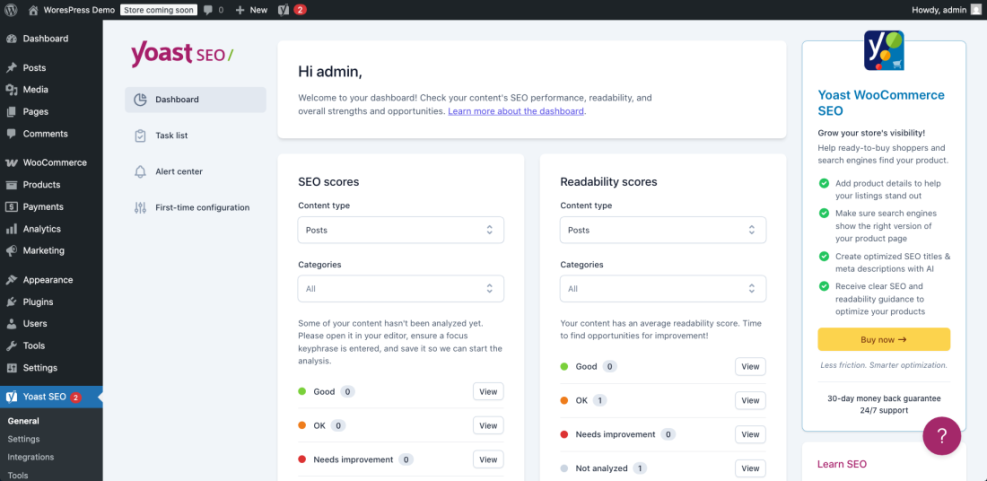
Your SEO plugin is where you’ll set the focus keyword and edit meta tags. Getting familiar with its interface makes keyword placement faster and more consistent.
- Log in to your WordPress admin area.
- In the left-hand menu, go to SEO (Yoast) or Rank Math > Dashboard.
- Make sure features like SEO analysis and Readability analysis are enabled so the plugin can give you optimization suggestions.
- Open any existing post or create a new one and scroll down until you see the SEO meta box (for Yoast) or the SEO panel (for Rank Math). This is where you will add your focus keyword and meta tags later.
Step 3: Add SEO Keywords to Your Post Title and URL
Your post title and URL (permalink) tell both users and search engines what the page is about. Placing your main keyword here is one of the strongest on-page signals you can send.
- In the post editor, write a clear, descriptive Post Title that naturally includes your primary keyword, preferably near the beginning.
- Below the title, click the Edit button next to the permalink and create a short, readable slug that also contains the main keyword (e.g.,
how-to-add-seo-keywords-wordpress). - Click OK or Save to confirm the new slug.
Step 4: Add SEO Keywords in Headings and Content
Headings (H1, H2, H3) and your main body text help search engines understand structure and context. Smart keyword placement here reinforces your topic without spamming.
- Use one H1 only. In most themes, the post title is the H1, so keep it as your primary keyword place.
- Add keywords to a few H2/H3 headings. Use your primary keyword or close variations in 1–3 subheadings where it makes sense.
- Include your main keyword early in the content. Mention it once in the first 100–150 words in a natural sentence.
- Write naturally in the rest of the article. Use related phrases, synonyms, and long-tail variations instead of repeating the exact keyword in every paragraph.
To understand how to balance keyword use and readability, read how to add keywords in WordPress without hurting your SEO after you follow this checklist.
Step 5: Add SEO Keywords to Image Alt Text
Image alt text is primarily for accessibility, but it also gives search engines extra context about your page. Well-written alt text can help you show up in Google Images and strengthen topical relevance.
- In the post editor, click on an image and then click the Edit or pencil icon.
- In the image settings panel, find the Alt Text field.
- Write a short description of what is actually in the image, and naturally include a relevant keyword if it fits (e.g., “screenshot of WordPress editor showing SEO keyword settings”).
- Save or update the image and then update your post.
Step 6: Add SEO Keywords to Meta Title and Description
Your meta title and description control how your page appears in search results. This is where you combine keyword optimization with compelling copy that earns clicks.
- While editing your post, scroll to the SEO meta box (Yoast) or SEO panel (Rank Math) under the content editor.
- In Yoast, enter your Focus keyphrase using your primary keyword (for example, “add SEO keywords in WordPress”). In Rank Math, use the Focus Keyword field.
- Edit the SEO title so it includes your main keyword near the beginning and still reads naturally.
- Write a persuasive Meta description around 140–155 characters that summarizes the benefit of the page and includes the primary keyword once.
Step 7: Review Keyword Usage and Avoid Over-Optimization
Before you publish or update your post, do a quick review to ensure your SEO keywords are helping, not hurting.
- Scan the content out loud. If the keyword sounds repetitive or forced, remove or rewrite a few instances.
- Check your SEO plugin’s analysis. Use its suggestions as guidance, not absolute rules. It’s okay if not every light is green.
- Verify that each keyword has a purpose. Every mention should add clarity for the reader, not just “tick a box.”
meta keywords tag. Modern search engines ignore it, and focusing on it can distract you from placements that actually matter. Lock In Better Rankings With Smart Keyword Placement
When you choose the right phrases and place them strategically in your titles, URLs, headings, content, images, and meta tags, WordPress becomes a powerful SEO-friendly platform instead of a confusing checklist of rules.
By following these steps on every important post or page, you’ll build clear signals for search engines and a smoother reading experience for visitors. From here, keep refining your keyword research, improving content quality, and using your SEO plugin as a helpful assistant—not a strict boss.
Further Reading
- How to Add SEO Keywords to a WordPress Website
- Where to Add Keywords in WordPress
- Step-by-Step Guide to On-Page SEO in WordPress
- How to Add Meta Tags in WordPress
- Best WordPress SEO Plugins and Tools
Frequently Asked Questions
Where should I add my main SEO keyword in a WordPress post?
How many times should I repeat a keyword in my content?
What if my SEO plugin shows a red or orange score for my focus keyword?
Can adding too many SEO keywords get my WordPress site penalized?
How long does it take to see SEO results after adding keywords in WordPress?