

How to Add Video to WordPress (Step by Step)
If you want to add video to WordPress and make your posts more engaging, you can do it without coding by using built in blocks, simple URLs, and a few best practices.
In this guide you will learn multiple ways to add video to WordPress using YouTube, Vimeo, and self hosted files, plus how to place video in posts, pages, sidebars, and footers.
By the end of this guide, you will know exactly which video method to use, how to keep your pages fast, and how to troubleshoot common video problems in WordPress.
This tutorial is designed so that even if this is your first time working with media, you can follow each step and confidently add video to WordPress.
What You Need Before Adding Video to WordPress
Minimum Setup to Add Video to Your WordPress Site
- Administrator or Editor access to your WordPress dashboard.
- An active WordPress site using the block editor (Gutenberg) or the Classic Editor.
- Optionally, a video uploaded to YouTube, Vimeo, or another video platform.
- Enough hosting storage and bandwidth if you plan to upload video directly to WordPress.
- A stable internet connection so video uploads and previews do not fail halfway through.
Once you have these basics, you are ready to start adding video to WordPress using the methods in the next sections.
Ways to Add Video to WordPress (Quick Overview)
Compare the Main Video Options in WordPress
Before you choose a method, it helps to see all the common ways you can add video to WordPress and when to use each one.
| Method | Where You Use It | Best For |
|---|---|---|
| Auto-Embed from URL | Block editor or Classic Editor content area | Fastest way to embed YouTube, Vimeo, or similar videos by pasting the URL on its own line. |
| YouTube / Vimeo Embed Block | Block editor (Gutenberg) | Structured embeds with clear settings, alignment, and captions. |
| Video Block with Uploaded File | Block editor (Gutenberg) | Short, small videos hosted directly in WordPress on solid hosting. |
| Classic Editor Embed | Classic Editor visual tab | Older sites using TinyMCE that still need simple video embeds. |
| Widgets / Sidebars | Appearance » Widgets or Site Editor | Adding a welcome video or promo video in sidebars, footers, or homepage widget areas. |
In the next steps you will use each of these methods so you know exactly how to add video to WordPress in the most efficient way for your site.
Step 1: Add Video to WordPress by Pasting a URL (Auto-Embed)
Use a Simple URL to Embed Video in WordPress
The easiest way to add video to WordPress is to paste the URL directly into your post or page. WordPress will automatically turn the link into an embedded player.
- Log in to your WordPress dashboard and go to Posts » Add New or edit an existing post.
- Click into the content area where you want the video to appear.
- On a new line, paste the full video URL from YouTube, Vimeo, or another supported platform, for example:
https://www.youtube.com/watch?v=EXAMPLE - Wait a moment and WordPress will auto detect the URL and show a video preview instead of plain text.
- Use the alignment options (left, center, wide, full) to position the video in your layout.
If the URL stays as plain text, check that it is on its own line with no other text before or after. Auto embedding is the fastest way to add video to WordPress for most posts.
Step 2: Use YouTube or Vimeo Blocks in the Block Editor
Keep Your Video Embeds Organized with Blocks
If you use the block editor (Gutenberg), you can use dedicated blocks like YouTube or Vimeo to add video to WordPress in a more structured way.
- Open the post or page where you want to add video to WordPress.
- Click the + button to add a new block.
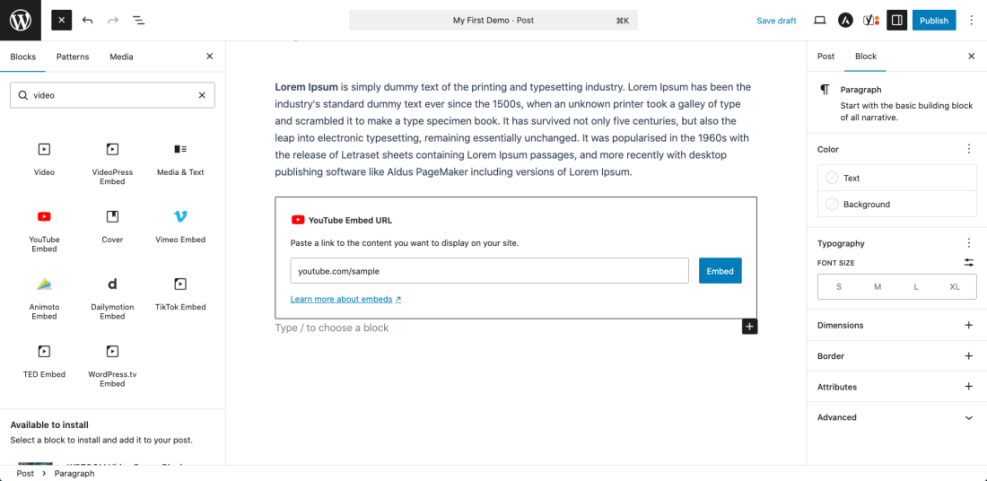
- Type YouTube or Vimeo into the search box and select the appropriate block.
- Paste your video URL into the block’s field and click Embed.
- Use the block toolbar to change alignment, resize the video, or add a caption below the player.
This method makes it easier to see, at a glance, where video blocks are used in your content and keeps your layout cleaner when you add multiple videos to a single WordPress post.
Step 3: Upload a Video File Directly to WordPress
When It Makes Sense to Host Video Files Yourself
You can also upload video files directly and host them on your own server. This gives you more control but can slow down your site if you are not careful.
- In the block editor, click + and search for the Video block.
- Click Upload to choose a video file from your computer, or Media Library if you have already uploaded it.
- Wait for the upload to finish, then confirm that the video preview appears correctly.
- Add a short caption that describes the video content and supports your main keyword.
- Preview the post on desktop and mobile to make sure the self hosted video plays smoothly.
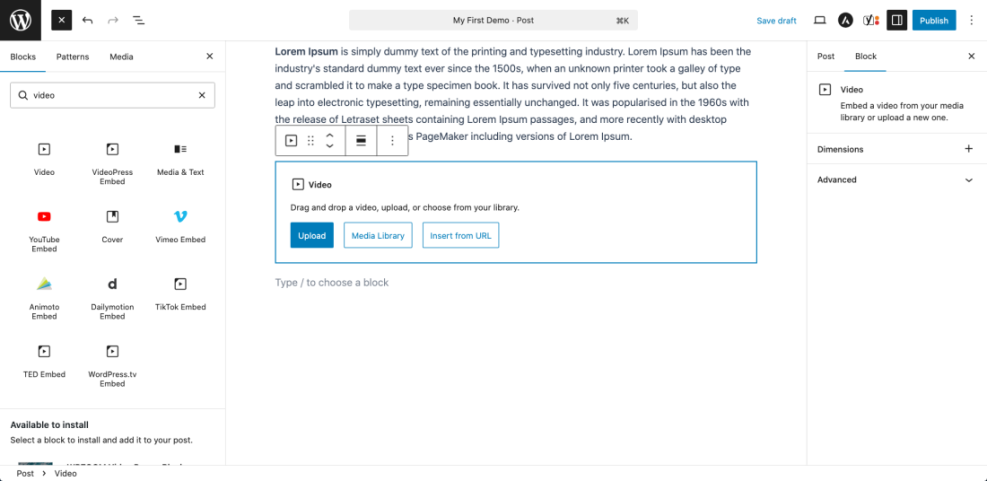
If you prefer, you can upload video files through Media » Add New first, then insert them into posts using the Video block and your Media Library.
Step 4: Add Video to WordPress with the Classic Editor
Embed Video on Older WordPress Sites
If your site still uses the Classic Editor, you can still easily add video to WordPress using simple URLs.
- Go to Posts » Add New or edit an existing post.
- Make sure you are on the Visual tab instead of the Text/HTML tab.
- Place your cursor where you want the video to appear and press Enter to create a new line.
- Paste the YouTube, Vimeo, or other supported video URL on that new line.
- Update or preview the post to confirm that WordPress has converted the URL into an embedded player.
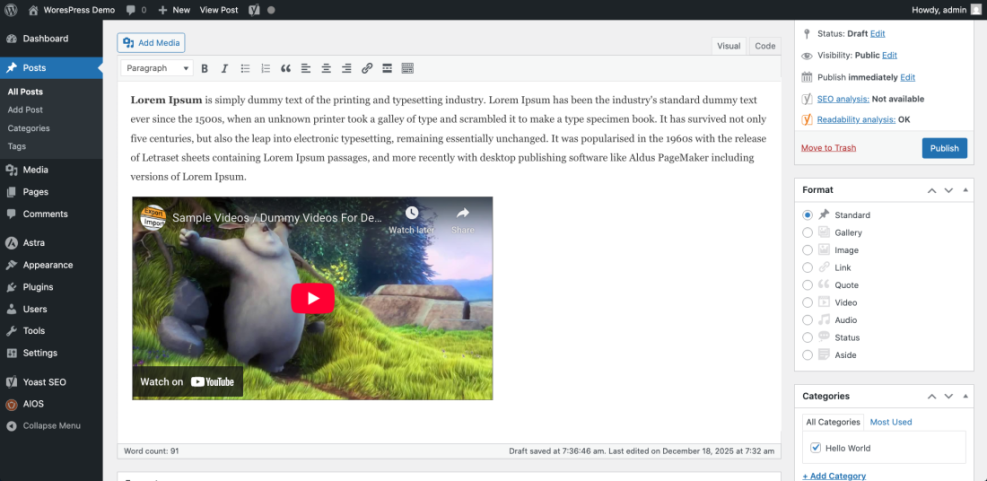
If your theme or a plugin adds a special “Embed” or “Shortcode” button above the Classic Editor, you can also use that to generate custom embed codes for video.
Step 5: Add Video to Sidebars, Footers, and Widget Areas
Showcase Video Outside Standard Posts and Pages
You can also add video to WordPress widget areas such as sidebars, footers, and custom homepage sections to highlight an important message or welcome video.
Using the Classic Widgets Screen
- In the dashboard, go to Appearance » Widgets.
- Locate the widget area where you want your video to appear, such as Main Sidebar or Footer 1.
- Drag a Custom HTML or Text widget into that area.
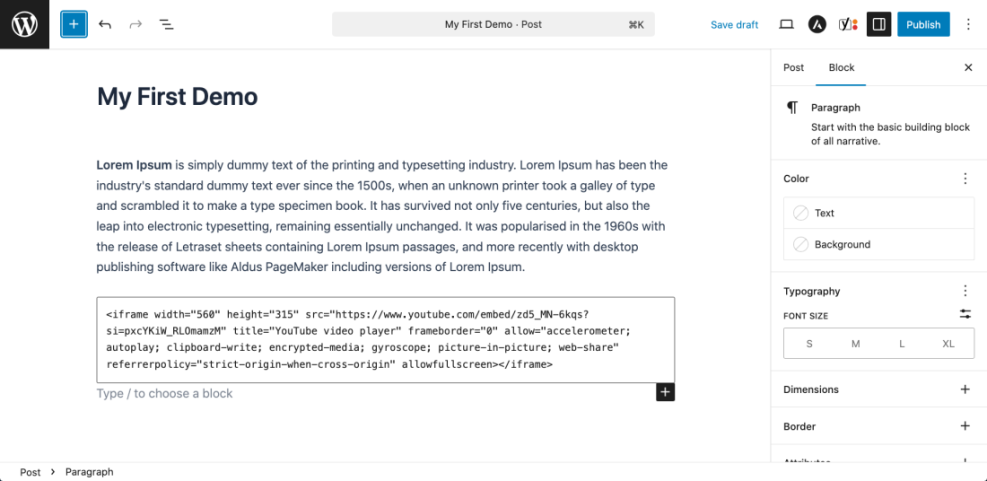
- Paste your video URL on its own line or paste the embed code provided by YouTube/Vimeo.
- Click Save, then view your site to confirm the video appears in the chosen widget area.
Using the Block-Based Widget Editor or Site Editor
- Go to Appearance » Widgets or Appearance » Editor for block themes.
- Select the template or widget area you want to edit, such as your footer.
- Click + and add a YouTube, Vimeo, Embed, or Video block.
- Paste the URL or choose a video from your Media Library.
- Save changes and check the front end to make sure the video is visible and responsive.
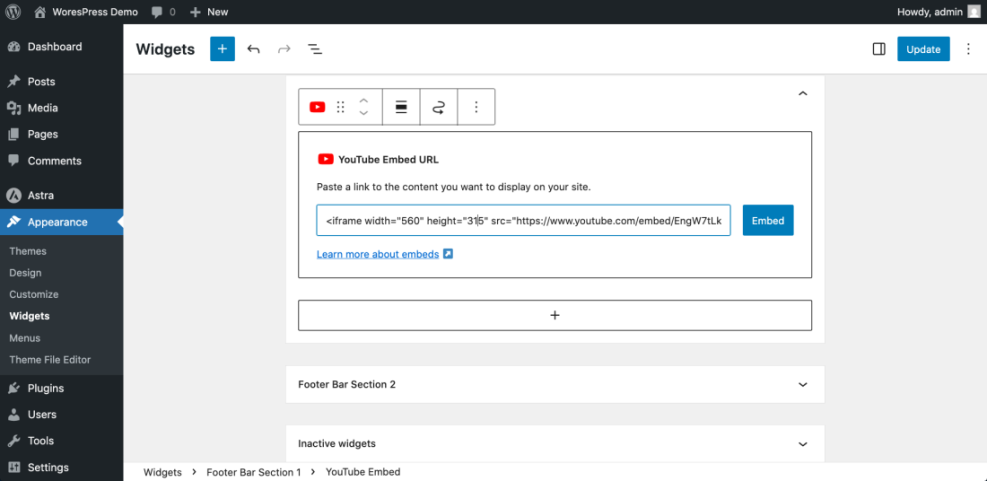
Adding video to WordPress widget areas is useful for welcome videos, product demos, or key announcements that you want visitors to see on every page.
Step 6: Video SEO, Speed, and Best Practices for WordPress
Keep Your Video Content Fast and Search Friendly
Adding video to WordPress is not just about embedding the file. You also want to keep your pages speedy and easy to find in search.
Prefer External Hosting for Most Videos
- Use platforms like YouTube, Vimeo, or a dedicated video CDN for most videos.
- This offloads bandwidth from your server and usually delivers smoother playback worldwide.
Use Thumbnails and Lazy Loading
- Install a performance plugin that supports lazy loading so video players load only when users scroll near them.
- Consider plugins that replace the default player with a static thumbnail until visitors click to play.
Compress Files If You Self Host
- Compress large videos with tools like HandBrake or online compressors before you upload them.
- Use modern formats like MP4 (H.264/H.265) with a reasonable bitrate to balance quality with speed.
Add Context, Titles, and Transcripts
- Write a clear heading and short introduction above each video, using your main keyword naturally.
- Add captions or transcripts when possible to improve accessibility and search visibility.
- Include a summary of key points under the video so people who cannot watch can still get the value.
Be Careful with Autoplay
- Avoid autoplay with sound on important pages; it can annoy visitors and cause them to leave.
- If you must use autoplay, keep sound muted by default and provide clear controls.
Following these best practices will help every page where you add video to WordPress load quickly and rank better in search results.
Step 7: Maintain Your WordPress Site So Video Keeps Working
Plan Ongoing Maintenance for Video Heavy WordPress Sites
As you add more video to WordPress, ongoing maintenance becomes more important. Regular updates, backups, and monitoring help prevent broken embeds and layout issues.
Use this table to compare common maintenance approaches:
| Method | Where You Use It | Main Purpose |
|---|---|---|
| DIY Manual Maintenance | WordPress dashboard and hosting control panel | Maximum control over updates, theme and plugin changes, and manual checks for title issues on small or low-risk sites. |
| Managed Hosting Tools | Your host’s control panel or custom dashboard | Simplify routine maintenance with one-click updates, built-in backups, and basic monitoring so template problems are less likely to appear. |
| SEO, Maintenance & Security Plugins | Plugins section inside the WordPress dashboard | Automate repetitive tasks like backups, database cleanup, image optimization, and security scans, while also running periodic audits of titles and meta tags. |
| WP-CLI and Developer Tools | SSH terminal with WP-CLI and deployment tools | Scriptable, fast maintenance for developers managing multiple or complex sites, including scanning themes for legacy header.php markup. |
| Professional WordPress Care Plan | External provider, freelancer, or agency | Hands-off maintenance with proactive monitoring, regular audits, and expert fixes so problems like duplicate titles are caught early. |
Whichever method you choose, make it a habit to test key pages where you add video to WordPress after major theme or plugin updates so you can fix any display problems quickly.
Step 8: Fix Common Video Problems in WordPress
Simple Solutions for Typical WordPress Video Issues
The video is not embedding and I only see the URL
The video looks wrong on mobile or overflows the screen
My site became slower after adding video
The video will not play in some browsers
Can I track views of my embedded videos
Conclusion You Know How to Add Video to WordPress
You have now learned several ways to add video to WordPress, from simple URL embeds and dedicated blocks to self hosted video files and widget area embeds.
You also saw best practices for performance, SEO, and maintenance so that every page where you add video to WordPress stays fast, responsive, and user friendly.
From here you can start by embedding a single YouTube or Vimeo video in one of your most important posts, then expand into tutorials, product demos, and welcome videos as your confidence grows.
Further Reading on Video and WordPress
- WordPress Embeds Documentation
- Using the WordPress Block Editor (Gutenberg)
- Video Related Plugins on WordPress.org
Frequently Asked Questions About Adding Video to WordPress
Do I need a plugin to add video to WordPress
Is it better to upload videos or use YouTube
What video format works best in WordPress
Can I add video backgrounds to my WordPress pages
How do I make videos more visible in search results





