How to Fix Duplicate Title Tags in WordPress
A step-by-step WordPress SEO troubleshooting guide for themes, plugins, and custom code


Seeing duplicate title tags in your SEO audit or browser source code is frustrating. It can confuse search engines, dilute your rankings, and make it harder for Google to pick the right title for your pages.
In this guide, you’ll learn how to systematically diagnose and fix duplicate title tags in WordPress. We’ll walk through checking your SEO plugin (Yoast, Rank Math, AIOSEO), Jannah theme settings, and any custom code so that each page outputs a single, clean <title> tag.
If you’re still building your overall SEO foundation, you may also want to review the WordPress SEO complete beginners guide once your title issues are fixed.
Prerequisites
Before you start troubleshooting duplicate title tags, make sure you have:
- Administrator access to your WordPress Dashboard.
- Access to the hosting control panel (or FTP/SFTP) in case you need to edit theme files safely.
- A basic understanding of how to install and configure SEO plugins.
Step 1: Confirm Duplicate Title Tags Exist
First, you need to confirm that you really have duplicate HTML <title> tags, not just repeated text in headings or SEO reports.
- Open the affected page in your browser (e.g., your homepage, a blog post, or a category archive).
- Right-click anywhere on the page and choose View Page Source (or press Ctrl+U / Cmd+Option+U).
- Search for
<title>by pressing Ctrl+F / Cmd+F and typing<title>.
If you see more than one <title> tag, note:
- What each title looks like (is one coming from your theme and the other from your SEO plugin?).
- Whether the duplicates appear on all pages or only certain templates (home, posts, archives).
This information will tell you whether the problem is theme-related, plugin-related, or both.
Step 2: Fix Duplicate Titles from SEO Plugins
Most WordPress sites use an SEO plugin like Yoast SEO, Rank Math, or All in One SEO. These plugins usually manage the <title> tag, but conflicts happen if your theme or another plugin also outputs its own title.
2.1 Check Yoast SEO settings
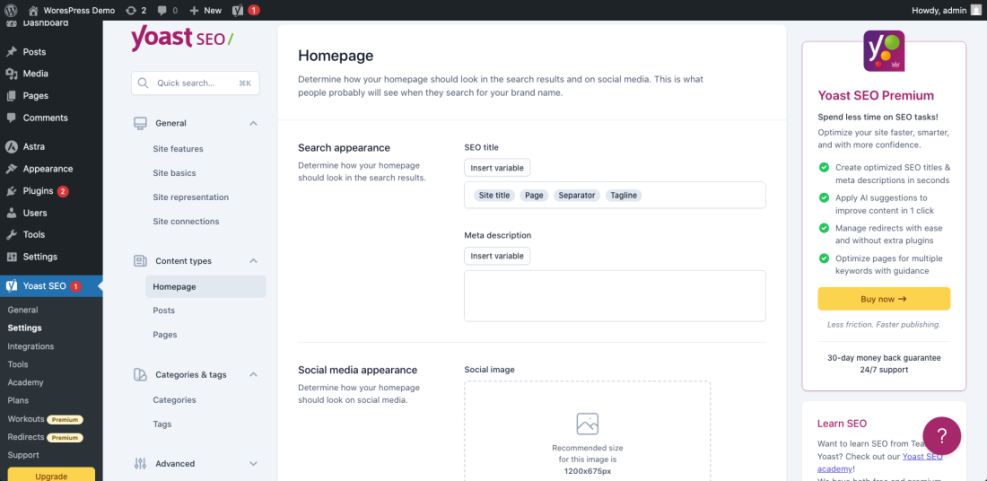
- In your WordPress Dashboard, go to SEO > Search Appearance.
- On the General tab, verify the SEO title template (e.g.,
TitleseparatorSite name). - If you see an option like Force rewrite titles, try toggling it:
- If it’s ON and you have duplicates, turn it OFF and retest.
- If it’s OFF and your theme is not outputting titles correctly, turning it ON may help.
2.2 Check Rank Math or AIOSEO
- For Rank Math, go to Rank Math > Titles & Meta. For AIOSEO, go to All in One SEO > Search Appearance.
- Review the Global Meta or Homepage settings to confirm that the plugin is managing the page title.
- Look for options like Remove duplicate meta, Output title tag, or similar. Ensure only one plugin is responsible for generating the
<title>tag. - If you previously used another SEO plugin, deactivate it completely so both plugins aren’t trying to output titles.
After adjusting plugin settings, view the page source again and confirm whether the duplicate titles remain. If they do, your theme is likely also outputting its own title.
Step 3: Remove Extra Title Tags from Your Theme
Modern themes, including Jannah, should declare support for the WordPress title-tag feature and let WordPress core or your SEO plugin handle the title. Problems appear when the theme still includes a hard-coded <title> tag in header.php or a custom header template.
3.1 Check Jannah theme options first
- In the Dashboard, go to Jannah > Theme Options.
- Look for an SEO or Header section.
- If you see options like Enable built-in SEO or Use default meta title, disable them when you are using Yoast, Rank Math, or another SEO plugin.
3.2 Remove hard-coded title tag from header.php
If Jannah or your child theme still outputs a title, you may see a line like this in header.php:
<title><?php wp_title( '|', true, 'right' ); bloginfo( 'name' ); ?></title>
To safely remove this extra title:
- Create or use a child theme if you haven’t already, so theme updates don’t overwrite your changes.
- Use your hosting file manager or FTP/SFTP to open
wp-content/themes/your-child-theme/header.php. - Locate any
<title>...</title>line and remove or comment it out, then save the file.
Once you remove the hard-coded <title> tag and rely on WordPress + your SEO plugin, you should see only one title in the page source.
Step 4: Fix Titles from Page Builders and Other Plugins
Some page builders and marketing plugins can also create title-like elements that show up in SEO audits as “duplicate titles.” These are often custom fields or social previews rather than real <title> tags, but they can still confuse tools.
- Check any page builder you use (Elementor, WPBakery, etc.) for SEO or page title settings per page.
- Disable any option that injects its own SEO title or custom head tags if your SEO plugin already handles this.
- Review marketing or analytics plugins that add code to
<head>(for example, A/B testing or landing page plugins) and make sure they are not outputting additional title tags. - On a problematic page, temporarily disable non-essential plugins one by one, reloading the page source each time until the duplicate title disappears. This helps you isolate the culprit.
Once you identify the plugin causing the extra title, either turn off that specific feature or contact the plugin developer with details of the conflict.
If your titles are still messy or inconsistent, reviewing your broader on-page setup can help. Use the step-by-step guide to on-page SEO in WordPress to standardize how titles and headings are used across your posts.
Step 5: Clear Cache and Re-Test in Google Search
After fixing your plugin and theme settings, you need to clear cache layers and confirm that search engines now see only one title tag.
- Clear your WordPress caching plugin, server cache, and any CDN cache (Cloudflare, etc.).
- Open an incognito/private browser window and view the page source again to confirm there’s only a single
<title>tag. - Use your preferred SEO crawler or audit tool to rescan the site and verify that duplicate title errors are gone.
- In Google Search Console, use the URL Inspection tool to request indexing for a few key pages you’ve fixed.
Finally, double-check that your titles follow a consistent pattern (for example, “Post Title | Brand Name”) and reflect the keyword strategy you want to use. If you need help designing that pattern, see the tutorial on how to add title tags in WordPress.
Stop Duplicate Title Tags from Sneaking Back In
Duplicate title tags in WordPress usually come down to one problem: more than one system trying to control the same thing. By letting your SEO plugin manage titles, disabling overlapping theme options in Jannah, and cleaning up any hard-coded <title> tags, you give search engines one clear, consistent signal.
Now that you’ve fixed the issue and tested your pages, keep an eye on new plugins, theme updates, and template changes. Whenever you install something that touches the <head> section, quickly view the page source to confirm your titles are still clean.
Further Reading
- How to Remove Duplicate Title Tags in WordPress
- How to Add Meta Tags in WordPress
- WordPress SEO Beginner Guide
- How to Add Canonical Tag in WordPress
- Internal Linking in WordPress for Beginners
Frequently Asked Questions
What causes duplicate title tags in WordPress?
<title> tag in your theme’s header.php, or using theme and plugin SEO options together. Page builders or marketing plugins that inject additional head tags can also create what tools report as “duplicate titles.” Will duplicate title tags hurt my SEO rankings?
How do I fix duplicate titles created by page builders?
<title> tag. If duplicates persist, temporarily disable the page builder add-ons one by one to isolate the conflict. Is it safe to edit header.php to remove a title tag?
<title> line so you don’t accidentally break the site. How long does it take for Google to show my new title tags?