How to Benchmark WordPress Booking Page Performance
A practical guide to testing booking pages, measuring Core Web Vitals, and finding bottlenecks before they cost you leads.

A slow booking page does more than frustrate visitors. It can reduce appointments, abandoned form completions, phone inquiries, and revenue because users often leave before choosing a time, submitting details, or completing payment.
In this guide, you will learn how to benchmark WordPress booking page performance using repeatable tests, real-user analytics, plugin checks, hosting signals, and conversion checkpoints. You will also create a baseline so future plugin updates, design changes, and hosting decisions are easier to evaluate.
If your overall site already feels sluggish, start by reviewing how to speed up a WordPress site so your booking page tests are not affected by obvious global performance problems.
Prerequisites
Before benchmarking, prepare a stable test environment. You need consistent conditions so your results show real booking page performance instead of random traffic spikes, cache changes, or browser noise.
- Administrator access to your WordPress dashboard.
- The exact booking page URL you want to test.
- Access to your booking plugin settings.
- A speed testing tool such as PageSpeed Insights, WebPageTest, GTmetrix, or your hosting performance panel.
- Access to analytics, preferably GA4 or another event-tracking setup.
- A spreadsheet or document where you can record benchmark results.
Step 1: Create a Clean Booking Page Baseline
A benchmark only helps when you know exactly what you tested. Start by documenting the current booking page setup before making performance changes.
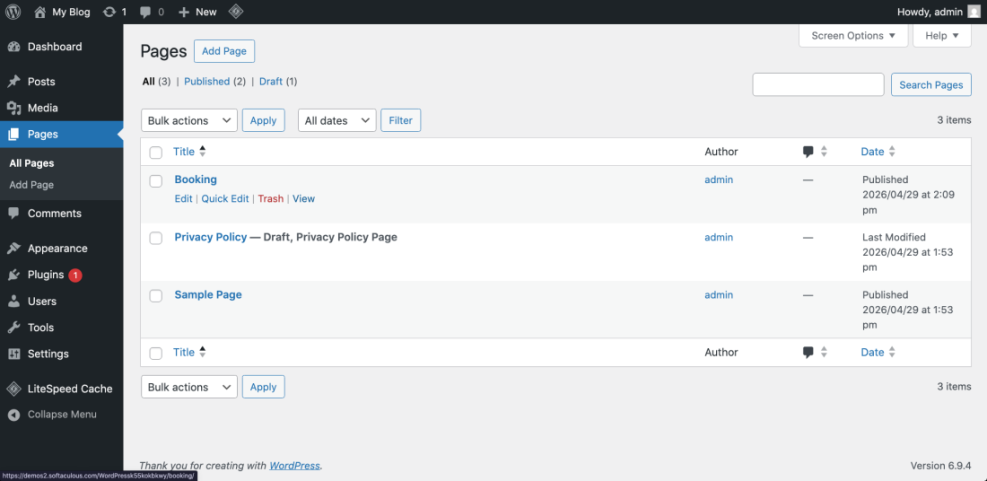
- Open your WordPress dashboard.
- Go to Pages > All Pages.
- Find the booking page and click View.
- Copy the live URL into your benchmark document.
- Record the active theme, booking plugin name, payment method, calendar integration, and any page builder used on that page.
Next, open the booking page in an incognito browser window. Complete a test booking path as a visitor would: choose a service, select a date, pick a time, fill in required fields, and stop before submitting payment unless you have a safe test mode enabled.
Checkpoint: You should have one document that lists the page URL, plugin stack, booking steps, and current user journey. This becomes your reference point for every future test.
Step 2: Choose the Right Performance Metrics
Booking pages need more than a generic speed score. You should measure page loading, interactivity, layout stability, and the time it takes for the booking interface to become usable.
- Largest Contentful Paint: Measures how quickly the main visible content loads.
- Interaction to Next Paint: Measures responsiveness when users tap calendars, dropdowns, buttons, and form fields.
- Cumulative Layout Shift: Measures whether elements move unexpectedly while the page loads.
- Total Blocking Time: Helps identify heavy JavaScript that delays interaction in lab tests.
- Booking widget ready time: Tracks when the calendar, service selector, or appointment form becomes usable.
- Conversion completion rate: Shows whether speed issues are affecting actual bookings.
For a broader performance framework, compare your booking page process with this WordPress speed optimization checklist.
Checkpoint: Your benchmark document should include a metrics table with columns for mobile, desktop, first test, repeat test, notes, and action needed.
Step 3: Run Controlled Lab Speed Tests
Lab tests help you compare the same booking page under controlled conditions. They are useful for finding render-blocking scripts, large images, slow third-party requests, and booking plugin assets that load too early.
- Open your preferred speed testing tool.
- Enter the booking page URL.
- Run separate tests for mobile and desktop.
- Repeat each test at least three times.
- Record the median result instead of the best result.
- Save screenshots or export reports for later comparison.
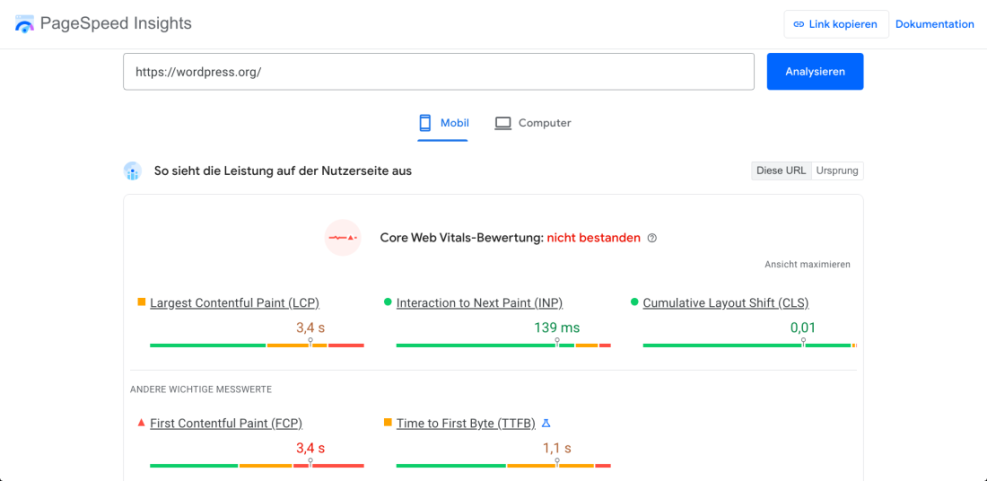
When reviewing the report, pay close attention to JavaScript. Booking plugins often load calendar libraries, payment scripts, map embeds, tracking pixels, and form validation scripts on the same page.
Checkpoint: You should know whether the booking page is primarily slowed by server response time, JavaScript execution, images, fonts, third-party scripts, or layout shifts.
Step 4: Compare Lab Data With Real User Data
Lab tools show controlled performance, but real users show what happens across actual devices, locations, browsers, and network conditions. Booking pages often perform acceptably in testing but struggle for mobile users on slower connections.
- Open your analytics platform.
- Create or open a report for the booking page URL.
- Segment traffic by device category.
- Review engagement, form starts, booking completions, and exits.
- Compare mobile and desktop conversion rates.
If you have not configured tracking yet, follow a reliable analytics setup for WordPress and Google Analytics before relying on conversion conclusions.
Checkpoint: You should be able to answer one key question: are users leaving because the page is slow, confusing, broken, or not matching their intent?
Step 5: Isolate Booking Plugin and Theme Bottlenecks
Booking pages often depend on several moving parts: the booking plugin, payment gateway, theme templates, page builder modules, email integrations, and tracking scripts. You need to isolate each layer before making changes.
- Create a staging copy of your site if your host provides one.
- Run the same speed test on the staging booking page.
- Temporarily disable nonessential plugins on staging only.
- Retest after each major change.
- Switch to a default theme on staging if you suspect theme-related scripts or layout issues.
- Compare the before-and-after results in your benchmark document.
Checkpoint: You should identify whether the largest delay comes from the booking plugin itself, a supporting plugin, the theme, page builder assets, or third-party scripts.
Step 6: Measure Server Response and Cache Behavior
Booking pages can be harder to cache than normal blog posts because they may display real-time availability, user-specific sessions, or payment-related scripts. That does not mean caching is impossible, but you must test carefully.
- Open your hosting dashboard or performance panel.
- Check PHP version, memory usage, CPU usage, database load, and cache status.
- Run a speed test with cache enabled.
- Clear the cache and run another test.
- Compare time to first byte, page size, and request count.
If you use a caching plugin, verify whether the booking page is excluded, partially cached, or fully cached. Dynamic appointment availability may require exclusions for specific scripts, cookies, or AJAX endpoints.
Checkpoint: You should know whether server response time is consistently slow or whether the biggest delays happen after the initial HTML loads.
Where to run this: SSH terminal with WP-CLI access.

wp plugin list --status=active
wp theme list --status=active
wp option get blog_public
Step 7: Test the Mobile Booking Experience Manually
Mobile performance matters because many booking decisions happen after a search, ad click, social visit, or referral on a phone. A page can pass a lab test and still feel clumsy when users tap date pickers, dropdowns, or small buttons.
- Open the booking page on a real mobile device.
- Use a cellular connection, not only office Wi-Fi.
- Tap through the full booking flow.
- Watch for delayed calendar loading, keyboard overlap, layout shifts, and unresponsive buttons.
- Repeat the test in at least two mobile browsers if possible.
Checkpoint: The booking flow should be easy to complete with one thumb, fields should not jump while typing, and the primary booking button should remain visible and clear.
Step 8: Build a Before-and-After Benchmark Table
Your benchmark becomes more valuable when it is easy to compare over time. Use a simple table that records test conditions, results, and decisions.
- Test date: Record when the benchmark was run.
- Page URL: Use the exact booking page tested.
- Device: Separate mobile and desktop.
- Cache state: Note whether cache was warm, cold, bypassed, or excluded.
- Main metrics: Record LCP, INP or lab responsiveness, CLS, TTFB, page weight, and requests.
- Booking result: Note whether the booking flow completed successfully.
- Action: Mark keep, investigate, optimize, or rollback.
Checkpoint: You should be able to compare the current booking page against future redesigns, plugin updates, new hosting plans, and caching changes without guessing.
Step 9: Prioritize Fixes by Booking Impact
Do not chase every technical recommendation equally. Start with fixes that make the booking flow faster, clearer, and more reliable for visitors.
- Fix layout shifts that move calendar controls or submit buttons.
- Reduce heavy hero images above the booking form.
- Delay nonessential scripts that do not affect booking completion.
- Remove duplicate tracking pixels and unused embeds.
- Optimize fonts and icons used by the booking interface.
- Review whether the booking plugin loads assets sitewide instead of only on booking pages.
- Upgrade hosting if server response time stays slow after plugin and cache cleanup.
Checkpoint: Every optimization should connect to a measurable improvement, such as faster calendar readiness, lower mobile exit rate, improved LCP, or higher booking completion.
Step 10: Retest After Every Meaningful Change
Performance benchmarking is not a one-time task. Booking pages change when plugins update, services are added, payment settings change, tracking scripts are installed, or themes are redesigned.
- Make one meaningful change at a time.
- Clear relevant caches.
- Repeat the same lab tests.
- Repeat the same mobile manual test.
- Compare results against your baseline.
- Document whether the change should be kept or reverted.
Checkpoint: Your final benchmark should show what changed, why it changed, and whether the booking experience improved.
Turn Booking Speed Into a Measurable Advantage
Benchmarking WordPress booking page performance gives you a reliable way to protect leads, appointments, and customer trust. Instead of guessing whether a plugin, design change, or hosting plan helped, you can compare actual results against a documented baseline.
Start with your live booking flow, measure the right speed and conversion metrics, isolate plugin and server bottlenecks, and retest after each change. Over time, this process turns performance work into a repeatable business habit instead of a last-minute emergency.
Further Reading
- Best Appointment Booking Plugins
- Booking Performance
- WordPress Performance Tuning Beginner Guide
- Best WordPress Caching Plugins
Frequently Asked Questions
What is the best way to benchmark a WordPress booking page?
Why does my booking page test slower than my other WordPress pages?
Should I cache my WordPress booking page?
How often should I benchmark booking page performance?
What should I do if speed tests are good but bookings are still low?