Speed Optimization Checklist for Course and Membership Sites
Keep Your Online Courses, Lessons, and Member Dashboards Fast on WordPress


Course and membership sites are some of the heaviest WordPress builds you can run. Logged-in users, progress tracking, quizzes, forums, and recurring payments all add database queries and dynamic content that simple blogs never have to deal with.
This speed optimization checklist is specifically designed for WordPress course and membership setups using LMS and membership plugins. You’ll walk through a practical, step-by-step process to benchmark, tune your hosting, configure caching safely for logged-in users, optimize media and plugins, and set up a repeatable monthly routine.
If you’ve never done any performance work before, you can start with a general WordPress speed optimization checklist and then use this guide as your specialized playbook for student and member sites.
Prerequisites
Before you start changing performance settings, make sure you have the basics in place so you can optimize safely without breaking enrollments, logins, or payments.
- Access to your WordPress admin dashboard (Administrator role).
- Access to your hosting control panel (cPanel, Plesk, or managed WordPress dashboard).
- A recent full site backup (files + database) stored off the live server.
- A staging site or test environment where you can experiment with settings first.
- Login details for key services (payment gateway, email marketing, video hosting).
Step 1: Benchmark Your Current Site Speed
Before you change anything, you need to know which pages are slow and why. Course and membership sites behave differently from blogs: the slowest pages are usually account, course lesson, and checkout pages, not the homepage.
1.1 Identify your mission-critical pages
Make a short list of the URLs that matter most for speed:
- Course catalog or “All Courses” page.
- Individual course or lesson pages.
- Membership sales pages and pricing pages.
- Login, account, and dashboard pages.
- Cart and checkout pages (if you use WooCommerce or similar).
1.2 Run performance tests
Use tools like PageSpeed Insights, GTmetrix, or your host’s built-in speed test. Test each of the critical URLs and record:
- Time to First Byte (TTFB) – server response time.
- Largest Contentful Paint (LCP) – perceived load speed.
- Total Page Size – in MB.
- Number of Requests – scripts, images, fonts, etc.
Take screenshots or export reports so you can compare before and after.
1.3 Test as both logged-out and logged-in users
Course and membership sites often perform very differently for guests vs. logged-in members. Run at least two tests per key URL:
- As a logged-out user (public view).
- As a logged-in student or member with an active subscription.
Step 2: Choose Hosting That Handles Logged-In Traffic
Many course creators start on basic shared hosting designed for blogs, not active learning platforms. Logged-in traffic, concurrent video streaming, and spikes during launches can quickly overwhelm low-end plans.
2.1 Check your current hosting resources
In your hosting control panel, find information about:
- CPU and RAM limits.
- Number of PHP workers or processes.
- Inode limits (number of files).
- PHP version (ideally PHP 8.1+).
If your host dashboards show frequent CPU or I/O throttling during peak times, it’s a sign that you’ve outgrown your plan.
2.2 Switch to performance-optimized WordPress hosting if needed
Look for plans that specifically mention:
- High PHP worker counts (for concurrent logged-in users).
- Server-side caching with granular rules for logged-in vs. logged-out users.
- Support for Redis or Memcached object caching.
- Staging environments and backup snapshots.
Once your hosting is stable, you can get more value out of a deeper WordPress performance tuning process tailored to your stack.
[h3]2.3 Use the right PHP and database settings[/h3]In your hosting dashboard:
- Set PHP to a supported 8.x version for better performance.
- Increase memory_limit (e.g., 256M or 512M) if your LMS or membership plugin recommends it.
- Enable OPcache to speed up PHP execution.
Step 3: Configure Caching for Courses and Memberships
Page caching can make a blog feel instantaneous, but course and membership sites require more careful rules. You need to cache public pages aggressively while avoiding caching sensitive or personalized content for logged-in users.
3.1 Separate public marketing pages from member-only pages
Group your URLs into:
- Public pages: homepage, sales pages, lead magnets, blog posts.
- Member-only pages: course dashboards, lessons, profile pages, “My Account.”
- Transactional pages: cart, checkout, order confirmation.
3.2 Configure your caching plugin
In plugins like WP Rocket, W3 Total Cache, LiteSpeed Cache, or your host’s caching tool:
- Enable page caching for public URLs.
- Exclude member and transactional URLs from caching using patterns such as
/my-account/,/members/,/course/,/checkout/, and LMS-specific slugs. - Disable “cache for logged-in users” unless your plugin explicitly supports safe per-user caching.
3.3 Enable object caching
Object caching reduces the cost of repeated database queries, which is crucial for dashboards and progress-tracking features.
On a server that supports Redis or Memcached:
- Install your host’s Redis or object cache plugin.
- Enable persistent object caching in the plugin settings.
- Monitor cache hit rate via your host or plugin dashboard.
From an SSH terminal with WP-CLI installed, you might run:
Where to run: SSH terminal connected to your WordPress server.
wp plugin install redis-cache --activate
wp redis enable
Check any CDN, WAF, or reverse proxy (Cloudflare, Sucuri, etc.) to make sure you are not caching login or account URLs. Caching these can cause users to see someone else’s dashboard or stay logged out even after logging in.
/wp-login.php or your custom login page. Always set these URLs to “Bypass cache.” Step 4: Optimize Themes, Plugins, and Front-End Assets
Many course and membership sites are built on heavy themes, page builders, and dozens of add-ons. Every extra plugin can add scripts, styles, and database queries to your most important pages.
4.1 Audit and remove unused plugins
In WordPress admin, go to Plugins > Installed Plugins and ask for each plugin:
- Is this required for courses, payments, or member experience?
- Is this feature duplicated by another plugin or the theme?
- Does this plugin load assets on every page even when not needed?
Deactivate and delete plugins that are no longer necessary. Test course enrollment and access after each removal.
4.2 Tame your theme and page builder
In your theme options and page builder templates:
- Turn off animations, sliders, and heavy effects on course and dashboard screens.
- Use simple layouts and fewer sections on lesson pages.
- Load fewer fonts (ideally 1–2 families with limited weights).
4.3 Control scripts and styles per page
Use a performance or asset manager plugin that lets you disable scripts and styles on specific URLs. Turn off marketing popups, chat widgets, or social feeds on lesson and dashboard pages where they don’t help users.
Step 5: Create a Course-Friendly Media and Video Strategy
Course and membership sites are media heavy. HD video, downloadable files, and large images can easily overwhelm your server if not handled correctly.
5.1 Offload course videos
Avoid hosting large video files directly in your WordPress /wp-content/uploads/ directory. Instead:
- Use specialized video platforms (e.g., Vimeo, BunnyStream, or similar) that support restricted access.
- Embed videos using their optimized players.
- Use adaptive streaming so students on slower connections get appropriate quality.
5.2 Optimize images for lessons and dashboards
For lesson thumbnails, module graphics, and dashboard icons:
- Compress images before upload or use an image optimization plugin.
- Serve modern formats like WebP where supported.
- Ensure lazy loading is enabled for below-the-fold images.
5.3 Use a CDN for static assets
Configure a CDN to serve images, CSS, and JS globally. Many managed hosts provide integrated CDNs designed for WordPress.
Step 6: Clean Up Your Database, Sessions, and Cron Jobs
As members enroll, progress through courses, and renew subscriptions, your database grows rapidly. Over time, this can slow down queries for dashboards and reports.
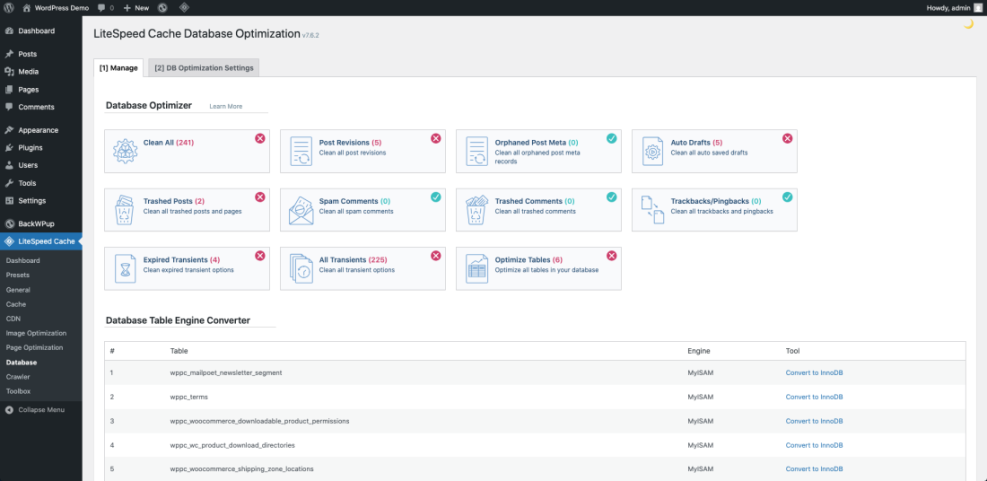
6.1 Remove junk data and stale sessions
Use a reputable database optimization plugin to remove:
- Expired transients.
- Spam and trashed comments (if you use comments).
- Old post revisions and auto-drafts.
- Expired session records from membership or e-commerce plugins (where supported).
6.2 Optimize LMS and membership tables
Some plugins store large amounts of data in custom tables. Check your database (via phpMyAdmin or admin tools) for:
- Tables with very high row counts (hundreds of thousands of entries).
- Missing indexes on columns used in WHERE or ORDER BY clauses (plugin docs may mention this).
If specific tables are huge, review plugin settings for data retention windows (e.g., only keep detailed logs for 90 days instead of forever).
6.3 Fix heavy cron jobs
WP-Cron tasks handle recurring events like email reminders, subscription renewals, and drip content. On busy membership sites, these can stack up.
- Use a cron manager plugin to view scheduled tasks.
- Disable or reschedule non-essential jobs that run too frequently.
- Set up a real server cron job to trigger
wp-cron.phpat fixed intervals instead of on every page load.
Step 7: Test, Monitor, and Create a Monthly Speed Routine
Speed optimization is not a one-time project. New courses, plugins, and marketing tools will slowly add weight back to your site. A simple recurring checklist keeps performance under control.
7.1 Re-test your critical pages
After completing the previous steps, run the same tests you did in Step 1 on your key URLs (course pages, dashboards, checkout). Confirm that:
- TTFB has improved.
- LCP and overall load times are lower.
- No layout shifts or broken elements appear for students.
7.2 Monitor performance alongside learning analytics
Combine your speed checks with course analytics so you can see whether faster pages improve completion and engagement rates. For deeper analysis, use a guide like how to use analytics to improve online courses and watch how load time impacts student behavior.
7.3 Build a monthly maintenance checklist
Once a month, schedule a 60–90 minute maintenance session to:
- Update WordPress core, themes, and plugins.
- Regenerate and warm critical caches (homepage, course catalog, key lessons).
- Review new plugins and scripts added since last month.
- Run a quick set of PageSpeed or GTmetrix tests on critical pages.
Lock In a Fast Experience for Students and Members
Course and membership sites ask far more from your server than simple blogs. But with the right hosting, carefully configured caching, lean plugins, optimized media, and a tidy database, you can deliver a fast, reliable experience even during launch spikes and enrollment pushes.
Use this speed optimization checklist as your recurring reference. Each time you add a new feature—like a community area, certificates, or advanced reporting—revisit these steps to keep performance in balance. A fast site doesn’t just feel better; it directly improves course completion, member satisfaction, and recurring revenue.
Further Reading
- WordPress speed optimization step-by-step
- Best WordPress LMS plugins compared
- Best WordPress membership plugins
- WooCommerce performance tips for faster stores
Frequently Asked Questions
What is a good page load time for course and membership sites?
Why does my site feel fast on the homepage but slow on course lessons?
Can caching break logins or membership content?
How often should I run this speed optimization checklist?
Do I need a developer to optimize a course or membership site?