WordPress Speed Optimization for Blogs: How to Speed Up Content-Heavy Sites
Practical steps to keep your first blog fast

WordPress Speed Optimization can feel overwhelming when you launch your first blog and start installing themes and plugins. When pages load slowly, readers bounce, search rankings suffer, and every new post feels like it performs worse than it should.
This guide walks you through a beginner-friendly process to make a new WordPress blog feel fast without advanced server skills. You will see how to test your speed, choose the right basics, optimize images, use caching, and keep your blog quick as it grows.
Quick Wins for WordPress Speed Optimization
Start With the Biggest Speed Wins
You get the fastest results by fixing a few core areas first. Choose reliable hosting, use a lightweight theme, limit plugins, install a caching plugin, and compress your images. When you combine these basics with simple speed tests, your new blog usually feels two to three times faster.
Beginner-Friendly Optimization Checklist
- Use solid WordPress-focused hosting, not the absolute cheapest plan.
- Pick a simple, well-reviewed theme instead of a bloated multipurpose one.
- Keep only essential plugins and remove the rest.
- Install one caching plugin and one image optimization plugin.
- Test pages with a speed tool and fix anything red or critical.
When you follow this checklist on a fresh blog, you usually do not need advanced tuning. Later, you can add a content delivery network, script cleanup, and database optimization if you notice slowdowns again.
Why Blog WordPress Speed Optimization Matters for Beginners
How Fast Should a New Blog Load?
For a new blog, aim for your main pages to load in under three seconds on a normal home connection. Faster is even better on mobile because many readers scroll on phones with weaker networks. If your pages feel instant, visitors read more posts, and search engines usually reward that engagement.
What Actually Slows WordPress Speed Optimization Down?
Most slow WordPress sites share the same issues. They run on overloaded shared hosting, use heavy themes and page builders, load many large images, rely on too many plugins, and pull in multiple external scripts like fonts and tracking codes. Each extra request adds work for your server and the browser.
Why WordPress Speed Optimization Helps SEO and Conversions
Search engines measure how quickly users see useful content and interact with your page. When your Core Web Vitals are healthy, visitors can read, scroll, and click without lag. That positive experience makes people stay longer, subscribe more often, and come back to your blog in the future.
How to Measure Your Blog Speed
How Do You Test WordPress Speed?
Before changing settings, test your current speed. Free tools such as Google PageSpeed Insights and similar performance checkers show how long your pages take to load and which elements cause delays. You can test both mobile and desktop to spot different problems.
Simple Step-By-Step Speed Test
- Open your homepage in a private browser window so you see what visitors see.
- Copy the URL and paste it into your chosen speed test tool.
- Run the test for mobile first, then desktop.
- Read the report and note the biggest issues, such as large images or missing caching.
- Retest the same page after each major change to confirm the improvement.
Speed tools can look technical, yet you only need to focus on a few repeated warnings. When you fix image size, enable caching, and reduce unused scripts, the scores often jump quickly.
Which Pages Should You Test First?
Start with your homepage and your top traffic posts, because they affect the most readers. In addition, test any landing page you share on social media or through email campaigns. When these pages feel fast, your audience builds trust with your content much more easily.
Choose Hosting That Stays Fast
Understand Beginner Hosting Options
Your hosting plan sets the ceiling for how fast WordPress can run. Shared hosting keeps costs low but puts many sites on the same server. Managed WordPress hosting costs more but includes caching, security, and performance tuning out of the box. A basic virtual private server sits in between, with more control but more setup work.
The table below shows how common hosting types compare for a brand new blog.
| Hosting Type | Best For | Speed Notes |
|---|---|---|
| Shared Hosting | Very small blogs and tight budgets | Fast enough at first, can slow when neighbors get busy |
| Managed WordPress | Bloggers who want built-in speed tools | Usually stable performance, caching and CDN often included |
| Basic VPS | Technical users or growing blogs | Great potential speed, but needs server management skills |
As your blog grows, moving from basic shared hosting to managed WordPress or a tuned VPS can remove many speed bottlenecks without complex plugin stacks.
Hosting Features That Impact Speed
Look for hosting that runs current PHP versions, uses solid-state drives, and advertises clear resource limits. In addition, many WordPress-focused hosts add built-in server caching and a content delivery network. Those features reduce how much work WordPress has to do on every page view.
Should You Switch Hosts Early?
If your new blog feels slow even with few posts and a simple theme, your host may be the main issue. When support cannot help and tests stay red, it is easier to migrate early, before you have hundreds of posts and complex customizations.
Pick a Lightweight Theme and Plugins
What Makes a WordPress Speed Optimization Theme Fast?
A fast theme focuses on clean layout, limited animations, and only the options most users need. Many multipurpose themes ship with large demo imports, sliders, and bundled plugins that create heavy pages. For a new blog, a simple blogging or magazine theme with good reviews and recent updates is usually safer.
How Many Plugins Is Too Many?
There is no fixed number, yet every plugin adds code. For a starter blog, try to stay under 15 to 20 active plugins. Remove plugins that overlap in features, such as multiple social sharing tools or several contact form builders. You can always add more later if you truly need them.
Auditing Plugins for Performance
To see if a plugin slows your site, temporarily deactivate it and retest your speed. If scores improve, look for lighter alternatives or see whether settings allow you to disable unneeded modules. When in doubt, choose plugins known for performance and regular updates over rarely maintained options.[/box]
Optimize Images and Enable Caching
How Do You Optimize Images in WordPress?
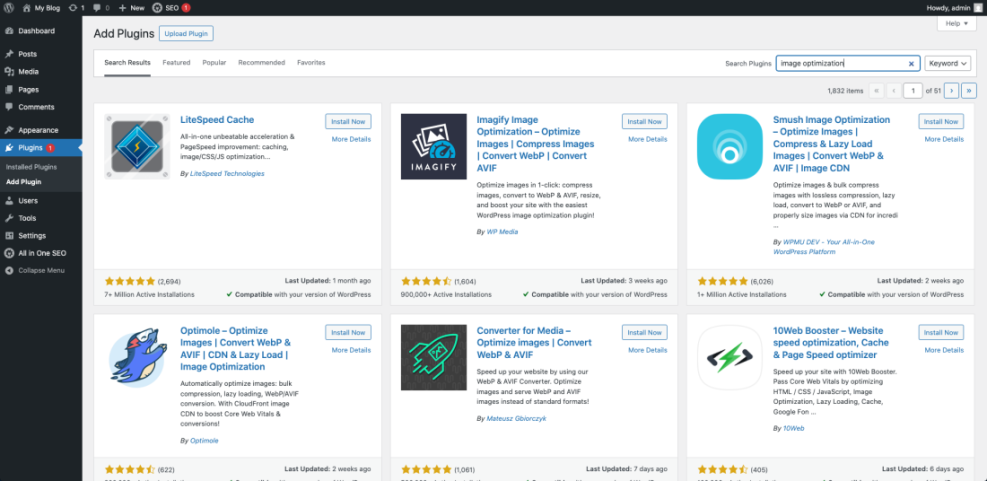
Large images are one of the quickest ways to slow down a new blog. Before uploading, resize images to the maximum width you actually use in your content. Then compress them using an image optimization plugin that can convert files to modern formats like WebP and apply lazy loading so off-screen images wait to load.
In your WordPress Dashboard, go to Plugins » Add New and search for your chosen image optimizer.
What Is a Caching Plugin and Why Use One?
A caching plugin saves a static copy of your posts and pages so your server does not rebuild them from scratch on every visit. When a reader opens a cached page, the response is much faster and uses fewer resources. For beginners, a popular caching plugin with a “simple” or “default” mode is often enough.
Basic Caching Setup for New Bloggers
- Install one reputable caching plugin from the official WordPress plugin directory.
- Activate it and choose the basic or recommended settings profile.
- Clear the cache once to create fresh copies of your key pages.
- Test your homepage and a popular post again with your speed tool.
- Only enable advanced options, such as file minification, if the simple mode is stable.
Incorrect caching settings can break logins or show outdated content, so always test your site while logged out in a private window after major changes.
Boost Speed With CDN and Tweaks
Should New Bloggers Use a CDN?
A content delivery network stores copies of your static files on servers around the world. Visitors then download images, styles, and scripts from a nearby location instead of your main server. If your audience is global, a CDN often makes your blog feel faster, even on a basic hosting plan.
Many managed hosts include a simple CDN that you can enable with one toggle in their control panel. When that is available, start there instead of juggling multiple separate services.
Cleaning Up Third-Party Scripts
Every analytics tag, chat widget, embedded video, and social feed adds more scripts to load. You do not need to remove all of them, yet you should keep only tools that bring real value. Where possible, load scripts only on the pages that use them instead of across the entire site.
Safe. htaccess Speed Snippet (Advanced)
If your site uses Apache and you feel comfortable editing files, you can add basic browser caching rules to your .htaccess file. Always create a backup first or ask your host for help if unsure.
# Basic browser caching for static files
<IfModule mod_expires.c>
  ExpiresActive On
  ExpiresByType text/css "access plus 7 days"
  ExpiresByType application/javascript "access plus 7 days"
  ExpiresByType image/webp "access plus 30 days"
  ExpiresByType image/jpeg "access plus 30 days"
  ExpiresByType image/png "access plus 30 days"
</IfModule>
This snippet tells browsers to reuse static files for a period instead of downloading them on every visit, which reduces data transfer and speeds up repeat views.
Keep Your New Blog Fast Over Time
Why Updates and Maintenance Matter for Speed
As you publish more posts, install plugins, and change themes, your WordPress database grows and your code base changes. Regularly updating WordPress core, themes, and plugins ensures you benefit from performance improvements and security fixes. Old versions often run slower and can cause conflicts.
Simple Monthly WordPress Speed Optimization Maintenance Routine
- Update WordPress core, your theme, and all active plugins after taking a backup.
- Remove unused plugins and themes so they no longer load code or receive updates.
- Run your speed test on the homepage and top posts again.
- Use a database optimization plugin to clean post revisions and transients.
- Review your content for huge images, embedded videos, or heavy widgets to trim.
By checking speed regularly instead of waiting for readers to complain, you catch problems early. That habit keeps WordPress Speed Optimization simple rather than a stressful emergency project.
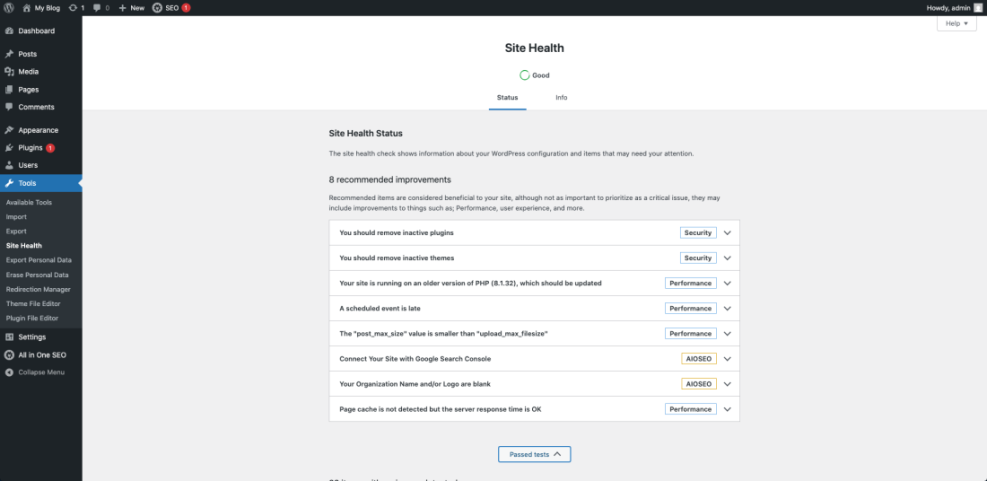
In your WordPress Dashboard, open Tools » Site Health to see performance and security suggestions.
WordPress Speed Optimization Conclusion
For a new blogger, WordPress Speed Optimization works best when you focus on a few high-impact basics and repeat them as your site grows. Choose hosting that does not struggle, keep your theme and plugin stack lean, compress every image, and use caching that you understand well enough to manage.
Next, build a simple habit: test key pages after each round of changes, log what you did, and keep only the features that add value. When speed optimization becomes part of your normal publishing workflow, your blog stays enjoyable to browse, easier to monetize, and more attractive to search engines from the very beginning.
More WordPress Speed Optimization Guides You Might Like
Once your blog feels fast, you can deepen your skills with related WordPress topics, from hosting choices to content structure and analytics. The ideas below make natural next steps.
- Beginner checklist optimizing WordPress blog posts
- How to choose WordPress theme
- Best WordPress caching plugins
- Beginner guide WordPress speed core web vitals
These future resources can build on your speed foundation, helping you balance design, features, and analytics while keeping your WordPress blog responsive and easy to navigate.
Frequently Asked Questions About WordPress Speed Optimization
How can I start WordPress speed optimization with no coding?
Do I need a premium caching plugin for a new blog?
How often should I run speed tests on my WordPress site?
Will too many plugins always slow down my site?
Is a CDN necessary if most readers are in one country?