WordPress SEO – Complete Beginner’s Guide
Get more traffic with simple practical WordPress tweaks

WordPress SEO is one of the simplest ways to get more free traffic to your website, but it can feel confusing when you are just starting out. Especially when people talk about algorithms, plugins, and ranking factors at the same time. You might wonder why your posts barely show up in Google even though you publish useful content and share links on social media.
This beginner-friendly WordPress SEO guide walks you through the key steps to make your WordPress website easier to crawl, understand, and rank. If you prefer a checklist format, you can also follow our How to add keywords in WordPress without hurting alongside this tutorial. You will start with core settings, move on to SEO plugins and content optimization, then finish with performance, tracking, and clear next steps you can follow right away.
WordPress SEO Quick Answer
What Is WordPress SEO?
WordPress SEO means configuring your WordPress website so search engines can understand your pages, match them to the right searches, and send you visitors who actually need your content. It covers technical basics, an SEO plugin, smart content, fast loading pages, good internal links, and clear tracking.
Key Setup Steps For Beginners
First, make sure search engines are allowed to index your site and that your permalinks use readable post names. Next, install one solid SEO plugin, follow its setup wizard, and add basic titles, meta descriptions, and XML sitemaps. Then focus on fast, mobile-friendly pages, helpful content, and consistent internal linking.
Why WordPress Helps Your Search Visibility
WordPress already provides clean HTML, simple content management, and a large plugin ecosystem. Because of that, you can reach a good technical baseline without coding. When you combine this with careful keyword research, useful articles, and performance plugins, you create a strong foundation that search engines can reward over time.
Setting Up WordPress For Search Success
Check Search Visibility Settings
Before anything else, confirm that WordPress is not blocking search engines. Go to Settings » Reading and look for the “Search Engine Visibility” option. The checkbox labeled “Discourage search engines from indexing this site” should be unchecked so Google and other crawlers can index your pages.
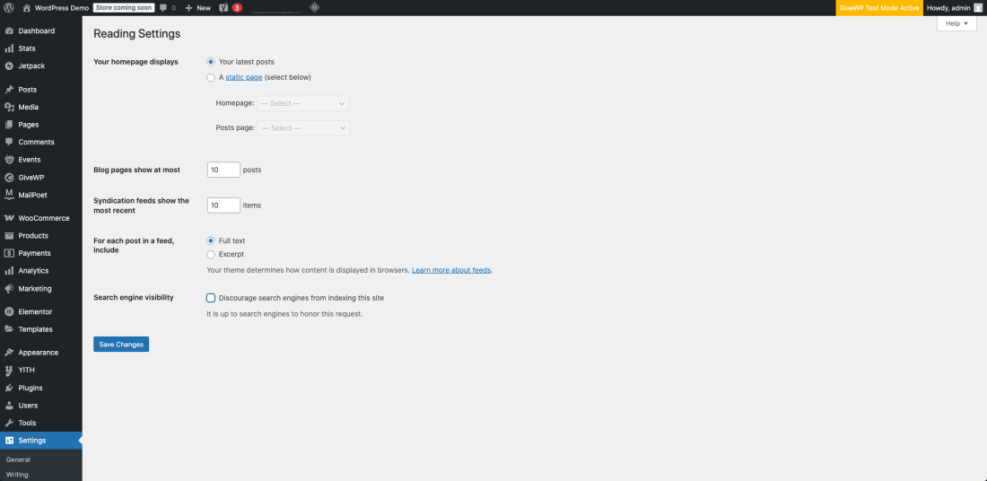
In addition, double-check that your site URL is correct under Settings » General and that both “WordPress Address” and “Site Address” match. A mismatch can create redirect loops and confuse search engines. Once these settings look good, your site is ready for more detailed SEO work.
How Do You Set Friendly Permalinks In WordPress?
To set SEO friendly URLs, open Settings » Permalinks and select the “Post name” option. This creates URLs that include your post title instead of numeric IDs. Short, descriptive URLs help users understand your content and give search engines clear hints about the topic, especially when you include key phrases naturally.
If your site is already live and has many posts, consider asking a developer or SEO specialist to help with redirects. That way you can protect both user experience and your current rankings while you move toward a cleaner permalink structure.
Set Site Title And Tagline
Your site title and tagline help search engines understand your brand and focus. Under Settings » General, use a clear site title that reflects your business or blog, then write a short tagline that describes your main topic. For example, a food blog might use a tagline about quick, healthy recipes for busy families.
Do not stuff keywords into this field. Instead, write a helpful description and let your SEO plugin handle detailed title templates later. This simple step supports brand recognition in search results and makes your site look more professional to new visitors.
Choosing And Configuring A WordPress SEO Plugin
What An Optimization Plugin Handles
An SEO plugin gives you tools to manage titles, meta descriptions, sitemaps, and on-page checks directly inside the editor. Most plugins also offer schema markup, breadcrumbs, and social sharing previews. Because of that, you can apply best practices that match general SEO guides from sources like Google and Moz without writing custom code.
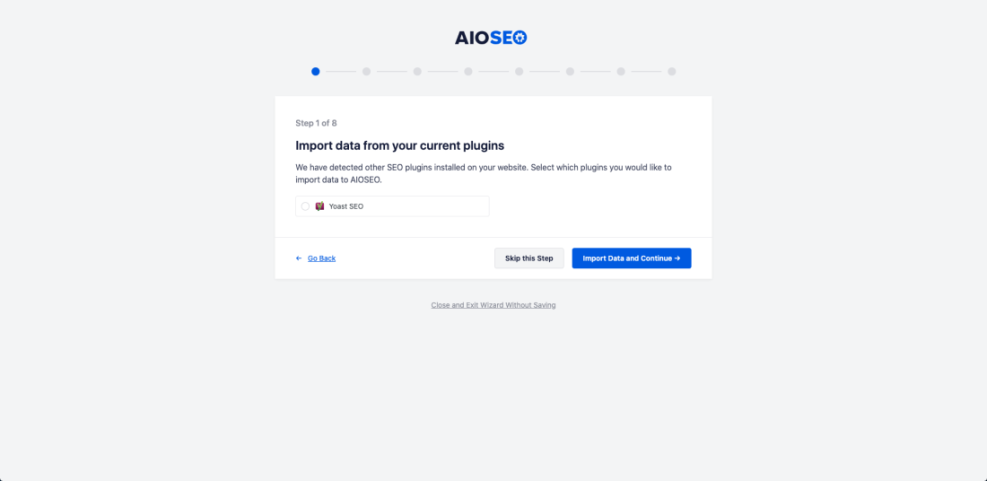
Popular options include Yoast SEO, All in One SEO, and Rank Math. Each one has a setup wizard that walks you through basic configuration. If you choose Yoast, you can follow our step-by-step Yoast SEO setup guide to make sure you do not miss any important settings. The specific plugin matters less than learning how to use its features consistently whenever you publish or update content.
How Do You Install A WordPress SEO Plugin?
Installing an SEO plugin is simple, and you can do it from your dashboard in a few minutes.
- Go to Plugins
- Click on Add New in your WordPress admin area.
- Search for your chosen SEO plugin by name and click Install Now.
- Click Activate, then run the built-in setup wizard.
Essential Plugin Settings To Review
After activation, review the core settings page in your SEO plugin. Enable XML sitemaps, set default title templates for posts and pages, and configure global meta description patterns. Many plugins also let you turn on breadcrumbs, which improve navigation and add useful internal links for both users and search engines.
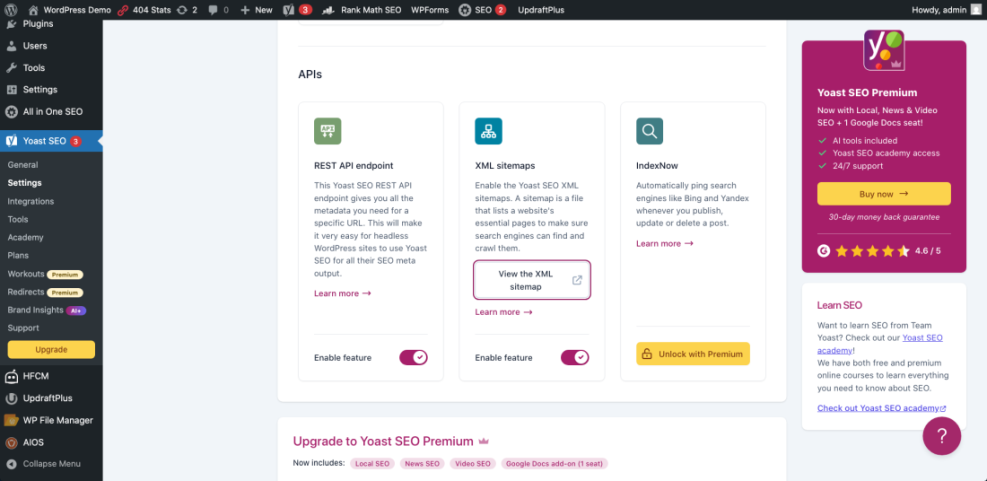
Most plugins integrate directly with Google Search Console so you can verify your site. Follow the instructions or use the official Google SEO Starter Guide as a reference when you want to understand why certain options matter.
Creating Content That Search Engines Love
How Do You Find Keywords For WordPress Posts?
Before you write, think about the exact words someone might type when they look for your topic. You can start with simple tools like Google’s autocomplete suggestions and “related searches” at the bottom of the results page. For deeper research, many people rely on SEO tools, but you can begin with free ideas and refine over time.
Write your primary keyword in your SEO plugin’s focus keyword field, then add a few related phrases naturally inside your post. This helps keep your content on topic without forcing you to repeat the same phrase in every sentence, which Google warns against in its guidelines.
Write Titles And Meta Descriptions That Get More Clicks
Every post needs a clear, benefit-focused title and a meta description that explains what the reader will gain. Try to place your main keyword near the start of the title, then use the meta description to promise a concrete outcome, such as saving time, learning a specific skill, or avoiding a common mistake.
- Include the main keyword once in the title.
- Write a unique meta description for each important post.
- Aim for natural language, not robot-style phrases.
- Make the description match the actual content.
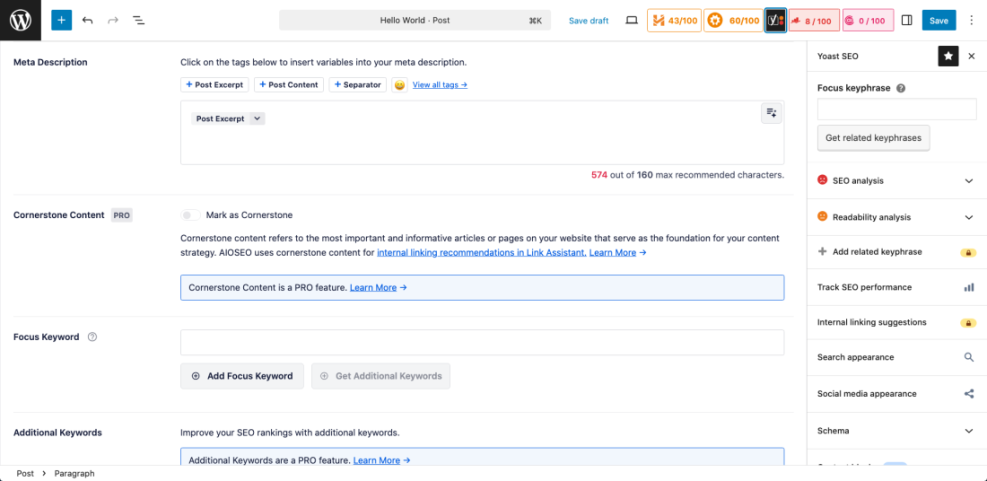
Search engines may not always show your meta description, but they often use it as a hint. When it appears in results and matches the searcher’s intent, you increase the chance of a click, which sends positive engagement signals back to the algorithm.
Format Content For Readability And Search
Use headings to break your article into clear sections and keep paragraphs short. When you can, include your primary keyword or a close variation in one or two subheadings, but keep them natural. Add bullet lists for quick tips, bold key phrases sparingly, and always write in complete sentences that are easy to follow on phones and desktops.
Alt text on images should briefly describe what the image shows and how it relates to the topic. For guidance on this, you can review best practices in the Google Search documentation or trusted resources such as the Moz Beginner’s Guide.
Site Structure, Internal Links And Navigation
Use Categories And Tags Without Overdoing It
Categories and tags help organize your content, but using too many can confuse visitors and create thin archive pages. Choose a small set of broad categories that match your main topics, then use tags for important details you cover often. Avoid creating new categories for every post or using near-duplicate tag names.
If you ever reorganize your taxonomy, check that old category and tag URLs still load or redirect properly. Broken category links hurt both user experience and crawl quality, which can slowly weaken your WordPress SEO gains.
Build Helpful Internal Links On Every Post
Internal links guide visitors to related content and show search engines how topics connect across your website. When you publish a new post, add links to two or three older, relevant articles using short, descriptive anchor text. Also, update older posts with links pointing forward to your new content when it fits naturally.
For complex strategies, you might later create a dedicated guide to internal linking, such as Internal Linking Guide. For now, make a habit of adding at least a couple of helpful links whenever you edit or publish.
Improve Navigation With Menus And Breadcrumbs For Better Search Visibility
A clear main menu and breadcrumb trail help visitors understand where they are on your site. Most themes support menus that group your main categories or landing pages. Many SEO plugins can add breadcrumb markup, which shows location paths in search results and gives search engines another hint about your site structure.
Create a simple menu that keeps your most important pages within one or two clicks from the homepage. Then, periodically review your navigation to remove outdated items and add new cornerstone content that deserves extra visibility.
Performance, Security And Technical Basics
Speed Up WordPress With Caching And Images
Fast loading pages keep visitors on your site and support better rankings. Most managed hosts offer built-in caching, but you can also install a caching plugin if your plan allows it. For a detailed walkthrough, check out our WordPress speed optimization guide. Combine caching with image compression and lazy loading to reduce page weight without sacrificing visual quality for readers.
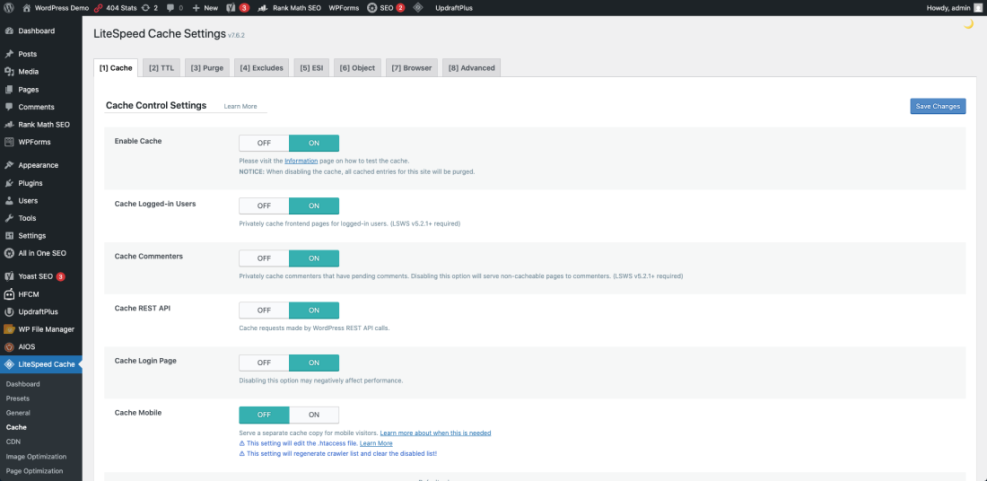
Tools like PageSpeed Insights or other Web Vitals checkers can highlight slow pages and bottlenecks. When you see large image warnings, compress and resize those files. When scripts block rendering, consider deferring them or asking your host whether they provide automatic optimization features.
Keep Your Site Mobile Friendly
Most searches happen on mobile devices, so your theme must look good on small screens. Choose a responsive theme that avoids tiny fonts and tap targets that are too close together. Test your posts regularly on a phone and tablet to make sure important content appears quickly without scrolling through ads or heavy sliders.
If your site fails any mobile checks, fix those issues before you add more design features. A clean, responsive layout often outperforms a cluttered design, especially when visitors arrive from search results and decide within seconds whether to stay.
Use HTTPS And Basic Security Habits To Protect Your Site
HTTPS is a trust and ranking signal, and most hosts now include free SSL certificates. Make sure your site loads over https:// by default and update any old internal links or image URLs that still use http://. Many SEO plugins and security tools can help with mixed-content checks and basic hardening.
Update WordPress core, themes, and plugins regularly to close known vulnerabilities. Strong passwords, limited admin accounts, and reliable backups protect the traffic you earn from your WordPress SEO work, because a hacked site can lose rankings and visitor trust very quickly.
Tracking Your WordPress SEO Results And Improving Over Time
Connect And Use Google Search Console
Google Search Console shows how your site appears in search, including impressions, clicks, and queries. Verify your domain, submit your XML sitemap from your SEO plugin, and watch for index coverage errors. The performance report reveals which pages already attract traffic and which queries bring users to your content.
When you see a page with many impressions but low click-through rate, review its title and meta description. Small wording changes can make those results more appealing, which often improves clicks without changing your rankings.
Watch Your Key Pages And Queries
Instead of tracking every URL, pick a small set of important pages such as your homepage and a few pillar articles. Monitor their average positions and clicks over time. As you add internal links, improve content, and enhance speed, you should gradually see more impressions and movement toward better average positions.
Analytics tools can also show how users behave after landing on your site. If you have not set this up yet, follow our tutorial on adding Google Analytics to WordPress. High bounce rates or very short sessions may signal that your content does not match search intent yet. Adjust headlines, introductions, and calls to action until people stay longer and view more pages.
How Long Do Changes Take To Work In Search?
WordPress SEO improvements rarely show results overnight. New pages can take days or weeks to be crawled and indexed, and competitive keywords may require several months of steady work. Focus on consistent publishing, helpful content, and technical quality so gains build over time instead of chasing quick tricks that stop working.
Conclusion And Next Steps
At this point, you have everything you need to build a strong SEO foundation on WordPress. Start with visibility settings and permalinks, install and configure a single SEO plugin, then publish focused content that answers real questions better than your competitors. Each small improvement stacks, especially when you keep your site fast and secure.
Your next step is simple: choose one high-value page on your site and apply what you learned. Fix its title and meta description, tighten the structure, add a few internal links, and improve its images and speed. Then watch its performance in Google Search Console and repeat the process on the next page.
More WordPress Guides You Might Like
If you want to go deeper on specific areas, you can plan additional WordPress-focused guides that expand on the steps in this beginner’s overview.
- WordPress Speed Optimization Step By Step
- Beginner Guide To Internal Linking In WordPress
- How To Configure Google Analytics For WordPress
- Local SEO For Small Business WordPress Sites
- Content Planning Workflow For WordPress Blogs
As you publish more articles around these topics, your site will build topical authority and give visitors a complete path from basic setup to advanced optimization techniques.
Frequently Asked Questions About WordPress SEO
What is WordPress SEO in simple terms?
Do you need a plugin for WordPress SEO?
How many SEO plugins should you use at once?
Can you do WordPress SEO without technical skills?
How long before Google shows a new WordPress site?