Advanced Internal Linking Strategies for WordPress Sites
Practical tactics to structure links and grow rankings

Internal linking strategies for WordPress are one of the easiest ways to boost your SEO without spending more on ads or extra tools. When you connect your own pages with smart, relevant links, you help visitors discover more content and guide search engines toward your most important posts and pages.
You are about to learn how to design a simple internal linking strategy, add links correctly in the WordPress editor, and use plugins and reports to scale your efforts. As you go, you will see practical workflows, examples, and checks that keep your internal links clean, useful, and safe for long-term SEO.
How Internal Linking Boosts WordPress SEO
What Is an Internal Link?
An internal link is a clickable text or image that sends a visitor from one page on your WordPress site to another page on the same domain. You use them in menus, sidebars, and especially inside your content. Every useful internal link acts like a signpost that explains where to go next.
Why Do Internal Links Help SEO?
Internal links help search engines crawl more pages, understand your site structure, and pass link equity from strong pages to weaker ones. When you link related posts together, you build topic clusters that show expertise, and you make it easier for visitors to stay on your site longer and reach key conversion pages.
How Many Internal Links Should a Page Have?
There is no perfect number, but most blog posts work well with anywhere from three to fifteen internal links, depending on length. Focus on linking only when the destination truly adds value. If a page feels hard to read because of many links in every sentence, you likely added too many.
Plan Site Structure for Strong Links
How Should You Organize Content?
Before you add dozens of links, you need a clear content map. Group posts and pages into logical topics, such as “WordPress speed,” “security,” or “on-page SEO.” Then decide which URLs are pillar pages and which are supporting articles that go deeper into subtopics.
Create Pillar Pages and Topic Clusters
A pillar page targets a broad, valuable keyword and gives a complete overview. Supporting posts answer narrow questions inside that topic. You link from each supporting post up to the pillar and sideways to related content. Over time, this cluster builds strong topical authority in search results.
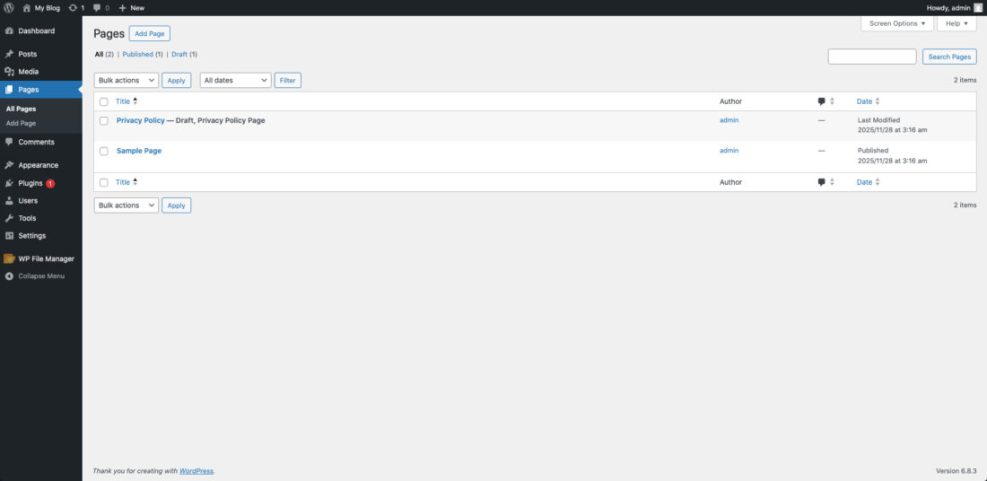
From the WordPress Dashboard, go to Pages » All Pages to review which pages should become pillars and which should support them.
Fix Orphaned Content with Links
Orphaned content has no internal links pointing to it, so search engines and users rarely reach it. You can fix this by finding posts with traffic potential and linking to them from relevant, higher-traffic pages. Over time, this spreads link equity and improves crawl efficiency across your site.
Create Smart Links in WordPress Content
How to Add Internal Links in Posts
Adding a contextual internal link inside a post takes only a few clicks and should become part of your writing routine.
- In the WordPress Dashboard, open Posts » All Posts and click Edit on the article you want to change.
- Select the relevant words or phrase in your paragraph that should become the anchor text.
- Click the link icon in the editor toolbar to open the link dialog.
- Start typing the title of the internal page you want to link to and pick it from the search results.
- Confirm the URL, then apply the link and update the post.
When you follow these steps on every new article, internal linking becomes a natural part of content creation instead of a stressful cleanup task.
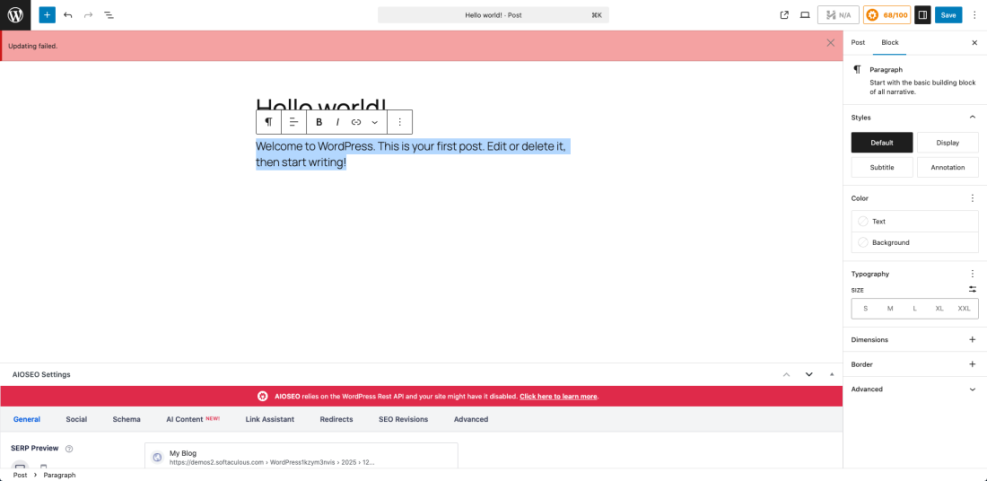
In the WordPress Dashboard, open Posts » All Posts, edit a post, and highlight a phrase to trigger the link dialog.
Best Practices for Anchor Text
Anchor text should describe the page you link to, stay concise, and look natural inside the sentence. For example, “internal linking best practices” is much clearer than “click here.” Vary your phrasing so you do not repeat the same keyword-rich anchor on every link to a page.
Should You Use Nofollow on Internal Links?
In most cases, you should not use nofollow on internal links. Search engines use these links to find and understand your pages, so blocking them wastes link equity. Reserve nofollow only for rare cases such as login links, cart pages, or internal tools that you do not want search engines to index.
Scale Internal Links with Plugins and Tools
When Manual Linking Is Enough
On small sites, you can handle internal links by hand. You review each new post, search for related articles, and add links in both directions. This approach gives you full control over anchor text and context, and it keeps low-quality or off-topic links out of your content.
Use Internal Linking Plugins Wisely
As your site grows, manual linking becomes hard to maintain. Internal linking plugins and SEO suites can suggest opportunities, show orphaned content, and even add links semi-automatically. Treat these tools as assistants rather than autopilots, and always review suggestions before you approve them.
You can even add a simple shortcode to keep internal link formatting consistent across your content.
function wh_internal_link_shortcode( $atts, $content = null ) {
    $atts = shortcode_atts(
        array(
            'url'   => '',
            'title' => '',
        ),
        $atts
    );

    if ( empty( $atts['url'] ) || empty( $content ) ) {
        return '';
    }

    return '<a href="' . esc_url( $atts['url'] ) . '" title="' .
        esc_attr( $atts['title'] ) . '">' . esc_html( $content ) . '</a>';
}
add_shortcode( 'wh_link', 'wh_internal_link_shortcode' );
With this shortcode, you can write [wh_link url="/internal-linking-wordpress-seo" title="Internal Linking Guide"]internal linking guide[/wh_link] and keep your internal links clean and consistent.
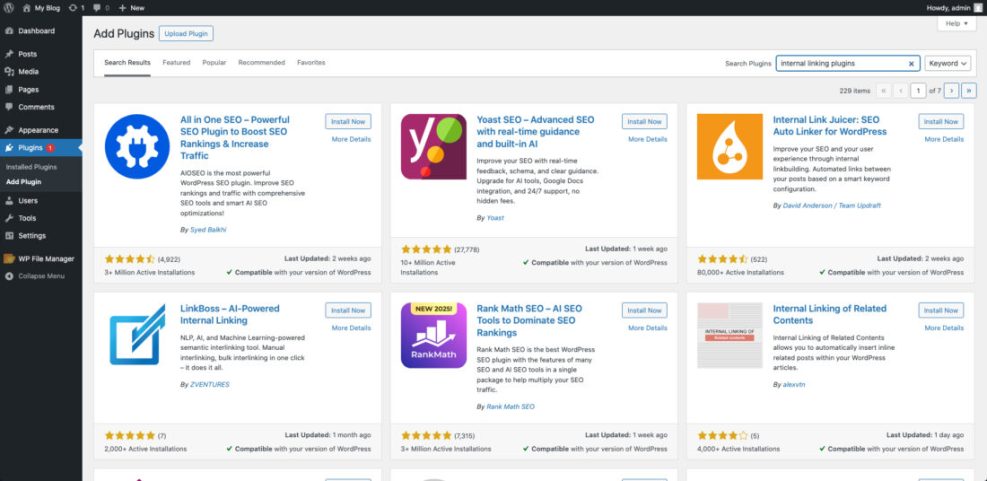
In the WordPress Dashboard, go to Plugins » Add New to explore SEO and internal linking plugins that offer link reports and suggestions.
Compare Manual and Plugin Approaches
Both manual workflows and plugins can work well. The key is to understand what you gain and what you give up with each approach, then choose the mix that suits your current site size and skill level.
| Approach | Main Advantages | Best For |
|---|---|---|
| Manual Internal Linking | Full control, natural context, no extra plugin overhead | Small sites and detail-focused creators |
| Plugin-Assisted Linking | Faster suggestions, easy orphaned page detection, bulk edits | Growing blogs and content libraries |
| Hybrid Workflow | Tools find opportunities, you decide anchors and placement | Medium to large WordPress sites |
| Fully Automatic Rules | Minimal effort after setup, auto-linking by keyword | Careful use only, because overuse can look spammy |
As your site grows, you can start with a hybrid workflow where tools surface ideas and you keep final control over what gets linked and how.
Audit and Maintain Your Link Structure
How to Find Orphaned and Weak Pages
Regular internal link audits keep important content from getting buried. You can use your SEO plugin, a crawler, or Google Search Console’s links report to find pages with few or no internal links. Then you improve those pages or link to them from stronger, related articles.
From the WordPress Dashboard, visit Tools » Site Health or your SEO plugin’s dashboard to scan for content and link issues in one place.

Measure Performance with Analytics
Internal linking is not only about rankings. It also affects user behavior. Track metrics such as pages per session, time on site, and click-through rates from key hub pages. If visitors follow your suggested paths, your internal links are doing their job.
How Often Should You Review Internal Links?
Most small and medium sites do well with a focused internal link review every one to three months. You can also schedule a quick check whenever you publish a new content cluster or redesign your navigation. This rhythm keeps your structure aligned with your current priorities.
Advanced Strategies for Smart Internal Links
Build Clear Navigation and Breadcrumbs
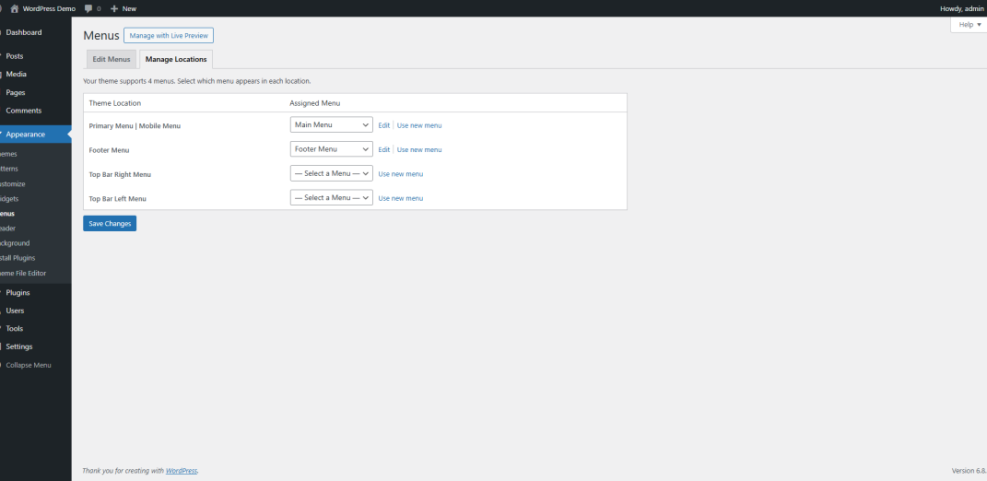
Your main menu, footer, and breadcrumb links carry a lot of weight. They show search engines how sections connect and give visitors shortcuts back to important category or landing pages. Keep navigation simple, descriptive, and focused on your main topics.
From the WordPress Dashboard, go to Appearance » Menus to adjust your primary navigation and footer menus.
Use High Traffic Pages to Pass Authority
Your most visited posts often have the most external backlinks and link equity. Add contextual internal links from those posts to conversion pages, pillar content, and newer guides. This turns existing traffic into a steady flow of engaged visitors across your site.
Avoid Common Internal Linking Mistakes
Common errors include using the same exact-match anchor every time, linking to weak or off-topic content, or stacking dozens of links in a single paragraph. Keep links relevant, readable, and focused on helping the reader move forward in a logical way.
Internal Linking Conclusion
Internal linking is one of the easiest ways to improve WordPress SEO, yet many site owners still treat it as an afterthought. When you plan topic clusters, add links as part of writing, and use tools to maintain your structure, you turn everyday content into a tightly connected web of useful pages.
Your next step is simple: pick one pillar topic, list its supporting posts, and add at least three new internal links between them today. Then schedule a recurring internal link review so this work never piles up again.
More WordPress Guides You Might Like
If you want to push your WordPress SEO even further, plan a small learning path around performance, content, and analytics. These future resources pair well with a solid internal linking strategy.
- WordPress migration checklist for blogs
- Beginner guide to WordPress speed optimization
- How to do seo for WordPress blog
- Analytics setup WordPress google analytics
- How to add schema markup in WordPress
By connecting these topics with smart internal links, you create a complete learning experience for your visitors and a clear, crawlable structure for search engines.
Frequently Asked Questions About Internal Linking
What is the difference between internal and external links?
How many internal links should I add to a post?
Do internal links help new content get indexed faster?
Should I ever use nofollow on internal links?
Which WordPress plugin is best for managing internal links?