Understanding WordPress Hosting and Backups
A Practical Safety Net Plan for Your Site

WordPress hosting backups are the safety net that keeps your site alive when something breaks, gets hacked, or is deleted by mistake. Many site owners assume their hosting company quietly handles everything, then discover too late that backups were missing, incomplete, or hard to restore.
This guide walks you through how hosting backups really work, what most providers offer, and where the gaps are. You will learn how to read backup features before you buy hosting, how to combine hosting tools with plugins, and how to build a simple backup routine you can actually stick to.
How WordPress Hosting Backups Work
What Counts as a Backup?
A real backup is more than a copy of a few files. For WordPress, you need both the database, which stores your posts, pages, and settings, and your files, which include themes, plugins, uploads, and WordPress core. When your host says “daily backups,” ask whether both pieces are covered.
Most hosting backups run on a schedule, such as daily or weekly, and create restore points you can roll back to. Some managed WordPress plans even add automatic backups before plugin or core updates so you can undo a bad change with a single click.
Why Host-Level Backups Matter
Host-level backups usually run outside WordPress, directly on the server. Therefore they can restore your entire account even if WordPress is completely broken or the login screen is unreachable. In addition, good hosts store copies on separate storage so a single disk failure does not wipe out both your site and its backups.
Are Hosting Backups Enough?
Hosting backups are your first line of defense, but they are rarely enough on their own. Many plans keep only a few days of history, store everything on the same infrastructure, or make restores slow and support-driven. Using a dedicated backup plugin or external backup service gives you more control, better retention, and true offsite copies.
Choosing Hosting With Reliable Backups
Key Backup Features to Compare
When you compare hosting plans, treat backup features like uptime and speed, not as a tiny bonus line. Look for details, not just the word “backups.
- Automatic schedule (daily, hourly, or event-based)
- How many restore points are kept
- File and database coverage for each site
- One-click restore from the dashboard
- Option to download backups as archives
- Offsite or separate-server storage
- Support help if a restore fails
After you compare plans this way, the cheapest offer often no longer looks like the best value, because a weak backup policy can cost far more than a few saved dollars per month.
What Backup Frequency Do You Need?
The right backup schedule depends on how often your content changes. For smaller sites with rare updates, weekly backups can be enough. For active blogs, online stores, or membership sites, daily or even hourly backups make more sense so you do not lose orders, comments, or user data.
Therefore, match the host’s schedule to your actual activity. If your site processes payments or user submissions, choose plans that support at least daily backups and add a plugin that can create extra backups during busy periods.
Retention and Storage Locations
Retention describes how long a host keeps your restore points. Some shared plans keep only a few days, while managed WordPress hosting often keeps between 14 and 30 days of backups. In addition, general WordPress best practice is to keep at least three to five recent backup copies in different locations.
Ideally, you have one copy with your host, one in cloud storage such as Google Drive or Amazon S3, and one downloaded to your own computer. That way, a failure in any single place will not wipe out every backup you have.
Hosting Types and Backup Support
Different hosting types handle backups in very different ways. The type of plan you choose often matters more than the brand when it comes to how safe your data really is.
The table below gives a compact comparison so you can spot weak backup setups at a glance.
| Hosting Type | Typical Backup Frequency | Retention and Storage | Restore Difficulty |
|---|---|---|---|
| SEO and UX, and where you will see it in daily work.”>Shared Hosting | Daily or weekly, sometimes manual only | Few days, often same server | May require support ticket or restores whole account |
| Managed WordPress Hosting | Daily by default, sometimes hourly | Two to four weeks, often offsite | Self-service, one-click per site |
| VPS or Cloud Server | Snapshots or images on schedule you set | Varies, usually configurable | More control but more technical steps |
| Dedicated Server | Custom scripts or image-based backups | Custom retention, often external storage | Requires sysadmin-level knowledge |
While features vary by provider, this comparison makes it clear that managed WordPress hosting usually offers the most complete, user-friendly backup experience out of the box.
Shared Hosting Backup Basics
On many entry-level shared plans, backups are a nice-to-have feature rather than a core promise. Some hosts only provide weekly account snapshots, which may include all websites in a single archive, and sometimes charge extra for restores or long-term retention.
Because of this, shared hosting users benefit the most from adding a good backup plugin and pushing copies to cloud storage, so they are not trapped by a single short retention policy.
Managed Hosting Backup Advantages
Managed WordPress hosting often includes automatic daily backups, longer retention, and one-click restores as standard features. In addition, these platforms frequently create backups before updates and let you clone a backup to a staging site to test changes safely.
This combination saves time, reduces human error, and helps you recover within minutes, not hours, when something goes wrong in production.
Is Managed Hosting Better for Backups?
Managed hosting is usually better for backups if you value convenience and fast recovery more than raw server control. You still need offsite copies and maybe a plugin, but you start from a stronger base. On the other hand, a well-managed VPS with a solid backup plan can be just as safe in experienced hands.
Hosting Backups Versus Plugins and Manual Tools
There is no single right way to protect a WordPress site. Instead, you combine methods. Hosting backups, plugins, manual tools, and external services all have strengths and weaknesses.
The table below compares the main WordPress backup options so you can mix them wisely instead of relying on only one layer.
| Method | Main Pros | Main Cons | Best Use Case |
|---|---|---|---|
| Hosting Backups | Automatic, outside WordPress, full account restore | Limited retention, tied to one provider | Baseline protection for every site on the plan |
| Backup Plugin | Granular control, offsite storage, easy per-site restores | Uses site resources, can fail if WordPress is broken | Primary backups for important or busy sites |
| Manual Tools | Maximum control, works even with broken admin | Time-consuming, easy to forget steps | Extra backups before risky changes |
| External Backup Service | Independent from host, strong automation and monitoring | Extra monthly cost, learning curve | High-value business sites and agencies |
When you blend these methods, you cover more scenarios, from small mistakes to full hosting failures.
Hosting Backups Pros and Cons
Hosting backups shine when the worst-case scenarios happen, such as a server crash, a hacked dashboard, or a broken login screen. However, they also share the same risk surface as your account, so if your provider loses data or suspends the account, you may lose both the site and its backups.
Backup Plugins Pros and Cons
Backup plugins give you more control over schedules, what to include, and where to store archives. Many connect directly to services like Google Drive, Dropbox, or Amazon S3, which makes offsite storage easy. In contrast, they depend on PHP resources, so large sites need careful tuning and sometimes server-side cron jobs.
Do You Need Multiple Backup Methods?
Using more than one backup method protects you from single points of failure. A simple way to think about it is the “three copies” idea: keep a host backup, a plugin backup stored offsite, and a copy you occasionally download to your own device. That mix handles most realistic disaster scenarios.
Building a Safe Backup Routine
Define What You Will Back Up
Before you click any backup button, decide what “full backup” means for your site. At a minimum, include the database and the entire wp-content folder so you capture your themes, plugins, and media uploads. For ecommerce or membership sites, be sure that backups include order and user data at a useful frequency.
Set a Backup Schedule
You do not need a complex plan to stay safe. You just need a simple routine you follow every week. Start with something like this:
- Enable daily automatic backups in your hosting panel.
- Install a reliable backup plugin and connect it to cloud storage.
- Schedule plugin backups to run at a time with low traffic.
- Download a fresh backup to your computer once a month.
For detailed plugin setup, you can follow official guides from the plugin author or from trusted tutorials such as the WordPress.com and WPBeginner backup articles.
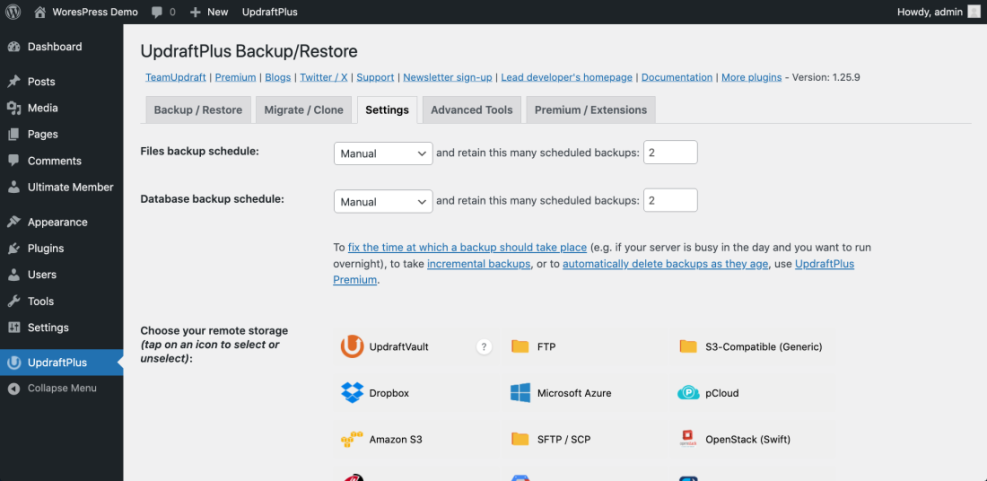
In your WordPress Dashboard, go to Plugins » Installed Plugins and click Settings next to your backup plugin.
Test Restores Regularly
A backup is only as good as your ability to restore it. Therefore, plan to test restores at least a few times per year, preferably to a staging site or temporary subdomain. This practice confirms that archives are valid, credentials are correct, and your process is clear even when you are stressed.
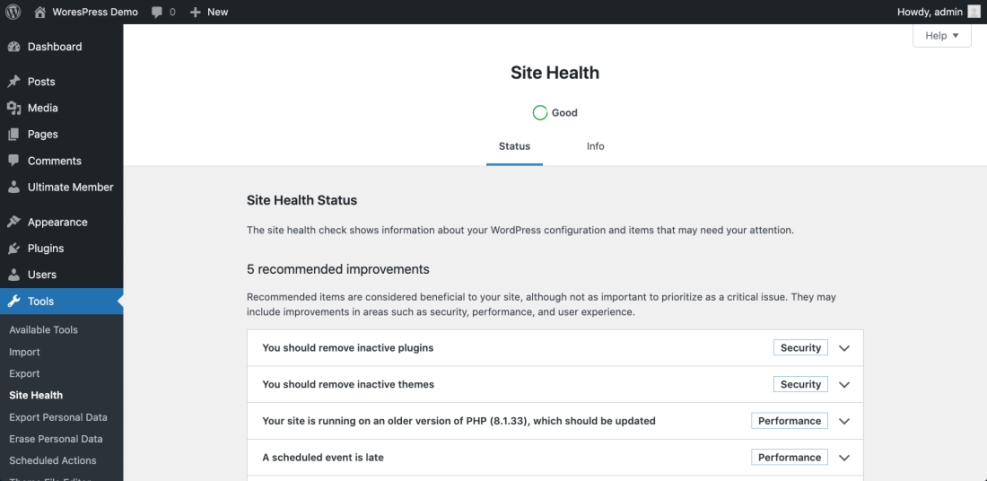
In your WordPress Dashboard, open Tools » Site Health to confirm there are no critical errors before you try a restore.
To add another safety layer, you can protect backup archives stored on your server by limiting direct access at the web server level. Add a short rule to your .htaccess file inside the directory where backups are saved.
# Block direct access to backup archives <FilesMatch ".(zip|tar|gz|sql)$"> Require all denied </FilesMatch> This simple rule stops someone from downloading your backup archives if they guess the URL, while still allowing you to work with those files through FTP or your hosting file manager.
Restoring Your Site From Backups
Restoring From a Hosting Dashboard
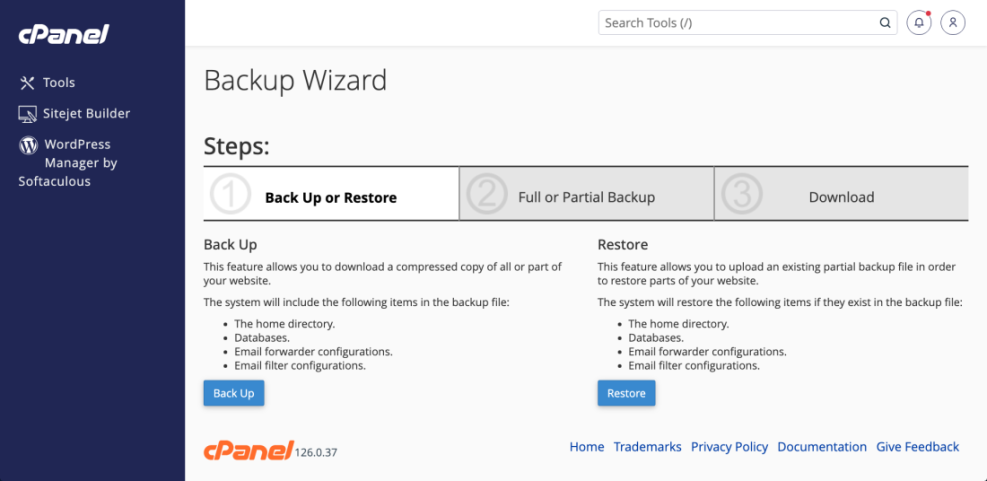
Many hosting dashboards include a dedicated backups area where you can pick a date and restore either an entire site or specific files and databases. Always double-check that you are restoring the correct site, especially if you host multiple domains on one account.
In your hosting control panel, open the Backups or Backup Wizard tool from the main menu.
Restoring With a Backup Plugin
Backup plugins usually provide one-click restore options directly in the WordPress Dashboard. Therefore, you can roll back only the database, only the files, or the entire site from a chosen backup set, which is helpful when a plugin update breaks styling but not content, or the other way around.
In your WordPress Dashboard, go to Tools » Backups or your plugin’s menu item, then select a backup and choose the restore scope.
Why Do Restores Sometimes Fail?
Restores can fail for many reasons, such as missing files in the archive, low server resources, conflicting security rules, or using a backup taken from a different domain or PHP version. When that happens, try again on a staging copy first, check your host’s logs, and open a support ticket with both your host and plugin vendor if needed.
WordPress Hosting Backups Conclusion
Your hosting plan’s backups should be the backbone of your recovery strategy, not the only pillar. A smart setup uses WordPress hosting backups for fast, full-account recovery and layers plugin-based and offsite backups on top for flexibility and redundancy.
The next practical step is simple: review your host’s backup policy today, install or audit your backup plugin, and schedule a single test restore to staging. After you complete that cycle once, repeat it on a regular schedule so backup safety becomes a normal part of your WordPress maintenance routine rather than an emergency project.
As you refine your process over time, consider mapping out a short disaster recovery checklist and linking it from your own internal docs or from a dedicated WordPress disaster recovery walkthrough guide so you can react calmly when something goes wrong.
More WordPress Guides You Might Like
To deepen your skills around hosting, backups, and general WordPress maintenance, add the following topics to your reading list and toolkit planning.
- How to choose the best WordPress hosting
- Install WordPress step by step
- Beginner checklist optimizing WordPress blog posts
- WordPress Disaster Recovery Walkthrough
- Developer hooks for WordPress database and file optimization
These related guides help you turn backups from a single task into a complete protection system that covers performance, uptime, and recovery, so your WordPress site stays stable as it grows.
Frequently Asked Questions About WordPress Hosting Backups
Can I rely only on my hosting backups?
How often should I back up my WordPress site?
What happens if my host loses my backups?
Do backups affect WordPress performance?
Where should I store WordPress backups?