WordPress Caching Guide
How to plan, configure, and troubleshoot a fast WordPress caching stack

Caching is one of the biggest levers you have for speeding up a WordPress site, but it can also be confusing. Page cache, browser cache, opcode cache, object cache, CDN cache—if you are not sure what each of these does, it is easy to misconfigure things or break your layout.
In this guide, you will learn how WordPress caching works, how to plan your caching stack, and how to set it up step by step—from your server and caching plugin through to your CDN and object cache. You will also see how this guide fits alongside our complete WordPress caching setup guide, which dives even deeper into advanced configuration checklists.
By the end, you will have a clear caching strategy you can repeat across sites, along with a troubleshooting process for when cached pages do not behave as expected.
Prerequisites
Before you start changing caching settings, make sure you have the basics in place. Caching misconfigurations can hide errors, so it is important to be able to roll back.
- Administrator access to your WordPress dashboard.
- Access to your hosting control panel or server (cPanel, Plesk, or SSH).
- An existing backup of your site (files + database) stored off the server.
- Login details for any CDN or security proxy you are using (Cloudflare, etc.).
- A staging site if possible, so you can test caching changes safely.
Step 1: Map Your WordPress Caching Stack
WordPress performance depends on how all layers of cache work together, not just on a single plugin. Before enabling or changing anything, identify every caching layer that might touch your site.
1.1 Understand the main cache types
- Browser cache: Stores static files (images, CSS, JS) on the visitor’s device so they are not re-downloaded every pageview.
- Page cache: Stores full HTML output of your pages so WordPress and PHP do not regenerate them for every request.
- Opcode cache: Caches compiled PHP code on the server (e.g., OPcache) so PHP files do not need to be recompiled each time.
- Object cache: Stores reusable database query results and internal objects; can be persistent (Redis/Memcached) or non-persistent.
- CDN cache: Edge servers cache static files (and sometimes HTML) closer to your visitors around the world.
1.2 Inventory your current stack
- Check your hosting plan features for built-in caching (e.g., server page caching, opcode cache, Redis).
- List all performance plugins currently installed, especially caching plugins and optimization suites.
- Note any CDN or security proxy in front of your site and whether it is caching HTML or only static assets.
- Look for any custom rules in
.htaccess,nginx.conf, orwp-config.phprelated to caching.
Step 2: Enable Server and Opcode Caching
Server-level caching gives you a performance baseline before you even touch a plugin. Many managed WordPress hosts already enable these layers; your job is to confirm and avoid conflicts.
2.1 Confirm opcode caching (OPcache)
Opcode caching ensures PHP does not recompile scripts on every request. Most modern PHP environments include OPcache by default.
- Ask your host’s support or check your hosting documentation for “OPcache” or “opcode cache”.
- If you manage your own server, create a
phpinfo.phpfile in your web root with:<?php phpinfo();Then open it in your browser and look for “Zend OPcache”.
- Confirm it is enabled and not reporting major errors.
2.2 Confirm or enable server page caching
Some hosts provide their own reverse proxy or page cache (e.g., Nginx fastcgi_cache, Varnish). When this exists, you must align it with your plugin cache.
- Check your hosting panel for options labeled “Cache”, “Turbo”, “Performance”, or “Page Cache”.
- If server caching is enabled, verify which paths are excluded by default (e.g.,
/wp-admin/, cart and checkout pages). - Document how to purge this cache (button in control panel, SSH command, or API).
Step 3: Configure a Page Caching Plugin
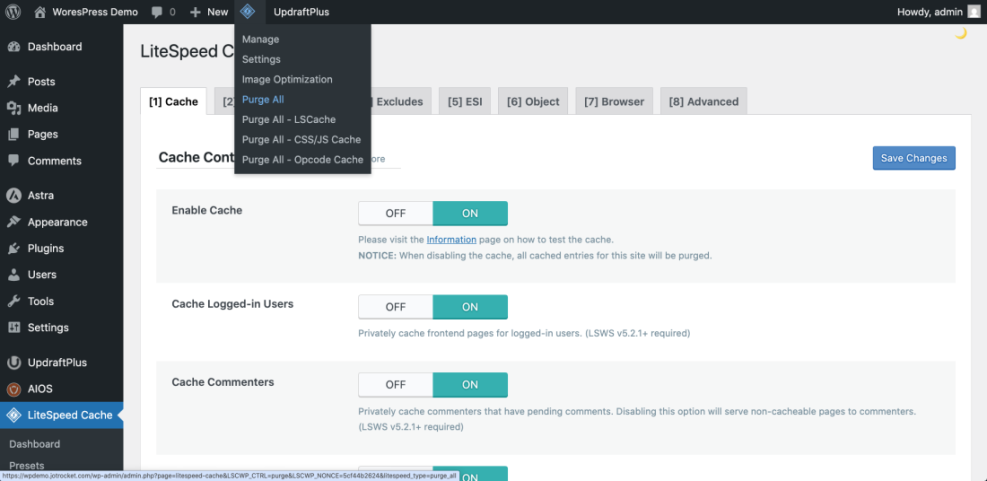
Your WordPress caching plugin controls how HTML pages and static files are cached and purged. Choose one main caching plugin and disable overlapping modules in other performance tools.
3.1 Choose and install a primary caching plugin
- From your WordPress dashboard, go to Plugins > Add New.
- Search for your preferred caching plugin (e.g., a tool you already selected from caching plugin comparisons for WordPress performance).
- Click Install Now, then Activate.
3.2 Enable page cache safely
- Open the plugin’s settings (often under Settings > Cache or its own menu).
- Turn on Page Caching or equivalent.
- Ensure logged-in users (especially admins) are either excluded from cache or handled carefully to avoid “stuck” admin views.
- Exclude paths that must always be dynamic (e.g.,
/cart/,/checkout/,/my-account/, membership dashboards).
3.3 Configure browser caching and cache headers
Most caching plugins can set browser cache lifetimes for static assets. This helps you improve repeat-visit performance and Core Web Vitals.
- In your caching plugin, find the section related to Browser Cache, Static Files, or HTTP headers.
- Set a long cache lifetime (e.g., 1 month) for images, CSS, and JavaScript.
- Enable
ETagorLast-Modifiedheaders if offered, so browsers can validate cached files efficiently.
3.4 Purge rules and automatic cache invalidation
Caching is only useful if visitors see fresh content when you update your site. Configure automatic cache purges for common events:
- When a post or page is published, updated, or deleted.
- When you change menus or widgets that affect global layout.
- When you update your theme or core plugins that change templates.
3.5 Troubleshooting common plugin cache issues
- Layout breaks after enabling cache: Temporarily disable CSS/JS minification and combination features. Re-enable them gradually and test.
- Users see old content: Clear the plugin cache and any server or CDN cache. Make sure auto-purge on content update is enabled.
- Certain forms or dynamic widgets do not work: Exclude those pages or specific query parameters from cache.
Step 4: Add Object Caching (Optional but Recommended)
Object caching helps with database-heavy sites like SEO and UX, and where you will see it in daily work.”>WooCommerce stores, membership sites, or large blogs. Persistent object caching (Redis, Memcached) can significantly reduce database load.
4.1 Decide whether you need persistent object cache
You are a good candidate for persistent object caching if:
- Your site has many logged-in users or personalized dashboards.
- You run WooCommerce or complex custom post types with many queries.
- Performance tests show slow TTFB due to database queries.
4.2 Check host support for Redis or Memcached
- Ask your host or check your control panel for Redis or Memcached options.
- If self-hosted, install Redis or Memcached at the OS level following your distribution’s documentation.
- Install a WordPress object cache plugin (sometimes included in your main caching plugin) that supports Redis/Memcached.
To deepen your understanding of this layer, see our Redis object cache beginner guide for WordPress once you are done with this tutorial.
4.3 Enable and test object cache
- Enable object caching in your plugin and select Redis or Memcached as the backend.
- Use the plugin’s test feature or a simple page load to confirm there are no connection errors.
- Check your site’s admin pages and key front-end pages for errors or unusual behavior.
Step 5: Integrate Caching with a CDN
A CDN reduces latency and offloads static assets from your origin server. When paired with plugin and server caching, it gives you a fast, globally distributed site.
5.1 Connect your CDN and verify DNS
- Follow your CDN provider’s onboarding to point your domain (or a subdomain like
cdn.example.com) to the CDN. - Wait for DNS propagation and confirm that requests are going through the CDN using your browser’s network inspector.
- Install your CDN’s WordPress plugin if one is provided, or configure URL rewriting in your caching plugin to serve static files via the CDN domain.
5.2 Set caching rules at the edge
- Set a long cache TTL for images, CSS, and JavaScript (e.g., days or weeks).
- Ensure HTML pages are either not cached by the CDN or cached only when you understand the implications (careful with logged-in and eCommerce traffic).
- Use “Cache purge” or “Development mode” features when making major design changes.
5.3 Avoid double compression and minification
Many CDNs offer minification and image optimization. If your caching plugin already does this, pick one place to manage it to avoid conflicts.
- Turn off duplicate HTML, CSS, or JS minification on the CDN or plugin side.
- Keep image compression consistent—do not apply multiple lossy passes.
Step 6: Test and Monitor Your Cache
After configuring your caching layers, you need to confirm they are working and not breaking anything. Use both synthetic tests and real-world checks.
6.1 Validate that caching is working
- Open your homepage in an incognito browser window and record the initial load time.
- Reload the same page several times; it should become significantly faster after the first request.
- Use your browser’s network inspector to confirm that static assets are served with cache headers and small transfer sizes.
6.2 Use performance testing tools
- Run tests from tools like PageSpeed Insights, GTmetrix, or WebPageTest before and after enabling caching to compare TTFB and overall load time.
- Check Core Web Vitals metrics (LCP, FID, CLS) to ensure layout stability is not harmed by aggressive optimization.
6.3 Monitor logs and error reports
- Keep an eye on PHP error logs and your WordPress debug log (if enabled) after major caching changes.
- Ask users or editors to report any odd behavior (missing updates, login problems, strange redirects).
- Document any exclusions or special rules you had to create so future maintenance is easier.
Turn Your Caching Setup into a Repeatable Playbook
You have now mapped your caching stack, enabled server and opcode caching, configured a primary page caching plugin, optionally added object caching, integrated your CDN, and tested that everything works together. That is the foundation of a fast, resilient WordPress site.
Going forward, treat this setup as a playbook: use the same sequence on new sites, keep a list of exclusions and purge rules that work well for your stack, and update your process as your host or plugins evolve. With a clear caching strategy, you spend less time fighting “ghost caches” and more time building a smooth experience for your visitors.
Further Reading
- WordPress speed optimization step by step
- WordPress performance tuning beginner guide
- WordPress speed optimization checklist
- WordPress CDN blog setup guide
- WordPress speed optimization for new bloggers
Frequently Asked Questions
Why is my WordPress cache not working or updating?
How often should I clear my WordPress cache?
Can caching break my site or cause strange layout issues?
Is caching safe for logged-in users and WooCommerce customers?
Do I need a paid caching plugin or expensive host for good performance?