Need to Update WordPress Theme but worried about breaking your layout? The safest approach is simple: back up first, test the update on staging, then update live.
This guide walks you through checking whether you’re using a child theme, creating a clean backup, updating on staging, testing key pages, and finally applying the same update to your live site with confidence.
Before You Update WordPress Theme (Checklist)
- Admin access to your WordPress dashboard
- A recent full-site backup (files + database)
- Access to your hosting panel (or a staging feature in your host)
- 10–20 minutes for testing key pages after the update
Step 1: Check Theme Setup Before You Update WordPress Theme
Confirm if You’re Using a Child Theme (So Theme Updates Don’t Overwrite Changes)
Before starting the WordPress theme update, confirm which theme is active and how customizations are handled.
- Log in to your WordPress admin area.
- Go to Appearance » Themes.
- Find the theme marked Active.
- Click the theme thumbnail to view details.
- Look for a parent/child relationship (details vary by theme).
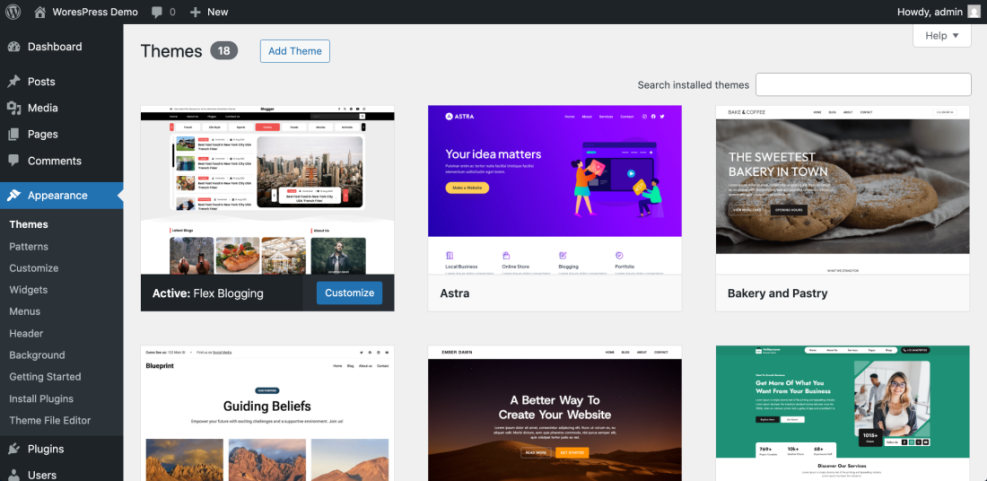
Verification: The active theme is identified and you know whether a child theme is in use.
Step 2: Back Up Your Site Before You Update WordPress Theme
Create a Full Backup (Files + Database) Before the WordPress Theme Update
A full backup makes rollback easy if the updated theme changes layouts or triggers errors.
- Check your hosting backups or your backup plugin history.
- Run a fresh backup that includes Files and Database.
- Download a copy to local storage or cloud.
Verification: A completed backup appears with today’s timestamp and downloadable files.
Helpful guide: How to create a website with WordPress
Step 3: Use a Staging Site to Update WordPress Theme Safely
Why Staging Helps You Test a WordPress Theme Update Without Downtime
Testing a theme update on staging reduces risk because visitors never see the trial run.
- Open your hosting dashboard.
- Find the Staging option (commonly available on managed WordPress hosts).
- Create a staging copy of the site.
- Access the staging WordPress admin login.
Verification: The staging site loads and the dashboard is accessible.
Helpful guide: Create WordPress blog
Step 4: Update WordPress Theme on Staging First
Run the WordPress Theme Update from Dashboard » Updates
Applying the update in staging first helps catch layout changes and compatibility issues early.
- In staging, open Dashboard » Updates.
- Under Themes, select the theme update.
- Click Update Themes.
- Confirm the success message appears.
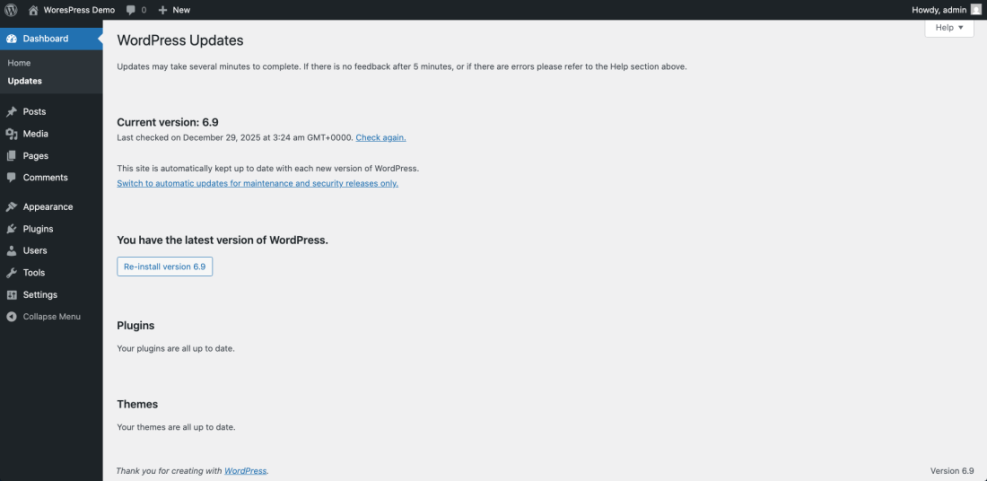
Verification: The theme update completes and no update prompt remains.
Official reference: WordPress Updates Screen documentation
Theme Update Options Compared (Quick Table)
While you update WordPress theme files, meta settings and SEO controls are often managed elsewhere. This table summarizes common options.
| Method | Where You Use It | Main Purpose |
|---|---|---|
| SEO Plugin (Yoast, Rank Math) | WordPress dashboard » SEO settings + post editor | Quickly manage title, meta description, and social tags for all content with user-friendly controls. |
| Theme SEO Options | Appearance » Customize or theme options panel | Use built-in theme settings to set basic meta tags without extra plugins (feature varies by theme). |
| Manual Code in Theme | Child theme functions.php or header.php | Add custom meta tag logic using PHP for advanced or lightweight setups. |
| Custom Fields + Code | Custom fields in editor + wp_head hook | Store per-page meta values in fields and output them via a custom function. |
| SEO Plugin Social Settings | SEO plugin » Social / Facebook / Twitter tabs | Fine-tune Open Graph and Twitter Card tags for better social sharing previews. |
Step 5: Test Your Site After You Update WordPress Theme
Check Menus, Layout, Page Builder Sections, and WooCommerce Pages After Theme Update
Once the WordPress theme update finishes on staging, run a quick checklist to confirm everything still works.
- Load the homepage and confirm the layout looks correct.
- Test the header, menu, and mobile navigation.
- Open your top pages (home, about, services, contact, blog).
- For WooCommerce sites, test Cart and Checkout.
- Open a page in your builder to confirm elements load correctly.
- Purge cache on staging, then refresh pages.
Verification: Pages display correctly and critical actions work without errors.
Step 6: Update WordPress Theme on Your Live Site
Purge Cache After the WordPress Theme Update (Plugin + Server Cache)
Once staging looks correct, repeat the same theme update steps on the live site.
- Open your live WordPress dashboard.
- Go to Dashboard » Updates.
- Select the theme update and click Update Themes.
- Purge cache (caching plugin + hosting/server cache + CDN).
- Recheck the same key pages on live.
Verification: The live site matches staging and the update notice is gone.
Fix Problems After You Update WordPress Theme (Common Theme Update Issues)
Theme Looks Broken After Update: Clear Cache, Check Conflicts, or Restore Backup
When something looks off after a WordPress theme update, work through these quick checks in order.
- First, purge cache (plugin + server + CDN) and hard refresh your browser.
- Next, reproduce the issue on staging so you can troubleshoot safely.
- Then, check plugin conflicts by disabling plugins one by one on staging.
- After that, regenerate CSS/assets in your builder (Elementor/Divi) if available.
- As a last resort, restore your backup if the update caused critical errors.
Troubleshooting guide: Common WordPress backup errors and how to fix
Conclusion: Update WordPress Theme Safely Every Time
By backing up first, testing on staging, and verifying key pages before going live, you can update your WordPress theme with far less risk.
That workflow helps prevent layout breakage, reduces downtime, and makes it easy to roll back if anything unexpected happens.
Further Reading for WordPress Theme Updates
- Beginner checklist optimizing WordPress blog posts
- How to use ai in WordPress
- How to change WordPress username
- How to clear cache WordPress
- Beginner guide to WordPress speed optimization
Update WordPress Theme FAQ
Will updating my WordPress theme delete my content
What happens to custom CSS after a WordPress theme update
Should I use a child theme before I update WordPress theme
Why does my site look broken after I update WordPress theme
Can I enable auto-updates for my WordPress theme
Do I need to update the parent theme if I use a child theme