If you want to speed up your WordPress site, the good news is that most improvements come from a few simple changes. Faster pages feel more professional, keep visitors around longer, and can indirectly help your SEO by improving user experience.
In this guide you will run a quick speed test, fix basic hosting bottlenecks, enable caching, optimize images, clean up heavy plugins and your database, and tune CSS, JavaScript, and Core Web Vitals. By the end, you will have a repeatable checklist you can use any time you want to speed up your WordPress site without breaking your layout.
What You Need Before You Speed Up Your WordPress Site
- Administrator access to your WordPress dashboard.
- Login details for your hosting control panel or managed hosting dashboard.
- Permission to install or configure caching and optimization plugins.
- A recent backup of your site (files and database).
- Optional staging site if you want to test changes before going live.
Step 1: Measure Current Speed Before You Speed Up Your WordPress Site
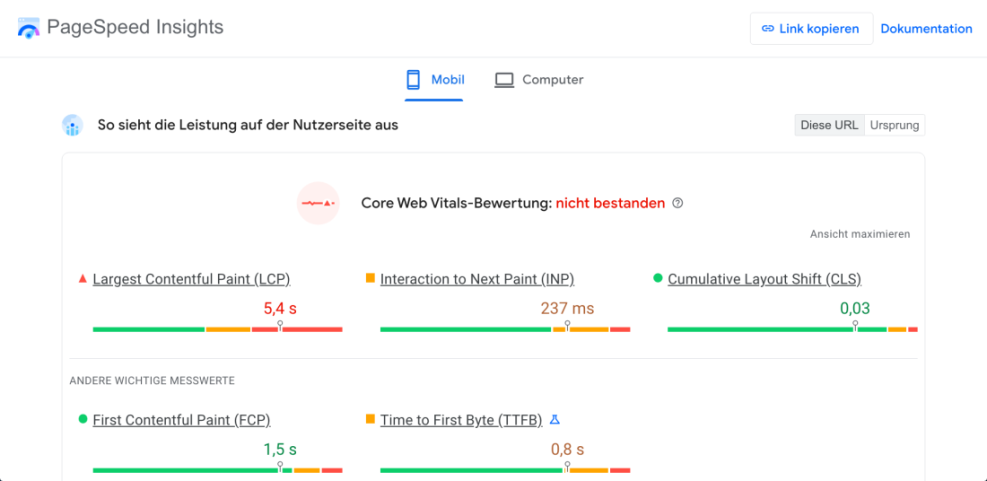
Before changing anything, measure how your site performs right now. A baseline makes it easy to see what actually improves when you apply each tweak.
- Open a speed testing tool such as PageSpeed Insights or GTmetrix in your browser.
- Paste your homepage URL and click Analyze or Test.
- Repeat the test for one or two important internal pages, such as a blog post or landing page.
- Write down your mobile and desktop scores plus metrics like Largest Contentful Paint (LCP) and Total Blocking Time (TBT).
Pay attention to the main suggestions. You will usually see hints about caching, image optimization, unused JavaScript, or render blocking resources. These will guide your efforts to speed up your WordPress site in a focused way.
Quick Map of Common WordPress Speed Problems
The table below summarizes typical bottlenecks and the kind of fix that usually helps most.
| Problem Area | Typical Symptom | Primary Fix | Where to Adjust |
|---|---|---|---|
| Hosting | Slow first byte time (TTFB), timeouts. | Use better WordPress hosting and updated PHP. | Hosting control panel or managed dashboard. |
| Caching | Every visit feels like a fresh, slow load. | Enable full page caching for public pages. | Host tools or caching plugin. |
| Images | Pages with many photos load extremely slowly. | Compress, resize, and lazy load images. | Image optimization plugin. |
| CSS & JS | Render blocking files and heavy scripts. | Minify, combine, and defer non critical assets. | Caching/optimization plugin settings. |
| Database & Plugins | Slow admin, intermittent spikes in load. | Remove unused plugins, clean safe database clutter. | Plugins screen + database optimization tools. |
Step 2: Fix Hosting Basics to Speed Up Your WordPress Site
Even the best caching plugin cannot fully speed up your WordPress site if the server is overloaded or outdated. A quick hosting health check often reveals easy wins.
- Log in to your hosting control panel (for example cPanel, Plesk, or a managed WordPress dashboard).
- Confirm that your site uses a modern PHP version supported by WordPress (PHP 8.x in most cases).
- Check your plan’s memory limit and overall resource usage if your host shows it.
- Look for a built in server cache or performance toggle recommended by your host and enable it.
If your site remains slow during normal traffic even after basic optimization, it may be time to move from low end shared hosting to a better shared, cloud, or managed WordPress plan.
Step 3: Use Caching to Speed Up Your WordPress Site
Caching is usually the single biggest improvement you can make in a few minutes. It stores a static version of each page so the server does far less work for each visitor.
- In your WordPress dashboard, go to Plugins » Add New Plugin.
- Search for a reputable WordPress caching plugin or install the tool recommended by your host.
- Click Install Now and then Activate.
- Open the plugin’s settings from the left menu.
Most caching plugins offer a simple mode that is safe for beginners and already helps speed up your WordPress site without complicated rules.
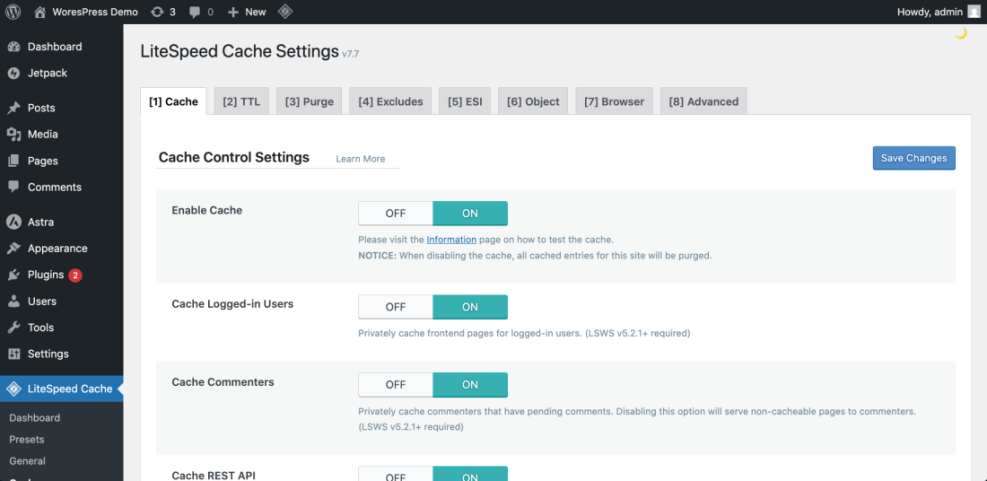
- Enable Page Caching for all public pages and posts.
- If available, turn on Browser Caching and GZIP/Brotli compression.
- Save your settings, then click Clear Cache to rebuild cached pages.
- Run your speed test again to compare before and after caching.
Step 4: Optimize Images for a Faster WordPress Site
Large, uncompressed images are one of the most common reasons pages feel slow, especially on mobile. Fixing them is a reliable way to speed up your WordPress site without changing content.
- From the dashboard, go to Plugins » Add New Plugin.
- Search for an image optimization plugin with good reviews.
- Install and activate the plugin, then open its settings page.
- Turn on automatic compression for new uploads and choose a sensible level (lossless or smart).
Most optimization plugins also support lazy loading, which loads images only when visitors scroll near them instead of all at once.
- Enable lazy loading for images below the fold.
- Enable WebP conversion if the plugin supports it and your hosting environment is compatible.
- Run any Bulk Optimize or Bulk Compress feature to process existing media files.
- Retest a long article with many pictures to confirm that page size and load time have improved.
Step 5: Clean Up Heavy Plugins and Your Database
Too many or poorly coded plugins can slow down both the front end and the WordPress admin area. Cleaning up safely can noticeably speed up your WordPress site.
- Go to Plugins » Installed Plugins.
- Deactivate any plugin you know you no longer need.
- After a quick check that your site still works, click Delete on those inactive plugins.
- Make a list of plugins that overlap in function (for example, two security tools or two page builders) and decide which one to keep.
Next, clean up safe database clutter such as post revisions and expired transients.
- Take a fresh backup of your site.
- Install a trusted database optimization plugin or use the optimization tab in your caching plugin if it offers one.
- Select only safe items like post revisions, trash, and expired transients.
- Run the optimization and wait for it to complete.
Step 6: Optimize CSS and JavaScript for a Faster WordPress Site
After caching and images are in good shape, extra CSS and JavaScript can still slow things down. Careful tuning of these assets gives another boost to site speed.
- Open your caching or performance plugin’s settings again.
- Find sections labeled File Optimization, CSS & JS, or similar.
- Enable Minify CSS and Minify JavaScript.
- Optionally enable Combine CSS and Combine JS if your theme and plugins are compatible.
Turn on new options one at a time and test thoroughly. Aggressive settings can break menus, sliders, or forms if scripts are loaded in the wrong order.
- Enable Defer JavaScript or “load JS deferred” so non critical scripts do not block initial rendering.
- If available, enable “Load CSS asynchronously” or a similar option, then test the site carefully.
- Save your settings and clear all caches.
- Visit key pages on your site in an incognito window to confirm everything still works, then re-run your speed tests.
Step 7: Use a CDN for Global Visitors (Optional)
If you have readers from many countries, a Content Delivery Network (CDN) can help your pages load faster by serving assets from servers closer to each visitor.
- Sign up with a CDN provider that supports WordPress and your hosting setup.
- Follow their onboarding steps, which might include updating DNS records or installing a WordPress plugin.
- Turn on caching for static assets such as images, CSS, and JavaScript.
- Confirm that the CDN is serving your assets by checking its dashboard or response headers.
After your CDN is active, test your site from different regions (many speed tools offer a location selector) to see how much faster it loads globally.
Step 8: Improve Core Web Vitals to Speed Up Real User Experience
Core Web Vitals focus on how your site feels for visitors, not just how it scores in tools. Once your basics are set, refine these metrics to make your WordPress site feel even snappier.
- Open PageSpeed Insights and analyze your homepage and a content heavy article.
- Note your LCP (Largest Contentful Paint), Interaction to Next Paint (or its current equivalent), and CLS (Cumulative Layout Shift).
- Fix slow LCP by:
- Reducing above the fold image sizes.
- Lazy loading below the fold content.
- Removing or delaying heavy hero sliders.
- Reduce CLS by:
- Setting explicit width and height for images and ad slots.
- Avoiding layout-shifting elements that appear late.
Improving these small details helps speed up your WordPress site in a way visitors can actually feel, especially on slower mobile connections.
Step 9: Review Your Site Like a Real Visitor
Numbers are helpful, but the final test is how your pages feel to humans. After you optimize, browse your site like a new visitor would.
- Open your homepage, a key blog post, and any sales or signup pages in an incognito window.
- Test on both desktop and a real mobile device, using Wi-Fi and mobile data if possible.
- Notice how quickly the main content appears, whether scrolling feels smooth, and how fast menus respond.
- Watch for any elements that jump around or load late and distract from reading.
- Note remaining issues and schedule a second round of tweaks using the deeper guides linked in this article.
If everything feels responsive and smooth, you have successfully started to speed up your WordPress site in a sustainable way.
Conclusion You Can Speed Up Your WordPress Site Safely
You have walked through a practical process to speed up your WordPress site: measuring your current speed, fixing hosting basics, enabling caching, optimizing images, cleaning up plugins and the database, tuning CSS and JavaScript, optionally adding a CDN, and reviewing Core Web Vitals and real user experience.
Use this checklist whenever you launch a new site, redesign your theme, or notice things feeling slower than they should. With a consistent approach, every change you make will keep your WordPress site fast instead of slowly adding more weight over time.
Further Reading
- Beginner Guide to WordPress Speed Optimization
- How to make an ecommerce website with WordPress
- Beginner guide to WordPress speed optimization
- Beginner checklist optimizing WordPress blog posts
- WordPress seo complete beginners guide
Frequently Asked Questions About Speeding Up WordPress
What is the easiest way to speed up my WordPress site
Will fewer plugins always make my site faster
How fast should my WordPress site load
Do I need a CDN to speed up my WordPress site
Can changing my theme improve performance
How often should I check my site speed