Export a page in WordPress when you want to move content to another website, make a backup, or reuse a layout on a different project. You can use the built-in WordPress exporter, a migration plugin, or manual methods depending on how much control you need.
By the end of this tutorial, you will know several safe ways to export a page in WordPress, how to import it on another site, and which method to use for backups, cloning, or full migrations.
What You Need Before You Start Moving WordPress Pages
- Administrator access to your WordPress dashboard.
- A second WordPress site if you plan to import the page somewhere else.
- Access to your hosting or file manager (optional but helpful for advanced export methods).
- A recent full-site backup, in case something goes wrong during import or testing.
How the WordPress Export Feature Handles Page Content
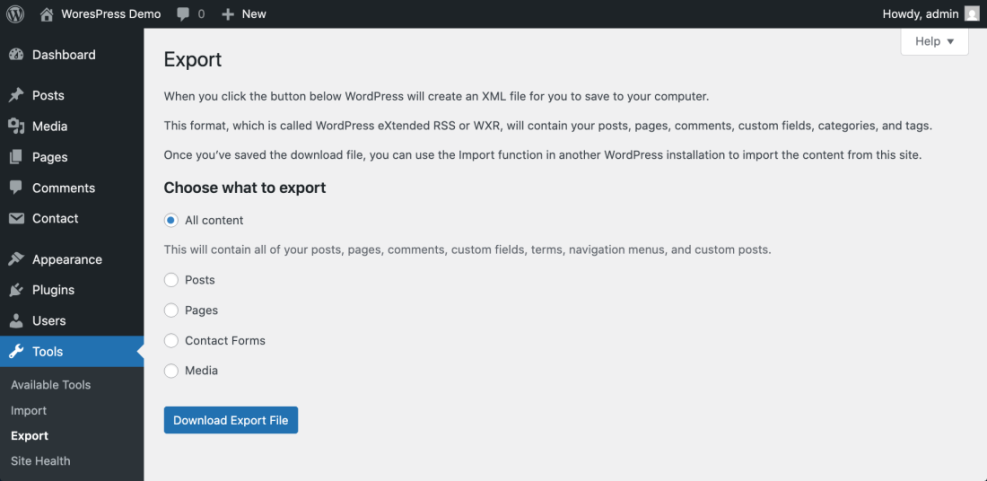
To export a page in WordPress, you usually create an XML file that contains the page content and related data. That file can then be imported into another WordPress site with the built-in importer.
- Log in to your WordPress admin area (usually yourdomain.com/wp-admin).
- Look at the left-hand menu and find Tools.
- Under Tools, you’ll see Export and sometimes extra export options added by plugins.
- Know that the default export includes content only (no full theme files or plugin code).
Verify success: You can explain the difference between exporting content (XML file) and backing up the entire site (files + database).
Export Pages with the Default WordPress Tool
The fastest way to export WordPress pages is the default exporter under Tools. It can export all pages or a filtered set, which you can later import into another site.
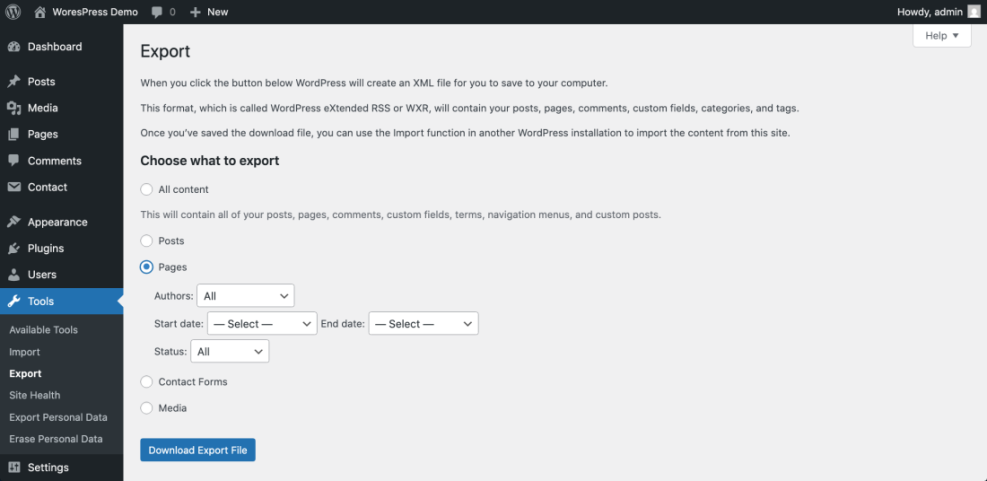
- In your WordPress dashboard, go to Tools » Export.
- Select Pages from the content options.
- (Optional) Use filters like Authors, Date range, or Status to narrow down which pages to export.
- Click Download Export File.
- Save the .xml file to a safe folder on your computer.
Verify success: You have an XML file on your computer that contains the pages you selected.
Move a Single Page to Another WordPress Site
The default exporter works best for multiple pages at once. If you want to export a single WordPress page, a migration or duplication plugin gives you more control.
Use a Migration Plugin to Transfer One Page
- Install a migration or export plugin from Plugins » Add New (for example, a plugin that supports page-level export or cloning).
- Activate the plugin and look for a new menu item, such as Tools » Export/Import or a dedicated plugin menu.
- Open the plugin’s export screen and choose Page as the content type if available.
- Pick the specific page you want to export from the dropdown or list.
- Generate the export package (often a .zip or .wpress file) and download it.
Verify success: You have a plugin-created export file that represents one specific page, ready to import with the same plugin on another site.
Reuse a Page Layout with Builder Templates
If you use a page builder (like Elementor, Beaver Builder, Block Patterns, or Gutenberg reusable blocks), you can export the layout as a template.
- Edit the page using your page builder or block editor.
- Look for a menu option like Save as SEO and UX, and where you will see it in daily work.”>Template or Export Template.
- Name your template something descriptive (for example, “Services Page Layout”).
- Download the template file if the builder offers an export option.
- On another site, use the builder’s Import Template or Templates screen to import it.
Verify success: You can re-create the same page layout on another site by inserting the imported template.
Copy WordPress Page Content Manually
If you only need the text and basic layout, you can manually copy the page content and paste it into another site.
Duplicate Content via the Block Editor
- Open the page you want to export via Pages » All Pages and click Edit.
- In the block editor (Gutenberg), click anywhere inside the content area.
- Press Ctrl + A (Windows) or Cmd + A (Mac) to select all blocks.
- Press Ctrl + C / Cmd + C to copy everything.
- On the new site, create a new page and paste the content into the editor.
Verify success: The new page shows the same text, headings, and basic layout as the original page.
Copy the HTML Markup of a Page
- In the block editor, click the three-dot menu in the top-right corner.
- Choose Code editor or View » Code editor.
- Select all the HTML and copy it.
- On the destination site, switch the editor to Code mode and paste the HTML.
- Switch back to the normal visual editor to confirm the layout looks correct.
Verify success: You have an almost identical layout, including custom HTML structure, on the new page.
Compare Your WordPress Page Export Options
Once you know how to export a page in WordPress, it helps to choose the right method for each situation. Use this quick comparison table as a reference.
| Method | Where You Use It | Main Purpose |
|---|---|---|
| Tools » Export (Pages) | WordPress dashboard » Tools » Export | Export all or filtered pages as XML to import on another WordPress site. |
| Migration Plugin Export | Plugins that add their own Export / Import screens | Export a single page or full site with more settings and media included. |
| Page Builder Template Export | Inside a page builder or block template library | Export a page layout as a reusable template for other sites. |
| Manual Copy / Paste | WordPress editor (visual or code mode) | Quickly copy text and layout when you only need content, not full site data. |
| Full Site Backup / Migration | Hosting panel or backup/migration plugins | Export the entire site (files + database) when moving everything to new hosting. |
Verify success: You can match your goal (single page, many pages, full site) to the right export method from the table.
Bring Exported WordPress Pages into a New Site
Exporting is only half the process. To reuse your page, you must import the WordPress page into the destination site.
Use the Default Importer for XML Files
- On the new site, log in to the WordPress dashboard.
- Go to Tools » Import.
- If needed, install the WordPress Importer from the list and then click Run Importer.
- Click Choose File and select the XML file you exported earlier.
- Click Upload file and import, then assign the imported content to an existing user.
- (Optional) Check the box to Download and import file attachments if you want images copied too.
- Wait for the import to finish, then visit Pages » All Pages to confirm the page is there.
Verify success: The imported page appears in your Pages list and loads correctly on the frontend.
Restore a Page with a Migration Plugin
- Install the same migration or export plugin on the destination site.
- Go to the plugin’s Import or Restore screen.
- Upload the export file you created earlier (ZIP, WPRESS, or plugin-specific format).
- Follow the on-screen steps to import the selected page or data.
- Check Pages and the frontend to make sure everything looks correct.
Verify success: The specific page, including layout and settings handled by the plugin, appears and functions as expected.
What to Do After Moving a WordPress Page
You now know how to export a page in WordPress using the built-in exporter, migration plugins, page builder templates, and manual copy methods. You also know how to import those pages into another site and verify that everything worked.
Next, consider setting up a regular backup routine and documenting your preferred export method for each project (single page, multiple pages, or full site). That way, you can move WordPress content safely whenever you redesign, change hosts, or start a new site.
FAQ on Exporting and Moving WordPress Pages
Can I export just one specific page in WordPress
Does exporting a page in WordPress include images
Is exporting a page the same as backing up my WordPress site
Can I export a page and use it as a template on other sites
What if the import fails when I try to import a WordPress page
Do I need a plugin to export a page in WordPress