How to Embed Instagram Feed on WordPress Website
WordPress basics for beginners

Embedding an Instagram Feed on your WordPress website is one of the easiest ways to reuse social content and show real social proof without extra design work. Instead of uploading the same images twice, you can sync your latest Instagram posts and display them in a clean, responsive Instagram Feed that updates automatically.
When you add an Instagram Feed to your WordPress site, visitors can see fresh photos and Reels right inside your layout, without leaving the page. This guide will walk you through each step needed to embed an Instagram Feed on your WordPress website using a simple plugin, from connecting your account to styling the feed so it matches your branding.
In this tutorial, you will connect your Instagram account, configure a plugin, and embed the Instagram Feed into any page, post, or widget area. By the end, your visitors will see a live Instagram section that matches your design and works with both the Block Editor and the Classic Editor.
What You Need to Start
- A working WordPress site with administrator access.
- An active Instagram account you control.
- WordPress version 5.0 or higher so you can use blocks, plus the Classic Editor if you still prefer it.
- Basic familiarity with logging into wp-admin and editing pages or posts.
- Optional but recommended a caching or performance plugin already configured for your site.
Step 1: Plan where the Instagram Feed will appear
Before you install anything, decide where the Instagram Feed will live. A clear plan keeps your layout clean and prevents cluttered pages that compete with your main calls to action.
- Log in to your WordPress dashboard at https://your-site.com/wp-admin.
- In a new browser tab, open your homepage and key landing pages where you might want the Instagram Feed.
- Decide whether the feed should go in the main content area, below blog posts, or in a sidebar or footer widget.
- Note how many rows or columns of images will fit without pushing important content too far down the page.
Once you know where the Instagram Feed will go, you can configure the plugin’s layout settings to match that space instead of guessing later.
Step 2: Install an Instagram Feed plugin
WordPress no longer embeds full Instagram feeds automatically, so the most reliable method is to use a dedicated Instagram Feed plugin from the official plugin directory. This keeps your feed connected to the Instagram API and handles tokens for you.
- In your WordPress dashboard, go to Plugins » Add New.
- Use the search box and type Instagram Feed.
- Find a well reviewed plugin that explicitly supports Instagram feeds and frequent updates.
- Click Install Now on your chosen plugin.
- After installation completes, click Activate.
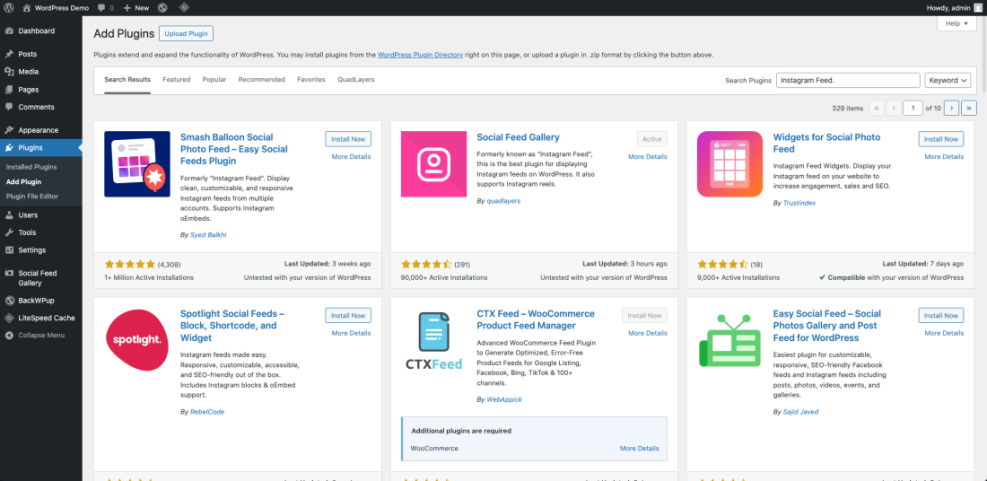
For example, many site owners use plugins such as Smash Balloon Social Photo Feed from the official WordPress.org plugin directory because it supports multiple Instagram Feed layouts and easy customization.
Step 3: Connect your Instagram account to WordPress
With the plugin active, the next step is to authorize it to read your Instagram posts and build your Instagram Feed. This happens through Instagram’s login and permission screens and usually takes less than a minute.
- In the WordPress dashboard, look for the new plugin menu entry such as Instagram Feed, Social Photo Feed, or Social Feeds and click it.
- On the main settings page, click the button labeled Connect an Instagram Account or similar.
- Choose the account type requested, often Personal or Business. Select a Business account if you use Instagram for a brand.
- When a popup window opens, log into Instagram if needed and click Allow or Authorize to grant access.
- Return to the plugin settings and confirm that your Instagram username now appears under the list of connected accounts for your Instagram Feed.
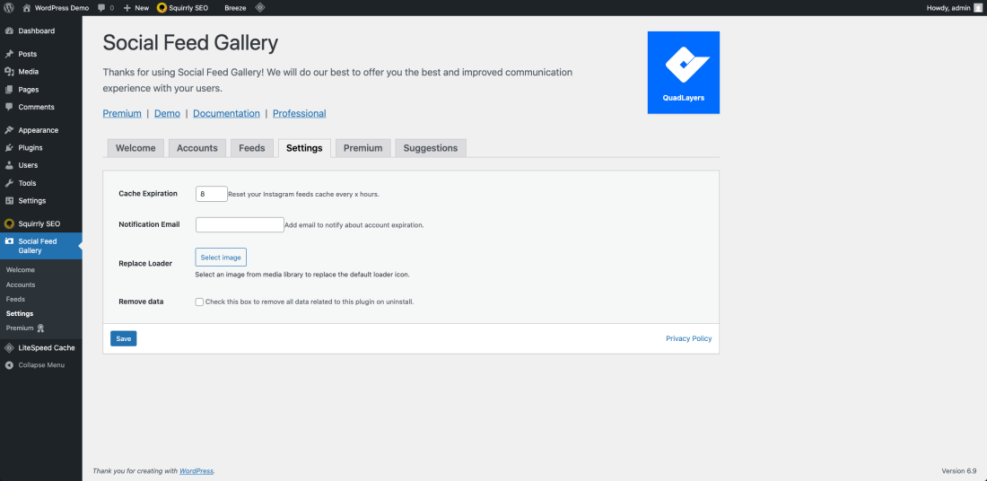
To verify the connection, look for a preview or Test Connection button in the plugin. You should see a small grid of your latest Instagram posts without errors in the Instagram Feed preview.
Step 4: Configure and design your Instagram Feed on WordPress
Now you can design how the Instagram Feed will look on your WordPress pages. Most plugins let you choose layout, number of photos, spacing, and optional buttons like Follow or Load More.
- In the plugin menu, open the tab labeled Customize, Feed Layout, or Design.
- Select a layout type such as grid, masonry, or carousel, depending on your theme and available space.
- Set the number of columns and the total number of posts to display (for example, 3 columns and 9 posts) in your Instagram Feed.
- Enable or disable options like Show Captions, Show Likes, Load More Button, and Follow on Instagram.
- Adjust spacing, image size, and border radius so the Instagram Feed visually matches your theme style.
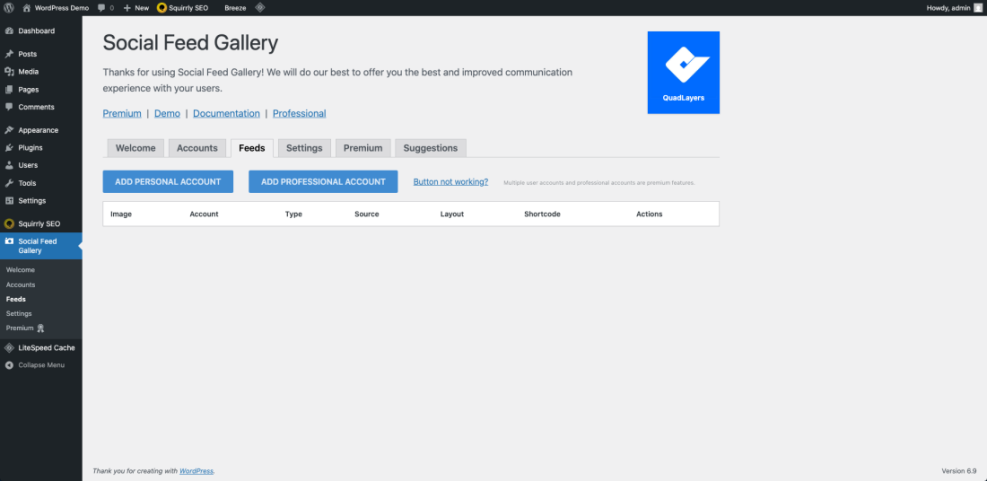
When the preview looks correct, save your feed or settings. Some plugins let you create multiple Instagram Feed layouts with different styles, each with its own shortcode.
Step 5: Embed the Instagram Feed on your WordPress site
Every Instagram Feed plugin provides some way to embed the feed, usually with a shortcode, a dedicated block, and a widget or block widget. You can choose whichever method fits your editor and theme.
First, copy the feed shortcode from the plugin settings. For many plugins, the default looks similar to this:
[instagram-feed]Block Editor method (Gutenberg)
- In your dashboard, go to Pages » All Pages (or Posts » All Posts).
- Hover the page where you want the Instagram Feed and click Edit.
- In the editor, click the + block inserter and search for Shortcode or your plugin’s dedicated Instagram Feed block.
- Insert the block, then paste the shortcode into the Shortcode field or select the feed from the block’s dropdown.
Classic Editor method
- From the dashboard, go to Pages » All Pages and click Edit under the target page.
- Place the text cursor where you want the Instagram Feed to appear in the content.
- Paste the feed shortcode directly into the editor on its own line.
- If needed, switch to the Text or HTML tab to confirm the shortcode is not wrapped in extra HTML tags.
Widget or block widget method
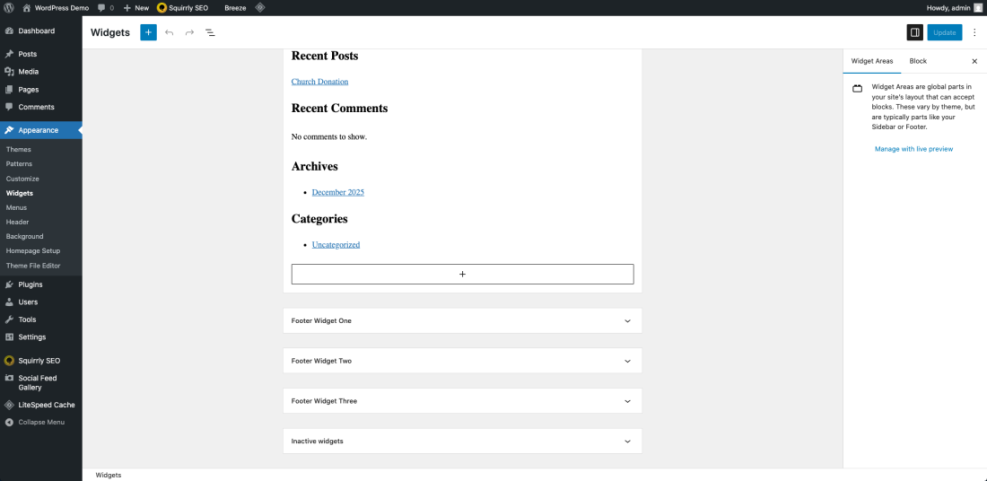
- In the dashboard, go to Appearance » Widgets or Appearance » Customize (then open the Widgets section).
- Add a Shortcode widget or your plugin’s Instagram Feed widget to a sidebar or footer area.
- Paste the feed shortcode into the widget content field.
- Click Save or Update, then view your site to confirm the Instagram Feed appears in that widget area.
After embedding, visit the page on the front end. You should see the Instagram Feed gallery where you placed the shortcode or block, with clickable images that open on Instagram or in a lightbox, depending on plugin settings.
Step 6: Test and troubleshoot the feed
Finally, test the Instagram Feed in real conditions. You want to confirm it loads quickly, displays recent posts, and does not break your layout on smaller devices.
- Open the page with the Instagram Feed in a private or incognito window to bypass any logged in cache.
- Scroll to the feed and wait a few seconds to confirm all images load without error messages.
- Resize your browser or test on a phone to ensure the grid, captions, and buttons look good on mobile.
- If images do not load, clear your site cache from your caching plugin dashboard and refresh the page.
- Reopen the plugin’s settings and click any Refresh Feed or Clear API Cache buttons if they exist.
Once everything looks correct, add a new test post on Instagram. Within a few minutes, it should appear in your WordPress Instagram Feed automatically, confirming that the sync works.
Conclusion You Are Ready to Go
You have now installed an Instagram Feed plugin, connected your account, designed a custom layout, and embedded an Instagram Feed on your WordPress website. Your site can automatically pull fresh visuals from Instagram, strengthening your brand and social proof without extra publishing work.
From here, you can experiment with multiple Instagram Feed layouts, create additional feeds for specific campaigns or hashtags, and place them on landing pages, sidebars, or dedicated galleries. Every time you post on Instagram, your updated Instagram Feed in WordPress keeps your content looking fresh and engaging for visitors.
Further Reading
- How to embed instagram feed on WordPress website
- WordPress migration blog guide
- Best WordPress seo plugins and tools
- WordPress business blog content strategy
Frequently Asked Questions
Do I need a business Instagram account to embed a feed
Will embedding an Instagram Feed slow down my WordPress site
Can I embed multiple Instagram Feeds on different pages
How do I embed an Instagram Feed in the Classic Editor
Why is my Instagram Feed not loading in WordPress
Can I moderate which Instagram posts appear in the feed