Fastest WordPress Hosting Providers
Get a host that keeps your site fast worldwide

Fastest WordPress hosting can make your site feel instant for visitors, while a slow host quietly kills conversions and search rankings. When your pages take several seconds to load, people leave, ad spend is wasted, and support tickets pile up. A fast, stable host gives you breathing room to focus on content, sales, and growth.
Here you get a clear, practical comparison of the fastest WordPress hosting providers, plus a checklist of what actually makes a host fast. You will see how to read speed tests, which features matter most, and how to test your own site so you can pick a host with confidence.
Fastest WordPress Hosting Quick Answer
What Makes WordPress Hosting Fast?
A truly fast host delivers low Time to First Byte, quick full-page load times, and stable performance under traffic. In practice, that means modern CPUs, NVMe or SSD storage, smart server-level caching, PHP 8 or newer, and a global CDN. When these pieces work together, even image-heavy WordPress sites can feel snappy.
Which Providers Are Usually Fastest?
Across many independent benchmarks, you often see the same names near the top for speed-focused plans. These typically include premium managed providers, well-optimized shared hosts, and performance-first platforms that sit on top of major cloud infrastructure. You do not need the most expensive plan, but you do need the right tier for your traffic.
How Should You Compare Real Speed?
Instead of trusting marketing claims, compare hosts using the same simple WordPress site and the same testing tools. Run several tests from different locations and at different times of day. Then look at median results, not just the single best run. Consistent speed is much more useful than one perfect test.
Key Factors Behind Hosting Speed
Server Hardware And Network
Faster CPUs, more RAM, and NVMe storage help your WordPress site build pages quickly. In addition, a strong network with multiple data centers, good peering, and a reliable CDN reduces latency for visitors around the world. When you compare hosts, always check where their data centers and edge locations sit relative to your main audience.
Caching, PHP, And Databases
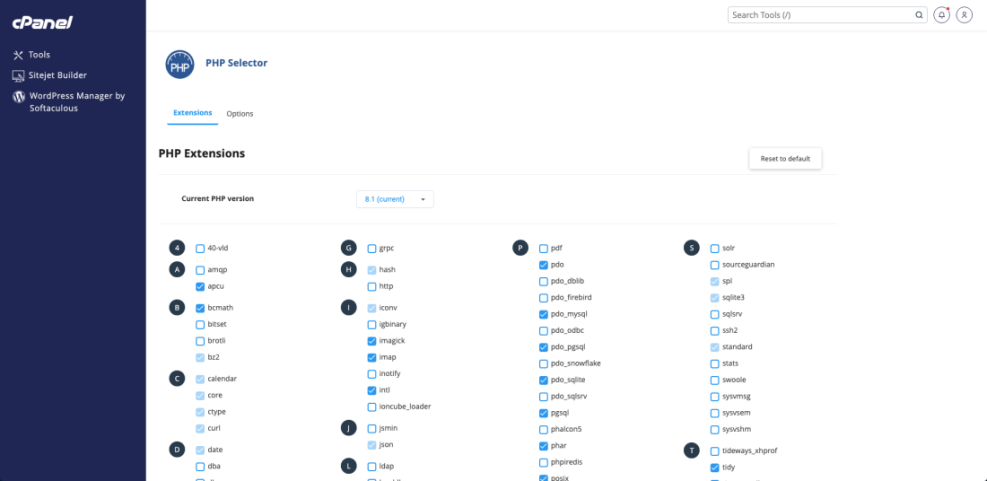
Server-level caching does most of the heavy lifting for speed, because it lets the host serve prebuilt pages instead of running every PHP and database query on each request. In addition, a host that supports recent PHP versions and well-tuned MySQL or MariaDB keeps dynamic pages fast, especially for ecommerce and membership sites.
Does Location Still Matter?
Data center location still matters, even when you use a CDN. Static assets can come from edge servers, yet the first HTML response still comes from the origin. Therefore, placing your main server close to most visitors helps reduce latency. If your audience is global, pick a host with several regions and strong CDN integration.
Comparing Leading Fast Hosts
Before diving into details, it helps to see the fastest WordPress hosting providers side by side. The table below highlights a mix of beginner-friendly, managed, and budget options that regularly perform well in independent benchmarks and user tests.
| Provider | Best For | Typical Price Range | Notable Speed Features |
|---|---|---|---|
| WP Engine | Growing businesses and agencies | Around $25–60 per month | Managed caching, CDN, tuned PHP, staging |
| Kinsta | Global sites needing premium support | Around $30–70 per month | Google Cloud, edge caching, container isolation |
| SiteGround | Small to mid-size sites | Around $8–25 per month | Google Cloud, SG Optimizer plugin, dynamic caching |
| Hostinger | Budget-conscious site owners | Around $3–15 per month | LiteSpeed servers, built-in cache, global data centers |
| WordPress.com | Users who want a managed platform | Around $10–40 per month | Automated scaling, CDN, full-stack optimization |
| WPX | Content-heavy and niche sites | Around $25–70 per month | Custom CDN, aggressive caching, high-spec hardware |
| Pressable | Shops and membership communities | Around $20–60 per month | Auto-scaling, caching, WooCommerce optimizations |
These providers are not the only options, yet they illustrate what fast platforms tend to offer: modern infrastructure, opinionated caching, and support teams that understand WordPress performance issues.
Fast Hosts For Beginners
If you are new to WordPress, a well-optimized shared or entry-level managed plan makes life easier. Hosts with one-click installs, automatic WordPress updates, and clear dashboards help you avoid mistakes. At the same time, built-in caching and CDN integration give you speed without extra plugins or complex server tweaks.
Premium Managed Speed Options
Managed WordPress platforms like WP Engine and Kinsta cost more, yet they bundle expert support, proactive security, and performance tuning. Therefore, they often suit agencies, serious bloggers, or stores that need predictable speed under load. You pay for fewer headaches, better tooling, and teams that handle scaling when traffic spikes.
Affordable Yet Quick Plans
Budget-friendly hosts can still be fast when you pick the right tier and configure your site well. For example, a LiteSpeed-based or well-tuned shared plan can deliver excellent performance for small and medium sites. However, you need to watch resource limits and be ready to upgrade if CPU or memory usage stays high.
How To Test Your Host Speed
Simple Workflow To Measure Speed
To compare the fastest WordPress hosting fairly, you should test your own site with a simple, repeatable process. Use the steps below as a starting point and adjust for your traffic patterns.
- Create a staging copy of your site or a clean demo install.
- Disable unnecessary plugins and heavy page builders for the test.
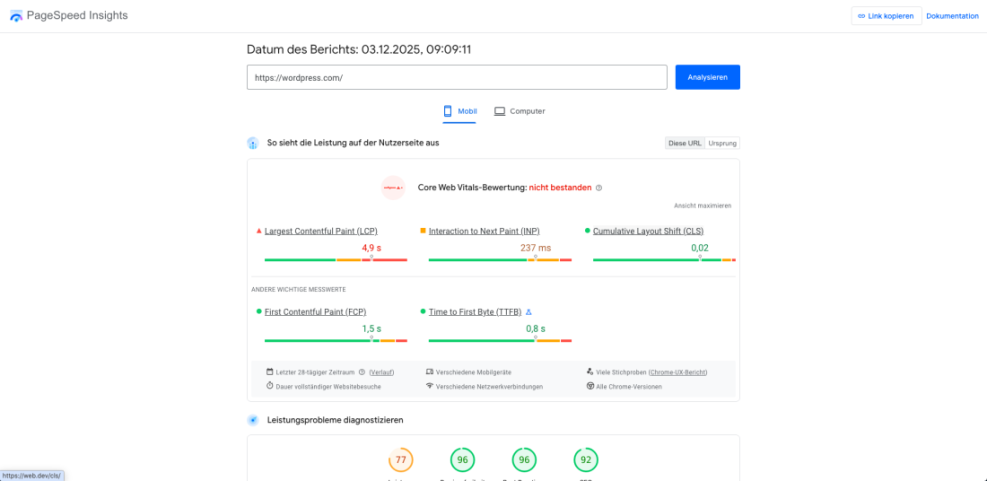
- Run several tests with tools like PageSpeed Insights and WebPageTest.
- Measure from multiple regions that match your main audience.
- Repeat at different times of day and compare median results.
This workflow helps you see how each host behaves in realistic conditions, not just in one perfect test run.
Tools You Can Trust
For consistent results, combine a few tools instead of relying on one. Google PageSpeed Insights, WebPageTest, and popular lab tools such as GTmetrix each highlight different bottlenecks. In addition, your host may offer its own monitoring, which can confirm whether slowdowns come from the server or from your theme and plugins.
When Should You Switch Hosts?
You should consider switching hosts when speed issues persist after you optimize images, caching, and plugins. If your median tests show slow server response times and support cannot help, moving often saves time. In many cases, migrating to a performance-focused plan takes less effort than chasing every last plugin conflict.
Keep Your WordPress Site Lightning Fast
Essential Plugin And Theme Choices
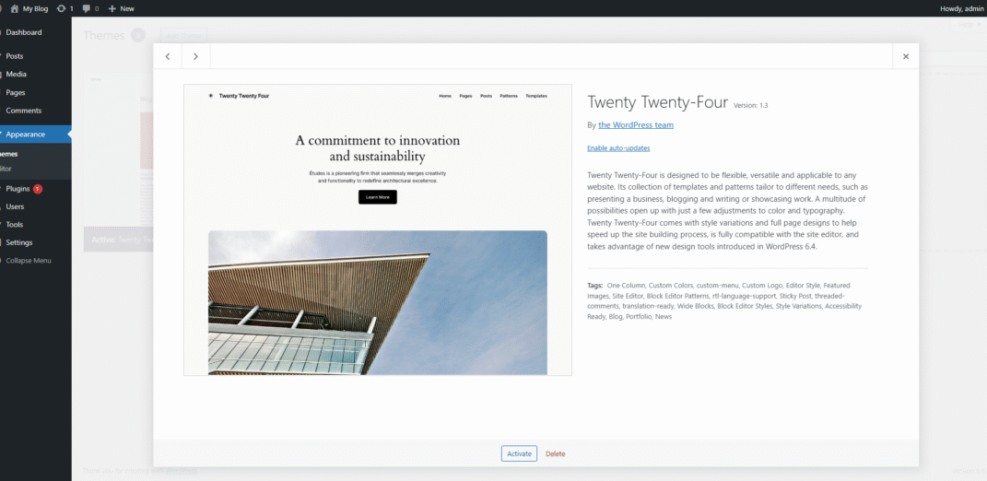
Your choice of theme and plugins can undo the benefits of even the fastest WordPress hosting. Lightweight themes, minimal page builder usage, and a short plugin list keep the site lean. Whenever you add a new plugin, test page speed again so you can catch slowdowns early instead of months later.
Smart Use Of Caching And CDNs
Server-level caching usually gives the biggest win with the least effort, so enable it in your hosting control panel when available. Then add a well-regarded caching plugin only for extra features such as HTML minification or database cleanups. Finally, connect a CDN to serve images and static files closer to your visitors worldwide.
For guidance on performance best practices, you can review the official WordPress performance optimization handbook and Google’s Time to First Byte documentation. Both explain how server response time fits into Core Web Vitals and user experience.
Ongoing Maintenance Checklist
- Update WordPress core, themes, and plugins regularly.
- Remove plugins, themes, and media you no longer need.
- Monitor uptime and response time with a simple external tool.
- Schedule database cleanups and clear old transients.
- Review speed reports after major design or content changes.
Following a short ongoing checklist prevents slowdowns from creeping in over time. When you notice trends early, you can fix issues before they hurt rankings, ads, or revenue.
For basic setup guidance, you can follow a general tutorial such as Install WordPress. When you are ready to go deeper, a dedicated WordPress speed optimization checklist and WordPress performance tuning beginner guide can help you refine server and plugin settings further.
Fastest WordPress Hosting Conclusion
Fastest WordPress hosting is not about chasing a single “winner” but about matching a reliable performance-focused provider to your specific site, traffic, and budget. Once you shortlist a few strong candidates, test them with your own content and tools, then pick the one that delivers stable results and responsive support.
Your next action step is simple: set aside time to run proper speed tests on your current host and on at least one alternative from the comparison table. After that, migrate a staging copy, compare metrics, and choose the platform that keeps you fast today and leaves room for growth tomorrow.
More WordPress Guides You Might Like
To deepen your understanding of WordPress performance and hosting, explore the planned guides below. They expand on testing techniques, optimization strategies, and practical workflows you can apply as your site grows.
- Beginner guide to WordPress speed optimization
- How to choose the best WordPress hosting
- Woocommerce performance tips for faster stores
- WordPress cdn blog setup
Use these resources as a roadmap for future improvements so you can keep your site lean, fast, and ready for traffic spikes as your audience grows.
Frequently Asked Questions About Fastest WordPress Hosting
How do I know if I really need the fastest WordPress hosting?
Is managed WordPress hosting always faster than shared hosting?
Can a CDN replace a slow WordPress host?
How long should I test a new host before moving everything?
Will changing hosts hurt my SEO rankings?