Choosing Managed Hosting for WordPress Sites
Practical checklist to choose a reliable WordPress provider

Managed Hosting can remove many server headaches from your WordPress site, but choosing the right provider is not always simple. Prices, features, and support levels vary a lot, and the wrong decision can leave you paying more without real benefits.
This guide walks you through when managed hosting makes sense, how it differs from other hosting types, and which features to compare. You will also see a practical checklist, example workflows, and common traps to avoid so you can choose a plan that fits your WordPress site today and as it grows.
Managed Hosting for WordPress Explained
What Does a Managed Host Actually Do?
With managed hosting, your provider runs the server and also takes care of core WordPress tasks. Typically they handle software updates, daily backups, security scans, basic performance tuning, and uptime monitoring. You still manage content and business decisions, but you do not have to tweak PHP versions, firewall rules, or cron jobs yourself.
How Is It Different from Shared Hosting?
On basic shared hosting, you rent cheap space on a crowded server and handle most WordPress work alone. In contrast, managed WordPress hosting adds a service layer on top of the server: optimized configurations, caching, staging, and WordPress-aware support staff. However, this extra help usually costs more than entry-level shared plans.
Where Does Managed Hosting Sit Among Options?
To see where managed hosting fits, compare it with shared hosting and unmanaged VPS or cloud servers. The table below shows the main differences in control, pricing, and workload so you can place your own needs on the spectrum.
| Hosting Type | Who Manages Server | Typical Monthly Cost | Best For |
|---|---|---|---|
| Shared Hosting | You handle WordPress, host manages hardware only | Around $3–$8 | Hobby sites, very small blogs |
| Unmanaged VPS | You manage server and WordPress stack | Around $10–$30 | Developers who want full control |
| Managed WordPress Hosting | Host manages server and WordPress layer | Around $15–$50 | Serious blogs, business, and ecommerce sites |
This comparison helps you see that managed hosting trades some control for peace of mind, better support, and a more predictable workload.
Key Benefits and Limitations
Faster Speed and Better Uptime
Most managed providers tune their servers specifically for WordPress with built-in caching, recent PHP versions, and optimized databases. Many also include a CDN and automatic scaling on higher plans. As a result, your pages usually load faster and stay online more reliably than on low-cost shared hosting, especially during traffic spikes.
How Does Managed Hosting Improve Security?
Managed hosts typically add a firewall, malware scanning, brute-force protection, and automatic SSL. Many also patch WordPress core quickly and may block risky plugins. This layered approach reduces the chances of a simple vulnerability taking your site down and saves you from managing multiple security plugins and cron-based scans by yourself.
Common Drawbacks You Should Expect
However, managed hosting is not perfect. You pay more than for basic shared plans, and some providers restrict certain plugins or custom server tweaks. For example, heavy backup or caching plugins may be banned because they conflict with built-in tools. Advanced users can feel limited when they cannot edit low-level server settings or run non-WordPress apps.
Deciding If It Fits You
Is Managed Hosting Right for Beginners?
If you are new to WordPress and feel nervous about updates or security, managed hosting can be a major relief. Support teams usually know WordPress in depth and can walk you through common issues. In addition, many providers include an easy one-click setup that installs WordPress and a starter theme for you.
Traffic, Growth, and Business Goals
When your site drives leads, bookings, or online sales, downtime quickly becomes expensive. Therefore, managed hosting shines for agencies, growing blogs, coaches, and ecommerce stores that need stability. If you expect traffic to grow over the next year, choosing a managed plan now can prevent painful migrations later.
Budget Planning for Hosting Costs
Managed plans often start around the cost of an unmanaged VPS, and premium tiers cost more. However, you should weigh what your time is worth. If managing backups, monitoring, and updates would take several hours a month, then paying a bit more for a managed environment can be cheaper than doing everything yourself or hiring a developer.
For deeper context on different hosting types, you can also read WordPress Hosting Explained on this site.
How to Compare Hosting Providers
Step by Step Comparison Checklist
To avoid decision overload, work through a simple comparison checklist. This makes plans easier to evaluate side by side and keeps you focused on what matters instead of every small feature.
- Confirm your site type: blog, business, or ecommerce.
- Estimate monthly visitors and peak traffic.
- Decide your must-have features and your nice-to-haves.
- Set a realistic monthly budget range.
Once you know these basics, it becomes much easier to filter out providers that cannot handle your traffic or do not fit your budget.
Reading the Fine Print and SLAs
Next, look at service level agreements, uptime guarantees, and resource limits. For example, some plans advertise “unlimited” traffic but throttle sites past a soft visit cap. Others charge overage fees for extra storage or CDN bandwidth. You should also check how often backups run and how long the host keeps restore points.
Signs of a Reliable Support Team
Strong support is one of the main reasons to pay for managed hosting. Therefore, evaluate response times, available channels, and WordPress expertise. Look for 24/7 live chat at minimum, plus clear documentation. Reviews that mention quick, practical solutions to plugin conflicts or performance issues are a good sign you will get real help when something breaks.
If you want an external overview of what managed hosts usually include, the Jetpack guide to managed WordPress hosting provides a solid feature breakdown.
Essential Features to Prioritize
Performance Tools That Really Matter
When you assess performance, focus on built-in caching, PHP versions, CDN integration, and database optimization. In addition, check whether the host offers performance insights or logs so you can monitor slow queries. Some providers even include helpful tools to test and improve Core Web Vitals without installing extra plugins.
Security and Backup Guarantees
Security guarantees should include free SSL, regular malware scans, and a clear recovery policy if your site gets hacked. Daily backups are the bare minimum for most business sites, but more frequent backups are valuable for busy stores. Ideally, restores are one click away and do not require opening a support ticket or paying a fee.
Developer and Workflow Features
Even if you are not a developer, workflow features make life easier. Staging sites let you test plugin updates before they reach visitors. Git or SFTP access allows freelancers to help safely. Multisite support, WP-CLI, and logs are great additions if you manage several sites or plan to grow into agency-style work in the future.
Practical Setup and Migration Tips
How to Prepare Your WordPress Site
Before moving to managed hosting, clean up your site. Remove unused plugins and themes, update everything, and fix obvious errors. Many providers offer free migrations, but a tidy site moves faster and breaks less often. You should also download a backup from your old host so you have a safety net if anything goes wrong.
What to Test After Migration
After the move, test your site like a visitor. Click through key pages, forms, and the checkout if you run a store. Then log into your dashboard, clear any caches, and run speed tests. If you notice errors or slow pages, contact support quickly while the migration is still fresh in their logs and minds.
Avoiding Common Migration Mistakes
Several issues appear again and again during migrations. Hard-coded URLs, outdated caching plugins, and mismatched PHP versions are common troublemakers. Therefore, disable old caching plugins before the move, and ask your new host which PHP version they recommend. Also make sure DNS changes only after you confirm the site looks correct on a temporary URL.
Navigate to Tools » Site Health in your WordPress Dashboard to check for basic configuration problems after the move.
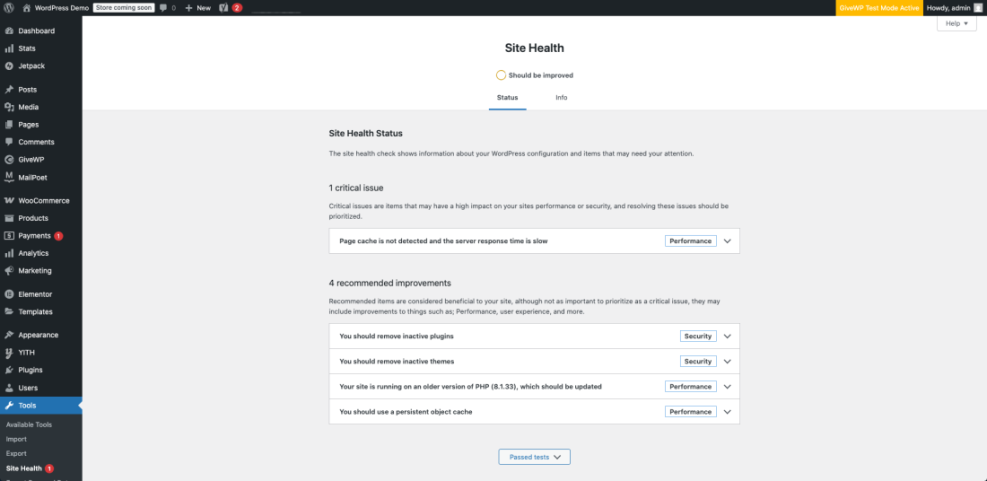
If your new provider offers a staging area, use it before switching DNS so you can test updates and theme changes safely.
Navigate to Plugins » Installed Plugins to review performance and security plugins that may duplicate your host’s tools.
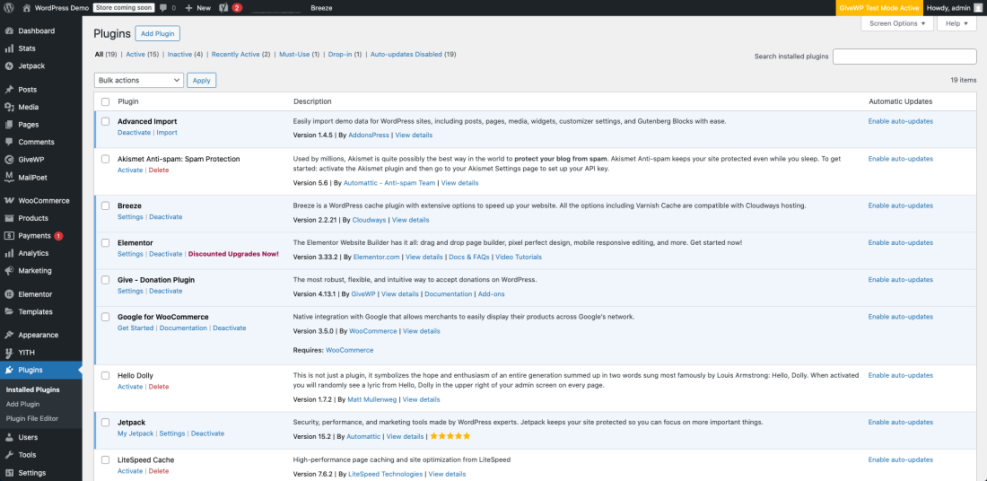
Finally, work with your host’s migration team when they offer one. Their internal tools often handle database search-and-replace and serialize data correctly, which reduces the chance of broken menus or widgets.
Managed Hosting Conclusion
Choosing managed hosting is less about chasing the cheapest plan and more about matching your site’s risk level, workload, and growth plans. If your WordPress site supports a business or client work, paying extra for expert support, strong security, and reliable performance usually makes sense.
As a next step, shortlist two or three providers that fit your budget and feature list. Then use a trial period or monthly plan to test real performance and support quality. For a deeper dive into what a well-optimized environment looks like, you can compare your results to the examples in Managed WordPress Hosting.
More WordPress Guides You Might Like
If you want to keep improving your site’s speed, stability, and hosting setup, these additional guides provide practical next steps.
- WordPress Performance Speed Optimization
- Best WordPress Caching Plugins
- WordPress Security – Complete Overview
- How to choose the best WordPress hosting
- What is managed WordPress
Working through these resources will help you tune performance, tighten security, and better understand how your hosting environment affects your visitors and search rankings.
Frequently Asked Questions About Managed Hosting
Do I really need managed hosting for a small WordPress site?
Why is managed hosting more expensive than shared hosting?
Can I still install any plugin on managed hosting?
Will my site be faster if I move to managed hosting?
What happens if I outgrow my first managed hosting plan?