Can You Duplicate a Page in WordPress
Simple ways to reuse layouts without breaking your site

You can absolutely duplicate a page in WordPress, and knowing how to duplicate a page saves time whenever you need a similar layout or design. Instead of rebuilding sections from scratch, you reuse an existing page and then customize the content.
In this guide you will learn several safe ways to duplicate WordPress pages using the block editor, a free plugin, and optional custom code so you keep your design, avoid errors, and protect your SEO.
What You Need to Start
- An existing WordPress site you can log in to as an Administrator or Editor.
- At least one page you want to reuse, such as a service page or landing page.
- Basic familiarity with editing pages in WordPress. If you are brand new, read How to use ai in WordPress first.
- A recent backup of your site, or follow the steps in Beginner guide to WordPress speed optimization before adding plugins or code.
- Optional but recommended access to a staging site. You can review How to use ai in WordPress if you test changes away from the live site.
Step 1: Understand how page duplication works
Before you duplicate anything, understand what will be copied. A duplicated page usually carries over layout, content blocks, and sometimes SEO settings. You then adjust the new page so it has a unique URL and purpose.
- Log in to your WordPress dashboard by visiting /wp-admin and entering your username and password.
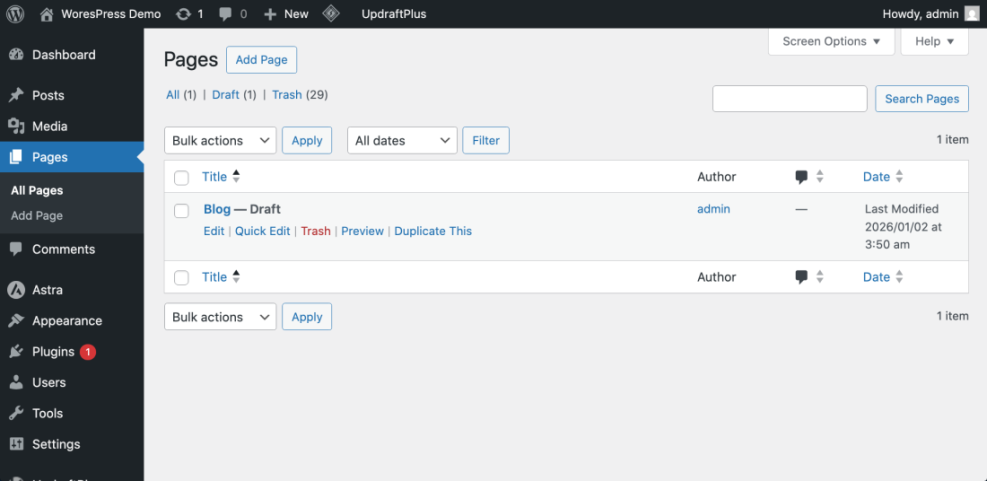
- Navigate to Pages » All Pages.
- Find the page that already has the layout you want to reuse, such as your main service page or a high converting landing page.
You now know exactly which page you will duplicate and can confirm it loads properly on the front end before making a copy.
Step 2: Duplicate a page with the block editor
Use the built in block editor tools if your site uses the Gutenberg editor. This method duplicates the content and layout without installing a plugin. You only need to paste the copied blocks into a new page.
- From Pages » All Pages, hover your target page and click Edit.
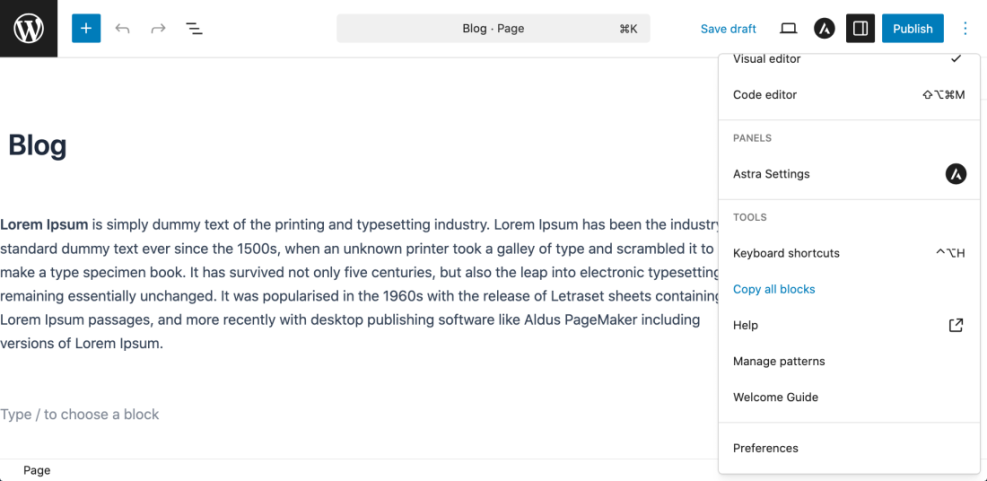
- In the top right corner of the editor, click the three dot Options menu.
- Click Copy all blocks. This copies the entire page layout and content to your clipboard.
Use this when you want a similar layout but will change headlines, images, and calls to action.
- Go back to the dashboard menu and select Pages » Add New.
- Click inside the main content area of the editor where it says “Start writing or type / to choose a block”.
- Press Ctrl + V (Windows) or Cmd + V (Mac) to paste the copied blocks into the new page.
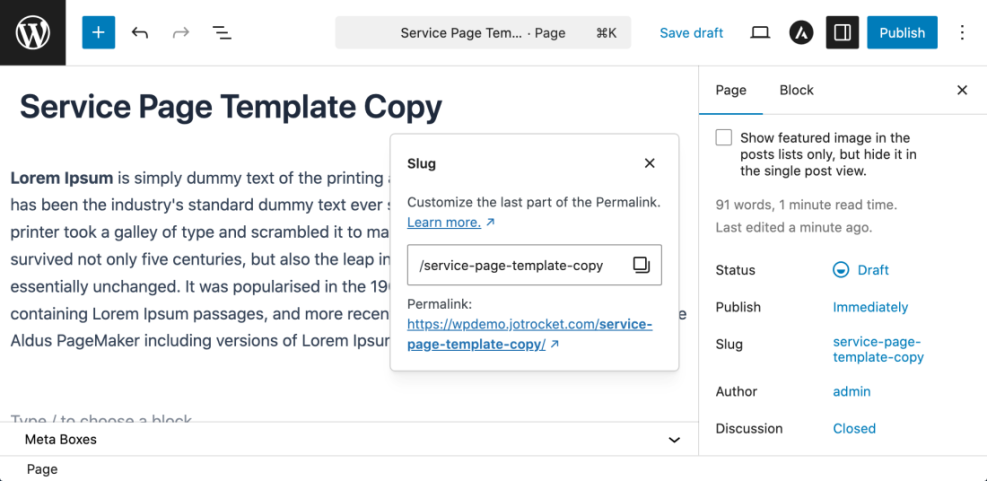
- Enter a new Title at the top, such as “Service Page Template Copy”.
- Open the right sidebar, expand the Page tab, and click Permalink to adjust the URL slug so it is unique.
- Click Save draft or Publish when you are ready.
Open the new page in a separate tab and compare it to the original. Verify that the layout matches while the title and URL are different.
Step 3: Duplicate a page with a plugin
If you want a one click solution that also copies custom fields and SEO settings, use a dedicated duplication plugin from the official WordPress plugin directory. This is helpful on larger sites with many templates.
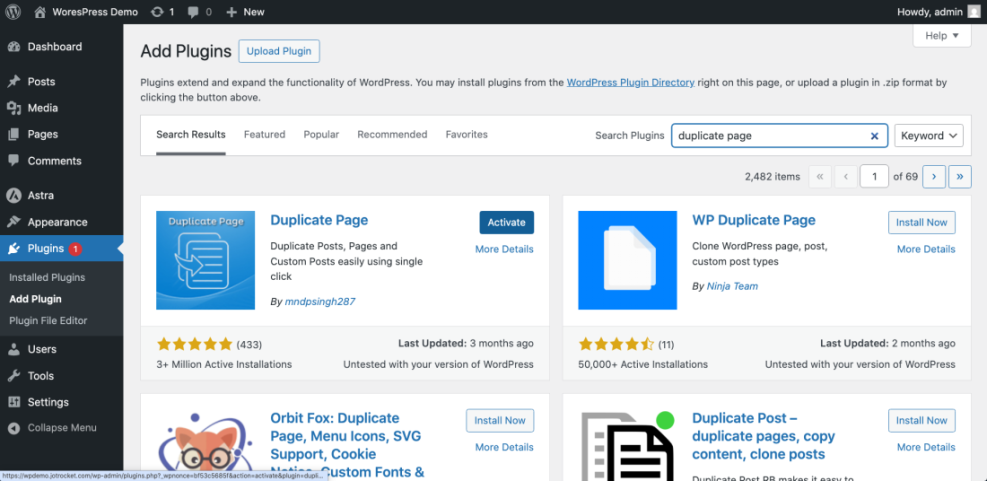
- From the dashboard, go to Plugins » Add New Plugin.
- In the search box on the right, type duplicate page.
- Locate a well rated plugin from the official repository and click Install Now, then click Activate.
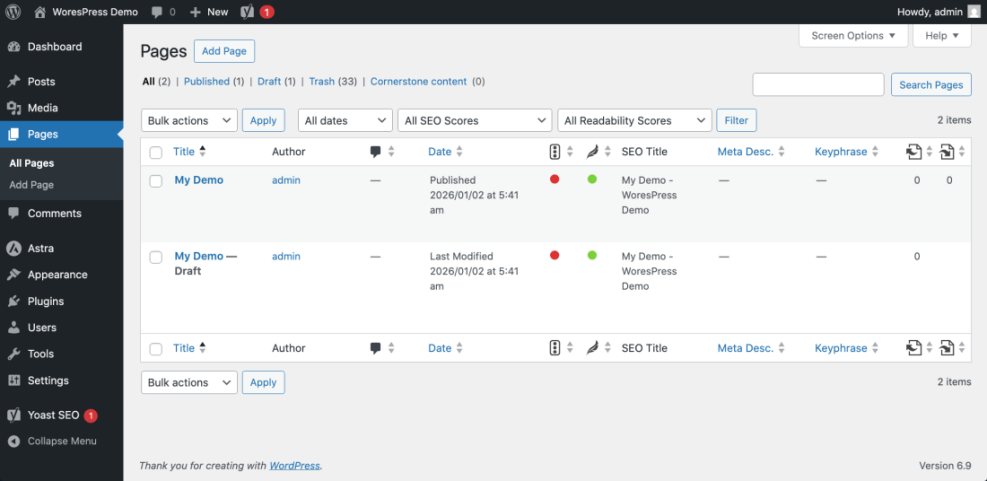
- Return to Pages » All Pages.
- Hover your target page and look for a new link such as Duplicate, Clone, or New Draft added by the plugin.
- Click that link to create a duplicate page as a draft.
- Click Edit on the new draft to adjust the title, URL slug, and content.
The new draft should contain the same layout, custom fields, and often SEO metadata. Confirm that the permalink is unique and that you do not accidentally replace the original page.
Step 4: Update the duplicate page details
After you duplicate a page, always update content and SEO settings so search engines do not see it as a low value copy. Treat the duplicate as a starting point, not a finished page.
- In the editor for your new page, rewrite the main Heading and introductory paragraph so they clearly describe the new purpose.
- Scroll through each section and replace example text, pricing, and contact details as needed.
- Open the Permalink panel and confirm the URL slug is short, descriptive, and different from the original page.
- If you use an SEO plugin, update the SEO title and Meta description fields. For help, review WordPress seo complete beginners guide.
- Check your navigation menus under Appearance » Menus if you plan to link to the new page.
This keeps your internal links clean and prevents your menu from pointing to the wrong page.
Step 5: Add a custom duplicate page link with code
If you are comfortable adding small code snippets, you can add your own Duplicate link to the Pages screen. This avoids another plugin and gives you full control over how the copy is created.
- Install and activate a safe code manager such as a “Code Snippets” plugin, or prepare to edit your child theme’s functions.php file.
- Open the code manager and create a new snippet titled “Duplicate Page Action”.
- Paste the following PHP code into the snippet editor.
/**
 * Add Duplicate link to page row actions and handle duplication.
 */
function wpheadliner_duplicate_page_as_draft() {
    if ( ! ( isset( $_GET['post'] ) || isset( $_POST['post'] ) ) ) {
        wp_die( 'No page to duplicate has been supplied!' );
    }

    // Security check.
    if ( ! isset( $_GET['duplicate_nonce'] ) || ! wp_verify_nonce( $_GET['duplicate_nonce'], 'wpheadliner_duplicate_page' ) ) {
        wp_die( 'Security check failed while duplicating the page.' );
    }

    $post_id = isset( $_GET['post'] ) ? absint( $_GET['post'] ) : 0;
    $post    = get_post( $post_id );

    if ( ! $post || 'page' !== $post->post_type ) {
        wp_die( 'Only pages can be duplicated with this action.' );
    }

    $new_post_args = array(
        'post_title'   => $post->post_title . ' Copy',
        'post_content' => $post->post_content,
        'post_status'  => 'draft',
        'post_type'    => 'page',
        'post_author'  => get_current_user_id(),
    );

    $new_post_id = wp_insert_post( $new_post_args );

    if ( $new_post_id ) {
        // Copy taxonomies.
        $taxonomies = get_object_taxonomies( 'page' );
        foreach ( $taxonomies as $taxonomy ) {
            $terms = wp_get_object_terms( $post_id, $taxonomy, array( 'fields' => 'slugs' ) );
            wp_set_object_terms( $new_post_id, $terms, $taxonomy, false );
        }

        // Copy meta data, except old slugs.
        $meta = get_post_meta( $post_id );
        foreach ( $meta as $key => $values ) {
            if ( '_wp_old_slug' === $key ) {
                continue;
            }
            foreach ( $values as $value ) {
                add_post_meta( $new_post_id, $key, maybe_unserialize( $value ) );
            }
        }

        // Redirect to edit screen of new page.
        wp_safe_redirect( admin_url( 'post.php?action=edit&post=' . $new_post_id ) );
        exit;
    }

    wp_die( 'Error creating duplicate page.' );
}
add_action( 'admin_action_wpheadliner_duplicate_page', 'wpheadliner_duplicate_page_as_draft' );

/**
 * Add Duplicate link under each page title.
 *
 * @param array   $actions Existing row actions.
 * @param WP_Post $post    Current post object.
 *
 * @return array
 */
function wpheadliner_duplicate_page_link( $actions, $post ) {
    if ( 'page' === $post->post_type && current_user_can( 'edit_pages' ) ) {
        $url = wp_nonce_url(
            admin_url( 'admin.php?action=wpheadliner_duplicate_page&post=' . $post->ID ),
            'wpheadliner_duplicate_page',
            'duplicate_nonce'
        );

        $actions['duplicate_page'] = '<a href="' . esc_url( $url ) . '">' . esc_html__( 'Duplicate', 'wpheadliner' ) . '</a>';
    }

    return $actions;
}
add_filter( 'page_row_actions', 'wpheadliner_duplicate_page_link', 10, 2 );
- Save and activate the snippet, or save your updated functions.php file.
- Visit Pages » All Pages and hover any page to see the new Duplicate link.
- Click Duplicate to create a draft copy, then edit it as in the previous steps.
Test the duplicate page in a private browser window and confirm that menus, links, and design work as expected.
Conclusion You Are Ready to Go
You now know multiple ways to duplicate a page in WordPress without risking your layout or SEO. You can copy all blocks with the block editor, rely on a trusted plugin for one click duplication, or add a custom code solution for full control.
Choose the method that fits your workflow, always update the title and URL, and remember to keep backups so you can experiment safely as your site grows.
Further Reading
- How to duplicate WordPress page
- WordPress seo complete beginners guide
- Beginner guide to WordPress speed optimization
- Create WordPress blog
- How to use ai in WordPress
Frequently Asked Questions
Will duplicating a page hurt my SEO
Can I duplicate a page without installing a plugin
Does a duplicated page copy my SEO settings and custom fields
Is it safe to duplicate pages on a live site
Can I use this method with page builders like Elementor
What should I do after publishing a duplicated page