Free WordPress blog themes make it possible to launch a beautiful How to start a blog WordPress without touching your budget. The hard part is choosing the right free WordPress themes for blogs that stay fast, look professional, and do not lock you into awkward layout choices later.
You will learn how to spot high-quality free blog themes, which popular options are worth trying first, and how to install and customize them step by step. By the end, you can pick a theme with confidence and turn it into a blog that reflects your voice.
Best Free WordPress Themes for Blogs
When you compare free WordPress themes for blogging, you want a combination of speed, clean typography, and easy customization. A short list that many bloggers start with includes multipurpose frameworks and dedicated blog designs.
What Makes a Free Blog Theme Great?
A strong free blog theme loads quickly, stays readable on phones, and makes it easy to adjust colors, fonts, and layout without code. It should work well with the block editor, receive regular updates, and include clear documentation. Support forums, active installs, and good reviews are strong signs you can rely on it for the long term.
Top Picks at a Glance
- Astra – Lightweight framework with many blog starter templates.
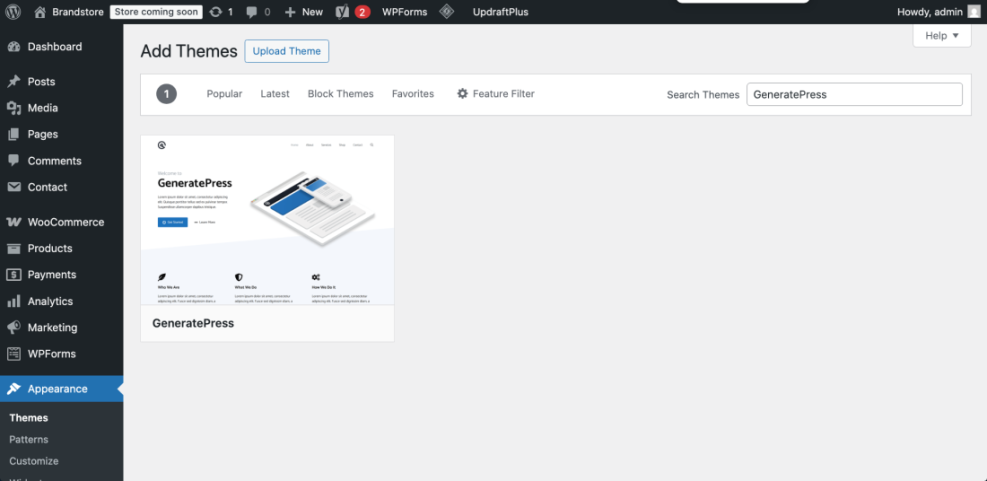
- GeneratePress – Very fast theme with simple, flexible layouts.
- Neve – Modern look with magazine-style blog options.
- Ashe – Elegant personal blog theme with strong typography.
- The Free Blogger – Block-based theme focused on writers.
- Graceful Personal Blog – Minimal design that highlights articles.
These themes give you a solid starting point even on basic shared hosting. You can always switch later, yet starting with a reputable theme saves time and reduces design headaches.
How Should You Shortlist Themes Quickly?
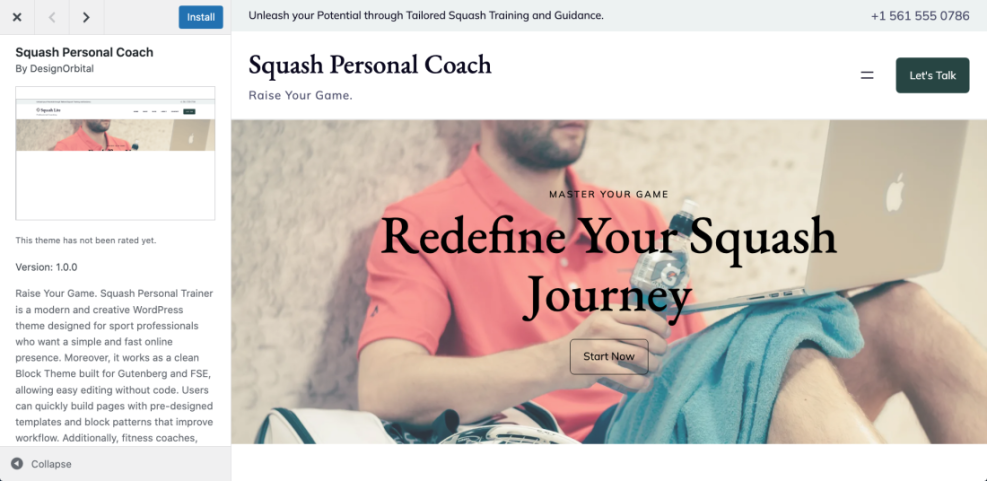
Start by previewing each theme on desktop, tablet, and phone. Then check whether the homepage and single post layouts match the style you want. Finally, look at the customizer options so you know you can adjust colors, headings, and sidebars without editing code.
Top Free Blog Themes to Consider
You do not need to test every theme in the directory. Instead, focus on a small group of proven options that balance performance, flexibility, and design quality for bloggers.
Astra for Flexible Personal Blogs
Astra is a lightweight theme that works for simple personal blogs and larger content sites. It offers many starter templates, including blog-focused designs, and you can customize layout width, sidebars, and fonts from the customizer. Because the core theme is small, your pages usually load quickly even before extra optimization.
If you plan to build out niche content, combine Astra with a solid structure for categories and cornerstone articles. Our guide on WordPress blog layouts can help you plan this from the beginning.
GeneratePress for Speed-Focused Writers
GeneratePress is a strong choice if you care about page speed above everything else. It ships with a very small codebase and clean markup, so caching plugins and a basic CDN can push your blog to excellent performance scores. The design is minimal out of the box, which makes it easier to keep your pages distraction free.
To get the most from a fast theme like GeneratePress, pair it with a lean plugin stack. You can follow the recommendations in our Best contact form plugins for WordPress guide to avoid bloat.
Neve for Modern Magazine Layouts
Neve suits bloggers who publish many categories or run a magazine-style site. It offers flexible header layouts, featured post sections, and different blog listing styles. When combined with the block editor or a page builder, you can create a polished homepage that still feels lightweight.
Ashe and Other Blog-First Designs
If you prefer a more opinionated blog layout, themes like Ashe, The Free Blogger, and Graceful Personal Blog focus on typography and featured images. They usually include a clean hero area, sidebar support, and simple post grids. This style works well for lifestyle, travel, or personal storytelling blogs where the writing should stay at the center.
How to Choose the Right Free Theme
With thousands of free themes available, it helps to follow a simple framework. You want to balance design taste with technical quality and long-term support.
Should You Use a Free or Premium Theme?
Free themes work very well for most new blogs. They already cover responsive layouts, basic customization, and compatibility with popular plugins. Premium themes add more templates, deeper support, and niche features, but you can always upgrade later once your blog earns money or your needs become more complex.
Key Features to Check Before Installing
- Responsive design that looks good on phones and tablets.
- Clean typography with readable font sizes for posts.
- Support for the block editor and common plugins.
- Active updates and a changelog within the last year.
- Easy control of colors, logo, and menus in the customizer.
When you evaluate themes using these simple points, you avoid many issues that show up months later, such as poor readability or outdated code.
How Do You Test Theme Performance?
After activating a theme, create a sample post with headings, images, and lists. Then run it through a speed testing tool and compare the results with another theme. If the new design adds many requests or slows down your time to first byte, consider switching to a lighter option or planning to speed up your blog with caching and image optimization.
Setting Up and Customizing Your Theme
Once you pick a theme, you need to install it correctly and adjust the main settings so your blog looks polished from day one.
How to Install a Free Theme
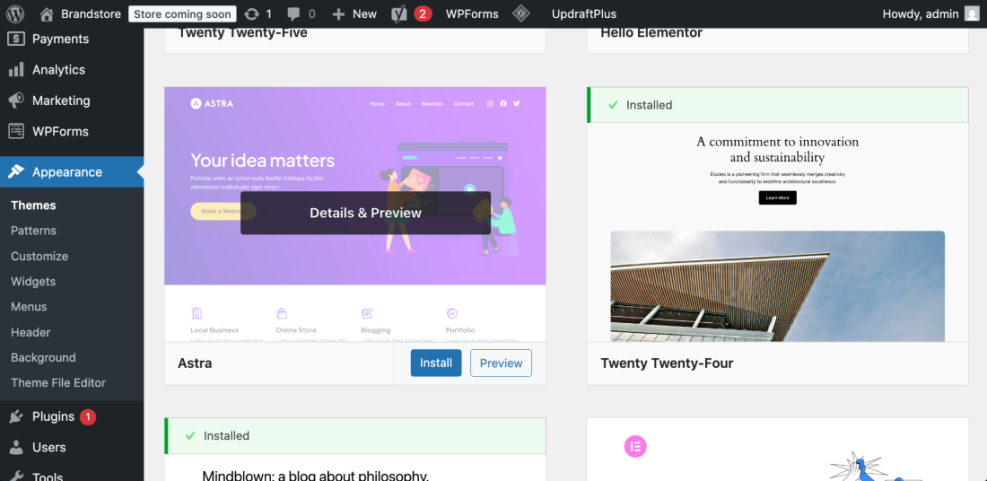
- Log in to your WordPress dashboard and go to Appearance -> Themes.
- Click “Add New,” then search for the theme name in the search field.
- Hover over the theme card, click “Install,” and wait for the download to finish.
- Click “Activate” to switch your blog to the new design.
- Visit your homepage and a single post to confirm that everything displays correctly.
Essential Customizer Settings for Bloggers
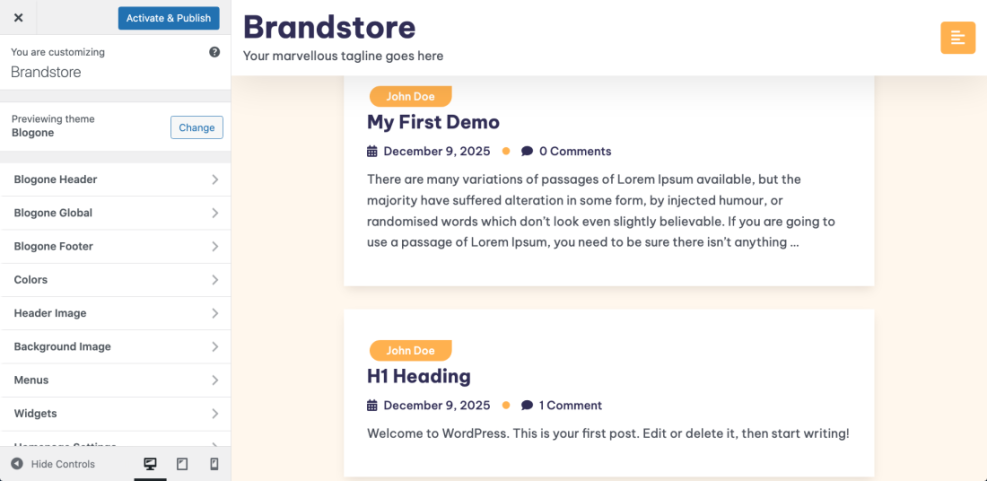
After activation, open Appearance -> Customize. Adjust your site title and tagline, choose a readable body font, and set a comfortable content width. Then configure your blog page layout, featured image behavior, and sidebar position. Finally, set up menus for your main categories so visitors can explore your posts more easily.
- Set a clear logo or text site title.
- Pick matching colors for links and buttons.
- Choose a post layout with good spacing.
- Enable breadcrumbs if the theme supports them.
- Check how archives and category pages look.
Working through this checklist gives your blog a consistent look, even if you change themes later. For a deeper walkthrough of these options, see our tutorial on WordPress migration blog guide.
Reducing Bloat With Only Needed Features
Many themes ship with sliders, icon sets, or animation effects that you may not actually need. Disable any extras that slow the page or distract from your writing. When you want fancier features, consider plugins instead of switching to an overloaded theme. Our WordPress speed optimization checklist explains which features hurt performance the most.
Feature Comparison of Popular Free Themes
The table below gives a quick comparison of four widely used free themes. Use it as a starting point while testing designs on your own site.
| Theme | Best For | Key Strength | Not Ideal When |
|---|---|---|---|
| Astra | General blogs and niche sites | Large library of starter templates | You want a very opinionated magazine layout |
| GeneratePress | Speed-focused bloggers | Extremely lightweight and clean code | You prefer bold, built-in visual effects |
| Neve | Magazine or multi-category blogs | Modern design with flexible headers | You want a very minimal, text-only look |
| Ashe | Lifestyle and personal stories | Strong typography and featured images | You need advanced layout control for every template |
This comparison does not replace live testing, but it helps you see patterns. Framework themes tend to give you more control, while blog-first themes offer a ready-made style with fewer decisions.
When Should You Switch Themes Later?
You might switch when your content strategy changes, such as moving from personal stories to long-form guides, or when you need new layout options. Before replacing your theme, clone your site or use a staging environment so you can fix menus and widgets without breaking the live blog. Our guide on How to change WordPress username walks you through this process.
free WordPress themes: Conclusion
High-quality free themes give you everything you need to publish, grow, and refine a blog without upfront design costs. Start with one trusted theme, customize it carefully, and focus on consistent publishing. If you are still preparing your site, check our Beginner checklist optimizing WordPress blog posts to make sure you do not miss any important steps.
More WordPress Guides You Might Like
If you want to keep improving your blog, the following planned guides will help you move beyond just choosing a theme.
- How to Customize Your WordPress Blog Layout
- Essential WordPress Plugins for New Blogs
- WordPress speed optimization checklist
- How to start a blog WordPress
- How to choose the best WordPress hosting
Work through these topics over time so your blog becomes faster, safer, and easier to manage while you keep publishing new posts.
Frequently Asked Questions About free WordPress themes
Are free WordPress blog themes safe to use?
Can I switch themes later without breaking my blog?
Do free themes hurt SEO compared to paid themes?
How many plugins can I use with a free theme?
Should I customize theme files directly?