

If you want to Duplicate WordPress Page layouts without rebuilding them from scratch, WordPress gives you several safe ways to clone existing designs. By duplicating a page instead of starting over, you keep the same blocks, templates, and page builder layout while editing a new draft.
In this step by step tutorial, you will install a simple duplication plugin, clone pages from the Pages screen or the editor, and learn manual and code-based methods. By the end, you will be able to duplicate any important page without breaking your live layout or confusing search engines.
What You Need to Start
- An existing WordPress site where you can log in as an Administrator or Editor.
- Access to the WordPress Dashboard so you can manage Pages and Plugins.
- At least one published page you want to clone, such as a homepage, service page, or landing page.
- Optional but recommended a recent backup of your site before installing new plugins or editing code.
- Optional a staging site where you can practice duplicating pages before changing your live site.
Step 1: Choose when to duplicate a page
Before you install anything, decide exactly which page you want to duplicate and why. This helps you avoid clutter and keeps your site structure clean.
- Log in to your WordPress Dashboard.
- Navigate to Pages » All Pages.
- Scan the list and decide which page you want to clone, such as your main Home page or a high converting Landing page.
- Hover over the page title and note whether it uses the block editor, a page builder layout, or a custom template in the Page Attributes box.
After this step, you should know which page you will duplicate and where it appears in your navigation so you can keep menus and URLs organized later.
Step 2: Install a duplicate page plugin
The easiest and safest way for most users is to use a duplication plugin that adds a Duplicate, Clone, or Copy to new draft link to your pages.
- In the WordPress Dashboard, navigate to Plugins » Add New.
- In the search field, type duplicate page.
- Locate a well reviewed duplication plugin that works with pages, then click Install Now.
- After installation completes, click Activate to enable the plugin on your site.
- If the plugin provides a settings page under Settings or Plugins, open it and confirm options such as default status for new duplicates (for example, Draft).
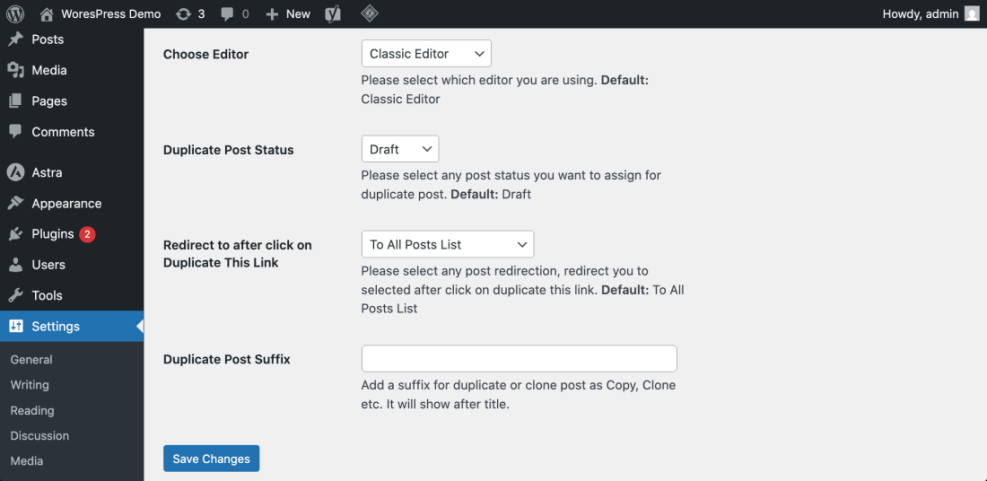
To confirm success, hover over any page title under Pages » All Pages. You should see at least one new action link such as Duplicate, Clone, or New Draft under the title.
Step 3: Duplicate a page from the Pages list
Once the plugin is active, you can clone pages directly from the main list. This is the fastest way to create copies of multiple layouts.
- Navigate to Pages » All Pages in your Dashboard.
- Hover your mouse over the page you want to copy. New options such as Duplicate, Clone, or Duplicate This will appear below the title.
- Click the new duplication link provided by your plugin.
- Wait for WordPress to refresh the list. A new page entry should appear with a similar title, often with “Copy” or “Draft” added.
- Click the title of the new duplicate to open it in the editor.
- Change the Title so it clearly describes the new page, then edit the Permalink or URL slug to something unique.
- Click Save Draft or Update to store your changes.
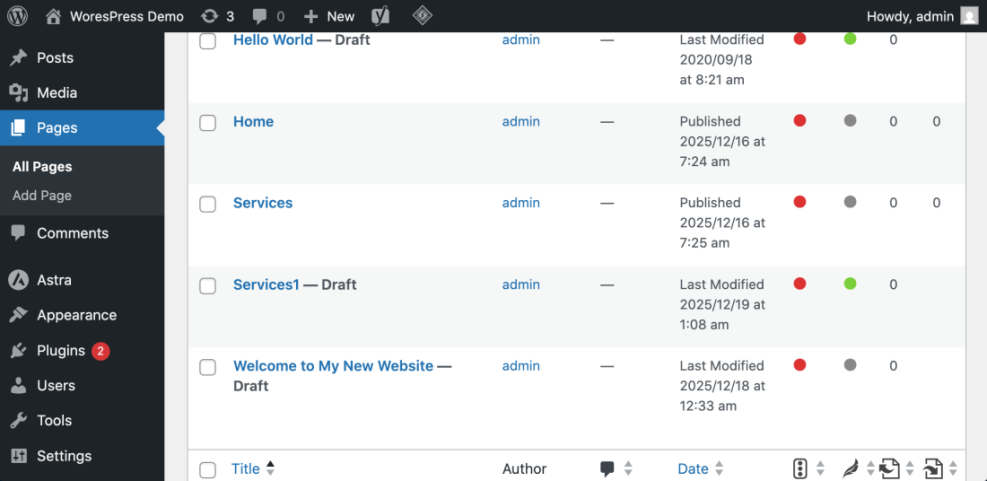
After this step, you should see both the original page and its duplicate in the list, with the duplicate saved as a separate draft you can edit safely.
Step 4: Duplicate a page from the editor
Many duplication plugins also add a link inside the editor, which is helpful when you are already editing a page and decide to create a variant.
- Navigate to Pages » All Pages and click the title of the page you want to edit, or use the Edit link under the title.
- Once the editor opens, look in the sidebar panel where you see the Publish or Status & visibility settings.
- Check for a button or link labeled Duplicate, Clone, or Copy to new draft. In some plugins this may appear under the three dot Options menu in the top right corner.
- Click the duplication option. WordPress will create a new draft and usually redirect you to that cloned page automatically.
- Update the Title, URL, and any content blocks that need to change on the copy.
- Click Save Draft to keep the duplicate unpublished while you edit.
To verify success, look at the breadcrumb in the editor and the Title field. You should see your new page name, and the status should show as Draft, not published.
Step 5: Manually duplicate WordPress page without a plugin
If you cannot install plugins, you can still duplicate content by copying and pasting the page content. This works for both the Classic Editor and the block editor.
- Open the original page by going to Pages » All Pages and clicking Edit under the page title.
- In the editor, switch to the code view so you copy all the block or HTML structure. In the block editor, click the three dot Options menu and choose Code editor. In the Classic Editor, click the Text tab.
- Click inside the editor, press Ctrl + A (Windows) or Cmd + A (Mac) to select all content, then press Ctrl + C or Cmd + C to copy.
- Navigate to Pages » Add New.
- Switch the new page to the same editor mode (code or text), click inside the main content area, and paste with Ctrl + V or Cmd + V.
- Enter a new Title, adjust the Permalink, choose the same Template under Page Attributes if needed, and click Save Draft.
To confirm success, preview the new page with the Preview button and compare it to the original in a separate browser tab.
Step 6: Advanced duplicate WordPress page with PHP
Developers or power users can create a helper function to programmatically clone pages. This is useful when you need reusable templates or want to trigger duplication from custom admin actions.
- Create or open a child theme, or prepare a small site specific plugin where you can safely add custom functions.
- Use SFTP or your hosting file manager to open the child theme functions.php file, or your custom plugin’s main PHP file.
- Add the following function, which duplicates a page as a new draft when you pass an existing page ID:
/**
 * Programmatically duplicate a page as a new draft.
 *
 * @param int $original_id The ID of the page to clone.
 * @return int New page ID or 0 on failure.
 */
function wph_duplicate_page_programmatically( $original_id ) {
    $post = get_post( $original_id );

    if ( ! $post || 'page' !== $post->post_type ) {
        return 0;
    }

    $new_post = array(
        'post_title'   => $post->post_title . ' Copy',
        'post_content' => $post->post_content,
        'post_status'  => 'draft',
        'post_type'    => 'page',
        'post_parent'  => $post->post_parent,
    );

    return wp_insert_post( $new_post );
}
- Save the file and clear any caches provided by your host or caching plugin.
- Call the function from a custom admin page, a WP-CLI command, or temporary debug code such as
wph_duplicate_page_programmatically( 123 );where 123 is the ID of the page you want to clone.
To confirm this method works, go to Pages » All Pages and check for a new draft titled with “Copy” appended to the original page title.
Conclusion You Are Ready to Go
You have learned several reliable ways to duplicate a WordPress page without breaking your layout or confusing visitors. You can now quickly clone pages from the Pages list, duplicate while editing inside the editor, or fall back to manual copy and paste when plugins are not allowed.
For more advanced needs, you also saw how to duplicate pages with a PHP helper so developers can build template like workflows. Use these techniques to create consistent layouts faster while still keeping titles, URLs, and navigation organized.
Further Reading
- How to duplicate WordPress page
- How to Edit Pages in WordPress
- How to Use Plugins in WordPress
- How to backup a WordPress site
Frequently Asked Questions
Will duplicated WordPress pages hurt my SEO
Does duplicating a page also copy menus and widgets
Can I duplicate pages that use a page builder
What if I do not see a Duplicate link under my pages
Can I duplicate a WordPress page on WordPress.com
Does the PHP duplication function copy featured images and custom fields






