Learning how to login to WordPress site safely is the first step to accessing your dashboard and managing everything on your website.
In this guide on how to login to WordPress site, you will learn how to find your WordPress Login URL, sign in safely, reset lost passwords, and quickly fix common WordPress login problems so you can reach your dashboard every time.
What You Need to Start
- An existing WordPress site installed on a domain or subdomain.
- A WordPress user account with a known Username or Email Address and Password.
- Access to the email inbox connected to your WordPress account for password resets.
- A modern web browser such as Chrome, Firefox, Edge, or Safari.
- Optional access to your web hosting control panel if you plan to use one click login tools.
Step 1: Find Your WordPress Login URL
Before you can apply what you learned about how to login to WordPress site, you must open the correct WordPress Login page for your site.
Most self hosted WordPress sites use a standard login URL pattern that you can reach directly from your browser.
- Open your preferred web browser.
- In the address bar, type your full site address followed by /wp-admin such as https://example.com/wp-admin.
- Press Enter to load the page.
- If you see your homepage instead of a login form, edit the address bar and try /wp-login.php instead.
- If WordPress is installed in a folder, include it in the path such as https://example.com/blog/wp-admin.
- If your site address ends with .wordpress.com, go to https://wordpress.com/log-in and choose your site from the list.
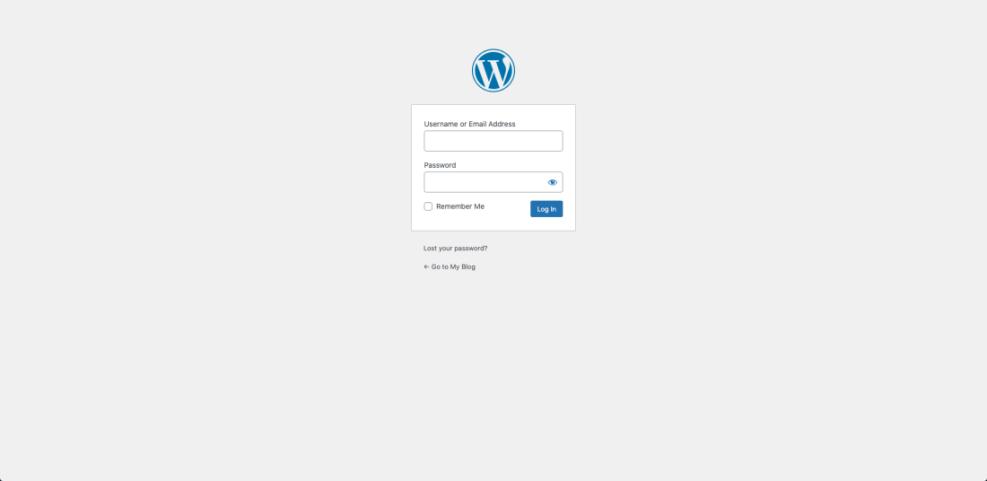
- Confirm that you see the WordPress logo plus fields for Username or Email Address and Password.
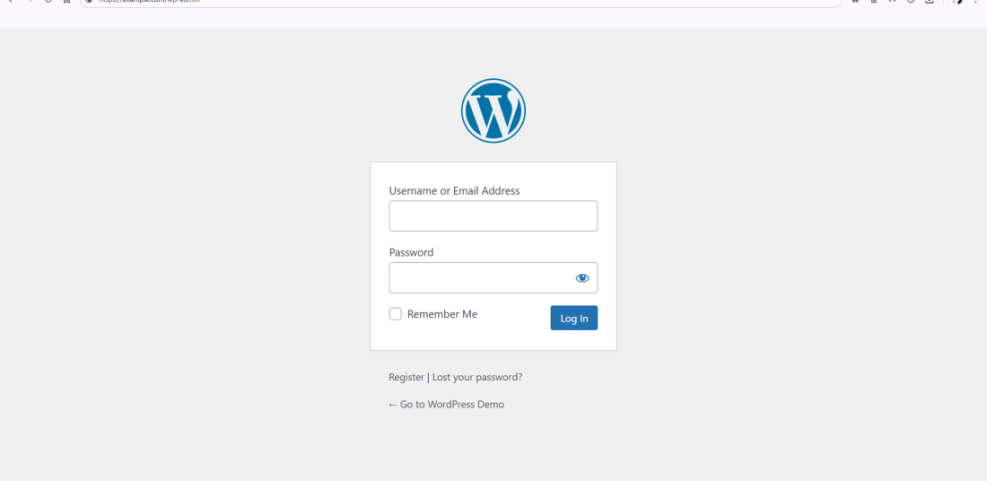
If the page loads correctly and shows the login form, you have the right WordPress login URL for future use.
Step 2: See How to Login to WordPress Site with Your Details
With the login page open, you can now enter your WordPress credentials and access the admin dashboard.
Use the same username or email you used when the account was created, not the general admin email for the site.
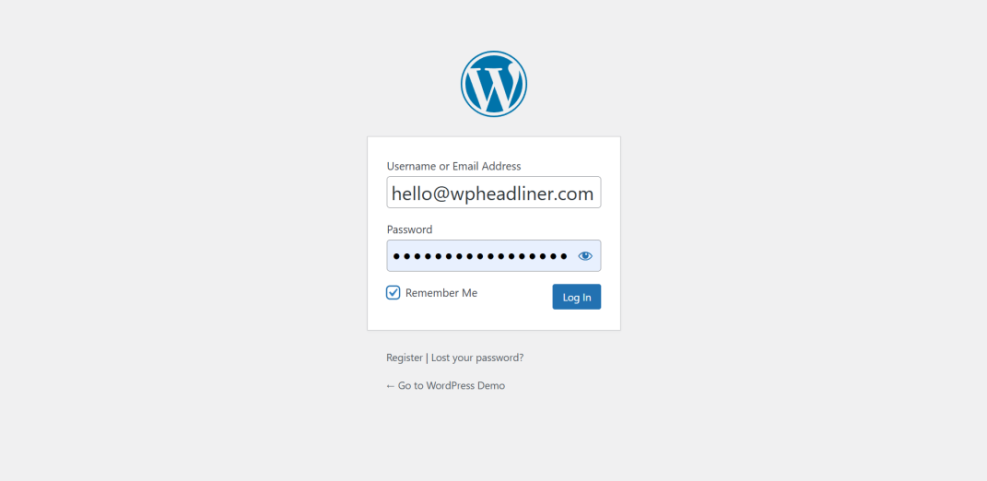
- Click inside the Username or Email Address field and type your WordPress username or registered email exactly.
- Click in the Password field and carefully type your password, paying attention to uppercase and lowercase letters.
- Check the Remember Me box if you are on a private device and want the browser to keep you logged in.
- Click the Log In button once and wait for the page to load.
- Verify that you land on the WordPress Dashboard screen with the left hand admin menu visible.
If you see the Dashboard menu and your site name in the top admin bar, you have successfully logged in and can begin managing your content.
Step 3: Recover a Lost WordPress Login Password
If your password no longer works or you cannot remember it, use the built in password reset tool before trying anything more advanced.
You only need access to the email address saved in your WordPress user profile.
- On the WordPress Login screen, click the Lost your password link under the login form.
- Enter your Username or Email Address for the WordPress account you want to restore.
- Click the Get New Password button.
- Open the inbox for that user email and look for the password reset email from WordPress.
- Click the reset link inside the email to open the secure password reset page.
- Type a strong new password, confirm it if asked, and click Reset Password.
- Return to the WordPress Login page and sign in with your username and the new password.

When the new password works and you reach the Dashboard, your account recovery is complete.
Step 4: Log In Through Your Web Hosting Panel
Many hosting providers offer a direct WordPress Login button in their control panels, which is helpful if you forget the exact login URL.
This method usually logs you in as the admin user without needing to re enter your credentials.
- Sign in to your hosting control panel such as cPanel, hPanel, Plesk, or a managed WordPress dashboard.
- Locate the section labeled Websites, WordPress, My Sites, or similar.
- Find the domain that runs your WordPress site in the list of installations.
- Click the action link or button that says Log into WordPress, WP Admin, or Dashboard.
- Wait while the host opens a new browser tab with your site’s /wp-admin address and signs you in automatically.
- Confirm that you see the WordPress Dashboard and that you have the expected admin capabilities.
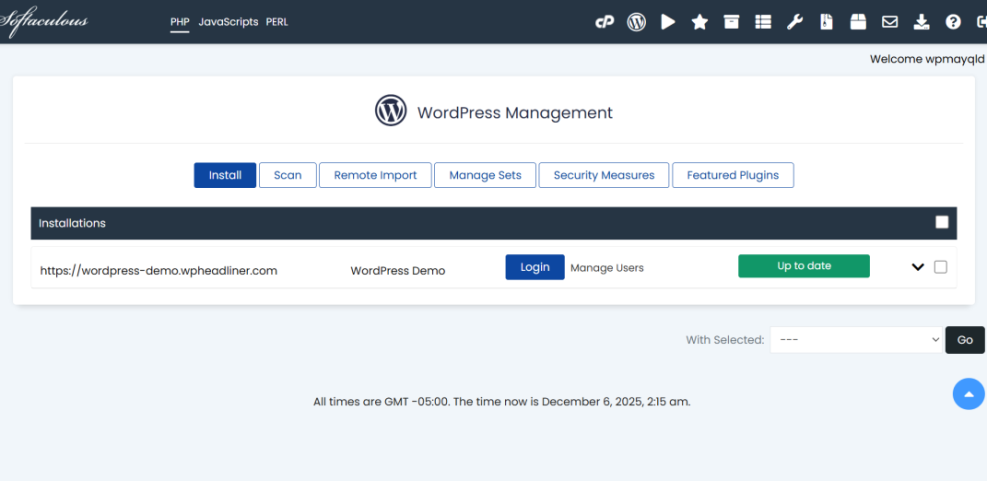
If this method works, bookmark the WordPress Dashboard page so you can return directly without opening the host panel every time.
Step 5: Secure Your WordPress Login for the Future
Once you understand how to login to WordPress site reliably, strengthen your WordPress Login so attackers and bots cannot guess or steal your access.
These small changes dramatically improve login security without adding much extra work for you.
- In the WordPress Dashboard, navigate to Users » Profile and verify that your email address is correct and private.
- Ensure your username is not a generic value like admin; create a new administrator and delete or demote weak accounts if needed.
- Use a password manager to generate a long, unique password and update it in your user profile.
- Install a reputable security plugin from the Plugins » Add New screen to limit login attempts and detect suspicious activity.
- Enable two factor authentication inside your chosen security plugin or user profile so logins require both a password and a code.
- Log out and log back in once to confirm that your new security settings work as expected.
If everything works and you can still access the Dashboard, your login is both convenient and significantly more secure.
Step 6: Fix Common WordPress Login Problems
Sometimes you might still have issues signing in, even with the correct WordPress Login URL and password.
Work through these quick checks before you panic or call your developer.
- Confirm you are logging in with your WordPress username or user email, not your hosting login or the generic admin contact email.
- Double check your password for typos, then try pasting it from a password manager you trust.
- Open a private or incognito browser window and repeat the login to rule out cached sessions or browser extensions.
- Clear your browser cache and cookies, then try the WordPress Login page again in a fresh tab.
- If the login page keeps refreshing, temporarily disable any security or caching plugins from your hosting file manager or recovery tools and test again.
- Contact your hosting support if you see white screens, database errors, or messages that say you do not have permission to access the Dashboard.
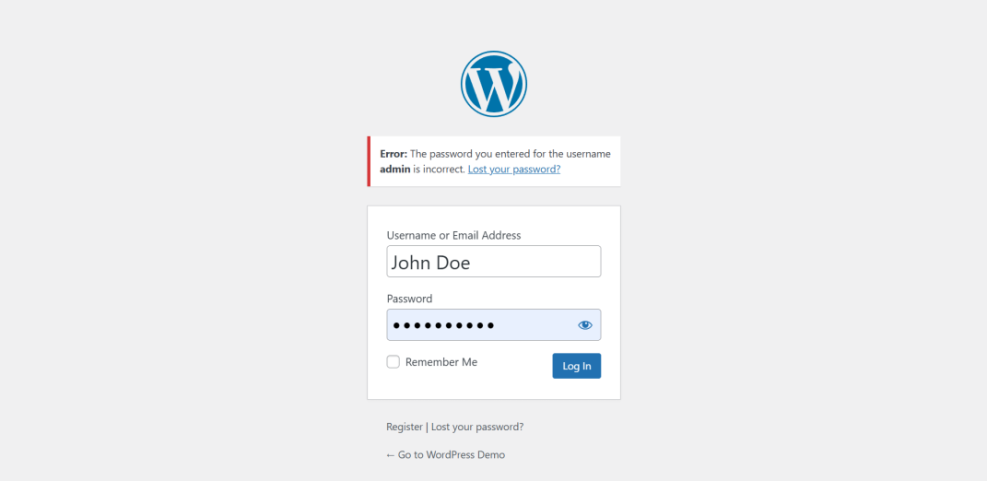
After each change, retest the login once so you know exactly which step resolved the issue for future reference.
If you still cannot sign in, review the official Troubleshoot login issues guide from WordPress.org or ask your host for direct assistance.
Conclusion You Are Ready to Go
By now you know how to login to WordPress site, how to find your WordPress Login URL, sign in correctly, reset lost passwords, and solve the most common login problems.
Bookmark your working login address, store your credentials securely, and keep your login security updated so accessing your WordPress Dashboard becomes a quick, stress free habit.
Further Reading
- How to integrate WordPress into website
- WordPress seo complete beginners guide
- How to find your WordPress login url
- Beginner WordPress security best practices guide
- Common WordPress backup errors and how to fix
Frequently Asked Questions
Where do I find my WordPress Login URL
What username should I use on the WordPress Login screen
What should I do if my WordPress Login keeps redirecting
How do I log in to a WordPress site from my hosting account
Is it safe to use the Remember Me option on WordPress Login
What if the password reset email for WordPress Login never arrives