If you are tired of spam and want to disable comments WordPress wide, you can do everything from your dashboard in a few minutes. You do not need code, and you can choose between turning comments off everywhere or only on specific content types.
In this tutorial you will disable comments on new posts, close comments on existing posts and pages, handle media attachment comments, and optionally use a plugin to remove the comment system completely from your WordPress site.
What You Need to Start
- Admin access to your self hosted WordPress dashboard at /wp-admin.
- Basic familiarity with the WordPress menu such as Settings, Posts, and Pages.
- A recent backup of your site, especially if you plan to bulk edit many posts.
- Optional but helpful a staging site if you are changing comment behavior on a busy production site.
Disable comments for all new posts
The fastest way to disable comments WordPress wide on new content is to change the global Discussion settings. This stops WordPress from adding a comment form to any posts you create in the future.
- Log in to your WordPress dashboard as an administrator.
- In the left menu, go to Settings » Discussion.
- Find the section labeled Default post settings.
- Uncheck the box for Allow people to submit comments on new posts.
- Optionally also uncheck Allow link notifications from other blogs (pingbacks and trackbacks) if you want them disabled.
- Scroll to the bottom of the page and click Save Changes.
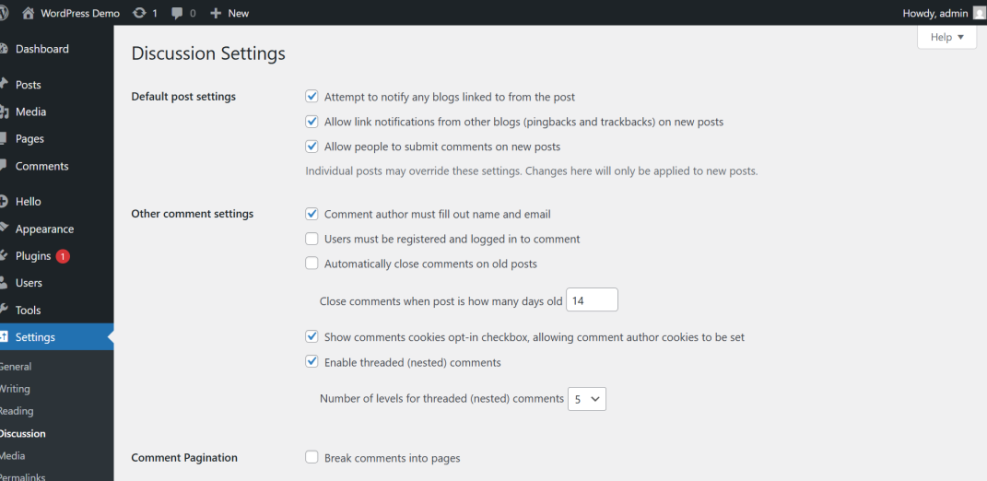
Verify this step by creating a new test post and viewing it on the front end. There should be no comment form at the bottom of the page. This confirms that you have started to disable comments WordPress wide for all new content.
Turn off comments on existing posts and pages
Global settings do not change older content. To fully disable comments WordPress wide, you must close comments on existing posts and pages as well. You can do this one by one or in bulk.
Disable comments on a single post or page
- Go to Posts » All Posts or Pages » All Pages.
- Click the title of the post or page you want to edit.
- In the editor sidebar, open the Post or Page tab.
- Find the Discussion panel. If you do not see it, open the editor options and enable Discussion.
- Uncheck Allow comments.
- Click Update to save the change.
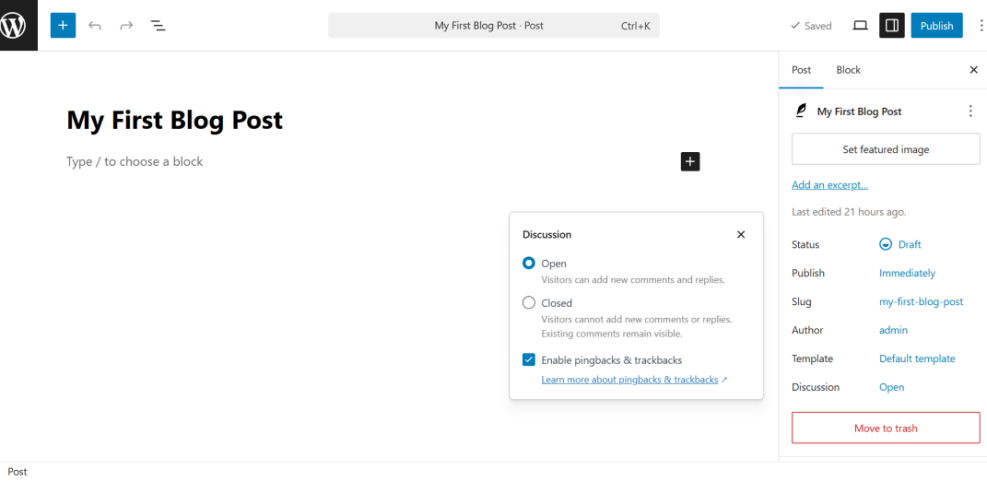
Visit the post or page on the front end and confirm that the comment form and existing comment box no longer appear.
Bulk disable comments for many posts or pages
- In your dashboard, go to Posts » All Posts.
- Use the checkboxes to select all posts you want to update. You can use the screen options to show more posts per page if needed.
- In the Bulk actions dropdown above the list, select Edit and click Apply.
- A bulk edit box appears. Find the Comments dropdown and choose Do not allow.
- Click Update to apply the change to all selected posts.
- Repeat the same process under Pages » All Pages for any pages that still allow comments.
After this step your older content should no longer accept new comments. Combined with the earlier settings, this goes a long way toward a full disable comments WordPress setup.
Disable comments on media attachments
WordPress can create attachment pages for images and other media files, and these pages sometimes have comments enabled by default. To fully disable comments WordPress wide, you should also close comments on media items.
- Go to Media » Library.
- Switch to the List view so you can see media items with more details.
- Click the title of an image or file to open its attachment details screen.
- Look for the Discussion meta box.
- Uncheck Allow comments and click Update or Save.
- Repeat for other media items that might receive unwanted comments.
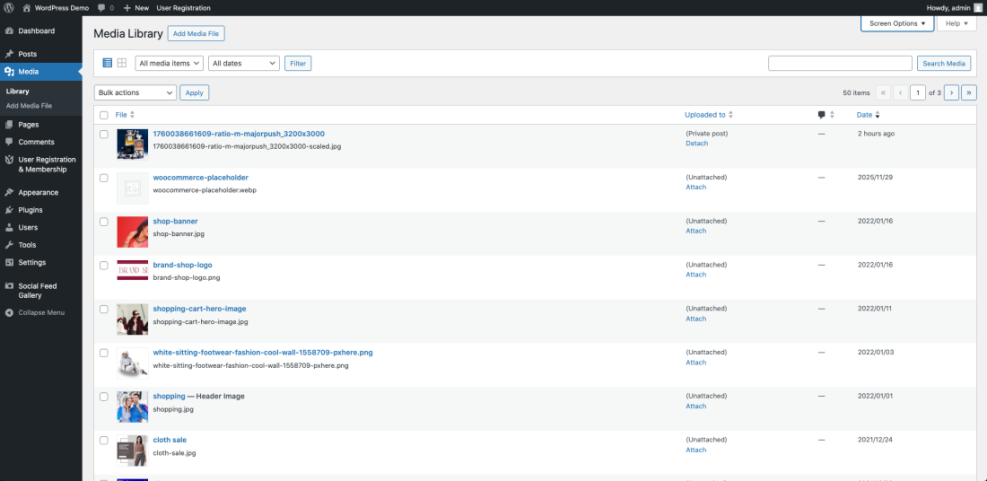
The WordPress Media Library interface showing various media assets uploaded to the site.If you have thousands of attachments, consider using a plugin in the next section to disable comments on all media attachment pages at once.
Control how long comments stay open
Sometimes you do not want to disable comments WordPress wide forever, but you do want to stop comments on older content. In that case, use the built in setting that closes comments after a set number of days.
- Go to Settings » Discussion in your dashboard.
- Find the Other comment settings section.
- Check Automatically close comments on posts older than and set the number of days, for example 14 or 30.
- Review other options in this section such as requiring registration or manual approval if you still allow some comments.
- Click Save Changes.
This does not remove old comments, but it prevents new ones after the chosen number of days, reducing spam and moderation workload without a total disable.
Use a plugin to remove comments everywhere
If you never want comments on your site, a plugin can help you disable comments WordPress wide in a single step. These plugins usually hide comment forms, remove comment related widgets, and can even remove the Comments menu from the dashboard.
- In your dashboard, go to Plugins » Add New Plugin.
- Search for a well reviewed disable comments plugin.
- Click Install Now and then Activate.
- After activation, look for a new menu under Settings or directly in the sidebar with the plugin name.
- Open the plugin settings and choose whether to disable comments Everywhere or only on specific post types such as posts, pages, or media.
- Save your changes and visit a few posts to confirm that all comment forms and comment counts have disappeared.
Using a plugin is the quickest way to enforce a complete disable comments WordPress policy, especially if you manage a large or complex site.
Disable comments on WordPress multisite networks
If you run WordPress multisite, you may want to disable comments WordPress wide across all network sites. You can do this from the network admin area or with a network aware plugin.
- Log in as a network administrator and go to My Sites » Network Admin » Settings.
- Use a network compatible disable comments plugin that lets you apply settings to all sites.
- Review any per site Discussion settings to ensure they match your desired policy.
- Communicate changes to site owners so they know comments have been turned off.
Always test on a single site first before rolling changes across the entire network to avoid surprises for site owners and editors.
Test your site after disabling comments
After you disable comments WordPress wide using one or more of the methods above, test your site the way a visitor would. This confirms that there are no remaining comment forms or links.
- Open a few recent posts in a private or incognito browser window.
- Scroll to the bottom and verify that there is no comment form or comment count.
- Click older posts and pages that used to get comments and check that comments are closed.
- Search your site for the text Leave a comment to see if any templates or widgets still show comment links.
- If you find any remaining comment areas, adjust the settings or plugin rules for that specific content type.
Conclusion Your comment settings are under control
By adjusting Discussion settings, bulk editing posts and pages, handling media attachments, and optionally using a plugin, you can fully disable comments WordPress wide or only where it makes sense. Your site no longer has to deal with random spam or off topic discussions.
From now on, you can decide exactly where conversations belong, such as a contact form, support system, or community platform, while keeping your WordPress front end clean and focused on your content.
Further Reading
- Beginner WordPress security best practices guide
- Beginner WordPress security best practices guide
- WordPress security complete overview
- How to check if WordPress plugins are up
- Beginner WordPress security best practices guide
For official details on comment settings and Discussion options, see the Discussion Settings documentation on WordPress.org.
Frequently Asked Questions
Can I disable comments on one post only
Will disabling comments delete existing comments
How do I hide the Comments menu in the dashboard
Can I turn comments back on later
What is the difference between closing and deleting comments