
If you publish regularly, learning how to duplicate post layouts in WordPress lets you reuse your best formats without rebuilding them from scratch every time. Instead of rewriting headings, images, and SEO settings, you copy an existing post, duplicate post content, tweak the details, and hit publish.
In this guide, you will duplicate a post using a plugin, use manual copy methods when you cannot install plugins, and even add a small code snippet for power users. By the end, you will be able to clone any post safely without breaking your site or harming your SEO.
What You Need to Start
- Access to your WordPress Admin area with at least Editor or Administrator permissions.
- An existing post you want to use as a template.
- Permission to install plugins, or access to Appearance » Theme File Editor if you plan to use code.
- A recent site backup, especially before editing any functions.php code.
Step 1: Install a Post Duplication Plugin
Using a plugin is the fastest and safest way to duplicate post layouts in WordPress. The plugin adds a Duplicate or Clone link directly to your Posts list. This makes it simple for anyone to duplicate post templates without touching code.
- Log in to your WordPress Admin area.
- In the left menu, navigate to Plugins » Add New.
- In the search box, type duplicate post and press Enter.
- Locate a reputable plugin such as Yoast Duplicate Post.
- Click Install Now, then click Activate when the button changes.
After you click Activate, WordPress returns you to the Plugins page and the duplication plugin is now enabled.
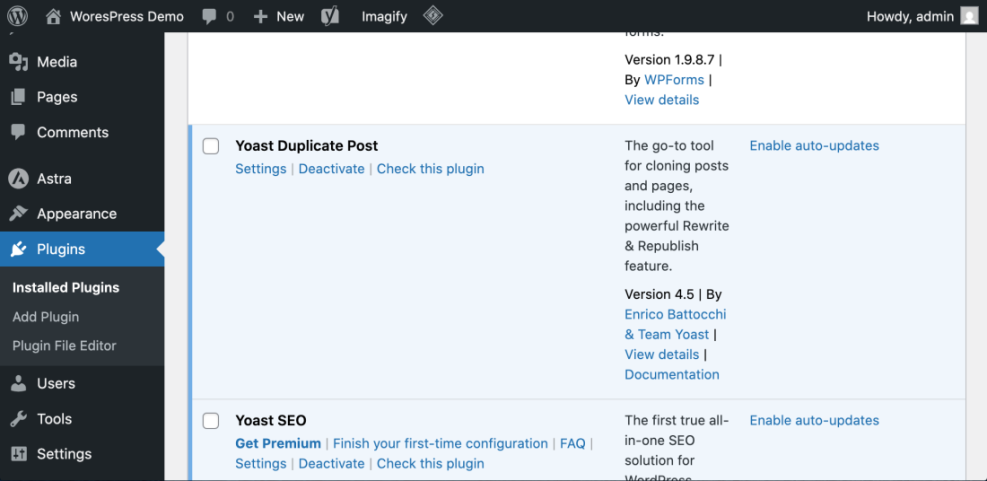
To verify, go to Posts » All Posts and hover over a post title. You should see a new Duplicate, Clone, or Copy to new draft link under the title.
Step 2: Duplicate a Post in WordPress from the Posts Screen
Once the plugin is active, you can duplicate any post directly from the main Posts list. This is ideal when you want to reuse a layout or structure across multiple articles.
- From the dashboard, go to Posts » All Posts.
- Hover your mouse over the post you want to reuse as a template.
- Click the new Duplicate, Clone, or Copy to new draft link that appears under the title.
- Wait while WordPress creates a new draft with a similar title such as “Post Title (Copy)”.
- Click the new draft’s title to open it in the editor.
Click the Duplicate or Copy to new draft link to create your clone automatically. Each time you need a similar article, just use the Duplicate link to duplicate post content instead of starting from scratch.
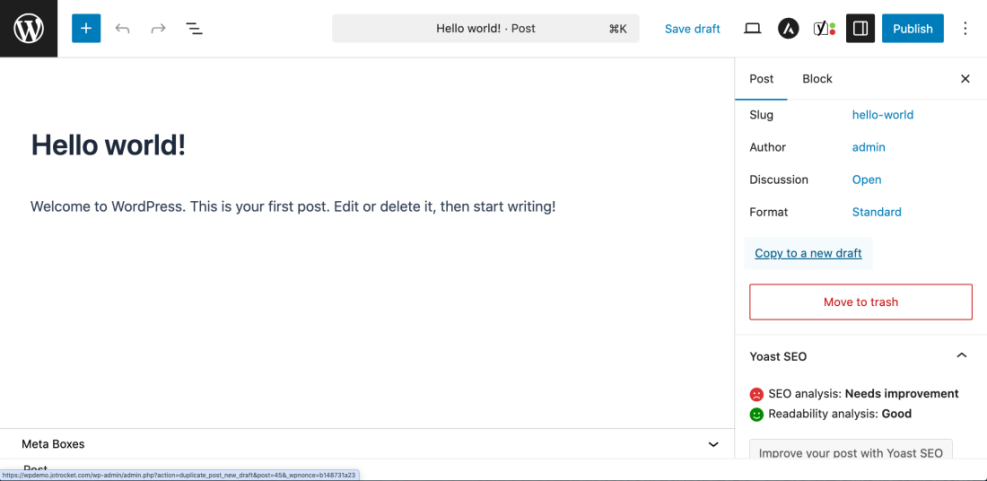
In the editor, confirm that your content, images, categories, and tags are copied correctly. Update the title, slug, and any text or images before clicking Publish.
Step 3: Duplicate a Post Without a Plugin
If you cannot install plugins, you can still duplicate post content manually by copying from one post to another. This works in both the Block Editor and Classic Editor.
- Go to Posts » All Posts and click the post you want to copy.
- In the Block Editor, click the three-dot Options menu in the top right and select Copy all blocks. In the Classic Editor, press Ctrl + A (Windows) or Cmd + A (Mac), then Ctrl + C or Cmd + C.
- Click Add New at the top of the Posts screen to create a new post.
- Click inside the content area and paste using Ctrl + V or Cmd + V.
- On the right side, set the same Categories and Tags as the original post if needed.
Use the Copy all blocks option in the Block Editor for a precise copy of your layout.
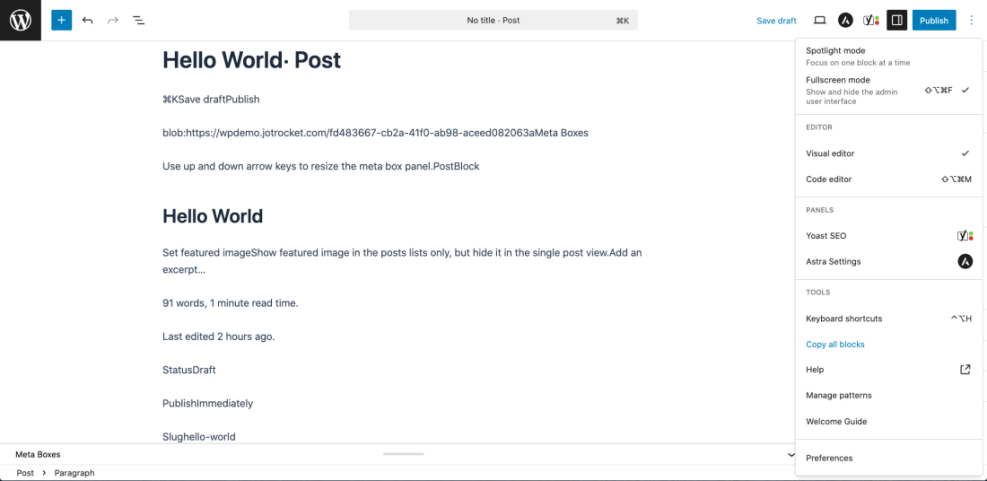
Verify that headings, images, and formatting match the original post. Then change the Post Title and Permalink before you click Publish. For more help writing your first articles, see How to create a blog on WordPress.
Step 4: Add a Custom Duplicate Post Link with Code
Developers or power users may prefer a lightweight code solution instead of another plugin. You can add a custom Duplicate link to the Posts list by placing a small function in your theme’s functions.php or a site-specific plugin. This is useful if you want to duplicate post content programmatically while keeping your site lean.
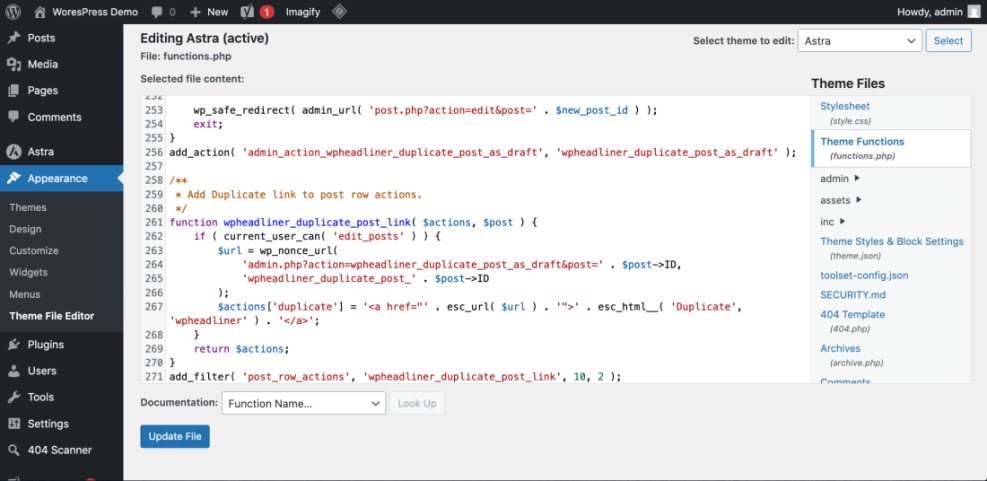
- In the admin menu, go to Appearance » Theme File Editor (or open your site-specific plugin file via SFTP).
- Select functions.php from the file list on the right.
- Scroll to the bottom of the file and paste the snippet below.
- Click Update File to save your changes.
- Return to Posts » All Posts and hover over a post to see the new Duplicate link.
Paste this code at the bottom of your functions.php file or inside a site-specific plugin.
/**
 * Duplicate a post as draft from the Posts screen.
 */
function wpheadliner_duplicate_post_as_draft() {
    if ( ! ( isset( $_GET['post'] ) || isset( $_POST['post'] ) ) ) {
        wp_die( 'No post to duplicate has been supplied!' );
    }

    $post_id = isset( $_GET['post'] ) ? absint( $_GET['post'] ) : absint( $_POST['post'] );
    $post    = get_post( $post_id );

    if ( ! $post ) {
        wp_die( 'Post not found.' );
    }

    $new_post_args = array(
        'post_title'   => $post->post_title . ' (Copy)',
        'post_content' => $post->post_content,
        'post_status'  => 'draft',
        'post_type'    => $post->post_type,
        'post_author'  => get_current_user_id(),
    );

    $new_post_id = wp_insert_post( $new_post_args );

    // Copy taxonomies.
    $taxonomies = get_object_taxonomies( $post->post_type );
    foreach ( $taxonomies as $taxonomy ) {
        $terms = wp_get_object_terms( $post_id, $taxonomy, array( 'fields' => 'slugs' ) );
        wp_set_object_terms( $new_post_id, $terms, $taxonomy, false );
    }

    // Copy custom fields.
    $post_meta = get_post_meta( $post_id );
    foreach ( $post_meta as $meta_key => $values ) {
        if ( '_wp_old_slug' === $meta_key ) {
            continue;
        }
        foreach ( $values as $value ) {
            add_post_meta( $new_post_id, $meta_key, maybe_unserialize( $value ) );
        }
    }

    wp_safe_redirect( admin_url( 'post.php?action=edit&post=' . $new_post_id ) );
    exit;
}
add_action( 'admin_action_wpheadliner_duplicate_post_as_draft', 'wpheadliner_duplicate_post_as_draft' );

/**
 * Add Duplicate link to post row actions.
 */
function wpheadliner_duplicate_post_link( $actions, $post ) {
    if ( current_user_can( 'edit_posts' ) ) {
        $url = wp_nonce_url(
            'admin.php?action=wpheadliner_duplicate_post_as_draft&post=' . $post->ID,
            'wpheadliner_duplicate_post_' . $post->ID
        );
        $actions['duplicate'] = '<a href="' . esc_url( $url ) . '">' . esc_html__( 'Duplicate', 'wpheadliner' ) . '</a>';
    }
    return $actions;
}
add_filter( 'post_row_actions', 'wpheadliner_duplicate_post_link', 10, 2 );
After saving, verify that the Duplicate link appears in the Posts list and that clicking it creates a new draft copy of your post.
Quick Comparison of Post Duplication Methods
Here is a quick comparison of different ways you can duplicate or reuse post layouts in WordPress. Use it to choose the method that best fits your workflow and permissions.
| Method | Where You Use It | Main Purpose |
|---|---|---|
| Duplicate Post With Plugin | WordPress dashboard » Posts » All Posts | Safely duplicate an entire WordPress post including layout, featured image, taxonomies, and most settings in one click. |
| Copy Content Without Plugin | Post editor » Options menu » Copy all blocks/content | Reuse the block layout of a post while creating a fresh draft manually, without installing any plugin. |
| Duplicate Post Builder Layout | Page/post builder editor » Duplicate or Save as template | Clone a post layout built with a visual builder and reuse it as a template for future blog posts or landing pages. |
| Clone Post on Staging Site | Staging dashboard » Posts » All Posts | Experiment with new layouts and cloned posts in a safe staging environment before changing the live site. |
| Export and Import Layouts | Theme or builder tools » Export / Import | Move post layouts between sites that use the same theme or builder by exporting and importing designs. |
Step 5: Update SEO and Content After Duplicating
Duplicating a post is only the first step. To avoid thin or duplicate content issues, you must customize each cloned post before publishing it.
- Open the duplicated post in the editor.
- Change the Post Title so it is unique and descriptive.
- Edit the URL Slug under the title so it matches the new topic.
- Update the meta title and meta description in your SEO plugin.
- Rewrite key sections, headings, and images so the content provides fresh value.
- Review Categories and Tags so they still fit the new version.
Use your SEO plugin’s preview panel to ensure the new post has its own keywords and description.
For more on optimizing each article, read Beginner checklist optimizing WordPress blog posts and Is WordPress good for seo.
Conclusion You Are Ready to Go
You now know several ways to duplicate post layouts in WordPress. You can use a user-friendly plugin, manually copy content when plugins are not allowed, or add a lightweight code snippet that adds a Duplicate link directly to your Posts list.
By combining duplication with solid SEO and content edits, you save time while keeping every post unique and useful. Use this process as part of your regular publishing workflow so you can create consistent, high quality content faster.
Further Reading
- How to create a blog on WordPress
- Beginner checklist optimizing WordPress blog posts
- Beginner Guide to WordPress Backup and Restore Strategies
- How to use ai in WordPress
- Categories tags beginner guide
Frequently Asked Questions
Can I duplicate posts in WordPress without a plugin
Why is my Duplicate link not showing in the Posts list
Does duplicating posts hurt my SEO
Can I duplicate custom post types the same way
What happens to images when I duplicate a post
Should I duplicate pages or posts for landing pages