WordPress Jetpack is a toolkit of security, performance, and growth features built by Automattic, the company behind WordPress.com. Instead of installing many separate plugins, Jetpack lets you turn on backup, spam protection, image CDN, and traffic tools from one place.
In this beginner friendly guide, you will learn what WordPress Jetpack is, what problems it solves, the key features it offers, and when it makes sense to use it on your site. By the end, you will know how Jetpack works, how to install it, and which modules are worth enabling for your type of WordPress website.
What You Need Before Using WordPress Jetpack
- A working self hosted WordPress.org site or a WordPress.com site with plugin support.
- Beginner guide to WordPress speed optimization and Core Web Vitals.
- Access to your WordPress admin dashboard with an Administrator account.
- A free or paid WordPress.com account to connect Jetpack and unlock features.
- A recent site backup from your host or backup plugin before installing any new plugin.
- Basic familiarity with the WordPress dashboard, especially Plugins and Settings.
Step 1: Understand What WordPress Jetpack Actually Is
Jetpack used to be a single all in one plugin that bundled many features together. Today, it is better to think of Jetpack as a family of connected plugins and cloud services that you can use together or separately.
- Jetpack the main plugin connects your site to WordPress.com and provides a dashboard for turning features on and off.
- Individual Jetpack plugins such as Jetpack Backup, Jetpack Protect, or Jetpack Boost let you install only the tools you need.
- Jetpack uses WordPress.com servers for heavy tasks like backups, image CDN, and search, which reduces load on your own hosting.
- Free and paid plans exist: core features are free, while advanced backups, malware scanning, and search are paid.
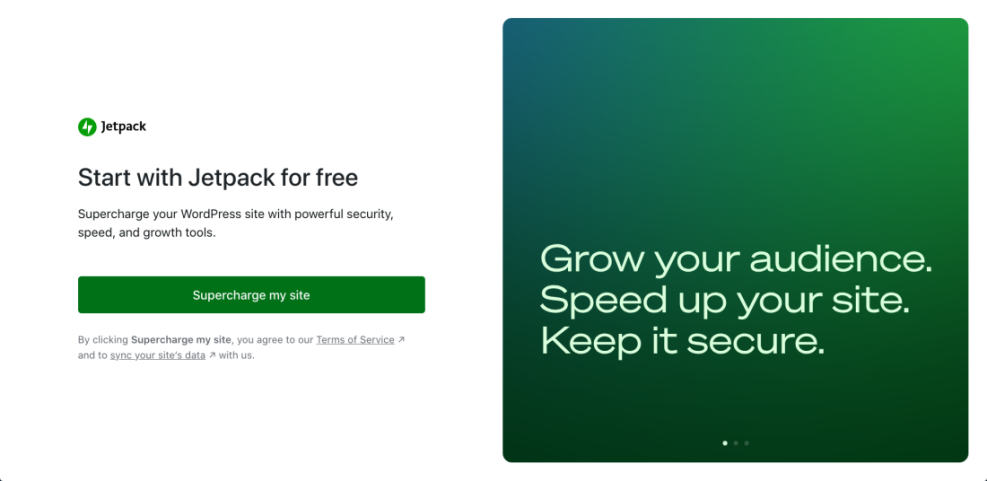
Verify success at this step when you can explain Jetpack in one sentence, for example: “Jetpack is a bundle of security, performance, and growth tools that connect my WordPress site to WordPress.com’s cloud services.”
Quick Summary of Jetpack’s Main Areas
Use this table to quickly see what Jetpack focuses on and when each area helps your site.
| Jetpack Area | What It Covers | When It Helps Most |
|---|---|---|
| Security | Backups, restore, malware scanning, spam protection, brute force protection, activity logs. | Business and content sites that cannot afford to lose data or be offline after a hack. |
| Performance | Image and static file CDN, lazy loading, performance tweaks, Core Web Vitals helpers. | Media heavy blogs or sites with global visitors that need faster page loads. |
| Growth & Engagement | Site stats, related posts, social sharing, auto posting to social, subscriptions and newsletters. | Bloggers and marketers who want simple, built in tools to understand and grow their audience. |
| Search & Discovery | Jetpack Search, improved on site search results powered by WordPress.com’s servers. | Sites with many posts or products where visitors rely on search to find content quickly. |
Step 2: Install and Activate WordPress Jetpack
Installing Jetpack is similar to installing any other plugin, with one extra step to connect your site to a WordPress.com account.
- In your WordPress dashboard, go to Plugins » Add New.
- Use the search bar to look for Jetpack and locate the official plugin by Automattic.
- Click Install Now, then click Activate when installation completes.
- After activation, click the Set up Jetpack or Connect button that appears at the top of your dashboard.
- Sign in with your WordPress.com account or create a new free account if you do not have one.
- Follow the on screen prompts to approve the connection between your site and WordPress.com.
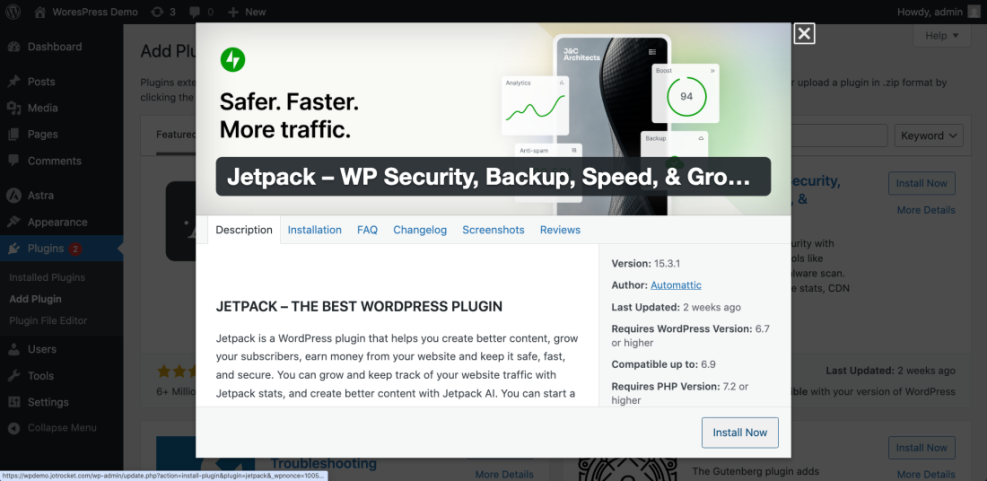
Verify success when you see a new Jetpack menu in your dashboard and the plugin shows as connected to WordPress.com.
Step 3: Learn the Core Jetpack Features and Modules
Once Jetpack is connected, you can pick and choose which features to enable. The exact options you see depend on your plan and which Jetpack plugins you installed.
Security Features
- Backups – Automatic backups of your site files and database stored on WordPress.com, with one click restore.
- Malware scanning – Checks your site for malicious code and common security issues.
- Brute force protection – Blocks repeated login attempts from suspicious IP addresses.
- Spam protection – Filters spam comments and form submissions.
- Activity log – Shows a timeline of changes on your site such as plugin updates and post edits.
Performance Features
- Image CDN – Serves images and sometimes static files from Jetpack’s content delivery network.
- Lazy loading – Loads images only when they are about to appear on screen, improving speed.
- Jetpack Boost – Optional plugin that adds Core Web Vitals optimizations and performance tweaks.
Growth and Engagement Features
- Site Stats – Simple analytics showing views, visitors, and popular content.
- Related Posts – Displays links to related content at the end of posts to keep readers on your site.
- Social Sharing & Auto Post – Add share buttons and automatically publish new posts to social networks.
- Subscriptions and Newsletters – Let visitors subscribe by email and receive new posts automatically.
Step 4: Configure Jetpack for Your Type of WordPress Site
Jetpack works best when you only enable the features you actually need. Turning everything on can feel heavy and may overlap with other plugins.
- Open the Jetpack menu in your dashboard and visit the main settings screen.
- Go through each tab such as Security, Performance, and Traffic.
- Enable features that match your goals, for example backups and brute force protection for security, or image CDN for performance.
- Turn off features you are already handling with other plugins to avoid duplication, such as contact forms or related posts.
- Save your changes and test your site on the front end to make sure everything still works as expected.
Example Jetpack Setups
| Site Type | Recommended Jetpack Features | Notes |
|---|---|---|
| Personal Blog | Backups, brute force protection, image CDN, lazy loading, site stats, social sharing, subscriptions. | Keep things simple; use Jetpack stats instead of a heavy analytics plugin if you prefer. |
| Business Site | Backups, malware scanning, brute force protection, activity log, performance tools. | Focus on security and reliability; consider a paid backup plan for peace of mind. |
| WooCommerce Store | Realtime backups, security scanning, performance tools, search enhancements. | Backups and uptime are critical; test search and related posts with your product pages. |
Step 5: Understand the Pros and Cons of Using Jetpack
Jetpack is powerful, but it is not the right fit for every WordPress site. Reviewing the trade offs helps you decide confidently.
Advantages of Jetpack
- All in one convenience – Many features in one place, with a consistent interface and support.
- Cloud powered – Heavy tasks like backups and search run on WordPress.com servers, not your own hosting.
- Good security baseline – Brute force protection, activity logs, and spam filtering improve your site’s safety.
- Beginner friendly tools – Simple stats, related posts, and sharing buttons are easy for non technical users.
Limitations and Considerations
- Can feel heavy if you enable everything on a small, low resource host.
- Overlaps with other plugins such as dedicated backup, stats, or social sharing tools.
- Some features require paid plans, especially advanced backups, search, and malware scanning.
Verify success at this step when you can explain why you chose Jetpack instead of, or alongside, other individual plugins for backups, security, and performance.
Step 6: Decide If Jetpack Is Right for Your WordPress Site
Not every site needs Jetpack, and that is okay. The key is to match your tools to your size, budget, and technical comfort level.
- Use Jetpack if you want a trusted, maintained bundle of features with minimal setup and you like the idea of cloud backups and security from Automattic.
- Use individual plugins instead if you prefer more granular control, already pay for a specific backup or security service, or want the lightest possible stack.
- Mix approaches by using only certain Jetpack plugins (for example Jetpack Backup or Jetpack Boost) alongside other tools.
Frequently Asked Questions About WordPress Jetpack
Is Jetpack free to use on WordPress
Does Jetpack replace my SEO plugin
Will Jetpack slow down my WordPress site
Do I need a WordPress.com account to use Jetpack
Can I uninstall Jetpack later without breaking my site