What is a WordPress site? If you are new to building websites, you might be wondering why so many people use WordPress and what makes it different from other platforms. WordPress powers a large part of the web, from simple blogs to full business websites and online stores.
In this beginner friendly guide, you will learn what a WordPress powered site is, how it works behind the scenes, the difference between WordPress.com and WordPress.org, and what you need to get started. By the end, you will know whether this platform is right for you and how to begin planning your own website.
Step 1: Understand What a WordPress Site Is
A WordPress site is a website built using the WordPress content management system (CMS). Instead of writing code by hand, you log into a dashboard, add pages and posts, upload images, and choose a design. WordPress then turns your content into web pages that visitors can see.
- WordPress is software that runs on a web server and manages your website content.
- A WordPress site is the public facing website that visitors see when they go to your domain.
- Behind every installation is a database (for content and settings) and files (for themes, plugins, and media).
- You control everything through a secure admin dashboard where you log in with a username and password.
In simple terms, it’s a site managed by WordPress, using themes and plugins instead of custom code for every change.
Step 2: How a WordPress Site Works Behind the Scenes
To really understand this type of site, it helps to see the main parts that work together every time a visitor loads a page.
- WordPress core – The main WordPress software that handles logins, posts, pages, menus, and basic features.
- Theme – Controls how your site looks: layout, fonts, colors, and templates for pages and posts.
- Plugins – Add features such as contact forms, SEO tools, sliders, online stores, and more.
- Database – Stores your content (posts, pages, comments), settings, and user accounts.
- Media library – Stores images, PDFs, and other files you upload through the dashboard.
Basic Request Flow
- A visitor types your domain (for example example.com) into their browser.
- Your web server runs WordPress and checks which page or post should be shown.
- WordPress loads the content from the database and passes it through your theme.
- The theme outputs HTML, CSS, and JavaScript that the visitor’s browser can display.
Step 3: What Kinds of Sites You Can Build with WordPress
Once you understand the basics, the next question is what you can actually do with this CMS. The answer: a lot.
- Blogs and personal sites – Share articles, photos, and updates on any topic.
- Business websites – Create pages for services, portfolios, testimonials, and contact forms.
- Online stores (eCommerce) – Use plugins like WooCommerce to sell products and accept payments.
- Membership and community sites – Restrict content to members, sell subscriptions, or run forums.
- Online courses and learning sites – Use LMS plugins to deliver lessons, quizzes, and certificates.
- Landing pages and marketing funnels – Build focused pages for ads, email campaigns, and leads.
Quick Comparison: Static Site vs WordPress Site
| Type | How You Edit It | Best For |
|---|---|---|
| Static HTML Site | Edit code files by hand or with a developer. | Very small sites that almost never change and have a developer on call. |
| WordPress Site | Edit content from a browser using a dashboard and visual editor. | Blogs, business sites, and stores that need regular updates without coding. |
Step 4: WordPress.com vs WordPress.org
When people research WordPress, they quickly find two flavors: WordPress.com and WordPress.org. They are related but not the same.
WordPress.org (Self Hosted)
- You download the free WordPress software from WordPress.org.
- You buy your own hosting and domain name.
- You can install any theme or plugin and fully control your site.
- Best for businesses, serious blogs, and stores that want maximum flexibility.
WordPress.com (Hosted Platform)
- Your site runs on WordPress.com’s servers, no separate hosting needed.
- You can start with a free plan and upgrade for more features.
- Advanced themes, plugins, and customizations may require paid plans.
- Best for beginners who want convenience and are okay with some limits.
Quick Overview Table
| Option | Who Manages Hosting | Custom Themes & Plugins | Best For |
|---|---|---|---|
| WordPress.org | You (your web host) | Yes, full access | Full control, business sites, serious projects |
| WordPress.com | WordPress.com | Limited, depends on plan | Simple blogs, hobby sites, low maintenance |
Step 5: What You Need to Run a WordPress Site
To turn the idea of building on WordPress into a real website, you need a few basic pieces in place.
- Domain name – The address people type to find your site (for example mybrand.com).
- Web hosting – A server where your WordPress files and database live.
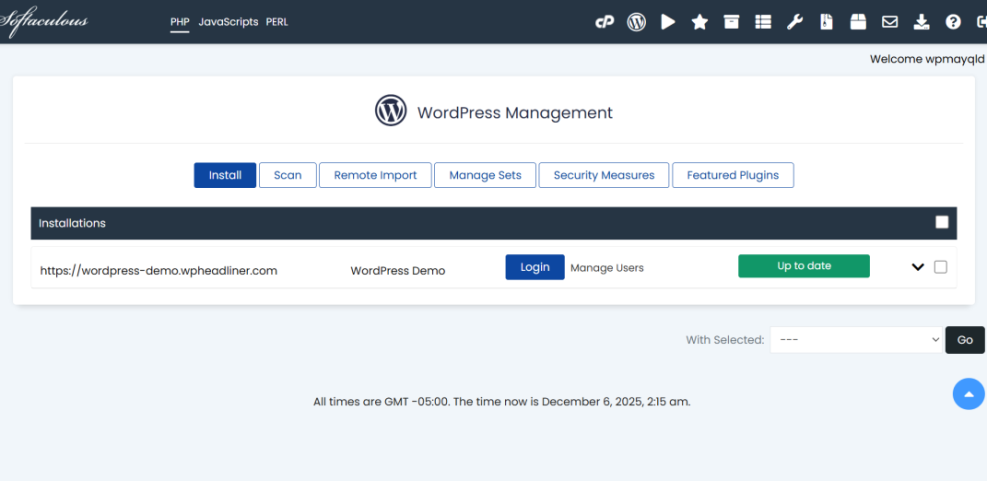
- WordPress installation – Either done automatically by your host or installed manually.
- Theme – The design layer that controls the look of your site.
- Essential plugins – For SEO, security, backups, contact forms, and performance.
Typical Setup Flow
- Register a domain name with a registrar or your hosting company.
- Purchase a hosting plan that supports WordPress.
- Use your host’s one click installer or manual install to set up WordPress.
- Log into yourdomain.com/wp-admin with your new admin account.
- Choose a theme, install a few plugins, and start creating pages and posts.
Step 6: Pros and Cons of Using WordPress
Seeing the strengths and tradeoffs will help you decide whether this platform is the right foundation for your site.
Advantages
- Flexible – You can grow from a small blog to a full online store without changing platforms.
- Large ecosystem – Thousands of themes and plugins let you customize almost anything.
- Control – On self hosted WordPress.org, you fully own your site and data.
- SEO friendly – Clean URLs, structured content, and SEO plugins help you rank in search engines.
Considerations
- Needs maintenance – You must update WordPress, themes, and plugins regularly.
- Security – You need basic security practices like backups, strong passwords, and reputable plugins.
- Learning curve – There is more to learn than some simple website builders, especially at the start.
Step 7: What to Do After You Understand WordPress Sites
Once you are clear on how this CMS works, the next step is planning and building your own presence online.
- Define your goal – Blog, business site, portfolio, store, or something else.
- Choose WordPress.com or WordPress.org based on how much control you want and your budget.
- Pick a simple theme that matches your goal and is mobile friendly.
- Install essential plugins only: SEO, security, backups, and a contact form.
- Create core pages like Home, About, Services, and Contact, then add blog posts if needed.
When you can explain to someone else what a WordPress site is and how it works at a basic level, you are ready to start building confidently.
Further Reading on WordPress for Beginners
- Beginner guide to installing WordPress on shared hosting.
- How to choose a WordPress theme for your first site.
- Checklist of essential plugins for a new WordPress site.
- Basic WordPress security and backup checklist.
Frequently Asked Questions About WordPress Sites
Is WordPress only for blogs
Do I need to know coding to run a WordPress site
How much does it cost to have a WordPress site
Is a WordPress site good for SEO
Can I move my WordPress site to another host later