When you learn how to check website traffic on WordPress, you stop guessing about what works and start using real data. Traffic reports show which posts people read, how they find you, and what devices they use, so you can publish more of the content that actually gets results.
In this guide you will review simple built in stats, set up Google Analytics, connect Google Search Console, and learn how to read basic traffic reports. By the end, you will know exactly how to check website traffic on WordPress and turn those numbers into better decisions for your blog or business.
What You Need Before You Check Website Traffic on WordPress
- Administrator access to your WordPress dashboard.
- Login to the email account you use for your Google services.
- Optional: a Google Analytics 4 property (you can create this during the steps).
- Optional: a Google Search Console property for your site.
- Optional: a staging site if you prefer to test new plugins before using them live.
Step 1: Decide What You Want to Measure
Before you check website traffic on WordPress, it helps to know what you actually care about. Different tools highlight different numbers, so having simple goals makes your reports easier to read.
- Write down your top 2–3 questions, such as:
- How many people visit my site each week?
- Which blog posts get the most views?
- Do visitors find me more from Google, social, or email?
- Are people visiting mostly on desktop or mobile?
- Choose whether you prefer:
- Simple stats inside the WordPress dashboard, or
- Deeper analytics with external tools like Google Analytics.
- Decide who needs access to the data (only you, or a small team).
This quick planning step prevents you from getting overwhelmed by charts and lets you focus on the specific traffic numbers that support your decisions.
Step 2: Use Built In or Jetpack Stats for Quick WordPress Traffic Numbers
If you use WordPress.com or Jetpack on a self hosted site, you may already have basic stats without setting up anything else. This is the fastest way to check website traffic on WordPress at a glance.
Check Website Traffic on WordPress.com
- Log in at WordPress.com and select your site.
- In the left menu, click Stats or Site Stats.
- Choose a timeframe (Day, Week, Month, Year).
- Review sections like:
- Views & Visitors – how many people visited.
- Top Posts & Pages – which content is most popular.
- Referrers – where visitors came from (search, social, links).
Check Traffic with Jetpack on Self Hosted WordPress
- From the dashboard, go to Plugins » Installed Plugins and confirm Jetpack is active, or add it via Add New.
- Connect Jetpack to your WordPress.com account if prompted.
- Once connected, go to Jetpack » Site Stats or look for a Stats widget on your dashboard.
- Review daily and monthly views, top posts, referrers, and search terms (if available).
Jetpack stats are great when you want a quick look without opening separate tools, but they are more limited than full analytics platforms.
Step 3: Set Up Google Analytics to Track WordPress Traffic
Google Analytics 4 (GA4) is the most common way to check website traffic on WordPress in detail. It shows sessions, pages, countries, devices, and more.
Create a Google Analytics 4 Property
- Sign in to Google Analytics with your Google account.
- Click the Admin gear icon and choose Create property.
- Enter a descriptive property name (for example, “YourSite GA4”).
- Set your reporting time zone and currency, then continue.
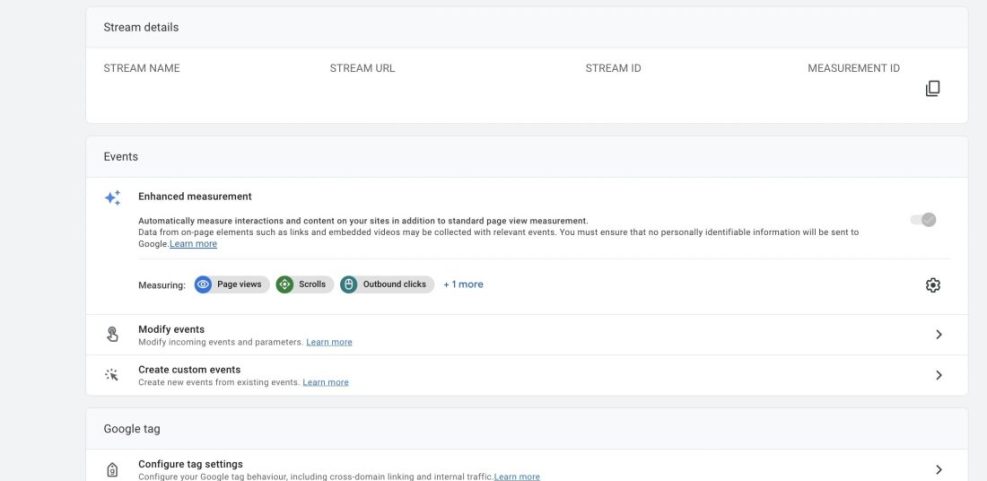
- Complete the business details and create a Web data stream for your domain.
Connect Google Analytics to WordPress with a Plugin
Instead of pasting tracking code manually, it is easier and safer to use a plugin that inserts the GA4 tag for you.
- From the WordPress dashboard, go to Plugins » Add New Plugin.
- Search for a trusted analytics integration plugin (for example, Google’s own Site Kit plugin or another well reviewed GA plugin).
- Click Install Now, then Activate.
- Follow the plugin’s setup wizard to:
- Connect your Google account.
- Select the correct GA4 property and data stream.
- Confirm tracking is enabled on all public pages.
After setup, Google Analytics will quietly collect data in the background. It usually takes a few hours for reports to start filling in.
Step 4: Check Website Traffic in Google Analytics
Once tracking is active, you can log in to Google Analytics whenever you want to check website traffic on WordPress in more depth.
- Open Google Analytics and select your GA4 property.
- In the left menu, click Reports.
- Under Reports snapshot, review:
- Users – how many people visited in the selected date range.
- Sessions – total visits (one user can have multiple sessions).
- Average engagement time – how long people stay and interact.
- Use the date picker in the top right to change the time range (last 7, 28, or 90 days, etc.).
Find Your Top Pages and Traffic Sources
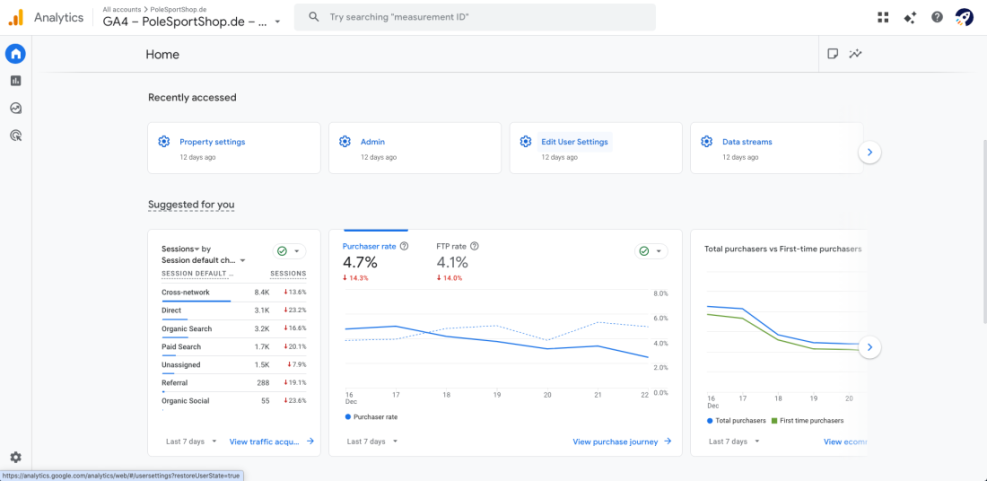
- Open Reports » Engagement » Pages and screens to see which URLs get the most views and engagement.
- Open Reports » Acquisition » Traffic acquisition to see where visitors come from:
- Organic Search – search engines like Google.
- Direct – typed URL, bookmarks, or untracked sources.
- Referral – links from other websites.
- Organic Social – social networks.
- Use this data to decide which content to promote or expand.
Checking these two reports weekly gives you a solid feel for your overall traffic trends without getting lost in advanced analytics dashboards.
Step 5: View Key Traffic Stats Inside the WordPress Dashboard
If you do not want to log into Google Analytics every time, you can install a plugin that surfaces the most important numbers directly inside WordPress.
- Install a reputable analytics plugin that integrates with GA4 (for example, Google’s official Site Kit).
- Connect it to your Google account and select your site’s GA4 property when prompted.
- After setup, go to Site Kit (or the plugin’s menu item) in your dashboard.
- Review the summary panel, which usually shows:
- Total visitors in the last 28 days.
- Top pages and posts by views.
- Main traffic sources (search, direct, social).
This makes it much easier to check website traffic on WordPress quickly each time you log in, while still having full reports available in Google Analytics when needed.
Step 6: Use Google Search Console to See Search Traffic
Google Analytics shows what visitors do on your site, but Google Search Console shows how your site appears in search results. Both are important when you want to understand and grow WordPress traffic.
- Go to Google Search Console and select your verified property.
- In the left menu, click Performance or Search results.
- Select a date range (for example, last 3 months).
- Review:
- Total clicks – visits from Google search.
- Total impressions – times your pages appeared in search.
- Average position – average ranking across queries.
- Top queries – what people actually searched for.
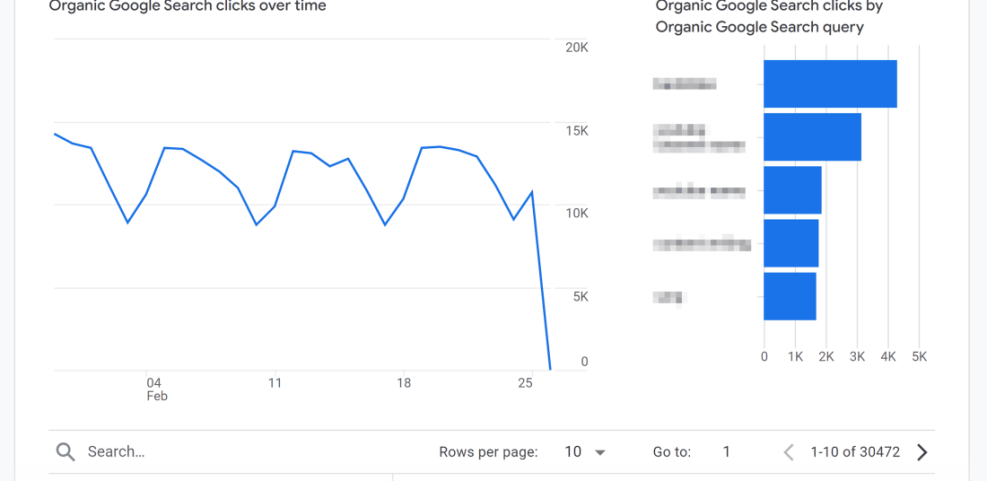
Combining Search Console and Analytics helps you see which keywords bring people to your posts and whether those visitors stay and read or leave quickly.
Step 7: Understand the Core Traffic Metrics That Matter
Once you know how to check website traffic on WordPress with these tools, the next step is to understand what the main metrics actually mean.
Key Numbers in Most Traffic Reports
| Metric | What It Means | Why It Matters |
|---|---|---|
| Users | Unique people who visited in a time period. | Shows overall audience size and growth. |
| Sessions | Visits to your site (one user can have several). | Helps you see how often people come back. |
| Page views | Total pages loaded across all sessions. | Useful for ad revenue and content popularity. |
| Average engagement time | How long visitors stay active on your site. | Hints at whether people are actually reading. |
| Traffic source | Where visitors came from (search, social, etc.). | Shows which channels are worth more effort. |
| Top pages | Posts and pages with the most visits. | Helps you decide what topics to expand or promote. |
Instead of staring at every possible chart, pick a simple habit like checking users, top pages, and top traffic sources once per week. That alone will give you more clarity than most site owners ever get.
Step 8: Keep Your Traffic Data Clean and Private
To make good decisions, you want your traffic reports to reflect real visitors, not just yourself or bots. A few simple hygiene steps help keep your data accurate.
- Exclude your own visits:
- In Google Analytics, use filters or built in options to ignore your own IP, or
- Use a browser extension or setting provided by your analytics plugin.
- Respect privacy laws:
- Add a clear privacy policy explaining what tools you use.
- Use a cookie banner if required in your region.
- Respect consent before enabling non essential tracking where legally needed.
- Limit plugin overlap: avoid installing multiple analytics plugins that track the same thing, which can slow your site or duplicate data.
Step 9: Review Traffic Regularly and Take Action
Checking numbers is useful, but what really matters is what you do with them. Turn your WordPress traffic reports into a simple habit.
- Once a week, note:
- Total users and sessions.
- Top 3–5 pages.
- Top 3 traffic sources.
- Ask:
- Which topics or posts are consistently popular?
- Is organic search traffic slowly growing, flat, or falling?
- Do social or email campaigns noticeably spike traffic?
- Based on the answers:
- Update and improve your best performing posts.
- Create new content similar to proven winners.
- Invest more time in channels that send engaged visitors.
Over a few months, this habit will show you clear patterns and help you make smarter decisions than guessing or chasing random trends.
Conclusion You Can Check Website Traffic on WordPress with Confidence
Now you know how to check website traffic on WordPress using several approaches: quick stats from WordPress.com or Jetpack, detailed reporting from Google Analytics, search data from Search Console, and simple dashboard widgets that summarize everything in one place.
Start with one method, get comfortable, and then layer on the others as needed. With clear goals, clean tracking, and a regular review habit, your traffic reports become a practical tool to grow your audience instead of a confusing wall of charts and numbers.
Further Reading
- WordPress seo beginner guide
- How to make an ecommerce website with WordPress
- WordPress migration checklist for blogs
- Internal linking WordPress beginners
- WordPress seo complete beginners guide
Frequently Asked Questions About Checking WordPress Traffic
Do I need Google Analytics to check website traffic on WordPress
Will checking my own site inflate my traffic numbers
How often should I check website traffic on WordPress
What is a good number of visitors for a new WordPress site
Why do my WordPress stats and Google Analytics numbers not match
Can I see which keywords people use to find my WordPress site