How Does WordPress Work
A Beginner-Friendly Look Inside How WordPress Actually Runs Your Website

You might already be clicking around the WordPress dashboard, but still feel like the system is a “black box.” Understanding how WordPress works under the hood makes it easier to troubleshoot problems, choose better hosting, and avoid breaking your site with the wrong changes.
In this guide, we’ll walk through what happens from the moment someone types your URL into a browser to the instant your page loads. You’ll see how WordPress core, your theme, plugins, the database, and your hosting server all fit together and what the admin dashboard really does when you click “Publish” or “Update.”
If you first want a simple definition, you can quickly review what WordPress actually is and then come back here for the deeper, behind-the-scenes explanation.
Step 1: Understand the Pieces of How WordPress Work
Before you can understand how WordPress works, you need to know the main parts that make up a WordPress site. WordPress is a content management system (CMS) built in PHP that runs on a web server and stores data in a MySQL or MariaDB database.
At a high level,How WordPress Work involves these building blocks:
- Your visitor’s browser: Where people type your URL and view your pages.
- Web server: The computer (usually your hosting provider) where WordPress files live.
- WordPress core: The main PHP application that provides the CMS features.
- Theme: Controls the layout and visual design of your site.
- Plugins: Add features like contact forms, SEO tools, and online stores.
- Database: Stores posts, pages, settings, users, and more.
- Media files: Images, PDFs, and other files stored on the server’s disk.
Checkpoint: You should now be able to list the main pieces involved in a WordPress site and roughly what each one does.
Step 2: See How WordPress Core, Themes, and Plugins Work Together
WordPress core is the engine of the system. It provides the admin dashboard, user management, post types, settings, and the template system. On its own, core can show simple pages, but themes and plugins are what make each site unique.
Here’s how they interact when a page loads:
- WordPress core receives the incoming request and figures out what should be shown (a post, a page, a category, the homepage, etc.).
- Your theme decides how it should look using PHP template files, HTML, and CSS.
- Plugins hook into various points in this process to add or change functionality (for example, adding SEO metadata or a contact form).
Under the hood, WordPress uses an event system called “hooks” (actions and filters). Themes and plugins attach their own code to these hooks so they can modify output without editing core files directly.
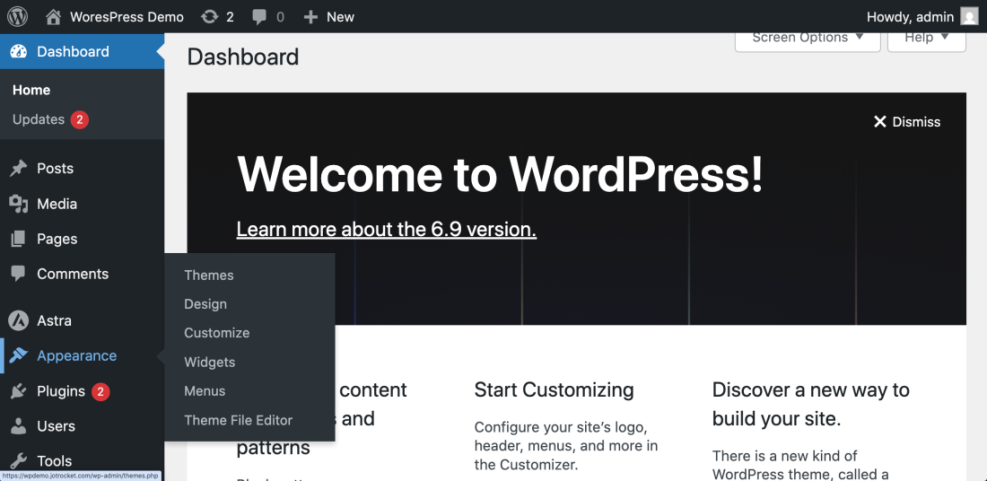
Checkpoint: You should now understand that WordPress core handles logic, the theme handles design, and plugins add extra features.
Step 3: Learn How WordPress Stores Content in the Database
WordPress is a dynamic CMS, which means your pages are not stored as fixed HTML files. Instead, your content is stored in a database and turned into HTML when someone visits your site.
Here’s what goes into the database vs. what stays as files:
- In the database: Posts, pages, menus, users, comments, settings, plugin options, and most content.
- In files: WordPress core PHP files, theme files, plugin files, and media uploads (images, documents, etc.).
If you have access to WP-CLI (the WordPress command line tool) on your hosting, you can see this dynamic content in action. Run this command in your site’s root folder via SSH/terminal:
wp post list --post_type=page --fields=ID,post_title,post_status --format=tableThis command queries the same database WordPress uses and lists your pages, proving that the content lives in the database, not in standalone HTML files.
Checkpoint: You now know that WordPress stores your text content and settings in the database, and only builds the page HTML when needed.
Troubleshooting: If new content does not appear on the frontend, it’s usually because of caching, an aggressive plugin, or a template that is not pulling the correct post data.
Step 4: Follow What Happens When Someone Visits Your Site
Now let’s walk through a typical page view from the visitor’s perspective all the way to WordPress generating the page.
- A visitor types
https://yourdomain.com/into their browser. - DNS resolves the domain name to the IP address of your hosting server.
- The web server (Apache, Nginx, or similar) receives the HTTP request and routes it to the WordPress installation.
- WordPress core loads its configuration, including database connection details from
wp-config.php. - WordPress determines which content should be shown (homepage, blog post, page, etc.) using its query system.
- The theme’s template files, plus any active plugins, run and output HTML, CSS, and sometimes JavaScript.
- The server sends this final HTML response back to the visitor’s browser.
- The browser renders the page, downloads assets (CSS, JS, images), and shows the finished layout.
Checkpoint: You should now be able to describe, in plain language, the journey from a typed URL to a fully rendered WordPress page.
Step 5: Explore How the WordPress Admin Dashboard Works
When you log in to /wp-admin/, you’re using a special section of WordPress designed for site owners and editors. This area is protected by usernames, passwords, and user roles (Administrator, Editor, Author, etc.).
Every time you create or edit a post in the Block Editor or Classic Editor, WordPress:
- Loads your existing content from the database into the editor interface.
- Lets you change text, images, and settings from the admin screens.
- Saves your changes back into the database when you hit Update or Publish.
Checkpoint: You should understand that the admin dashboard is just a secure interface for reading from and writing to the WordPress database in a user-friendly way.
Step 6: Extend WordPress Safely with Themes and Plugins
Because WordPress is modular, you can extend it with themes and plugins without touching core code. Themes control design, and plugins add functionality such as contact forms, SEO tools, membership systems, and e-commerce.
To install a new plugin from your dashboard:
- Go to Plugins > Add New in the WordPress admin.
- Search for a plugin by name or feature.
- Click Install Now, then click Activate.
Behind the scenes, WordPress downloads the plugin files to your server, unzips them into the wp-content/plugins/ directory, and loads them on each request according to their hook registrations.
To understand plugins more deeply, you can read this dedicated guide on what WordPress plugins are and how they work.
Checkpoint: You should now know how WordPress loads theme and plugin code and why being selective about them matters.
Step 7: Keep Your WordPress Site Healthy and Secure
Because WordPress runs on a public web server and uses a database, it’s important to maintain it just like any other software. Neglecting updates and backups is one of the most common causes of hacked or broken sites.
Here are the key ongoing tasks:
- Update WordPress core, themes, and plugins regularly to patch security vulnerabilities and get new features.
- Back up your site (files and database) on a schedule so you can restore if something breaks.
- Use strong passwords and proper user roles so only the right people can access your admin area.
- Choose reliable hosting that supports modern PHP versions, HTTPS, and basic security hardening.
If you’re not sure what your hosting provider is responsible for versus what WordPress itself does, this guide to WordPress hosting explained breaks down the differences in more detail.
Checkpoint: You should now see that WordPress is not “set and forget”—it’s a living application that needs regular care.
From Black Box to Clear Picture of WordPress
At this point, WordPress should feel less like magic and more like a system you can reason about. You’ve seen how the browser, web server, WordPress core, themes, plugins, and the database work together to deliver each page.
With that mental model, decisions like choosing hosting, installing plugins, or editing your theme become easier and less scary. Instead of guessing, you can think through how each change affects performance, security, and maintainability—and grow into a more confident WordPress site owner or manager.
Further Reading
- What Is WordPress? Simple Overview for Beginners
- How to Use WordPress: Beginner-Friendly Walkthrough
- WordPress Guides & Tutorials: Complete Overview
- How Easy Is WordPress to Learn?
Frequently Asked Questions
Do I need to know how to code to understand how WordPress works?
What happens to my content if I change themes?
Why is my WordPress site slow even though it works?
Is it safe to install many plugins on my WordPress site?
How much does it cost to run a basic WordPress site that works well?