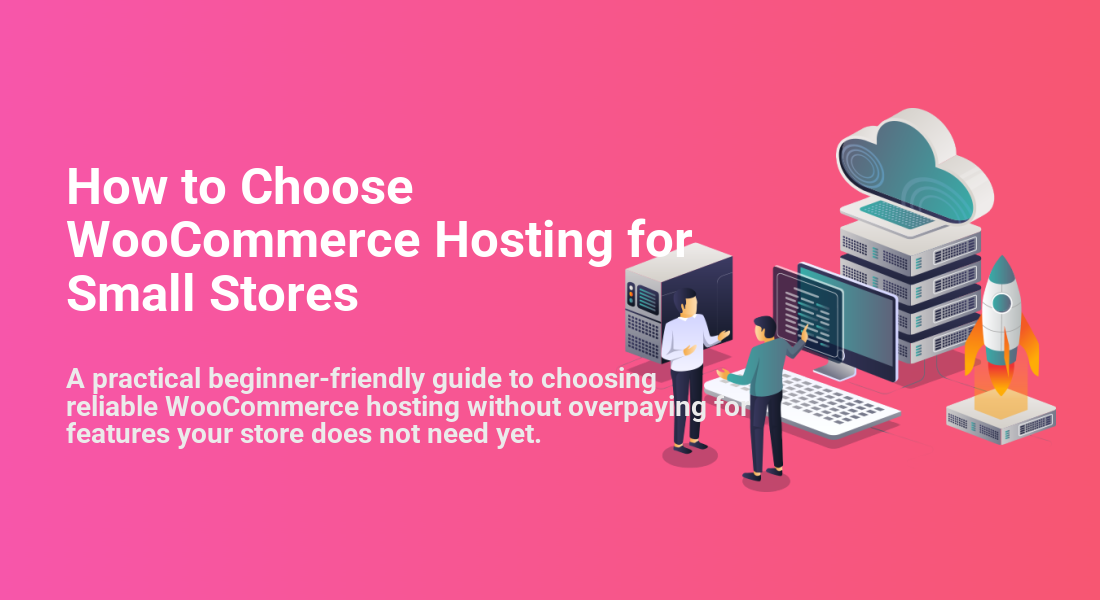
How to Choose WooCommerce Hosting for Small Stores
A practical beginner-friendly guide to choosing reliable WooCommerce hosting without overpaying for features your store does not need yet.

Choosing WooCommerce hosting for a small store can feel confusing because every host claims to be fast, secure, and beginner-friendly. The real question is not “Which host is the biggest?” but “Which hosting setup gives your store enough performance, protection, and room to grow without wasting money?”
In this guide, you will learn how to compare WooCommerce hosting plans step by step, what features matter most for a small online store, and which red flags should make you pause before buying. If you are still comparing general hosting options, start with this broader guide on choosing the best WordPress hosting before narrowing your decision to WooCommerce-specific needs.
By the end, you should be able to choose a hosting plan that supports your products, checkout, payments, backups, and traffic without locking yourself into a plan that is too limited or unnecessarily expensive.
Step 1: Define What Your Store Actually Needs
Before comparing hosting companies, define the size and complexity of your WooCommerce store. A small store selling 20 physical products has different needs from a store with 500 products, subscriptions, memberships, or digital downloads.
Hosting decisions become easier when you know what your store must handle on day one and what it may need six to twelve months from now.
- Product count: Estimate how many products, variations, images, and categories you will use.
- Expected traffic: Consider normal daily visitors and seasonal spikes from promotions.
- Checkout complexity: Note whether you need coupons, subscriptions, deposits, bookings, or multiple payment gateways.
- Content needs: Decide whether your store will also run a blog, landing pages, tutorials, or comparison pages.
- Team access: Identify whether you need separate admin accounts for staff, developers, or fulfillment helpers.
Checkpoint: You should have a simple store profile written down, such as “50 products, PayPal and Stripe, weekly blog posts, 1,000 monthly visitors, and occasional sale campaigns.”
Troubleshooting: If you cannot estimate traffic yet, start with your product count, marketing plans, and budget. You do not need perfect numbers, but you do need enough detail to avoid choosing the cheapest plan blindly.
Step 2: Choose the Right Type of Hosting
Small WooCommerce stores usually choose from shared hosting, managed WordPress hosting, cloud hosting, or VPS hosting. The best option depends on your technical comfort, budget, and how much responsibility you want to handle yourself.
For most small stores, managed WordPress hosting or WooCommerce-optimized hosting is easier than unmanaged VPS hosting because the provider handles more of the server maintenance, updates, caching stack, and support environment.
- Shared hosting: Lowest cost, but performance can suffer when neighboring sites consume resources.
- Managed WordPress hosting: Better support, backups, caching, staging, and WordPress-specific performance features.
- WooCommerce hosting: Managed hosting with features tuned for stores, checkout performance, and WooCommerce support.
- Cloud hosting: Flexible resources, but may require more setup knowledge depending on the provider.
- VPS hosting: Powerful and customizable, but usually requires server administration skills unless managed.
If you want less technical work, compare managed options first. This guide to managed WordPress hosting can help you understand why managed plans often cost more but save time on maintenance.
Checkpoint: You should be able to narrow your search to one or two hosting types, not every hosting category on the market.
Troubleshooting: If a plan looks cheap but does not mention WooCommerce, staging, backups, PHP workers, caching, or support quality, it may still work for a basic store, but you should investigate more carefully before committing.
Step 3: Compare Performance Features That Affect Checkout
WooCommerce performance matters because every product page, cart action, coupon calculation, and checkout request can involve database activity. A host that works fine for a small blog may struggle when visitors browse products and add items to the cart at the same time.
Focus on the hosting features that directly affect store speed and reliability. Do not judge only by advertised storage space or vague “unlimited” claims.
- Modern PHP versions: Look for easy access to current PHP versions and simple switching inside the hosting dashboard.
- Object caching: Redis or similar object caching can help stores with dynamic WooCommerce queries.
- Page caching: The host should support caching while excluding cart, checkout, and account pages correctly.
- CDN support: A CDN can improve delivery of product images, CSS, JavaScript, and other static files.
- Database performance: WooCommerce stores need responsive database queries, especially with variations and orders.
- PHP workers: More workers help handle uncached dynamic requests, including checkout and account actions.
For deeper store-specific speed work after you choose hosting, review these WooCommerce performance tips for faster stores.
Checkpoint: The hosting plan should clearly explain caching, PHP version control, CDN options, database resources, and how WooCommerce pages are handled.
Troubleshooting: If your cart or checkout breaks after enabling cache, check whether the cart, checkout, and my account pages are excluded from full-page caching. WooCommerce dynamic pages should not be cached the same way as static blog posts.
Step 4: Check Security, SSL, and Payment Readiness
WooCommerce hosting must be secure enough to support customer accounts, order details, payment redirects, and administrator access. Even if your payment gateway handles card data off-site, your store still needs strong hosting-level protections.
At minimum, your host should provide free SSL, malware scanning, firewall protection, secure file permissions, server monitoring, and quick support for security incidents.
- SSL certificate: Your store should load over HTTPS on every page, especially checkout and account pages.
- Firewall protection: Look for a web application firewall or server-level traffic filtering.
- Malware scanning: Automated scans help detect suspicious files early.
- Isolated accounts: Your site should not be easily affected by another customer on the same server.
- SFTP or SSH access: Secure access is better than relying only on basic file managers.
- Two-factor support: The hosting account should support two-factor authentication.
Checkpoint: You should be able to activate SSL, secure your hosting login, and confirm what security tools are included before launching the store.
Troubleshooting: If your browser shows a “Not Secure” warning after enabling SSL, check for mixed content. Product images, scripts, or styles may still be loading with http:// URLs instead of https://.
Step 5: Verify Backups, Staging, and Restore Options
Backups are critical for WooCommerce because your store changes whenever customers place orders, update accounts, or complete payments. A weekly backup may be fine for a brochure site, but it can be risky for an active store.
Look for daily backups at minimum, and consider more frequent backups if you expect regular orders. Also confirm that restores are easy, because a backup is only useful if you can recover from it quickly.
- Automatic backups: Daily backups are the baseline for small WooCommerce stores.
- On-demand backups: You should be able to create a manual backup before plugin updates or major design changes.
- Easy restores: One-click restore tools are helpful, but you should understand what they overwrite.
- Staging site: A staging environment lets you test plugin updates before changing the live store.
- Backup retention: Check how many days of backups are stored.
- Off-server storage: Backups should not only live on the same server as your website.
Checkpoint: Your host should clearly show backup frequency, retention period, restore process, and whether staging is included in your plan.
Troubleshooting: If restoring a backup would erase recent orders, ask your host whether they support partial restores, database-only restores, or WooCommerce order-safe recovery workflows.
Step 6: Evaluate Support Before You Need It
Support quality matters more for WooCommerce than for many simple WordPress sites. When your checkout fails, email confirmations stop sending, or product pages return errors, slow support can directly affect revenue.
Before buying, check what kind of support is available and whether the support team understands WooCommerce-specific issues.
- Availability: Confirm whether support is 24/7 or limited to business hours.
- Channels: Look for live chat, ticket support, phone support, or priority support depending on your needs.
- WooCommerce knowledge: Ask whether they troubleshoot checkout, caching, database, and plugin conflict issues.
- Scope of support: Understand what they will fix and what they will only explain.
- Migration help: If you already have a store, check whether migration is included.
Checkpoint: You should know exactly how to contact support and what response level your plan includes.
Troubleshooting: If a host gives only vague answers before purchase, do not assume support will improve after payment. Ask direct questions about WooCommerce checkout, staging, backups, and plugin conflicts.
Step 7: Calculate the Real Monthly Cost
The cheapest advertised hosting price is rarely the full cost of running a WooCommerce store. You may also need domain renewal, email hosting, premium plugins, backups, CDN usage, malware cleanup, staging, or higher renewal pricing.
Compare the real cost for the first year and the renewal year. Many hosts offer low introductory prices, then renew at a much higher monthly rate.
- Write down the promotional monthly price.
- Write down the renewal monthly price.
- Add required add-ons such as backups, email, CDN, or malware protection.
- Include migration costs if you are moving an existing store.
- Estimate upgrade costs if your store grows.
Checkpoint: You should know the monthly cost today, the renewal cost later, and the cost of upgrading when your store grows.
Troubleshooting: If two plans look similar, compare the limits. Storage, visits, bandwidth, PHP workers, support level, staging, and backup retention can make one plan much more valuable than another.
Step 8: Use a Final Hosting Checklist Before Buying
Once you have narrowed your options, use a final checklist instead of relying on brand recognition alone. The right host should match your current store while giving you a clear upgrade path.
- The plan supports WordPress and WooCommerce clearly.
- SSL is included and easy to activate.
- Daily backups and manual backups are available.
- Staging is included or affordable.
- Cache settings are WooCommerce-safe.
- Current PHP versions are supported.
- Support is reachable when your customers are likely to shop.
- The renewal price fits your budget.
- Migration options are clear.
- The plan can scale when products, traffic, or orders increase.
Checkpoint: You should be able to explain why the plan fits your store in one sentence, such as “This plan gives my small catalog daily backups, staging, WooCommerce-safe caching, SSL, and support at a renewal price I can afford.”
Troubleshooting: If you are stuck between two hosts, choose the one with better restore tools, clearer support scope, and more transparent renewal pricing. Those factors usually matter more than a slightly lower first-month price.
Choose Hosting That Protects Your Store as It Grows
The best WooCommerce hosting for a small store is not always the most expensive plan or the cheapest shared plan. It is the plan that gives you reliable checkout performance, secure customer data handling, simple backups, helpful support, and a growth path you understand.
Start by defining your store needs, then compare hosting type, performance, security, backups, support, and renewal cost. When a hosting plan checks those boxes, you can launch with more confidence and spend more time improving products, content, and conversions.
Further Reading
- Fast WordPress Hosting
- Managed WordPress Hosting Guide
- WordPress Hosting Backups
- WooCommerce Hardening Checklist
- WooCommerce Performance for Faster Checkouts
Frequently Asked Questions
What is the best hosting type for a small WooCommerce store?
Why is my WooCommerce checkout slow even on a new host?
Can cheap shared hosting work for WooCommerce?
What security features should WooCommerce hosting include?
How much should a small store budget for WooCommerce hosting?