WooCommerce Checkout Performance: How to Speed Up the Checkout Process
Practical checkout speed tactics for store owners

WooCommerce performance often feels like a black box when checkout pages crawl, visitors get impatient, and orders never reach the payment step. Slow scripts, heavy themes, and overloaded servers all pile up, and the checkout is where that pain shows first.
In this guide, you will see how to tune hosting, themes, plugins, and WooCommerce settings so checkout loads quickly and stays stable, even when traffic spikes. The steps move from quick wins to deeper technical changes so you can fix bottlenecks in a safe, repeatable way.
WooCommerce Performance Wins at Practical Checkout
The fastest way to boost WooCommerce performance at checkout is to tackle three areas together: a lean hosting stack with caching, a lightweight theme with minimal scripts on cart and checkout, and optimized WooCommerce settings such as High Performance Order Storage and trimmed form fields.
First, move off overloaded shared hosting and enable server or plugin-based page caching for all non-checkout pages. Next, unload sliders, popups, and analytics scripts from checkout so the browser only handles what is needed to take payment. Finally, enable HPOS, reduce optional fields, and keep payment gateways slim so the database and API calls stay fast.
Why Checkout Speed Matters
Checkout is the last place where friction should appear, because any delay here turns into direct lost revenue. Users who wait too long start doubting your store, re-check totals, or simply close the tab. Faster checkout lowers cart abandonment, stabilizes ad ROI, and makes every traffic source more profitable.
How Fast Should WooCommerce Checkout Be?
As a practical target, aim for a checkout page that reaches an interactive state within two to three seconds on typical mobile connections. You can tolerate a little more time on first load, but returning users should see cached assets and feel almost instant response on field changes, shipping options, and payment selection.
Measure Your Checkout Performance
Before you change anything, you need a baseline for the checkout page rather than the homepage. This baseline tells you which tweaks move the needle and which ones only add risk.
Which Tools Should You Use First?
Start with synthetic tests such as PageSpeed Insights, GTmetrix, or WebPageTest and point them directly at the checkout URL. Then, add a real user monitoring tool from your host or an analytics plugin so you see actual load times by device and country. Together, these tools show both lab results and live customer experience.
How to Test the Checkout Page Only
Create a test product and use a private browser window so you can reach checkout without extra popups or toolbars. Next, disable any admin bars and debugging plugins, then run multiple tests at different times of day. Finally, record metrics such as Time to First Byte, Largest Contentful Paint, and fully loaded time in a simple spreadsheet to track improvements.
Choose a Fast WooCommerce Stack
Your hosting stack sets the ceiling for WooCommerce performance. Even perfect code cannot compensate for a slow database server or missing object cache.
Is Your Hosting Powerful Enough?
If checkout feels fine at night but slows down during campaigns, your store probably shares resources with too many sites. In that case, PHP workers queue up, database queries compete, and cart updates lag. Upgrading to a VPS or managed WooCommerce hosting plan with guaranteed resources usually gives the biggest single performance jump.
Hosting Types Compared for Checkout
To decide when to upgrade, it helps to compare common hosting types by typical performance and use case. Treat these numbers as broad ranges rather than strict limits.
| Hosting Type | Typical Monthly Cost | Typical Checkout Load Time | Best For |
|---|---|---|---|
| Shared Hosting | around $5–15 | 4–6 s under load | Small catalogs, low traffic |
| VPS Hosting | around $25–60 | 2–4 s with tuning | Growing stores with bursts |
| Managed WooCommerce | around $60–150 | under 2–3 s | Serious ecommerce, steady campaigns |
Use this comparison as a guide when you evaluate hosting plans, then ask your provider about PHP version, HTTP/2 or HTTP/3 support, and whether they include object caching for WooCommerce.
When to Move to Managed WooCommerce Hosting
Consider managed WooCommerce hosting when you outgrow a single VPS or when you spend more time fighting server issues than improving your store. At that point, offloading caching, backups, and PHP tuning to specialists lets you focus on conversion, email flows, and product pages instead of log files.
Optimize Assets on Checkout Pages
After hosting, heavy CSS and JavaScript usually cause the biggest slowdowns. Sliders, animation libraries, marketing pixels, and font loaders all stack up on the checkout if you do not control them.
How to Cut Unnecessary Scripts
Use an optimization plugin or custom code to unload scripts on the checkout and order confirmation pages. For example, you rarely need sliders, popups, or even some analytics tags there. By reducing requests, you give the browser less to download, parse, and execute before the user can submit payment.
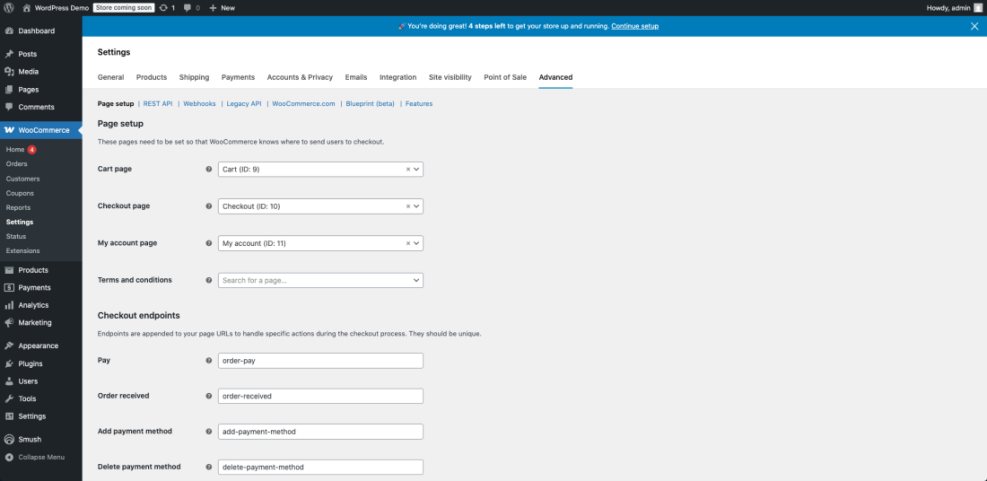
Navigate to WooCommerce » Settings » Advanced and note which additional plugins add tabs or features here, because those plugins often load assets on checkout as well.
Example Code to Dequeue Scripts on Checkout
If you are comfortable editing a child theme, you can selectively disable scripts by handle on the checkout page. Always test this change on a staging site before deploying it to production.
add_action( 'wp_enqueue_scripts', 'wph_optimize_checkout_assets', 999 );
function wph_optimize_checkout_assets() {
    if ( ! function_exists( 'is_checkout' ) || ! is_checkout() ) {
        return;
    }

    // Example: Dequeue a slider script and style that are not needed on checkout.
    wp_dequeue_script( 'my-slider-script' );
    wp_dequeue_style( 'my-slider-style' );
}
Replace the handles with real script and style handles from your theme or plugins, and keep a log of the assets you disable so you can roll back if something breaks.
Should You Use a CDN for Checkout?
A CDN works very well for static assets such as images, CSS, and JavaScript, even on dynamic pages like checkout. You should avoid caching the checkout HTML itself, but letting the CDN serve fonts and scripts from edge locations still reduces latency. Combined with compressed images and modern formats, this often cuts a few hundred milliseconds.
Tune WooCommerce for Faster Orders
WooCommerce itself provides powerful tools for improving checkout speed when you configure them correctly. These tools focus on database storage, order handling, and the number of fields a user must complete.
How High Performance Order Storage Helps
High Performance Order Storage moves order data from the general WordPress posts tables into dedicated, indexed order tables. That change reduces contention with blog posts and pages, and it helps large stores query and update orders more quickly. As a result, order creation and status changes place less load on the database during busy periods.
Navigate to WooCommerce » Settings » Advanced » Features to find the HPOS option and related compatibility mode toggle.
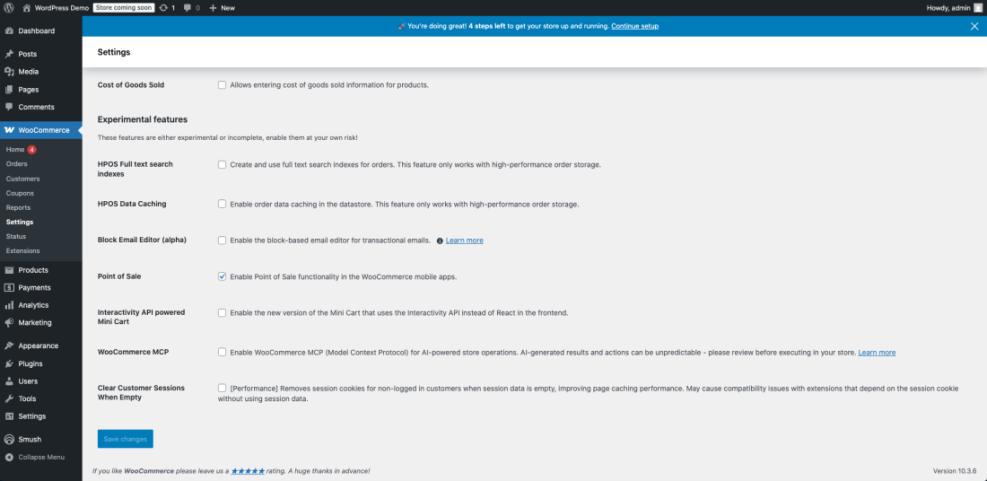
Before you enable HPOS, check that all essential plugins declare compatibility in their documentation and perform a full backup. If you want a more detailed walkthrough, consider planning a future deep dive like Yoast seo setup guide.
Which Checkout Fields Can You Safely Remove?
Most stores do not need company name, second address line, or phone number for every order. By hiding nonessential fields, you reduce validation, shrink the form, and make it easier to complete on mobile devices. Always test against your tax, shipping, and fraud prevention policies so you still collect the data you truly need.
Navigate to WooCommerce » Settings » Accounts & Privacy to adjust guest checkout and account creation behavior.
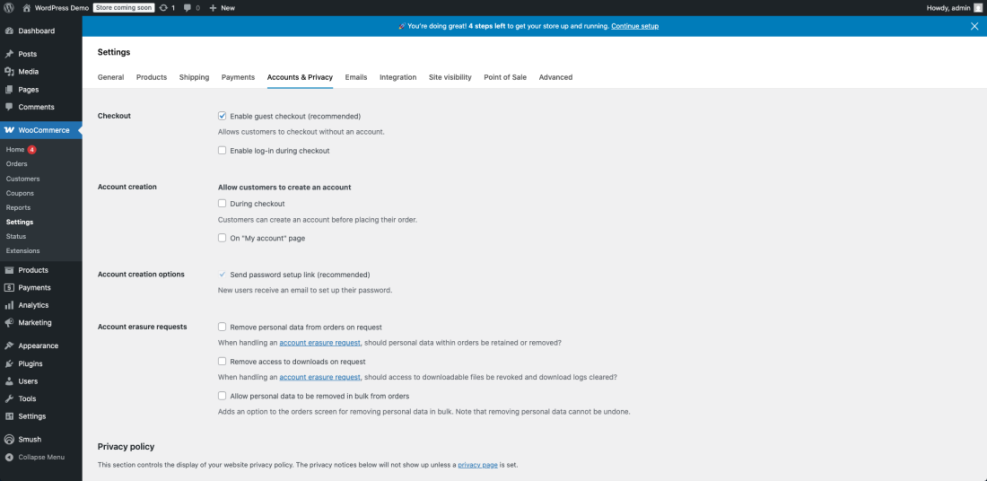
Guest Checkout and Express Payments
Enabling guest checkout removes a major barrier for first-time buyers who do not want to create an account. In addition, modern gateways such as Apple Pay or Google Pay let returning visitors pay with stored details in just a few taps. Together, these options reduce typing, shrink friction, and keep users focused on finishing the order.
Design a Lean Checkout Experience
Technical tuning alone cannot fix a confusing layout. Clear, distraction-free checkout pages help users move in a straight line from cart to confirmation without second-guessing each step.
Should You Use One Page or Multi Step?
Both layouts can work, so you should test them with your audience. One-page checkout often feels faster because everything appears at once, while multi-step flows can reduce overwhelm for complex orders by revealing fields gradually. Start with the simpler layout for your products, then split-test alternatives when you have enough traffic.
How to Reduce Form Friction
Keep checkout focused on essentials by removing sidebars, unrelated navigation, and large banners. Then, group fields logically, use clear labels, and show inline error messages so users fix problems without scrolling. Finally, make sure the primary button stands out and appears above the fold on common mobile devices.
Navigate to Appearance » Customize and open any WooCommerce-specific layout or checkout options your theme provides.
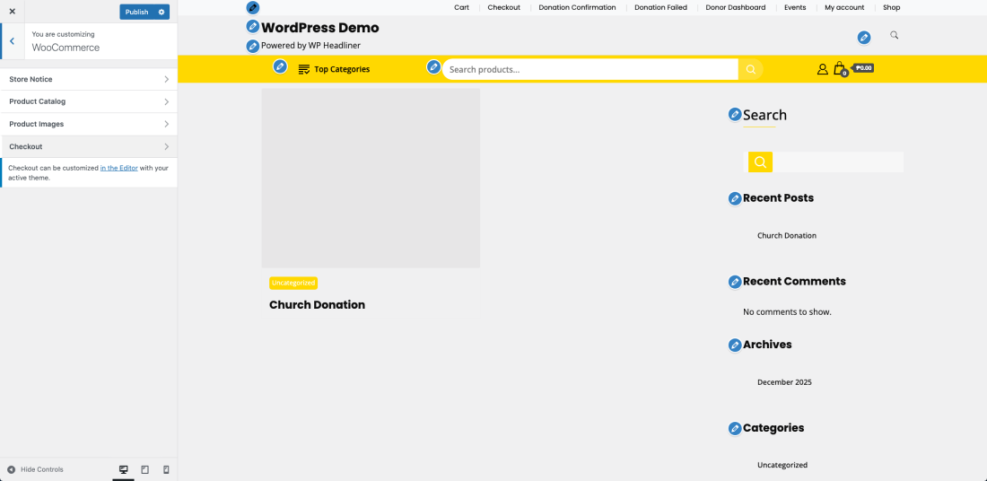
Mobile Experience and Core Web Vitals
On mobile, thumbs, not mice, control the checkout, so you should use large tap targets and avoid tiny dropdowns. Simplified address fields, autocomplete, and clear error text protect against mistyped data. When you combine these choices with fast rendering and responsive design, you improve both Core Web Vitals and real user satisfaction.
Monitor Results and Keep Optimizing
Once checkout feels fast, you still need a lightweight process for keeping it that way. Theme updates, new plugins, and marketing tags all add risk over time.
Which Metrics Should You Track Over Time?
Track cart-to-checkout and checkout-to-order conversion rates as your primary health indicators. Then, watch median and 95th percentile checkout load times, especially for mobile visitors and key countries. If conversion dips while load times rise, review recent changes and roll back anything that added heavy assets or slow calls.
How Often to Review Checkout Performance
For most stores, a monthly light review is enough, combined with extra checks after major theme or plugin updates. During big promotions, you should also watch real time analytics and server dashboards for spikes in response time. This habit keeps performance tuning manageable instead of becoming an emergency project.
For a more advanced testing roadmap, it can help to plan a future series like Split Testing WooCommerce Checkout Variants.
WooCommerce performance: Conclusion
Fast checkout starts with a clear decision to treat speed as part of your product, not an afterthought. When you invest in solid hosting, trim scripts to the essentials, enable HPOS, and simplify the form, you make every click more valuable and protect your ad spend.
Next, turn these tuning steps into a simple checklist you revisit each month or after any major change. That steady, incremental approach keeps WooCommerce performance strong at checkout, supports new campaigns with confidence, and gives customers a buying experience that feels effortless.
More WordPress Guides You Might Like
Once your checkout is under control, you can expand into related performance and revenue topics that reinforce the gains you just made.
- WordPress seo complete beginners guide
- Beginner guide WordPress speed core web vitals
- Setting Up High Converting Product Pages in WooCommerce
- Best woocommerce WordPress themes
- How to publish WordPress site
Use these future guides as a roadmap for deeper work on caching, UX, mobile optimization, and safe deployment so performance tuning becomes a normal part of running your store.
Frequently Asked Questions About WooCommerce performance
What is a good load time for WooCommerce checkout?
Can I speed up checkout without changing my hosting?
Do I need to cache the checkout page itself?
Is High Performance Order Storage safe to enable?
Which plugins usually slow down WooCommerce checkout?