How To Speed Up WordPress Without Breaking Security
A practical roadmap to faster load times that keeps your WordPress site secure

Speeding up WordPress is one of the fastest ways to boost conversions, SEO, and user satisfaction. But many site owners accidentally weaken security when they chase better performance scores—by disabling firewalls, turning off HTTPS, or uninstalling critical security plugins.
In this guide, you will learn how to speed up WordPress without breaking security. We will walk step by step through hosting, caching, asset optimization, plugins, and hardening so you can get a faster site while keeping attackers out.
If your site is not yet properly protected, start with a solid WordPress security overview, then come back here to layer performance improvements on top of that secure foundation.
Prerequisites
Before you start changing performance settings, make sure you have the basic access and safeguards in place.
- Admin access to your WordPress dashboard (wp-admin).
- Access to your hosting control panel (cPanel, Plesk, or similar) or a managed WordPress hosting panel.
- Ability to create and restore full site backups (files + database).
- A staging site or development copy where you can safely test changes.
Step 1: Audit Your Current Speed And Security Baseline
You cannot improve what you do not measure. Start by capturing both performance and security baselines so you can confirm that every change makes your site faster without increasing risk.
- Run your homepage through a speed testing tool (such as PageSpeed Insights or WebPageTest) and note metrics like LCP, TTFB, and total page size.
- Test a key blog post, product page, and your checkout or lead form if you have one.
- Run a security scan using your security plugin’s scanner or a reputable external scanner.
- Record your scores, response times, and any security warnings in a simple spreadsheet.
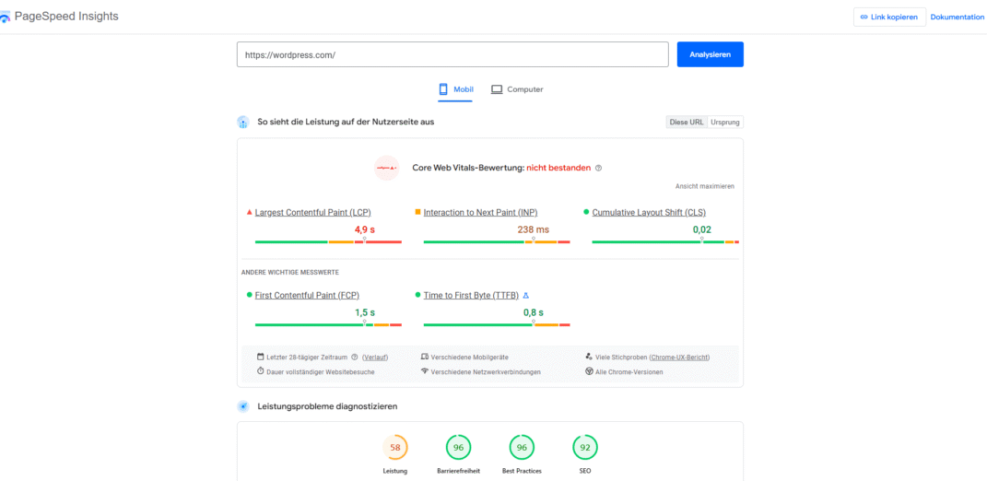
Checkpoint: You should have a clear snapshot of how fast your site loads now and whether any obvious security issues already exist.
Step 2: Choose Fast, Secure Hosting And PHP Version
Your hosting environment and PHP version have a huge impact on speed and security. No amount of caching can fully compensate for an overloaded, outdated server.
- Confirm that your host runs a current, supported version of PHP (such as PHP 8.x). You can check this under your hosting control panel or ask support.
- In your hosting panel, look for an option to change the PHP version and select the latest stable version your theme and plugins support.
- Ensure HTTPS is enabled with a valid SSL certificate and that all traffic is forced to use HTTPS.
- If your site is on very cheap shared hosting and is consistently slow (high TTFB), consider upgrading to a better shared plan or managed WordPress hosting.
Checkpoint: Your site should be running on a supported PHP version over HTTPS, with no browser security warnings.
Step 3: Configure Caching Without Exposing Sensitive Data
Caching is one of the biggest wins for WordPress performance, but it must be configured carefully. A bad caching rule can accidentally serve private content or break logins and checkouts.
- Install a single, reputable caching plugin (avoid stacking multiple cache plugins at once).
- Enable page caching for public pages like your homepage, blog posts, and category archives.
- Ensure the plugin is not caching pages for logged-in users, admin pages, or sensitive areas like /wp-admin/.
- Use the plugin’s “exclude” feature to exclude login, cart, checkout, and account pages from caching.
- Enable browser caching (cache-control headers) and gzip or Brotli compression if your host supports it.
For a deeper walkthrough, you can follow the Complete WordPress caching setup guide and then return here to double-check that your rules do not weaken security.
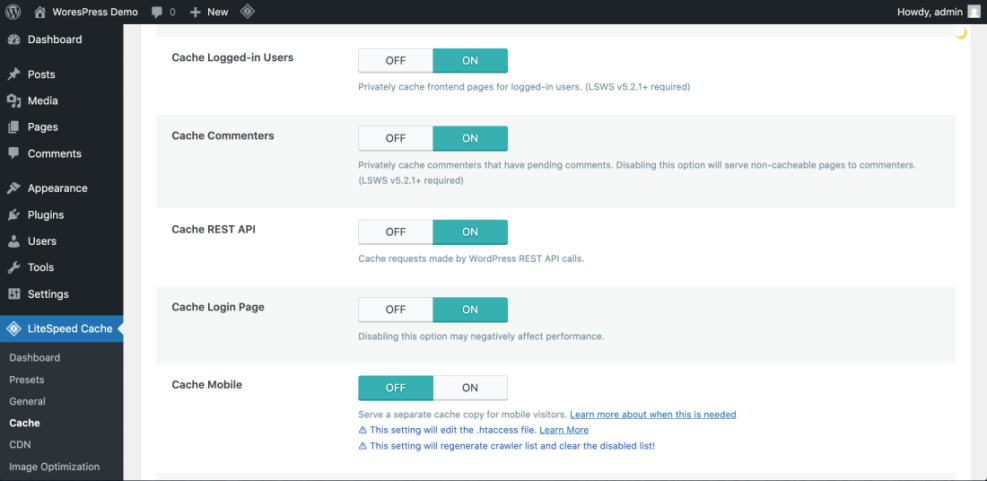
Checkpoint: Public pages should load noticeably faster on repeat visits, while your login and checkout pages continue to behave normally.
Step 4: Optimize Images, CSS, And JavaScript Safely
Bloated images and unoptimized CSS/JS files are common causes of slow WordPress sites. You can trim file size dramatically without touching security-sensitive areas.
- Use an image optimization plugin or external tool to compress existing images and convert them to modern formats like WebP where possible.
- Enable lazy loading for images and iframes so below-the-fold content does not delay the initial page load.
- In your performance or caching plugin, enable minification for CSS and JS, starting with small batches rather than combining everything at once.
- Exclude critical scripts from minification or deferring, such as those used by your security plugin, reCAPTCHA, or checkout forms.
Checkpoint: Your pages should feel snappier, especially on mobile, and core functionality like logins and forms should still work flawlessly.
Step 5: Clean Up Plugins Without Weakening Security
Too many plugins can slow your site by loading extra code and database queries. However, deleting the wrong plugin (like your firewall or backup solution) can leave your site exposed.
- In the WordPress admin, go to Plugins > Installed Plugins and list all active plugins.
- Group plugins into three categories: “Critical” (security, backups, caching), “Important” (SEO, analytics, forms), and “Optional” (nice-to-have features).
- Deactivate and remove truly unused or redundant plugins first, especially overlapping functionality (multiple sliders, page builders, etc.).
- Keep at least one strong security plugin and one backup solution active at all times.
wp plugin list --status=active
Run the above WP-CLI command in your server’s SSH terminal (if available) to quickly list active plugins for review.
Checkpoint: Your plugin list should be leaner, with no duplicate functionality and all essential security and backup plugins still in place.
Step 6: Apply Performance-Friendly Security Hardening
Security hardening does not have to slow your site down. In many cases, smart security settings can improve performance by blocking abusive traffic and bots.
- Enable a web application firewall (WAF) in your security plugin or at the hosting/CDN level, and enable basic rate limiting for login attempts and common attacks.
- Turn on two-factor authentication (2FA) for administrator accounts to reduce the risk of compromised logins.
- Limit login attempts and enable IP blocking for repeated failed logins instead of using heavy CAPTCHA scripts on every form.
- Disable or restrict XML-RPC if you do not use it for apps or integrations, as it is a common target for brute-force attacks.
- Check file permissions to ensure that critical files (like wp-config.php) are not world-writable and that only necessary directories are writable.
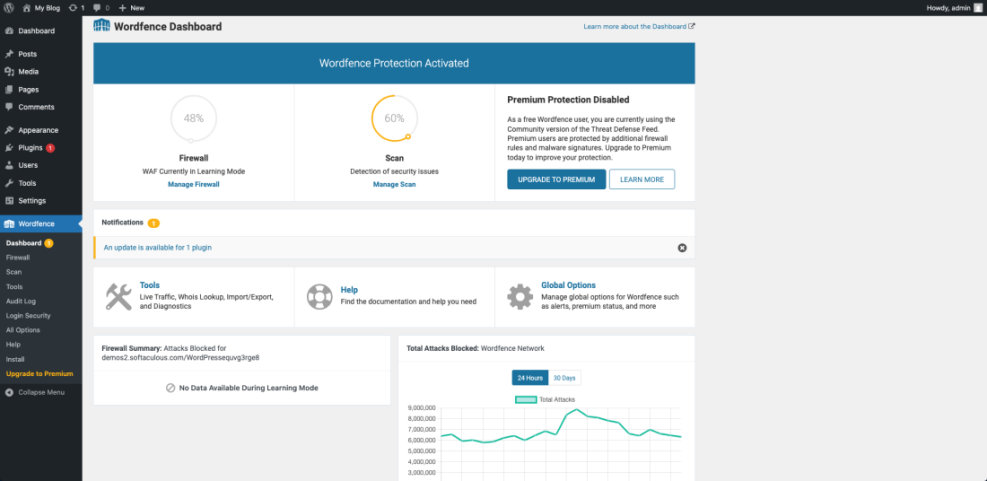
Checkpoint: Malicious or abusive requests should be blocked early, while legitimate visitors still experience fast, reliable load times.
Step 7: Test, Monitor, And Set Up Safe Automation
After you apply performance and security changes, continuous monitoring helps you catch regressions before they hurt users or rankings.
- Re-run your speed tests from Step 1 on your homepage, key landing pages, and checkout or lead forms.
- Confirm your security plugin has no new critical alerts and that scheduled scans are running during low-traffic hours.
- Set up uptime and response-time monitoring with alerts so you know if your site becomes slow or unavailable.
- Create a simple monthly checklist to review performance scores, plugin updates, and security logs.
For a more detailed workflow on tuning performance, you can also follow the WordPress speed optimization step-by-step guide and integrate its checks into your monthly routine.
Checkpoint: You should now have baseline metrics, improved scores, and an ongoing process to keep your site both fast and secure.
Faster WordPress That Stays Locked Down
Speed and security do not have to be in conflict. By choosing solid hosting, configuring caching carefully, optimizing assets, trimming plugins wisely, and applying smart hardening, you can make WordPress feel fast while still protecting your data and visitors.
The key is to test each change, avoid “quick fixes” that disable security features, and build a repeatable review process. When you treat performance and security as partners rather than trade-offs, your WordPress site becomes a reliable foundation for everything you want to build.
Further Reading
- Beginner WordPress Security Best Practices Guide
- WordPress Performance Tuning Beginner Guide
- WordPress Speed Optimization Checklist for Busy Site Owners
- WordPress Maintenance and Backup Plan
Frequently Asked Questions
Will security plugins slow down my WordPress site?
My site became slower after installing a security plugin. What can I do?
Caching broke my login or checkout pages. How do I fix it?
Is it safe to turn off some security features for speed?
How often should I review speed and security on my site?