Troubleshoot WordPress Migration Errors Fix Common Issues Quickly
Practical fixes for failed site moves and broken pages

WordPress migration errors can turn a simple site move into a stressful mess. One minute your site works, the next you see white screens, broken pages, or scary error messages. The good news is that most of these problems follow patterns, and you can fix them with a calm and structured approach.
This guide walks you through fast triage steps first, then deeper fixes for database errors, broken links, 404s, server issues, and plugin conflicts. You also get a simple checklist to prevent the same problems during your next migration.
Quick Fixes for WordPress Migration Errors
When your migrated site is down, you need a clear starting point. Use this short sequence to stabilize things before you dive into details.
- Confirm you moved both the database and all site files.
- Try logging in at /wp-login.php or /wp-admin/.
- Check that your domain points to the new server and DNS has finished updating.
- Temporarily disable caching at the host level and in plugins.
- Reset permalinks from the dashboard to rebuild rewrite rules.
- Run a search and replace to update old URLs to the new domain.
These steps often bring a “broken” site back to a usable state so you can focus on specific errors instead of guessing blindly.
The table below shows common symptoms and the most likely area to check first.
| Symptom | Likely Cause | Quick Check |
|---|---|---|
| “Error establishing a database connection” | Wrong database credentials or missing database | Verify wp-config.php DB settings |
| Homepage works, inner pages show 404 | Permalink rules or .htaccess problem | Reset permalinks and rebuild .htaccess |
| Layout broken, missing images | Old URLs still in content or database | Search and replace old domain to new |
| White screen or 500 error | PHP errors, memory limits, or plugin conflicts | Enable debug mode and check logs |
Once you match the symptom to a likely cause, you can jump directly to the right troubleshooting section and save time.
Understand What Broke After the Move
Before you change settings, you need to know what exactly is failing. You should note the error message, where it appears, and what still works. This information will guide every fix you apply.
Identify the Type of Error Message
Look closely at what you see after migration. Do you get a specific message like “Error establishing a database connection,” a 404 page, or only a blank white screen? Each one points to a different area: database settings, permalinks, or PHP errors.
What Should You Check First After Migration?
First, confirm that the domain points to the new server and that the main URL in the browser matches your new site address. Next, test several URLs, including the login page and a random post. Finally, write down any error message exactly as you see it to avoid guessing later.
Turn on Debug Mode Safely
If you see a white screen or general 500 error, debug messages can reveal the cause. You can enable debug mode in wp-config.php while you troubleshoot, then disable it again when you finish.
define( 'WP_DEBUG', true );
define( 'WP_DEBUG_LOG', true );
define( 'WP_DEBUG_DISPLAY', false );
This configuration logs errors to wp-content/debug.log without showing them to visitors, which keeps the site safer while you work.
Fix Database And Login Problems
Many WordPress migration errors start with database settings. A small typo in your configuration can take the whole site offline, but the fixes are straightforward once you know where to look.
Error Establishing a Database Connection
Open wp-config.php on the new server and check the database name, username, password, and host. They must match the database you imported. If your host uses a different database host value, update DB_HOST accordingly. If the details are correct, confirm in your control panel that the user has permission to access that database.
How Do You Update the Site URL Safely?
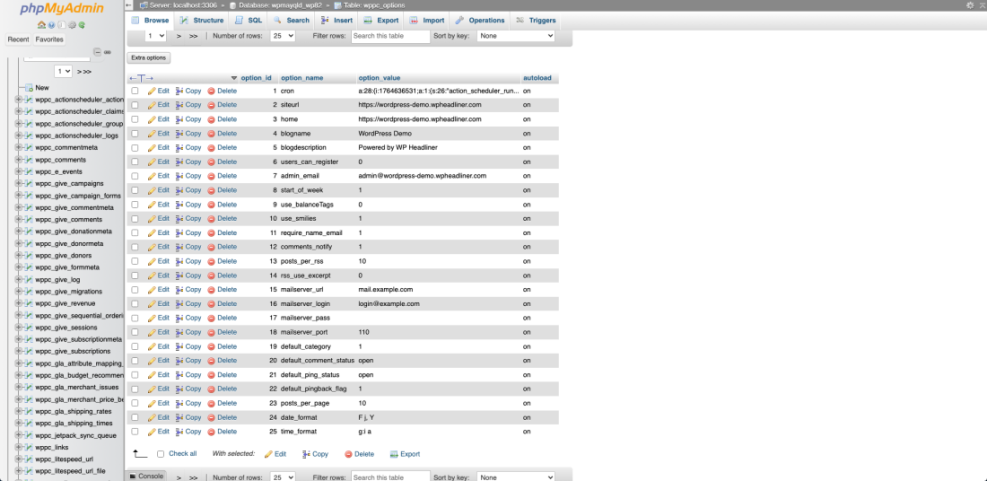
If the domain changed, the site may loop or display mixed content. From the dashboard, go to Settings » General and check the WordPress Address (URL) and Site Address (URL) fields. They should match your live domain with the correct protocol, usually https://. If you cannot log in, you can update these values directly in the database using your host’s database tool.
In your hosting control panel, open phpMyAdmin and select your WordPress database.
Why Can You Not Log In After Migration?
Sometimes you can load the site but cannot log in because of cookies or URL mismatches. Clear your browser cache and cookies, then try again. If the login still redirects endlessly, double-check the site URL settings and disable security plugins temporarily to rule out redirect rules left from the old server.
Resolve Broken Links Images And Layouts
After a move, you may see broken images, missing CSS, or links that still point to the old domain. These issues usually come from unfinished URL replacements or partial file copies.
How Do You Fix Broken Images After Migration?
Right-click a broken image and copy the image address. If it points to the old domain or a staging URL, the migration did not update all links. Verify that your wp-content/uploads folder is fully copied, then run a search and replace on the database to switch the old domain to the new one.
Run a Safe Search And Replace on URLs
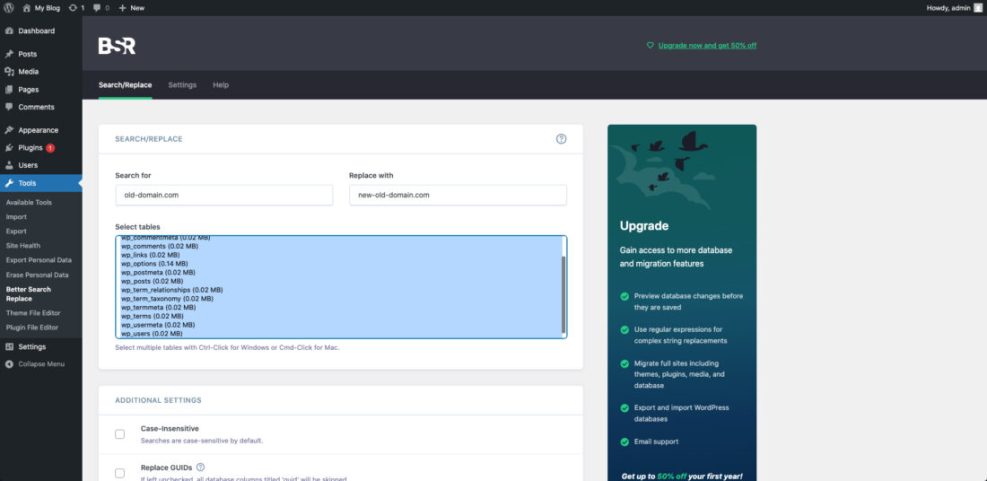
You can use a plugin that supports serialized data to update URLs without breaking data structures. Install a reliable search and replace plugin from the official repository, then run a dry run to preview the number of changes. Always keep a fresh backup before running the real replacement across all tables.
In the WordPress dashboard, go to Tools » Better Search Replace or a similar URL replacement tool.
Regenerate CSS And Caches
Page builders and caching plugins often store CSS files with absolute URLs. After migration, regenerate CSS files from your page builder tools and clear all caches. Also clear your CDN cache if you use one so visitors receive updated assets from the new domain.
Repair Permalinks 404s And Server Errors
If your homepage works but inner pages show 404 errors, your permalink rules may be outdated. This is one of the easiest WordPress migration errors to fix.
Reset Permalinks From the Dashboard
Go to Settings » Permalinks and select your desired structure, such as Post name, then click Save Changes.
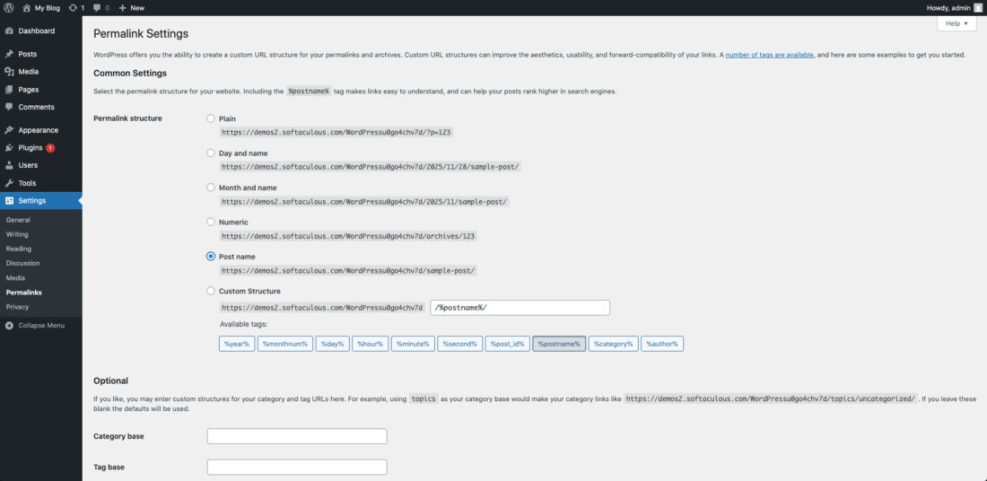
This action rebuilds the rewrite rules and often clears 404s that appear only after a move or domain change.
Fix 404 Errors With .htaccess
On Apache servers, a corrupted .htaccess file can cause widespread 404 errors. You can replace it with the default WordPress version. Create or edit .htaccess in your site root and paste the standard rules, then save the file.
<IfModule mod_rewrite.c>
RewriteEngine On
RewriteBase /
RewriteRule ^index.php$ - [L]
RewriteCond %{REQUEST_FILENAME} !-f
RewriteCond %{REQUEST_FILENAME} !-d
RewriteRule . /index.php [L]
</IfModule>
After updating the file, reload a few posts and pages in a private browser window to confirm that links now work correctly.
Address 500 Internal Server Errors
If you see 500 errors right after migration, check PHP error logs for clues. Increase PHP memory and execution time if your host allows it, and make sure the PHP version matches your themes and plugins. Then deactivate plugins in bulk and reactivate them one by one until you find any that fail on the new server.
To learn more about memory-related problems, you can also read Fix Memory Errors as a deeper follow-up.
Handle Plugin Theme And File Conflicts
Even when URLs and permalinks look correct, a single plugin or theme can break the site on a new host. A clean testing process helps you find the culprit without losing your layout.
Temporarily Switch to a Default Theme
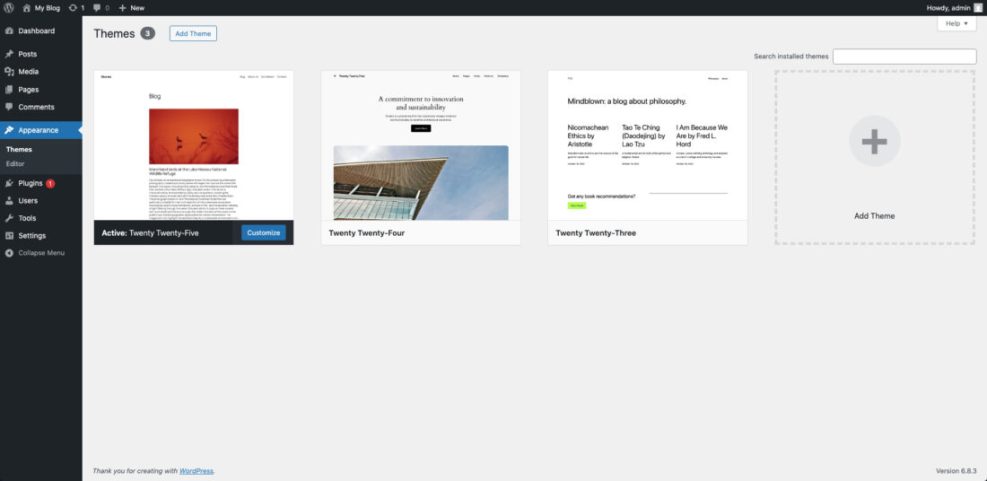
From the dashboard, visit Appearance » Themes and activate a default theme like Twenty Twenty-Four. If the site loads again, your previous theme may need an update or may not be compatible with server settings, such as the PHP version.
Navigate to Appearance » Themes and hover over a default theme to click Activate.
Disable Plugins in Bulk From the Dashboard
Go to Plugins » Installed Plugins, select all, choose Deactivate from the bulk actions menu, and apply. If the site loads, reactivate plugins in small groups until the error returns. The last plugin you turned on before the problem reappeared is likely the cause.
Fix Missing or Corrupted Files
Sometimes the upload to the new server skips files silently. Re-upload core WordPress files, your active theme, or specific plugins using SFTP or your host’s file manager. Do not overwrite the wp-content/uploads folder unless you know you have a complete and up-to-date copy.
Prevent Future Migration Problems With Checklists
Once your site is stable again, it makes sense to prevent repeat problems. A simple, reusable checklist will save hours the next time you move a WordPress site.
Pre-Migration Checklist You Should Follow
- Create a full backup of files and database.
- Check PHP version, memory limits, and database version on the new host.
- Update WordPress core, themes, and plugins to supported versions.
- Disable heavy caching and security plugins before copying files.
- Document the current site URL, staging URL, and any CDN settings.
- Plan a short maintenance window for DNS changes and testing.
You can adapt this list for each project, but following it consistently reduces the chance of missed steps and makes troubleshooting easier when something still goes wrong.
Why Does a Staging Site Help So Much?
A staging site lets you rehearse the migration without touching your live visitors. You can test backups, URL replacements, and plugin behavior in a safe copy first. Then, when everything works there, you repeat the same steps on the live site with far less risk.
WordPress Migration Errors Conclusion And Next Steps
When you face WordPress migration errors, your goal is not to guess but to follow a repeatable process. Start with quick checks, then work through database settings, URL replacements, permalinks, server errors, and plugin conflicts. Each step narrows the problem until you uncover the exact cause.
Your next step is to store this process in your own checklist for future moves. Add details specific to your host, theme stack, and plugins. With a clear plan, your next migration will feel like a controlled routine instead of a risky experiment.
More WordPress Guides You Might Like
These resources help you plan safer migrations, avoid common mistakes, and manage related performance or maintenance work.
- WordPress Migration Checklist for Blogs Step by Step Guide
- How to migrate a WordPress Blog
- How to fix common WordPress performance issues
- Advanced developer hooks for WordPress optimization with code
Use these guides to deepen your migration skills and create a reusable process that fits every site you manage.
Frequently Asked Questions About WordPress Migration Errors
Why is my WordPress site blank after migration?
How do I fix WordPress redirecting to the old domain?
What should I do if images are missing after migration?
Can I use a plugin for every WordPress migration?
How many backups do I need before I migrate?