WordPress Speed Optimization Step-by-Step Tutorial
Practical Actions To Make Your Site Load Faster

WordPress speed optimization helps your site load faster, keep visitors engaged, and support better rankings. Slow pages frustrate people, increase bounce rates, and can cost you leads or sales, even when your content is excellent.
You are about to walk through a clear, step-by-step process to measure your current speed, apply the biggest performance wins, and fine-tune details like images, scripts, and Core Web Vitals. Each section focuses on actions you can take today, even if you are not a developer.
Quick WordPress Speed Optimization Steps
If you want fast results, you can follow a simple sequence. First, test your current performance so you know where you are. Then, tackle hosting, caching, and images, because these usually deliver the biggest speed gains with the least effort.
Check Your Current Load Time
Before changing anything, run a few tests. Use tools like Google PageSpeed Insights, WebPageTest, or GTmetrix to check load time, Core Web Vitals, and key recommendations for both mobile and desktop. These tools show which assets, queries, or scripts slow you down the most, so you do not guess.
Apply the Biggest Wins First
To get quick wins, you should focus on a small set of changes that usually give the best improvement. These include switching to better hosting, enabling full-page caching, compressing large images, and removing heavy plugins you do not need. After that, you can move to finer details like script deferral and database cleanup.
- Test current performance and Core Web Vitals on mobile and desktop.
- Review hosting quality and enable or improve caching.
- Compress and resize images, then enable lazy loading.
- Remove or replace slow plugins and optimize your database.
- Fix layout shifts and re-test until your key metrics are stable.
This sequence gives you a clear path from basic testing to deeper tuning, without trying to fix everything at once.
Why WordPress Speed Matters
Site speed affects how users feel about your brand and how search engines rank your pages. When your pages load quickly, people read more, click more, and are more likely to buy or subscribe.
How Speed Impacts Users and SEO
Fast pages reduce frustration, especially on mobile networks that may be unreliable. Search engines use real-world performance signals like Core Web Vitals to understand user experience, and they reward sites that keep loading, interactivity, and visual stability within recommended ranges.
How Fast Should a WordPress Site Load?
Most small business and blog sites should aim for a page that feels usable in under two seconds on a typical mobile connection. You do not need a perfect lab score, but you should avoid obviously slow pages or big layout jumps that confuse visitors while the page finishes loading.
Measure Your Current Site Performance
Accurate measurements help you decide which fixes matter most. Therefore, you should test from more than one tool and location instead of trusting a single score.
Use Site Health Inside WordPress
In the WordPress Dashboard, you already have basic performance checks. The Site Health screen points out slow modules, outdated PHP versions, or missing features such as object caching.
Navigate to Tools » Site Health and open the Performance section.
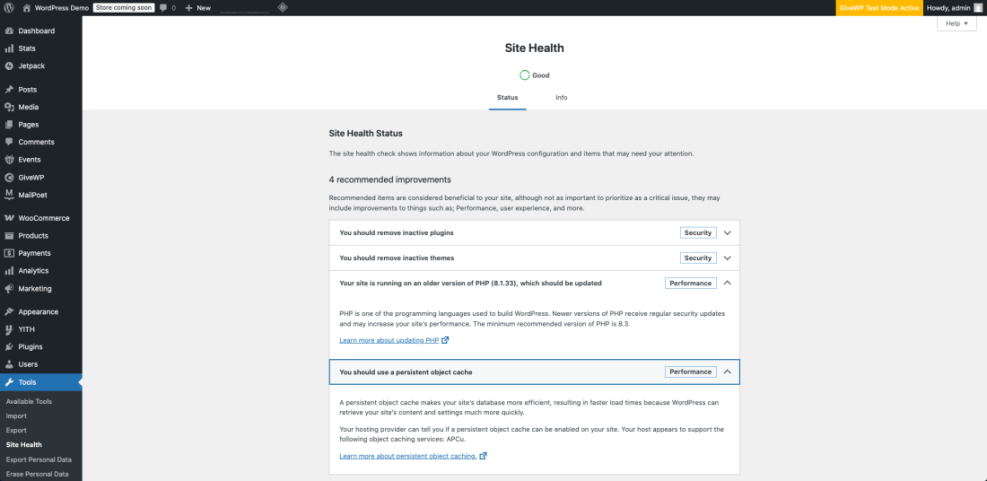
Review each item marked as performance-related and keep notes. Some warnings may look minor alone, but together they reveal where your installation is underpowered or misconfigured.
What Tools Should You Use to Test Speed?
For synthetic tests, you can use PageSpeed Insights to see both lab and field data, including Core Web Vitals, for each URL you test. In addition, tools like WebPageTest offer detailed waterfall charts, which help you see which files load first and which block the render, so you can plan targeted fixes.
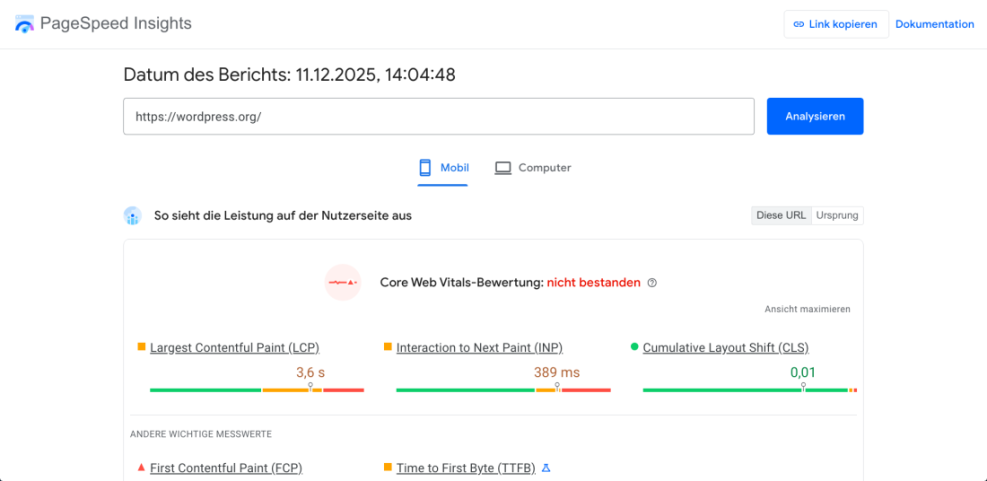
Repeat tests after each major change so you can confirm whether your adjustments improved or hurt your scores, instead of guessing based on how the site feels only to you.
Optimize Hosting, Caching, and CDN
Your hosting platform and caching setup form the base of performance. If that base is weak, plugin tweaks alone will not deliver a fast site.
Choose Faster WordPress Hosting
Good hosting provides enough CPU, memory, and modern PHP versions for your traffic level. Managed WordPress hosting often includes built-in caching, optimized database settings, and support teams who know how to solve performance issues quickly.
To compare options, you can review providers that focus on performance-specific features through guides like Fastest Hosting Providers.
Here is a simple comparison of common hosting types to help you decide where to start:
| Hosting Type | Typical Cost Range | Performance Level |
|---|---|---|
| Shared Hosting | Low | Often inconsistent, slower under load |
| Managed WordPress | Medium | Stable, optimized for WordPress |
| VPS or Cloud Server | Medium to High | Fast but needs more technical management |
This view makes it easier to match your budget and skills with the kind of performance you expect from your site.
Set Up a Caching Plugin Correctly
Full-page caching stores HTML versions of your pages so the server does not rebuild them on every visit. Popular caching plugins handle page cache, browser cache, and sometimes database cleanup or minification in one place.
If you need help deciding which plugin to use, read Best Caching Plugins and choose one that fits your host and skill level.
In your WordPress Dashboard, go to Plugins » Add New, search for your chosen cache plugin, and activate it.
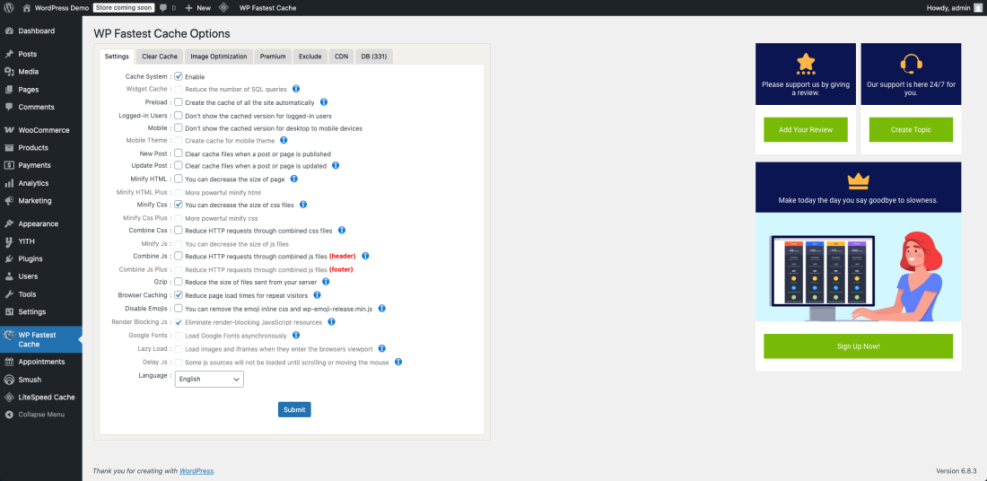
Start with the preset “recommended” configuration, then test. After that, you can enable advanced options like JavaScript defer or database cleanup one by one to avoid breaking features on your site.
Do You Always Need a CDN?
A content delivery network (CDN) can speed up global traffic by serving images, scripts, and styles from locations closer to your visitors. However, if most of your users visit from one region, a good host with servers in that region may be enough. In those cases, a CDN is still helpful for large media libraries but not mandatory for every small site.
Optimize Images, Fonts, and Scripts
Media and scripts are common bottlenecks in WordPress. Thankfully, you can often reduce their impact without changing the design too much.
Compress and Resize Large Images
First, make sure your images are not bigger than they need to be. You can convert them to modern formats like WebP, resize them to the display size, and apply compression so file sizes stay reasonable. Image optimization plugins can automate this process for new uploads and bulk-optimize existing files.
Optimize Fonts, Icons, and Embeds
Custom fonts, icon sets, and embedded widgets add extra HTTP requests. Therefore, you should keep the number of font families and weights small. When possible, host fonts locally, and disable icon packs or social widgets you do not truly need. Every unnecessary request adds up, especially on slow mobile connections.
Minify and Defer JavaScript Files
JavaScript can block rendering and delay interactivity. Many caching or optimization plugins can minify scripts, combine smaller ones, and defer non-critical code until after the first paint. If a feature breaks when you enable these options, you can exclude specific files from optimization instead of turning everything off.
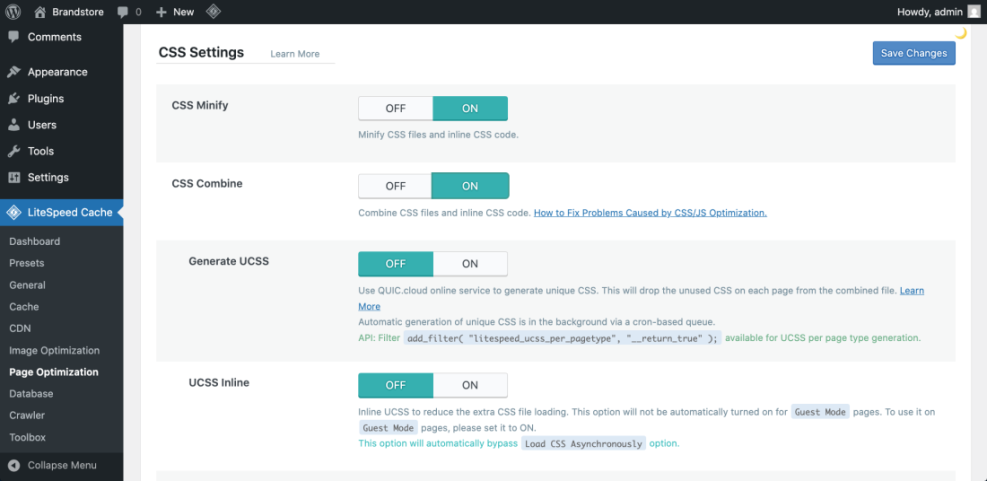
After each change, run another speed test so you can confirm that the adjustments improve metrics instead of introducing new layout or script issues.
Clean Up Database and Plugins
Over time, WordPress databases and plugin collections grow messy. Cleaning them up reduces queries and memory use so each request becomes lighter.
Remove Heavy or Duplicate Plugins
Start by listing all installed plugins and mark the ones you no longer need. Replace overlapping plugins with a single tool that covers multiple tasks, such as caching plus minification. When possible, prefer plugins with a reputation for performance and a small footprint, not just a long feature list.
Optimize Your WordPress Database Safely
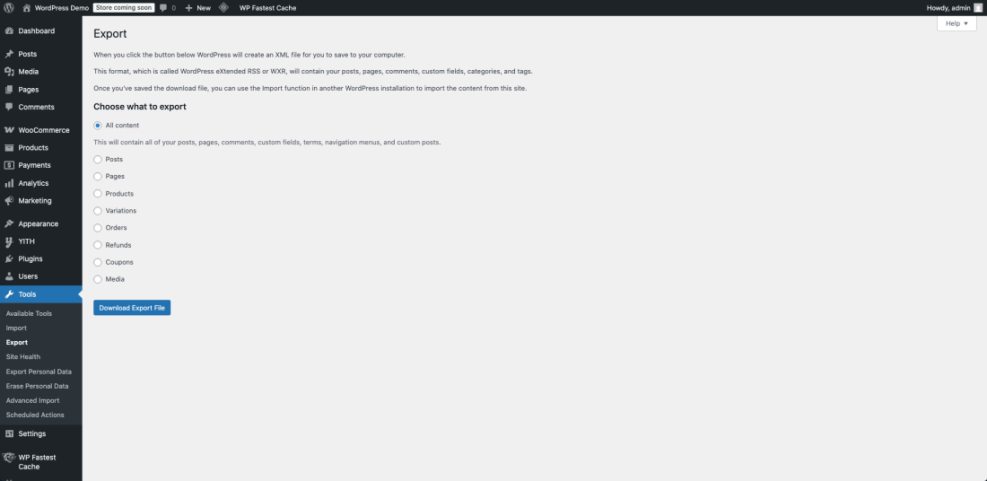
Revisions, transients, and expired data can bloat your database. Optimization plugins can remove this clutter and improve query speed. Always create a full backup before cleaning up, and avoid running heavy optimization routines on peak traffic hours to reduce the risk of slowdowns or timeouts.
Navigate to Tools » Export or use your backup plugin’s export feature to ensure you can restore data if something goes wrong.
Use Simple Code Tweaks for Performance
You can also apply small code changes in wp-config.php to keep your database from growing too fast. For example, you can limit post revisions and increase the autosave interval so WordPress stores fewer versions of each post.
// Add in wp-config.php above the line that says "That's all, stop editing!"
define( 'WP_POST_REVISIONS', 5 );
define( 'AUTOSAVE_INTERVAL', 180 ); // seconds
After adding these lines, clear your caches and keep writing as usual. Over time, you will notice smaller database growth and slightly faster queries when editing or viewing posts.
For more advanced code-based tuning, you can later explore resources like Measure Performance After Redesign, but this is not required for basic optimization.
Improve Core Web Vitals Metrics
Core Web Vitals focus on loading speed, responsiveness, and visual stability. When you improve them, your site feels smoother and easier to use on all devices, not just in synthetic tests.
Improve Largest Contentful Paint First
Largest Contentful Paint (LCP) measures when the main content of a page becomes visible.To improve it, reduce server response time with good hosting, enable caching, and make sure hero images or above-the-fold content load from optimized, compressed files. Preloading critical fonts and avoiding heavy sliders in the header also helps.
Reduce Cumulative Layout Shift Issues
Cumulative Layout Shift (CLS) reflects how much content jumps around during loading. To keep CLS low, always set width and height attributes (or CSS ratios) on images and ad slots. Avoid inserting banners at the top of the page after content loads, and reserve fixed spaces for sticky bars or cookie notices.
How Do You Track Core Web Vitals?
You can monitor Core Web Vitals in Google Search Console and see how real users experience your pages over time. In addition, tools like PageSpeed Insights and WebPageTest show LCP, interaction, and layout metrics for specific URLs, which you can use to test new layouts before rolling them out across your whole site.
WordPress Speed Optimization Conclusion
You now have a practical path to handle WordPress speed optimization without feeling overwhelmed. Start by measuring your current performance, then fix hosting, caching, and images before worrying about small details. This approach delivers visible gains faster and keeps the work under control.
After your first round of changes, set a recurring reminder to re-test key pages and revisit your configuration every few months. As your content, plugins, and traffic grow, new bottlenecks will appear. A simple, repeatable speed workflow helps you catch those early and keep your site feeling fast for every visitor.
More WordPress Guides You Might Like
If you want to go deeper into performance, these related guides expand on specific parts of this checklist.
- WordPress Performance Speed Optimization
- Measuring WordPress Performance After A Redesign
- WooCommerce Performance Tips for Faster Stores
- Advanced developer hooks for WordPress optimization with code
- WordPress speed optimization step by step
These resources, together with the steps in this guide, give you a full roadmap from first tests to advanced tuning across blogs, business sites, and ecommerce stores.
Frequently Asked Questions About WordPress speed optimization
What is a good loading time for a WordPress site?
Do I need a premium caching plugin to speed up my site?
How often should I optimize my WordPress site for speed?
Can too many plugins slow down WordPress?
Does WordPress speed really affect SEO and conversions?